
A keyboard that stops working can be a major disruption. This article provides a comprehensive guide to diagnosing and resolving common keyboard problems, offering step-by-step instructions and troubleshooting methods.

Contents
- 1 Common Causes of a Non-Functioning Keyboard
- 2 Troubleshooting Techniques for a Keyboard That Won’t Work
- 3 Step-by-Step Guide to Fixing a Non-Responsive Keyboard
- 4 The Importance of Updating Keyboard Drivers
- 5 Preventing Future Keyboard Malfunctions
- 6 Seeking Professional Help for Persistent Keyboard Issues
- 7 FAQs
- 7.1 1. What are the common causes of a non-functioning keyboard?
- 7.2 2. What are some troubleshooting techniques for a keyboard that won’t work?
- 7.3 3. How can I identify hardware issues with my keyboard?
- 7.4 4. What are some software solutions for a non-functioning keyboard?
- 7.5 5. How can I prevent future keyboard malfunctions and maintain my keyboard?
Common Causes of a Non-Functioning Keyboard
Understanding why a keyboard fails is the first step toward fixing it. Several factors can contribute to a keyboard becoming unresponsive. These can range from simple connectivity issues to more complex hardware failures.
Connectivity Problems
For wired keyboards, a loose or damaged USB cable is a frequent culprit. Just as a garden hose needs a good connection to deliver water, your keyboard needs a solid link to your computer. USB ports themselves can also fail or become clogged with debris, preventing proper contact. Wireless keyboards introduce another layer of potential issues: depleted batteries, interference from other devices, or a malfunctioning USB receiver. Bluetooth keyboards specifically rely on a stable wireless signal and correct pairing.
Software Glitches
Software can be a silent saboteur. Outdated or corrupt keyboard drivers can render your input device useless. Operating system updates sometimes introduce bugs that affect peripheral functionality. Specific applications might also conflict with keyboard input, leading to apparent selective unresponsiveness. Furthermore, certain accessibility settings, if accidentally enabled, can alter normal keyboard behavior.
Hardware Failures
Physical damage is a straightforward cause. Liquid spills, dropping the keyboard, or excessive force can damage internal components. Individual keys can also stop working due to debris lodged beneath them or a worn-out membrane. In older keyboards, general wear and tear can lead to key degradation. For laptop keyboards, the internal ribbon cable connecting the keyboard to the motherboard can become loose or damaged.
Environmental Factors
Dust, crumbs, and pet hair can accumulate under and between keys, physically blocking their mechanism. High humidity can also affect electronic components, potentially causing short circuits or corrosion over time.
Troubleshooting Techniques for a Keyboard That Won’t Work
Approaching keyboard issues systematically can save time and prevent unnecessary replacements. Begin with the simplest solutions and progress to more complex ones.
Basic Checks for All Keyboard Types
For any keyboard, the initial troubleshooting steps are critical. Restarting your computer is often a surprisingly effective solution, refreshing system processes and potentially resolving temporary software glitches. For wired keyboards, ensure the USB cable is firmly plugged into both the keyboard and the computer. Try a different USB port on your computer, as some ports might be faulty. If the keyboard has a lighted indicator, check if it’s illuminating; this can indicate power.
Specific Checks for Wireless Keyboards
Wireless keyboards require attention to their power source and connection. Replace the batteries with fresh ones, even if you suspect they have some life left. Ensure the USB receiver (dongle) is securely plugged into your computer. If possible, try a different USB port for the receiver. Check for any physical switches on the keyboard itself that might turn it off or on. Interference might be an issue; try moving the keyboard closer to its receiver or away from other wireless devices. For Bluetooth keyboards, ensure it’s paired correctly with your computer. Go to your computer’s Bluetooth settings and confirm the keyboard is listed and connected. If not, try unpairing and re-pairing the device.
Step-by-Step Guide to Fixing a Non-Responsive Keyboard
This section outlines a sequence of actions you can take to directly address keyboard malfunction. Think of this as a diagnostic flowchart for your keyboard, guiding you from simple solutions to more involved ones.
Identifying Hardware Issues
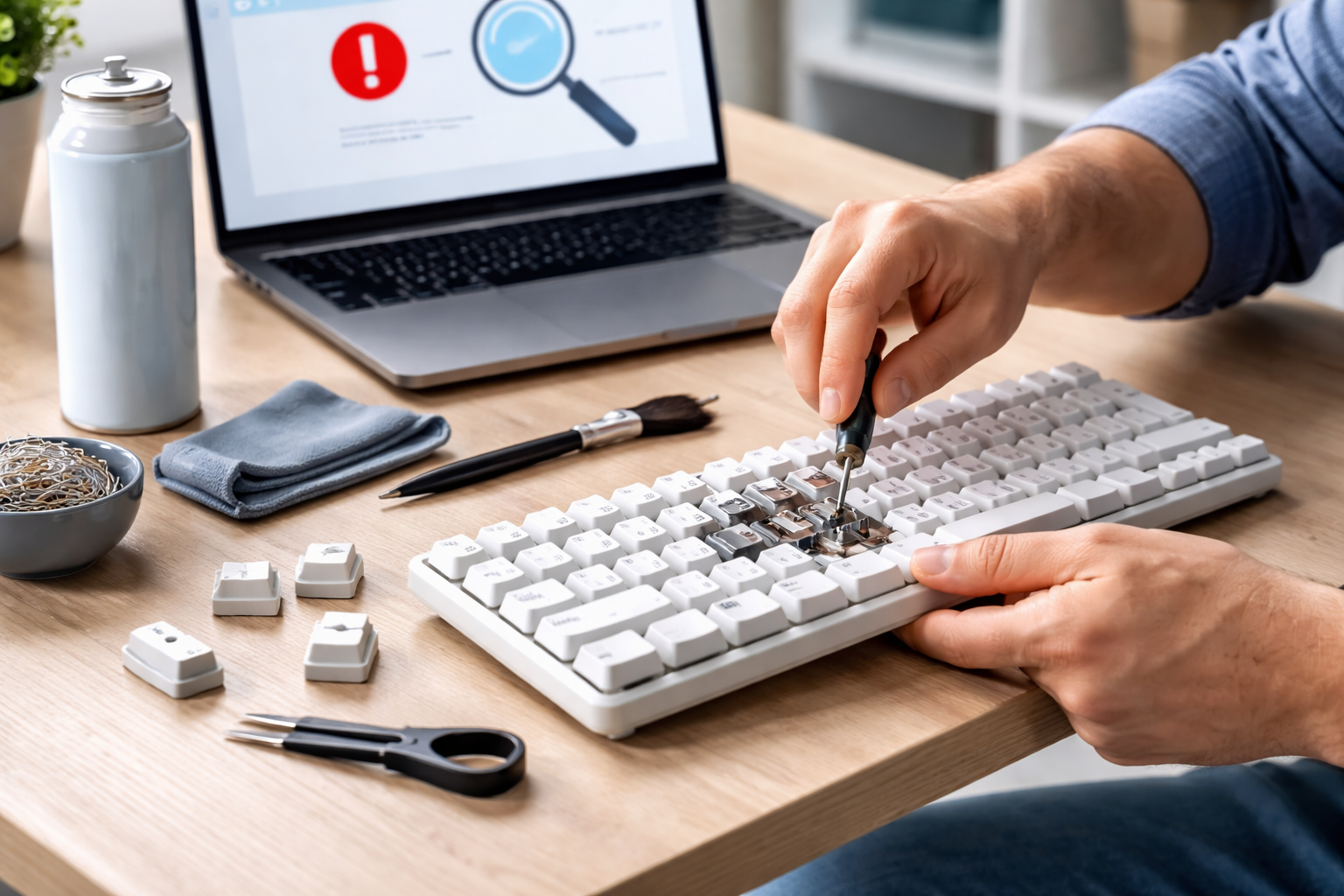
Once basic checks are complete, you need to determine if the problem lies with the keyboard’s physical components. If individual keys are unresponsive, carefully remove the keycap (if possible, gently pry it up with a small flat tool) and inspect for debris. Clean the area with compressed air. For a completely unresponsive keyboard, try connecting it to another computer. If it works on a different machine, the problem likely lies with your original computer’s software or USB ports. If it doesn’t work on another computer, the keyboard itself is probably faulty.
Software Solutions
Software issues often manifest as intermittent or complete keyboard failure without any obvious physical damage. Begin by updating your keyboard drivers. Open Device Manager (on Windows, search for it in the Start menu; on macOS, hardware drivers are typically handled by system updates). Locate your keyboard under “Keyboards,” right-click, and select “Update driver.” You can also visit the keyboard manufacturer’s website for the latest drivers. If an update doesn’t help, try uninstalling the keyboard driver and restarting your computer; the operating system will usually reinstall a generic driver upon reboot. Check your operating system’s keyboard settings. Accidentally toggling settings like Filter Keys or Sticky Keys can alter expected behavior. On Windows, these are found in the Ease of Access Center; on macOS, in System Settings under Accessibility > Keyboard. Scan your computer for malware, as some malicious software can interfere with input devices.
Cleaning and Maintenance
Regular cleaning is a preventative measure, but it’s also a solution for keyboards experiencing sticky or unresponsive keys. Disconnect the keyboard from the computer. Turn it upside down and gently shake it to dislodge loose debris. Use compressed air to blow away dust and crumbs from between the keys. For stubborn grime, dampen a cotton swab with isopropyl alcohol and carefully clean around the keycaps. For a deeper clean of mechanical keyboards, you may remove all keycaps (refer to your keyboard’s manual) and clean the switches themselves with compressed air or a soft brush. Ensure the keyboard is completely dry before reconnecting it.
The Importance of Updating Keyboard Drivers
| Metrics | Importance |
|---|---|
| Improved Performance | Updating keyboard drivers can improve the performance of the keyboard, leading to better responsiveness and accuracy. |
| Compatibility | New drivers ensure compatibility with the latest operating systems and software, preventing issues and errors. |
| Security | Updated drivers can fix security vulnerabilities, protecting the system from potential threats. |
| Bug Fixes | Updates often include bug fixes that can resolve issues such as keys not working or erratic behavior. |
| Enhanced Features | New drivers may introduce enhanced features and customization options for the keyboard. |
Drivers are the intermediaries between your hardware and your operating system. They translate commands and ensure smooth communication.
Why Drivers Matter
Think of a driver as a language interpreter. Your computer speaks one language, your keyboard another. Without the right interpreter, they can’t understand each other. Outdated drivers can lead to misinterpretations, causing sluggish performance, incorrect input, or complete failure. Manufacturers frequently release updated drivers to improve performance, add new features, and fix bugs. Just as you update your apps for better functionality, your drivers need regular attention.
How to Update Drivers
On Windows, the Device Manager is your primary tool. Right-clicking your keyboard entry and selecting “Update driver” often points you to Windows Update. For more specific or recent drivers, directly visiting the manufacturer’s website (e.g., Logitech, Razer, Microsoft) is recommended. Download the appropriate driver installer for your operating system version. On macOS, driver updates are usually bundled with system updates, which can be found in System Settings > General > Software Update. Regular operating system updates generally keep your basic device drivers current.
Preventing Future Keyboard Malfunctions
A little proactive effort can significantly extend your keyboard’s life and prevent repeat issues. Prevention is often simpler and more cost-effective than a cure.
Good Habits for Keyboard Longevity
Keep food and drinks away from your keyboard to avoid spills and crumbs. Dust regularly with compressed air, especially if you have pets. Consider a keyboard cover, particularly in dusty environments, to act as a shield. Avoid dropping or subjecting your keyboard to unnecessary physical stress. If you transport a laptop, ensure it’s in a protective case. For wired keyboards, avoid tightly coiling the cable or bending it sharply, as this can damage internal wires. For wireless keyboards, replace batteries before they completely drain to prevent interruptions and potential data loss.
Regular Software Maintenance
Schedule regular operating system and driver updates. These often include stability fixes and performance improvements that can prevent keyboard-related glitches. Perform periodic malware scans, as some malicious software can interfere with peripheral device functionality. If you frequently install new software, be aware of potential conflicts and check keyboard behavior after new installations. If an application seems to cause keyboard issues, check its settings or consider updating or reinstalling it.
Seeking Professional Help for Persistent Keyboard Issues
When all troubleshooting steps fail, or if you’re uncomfortable performing more invasive diagnostics, professional assistance is the next logical step.
When to Call a Technician
If your keyboard continues to be unresponsive after trying all the suggested solutions, especially if you’ve tested it on another computer and it still fails, it’s likely a hardware fault. For laptops, a non-functional internal keyboard often requires specialized tools and expertise to replace, as it involves disassembling the device. If the problem seems to stem from the computer itself (e.g., USB ports not working, OS corruption), a technician can diagnose the root cause more accurately. They have diagnostic tools and experience to pinpoint problems that might not be obvious to the average user.
What a Professional Can Do
A technician can perform advanced diagnostics, such as checking for motherboard issues that affect USB ports or testing internal keyboard connections on laptops. They can replace faulty components, such as individual keys, the entire keyboard, or damaged USB ports. If the issue is software-related but beyond your comfort level, they can reinstall operating systems, troubleshoot complex driver conflicts, or remove deeply embedded malware. While it incurs a cost, professional repair can save you the expense of a new computer or a new keyboard, and ensure your device is functioning correctly.
FAQs
1. What are the common causes of a non-functioning keyboard?
Some common causes of a non-functioning keyboard include loose connections, hardware issues, outdated drivers, and software glitches.
2. What are some troubleshooting techniques for a keyboard that won’t work?
Some troubleshooting techniques for a non-responsive keyboard include checking the connections, restarting the computer, updating keyboard drivers, and testing the keyboard on another device.
3. How can I identify hardware issues with my keyboard?
You can identify hardware issues with your keyboard by checking for physical damage, loose connections, and testing the keyboard on another device to see if it works.
4. What are some software solutions for a non-functioning keyboard?
Software solutions for a non-functioning keyboard include updating keyboard drivers, running a virus scan to check for malware, and checking for any conflicting software that may be causing the issue.
5. How can I prevent future keyboard malfunctions and maintain my keyboard?
To prevent future keyboard malfunctions, you can regularly clean your keyboard, avoid eating or drinking near it, keep it away from dust and moisture, and update your keyboard drivers regularly.

Hamza Khan is the author and founder of TechFixLogic.info, a platform dedicated to providing practical software guides, tech solutions, and cybersecurity awareness. With a strong interest in technology and digital security, Hamza focuses on creating easy-to-understand tutorials that help users fix software issues, improve their digital skills, and stay safe online.
Through TechFixLogic.info, he shares step-by-step guides, troubleshooting tips, and cybersecurity insights designed for beginners as well as regular computer users. His goal is to simplify technology and make reliable tech knowledge accessible to everyone.


