
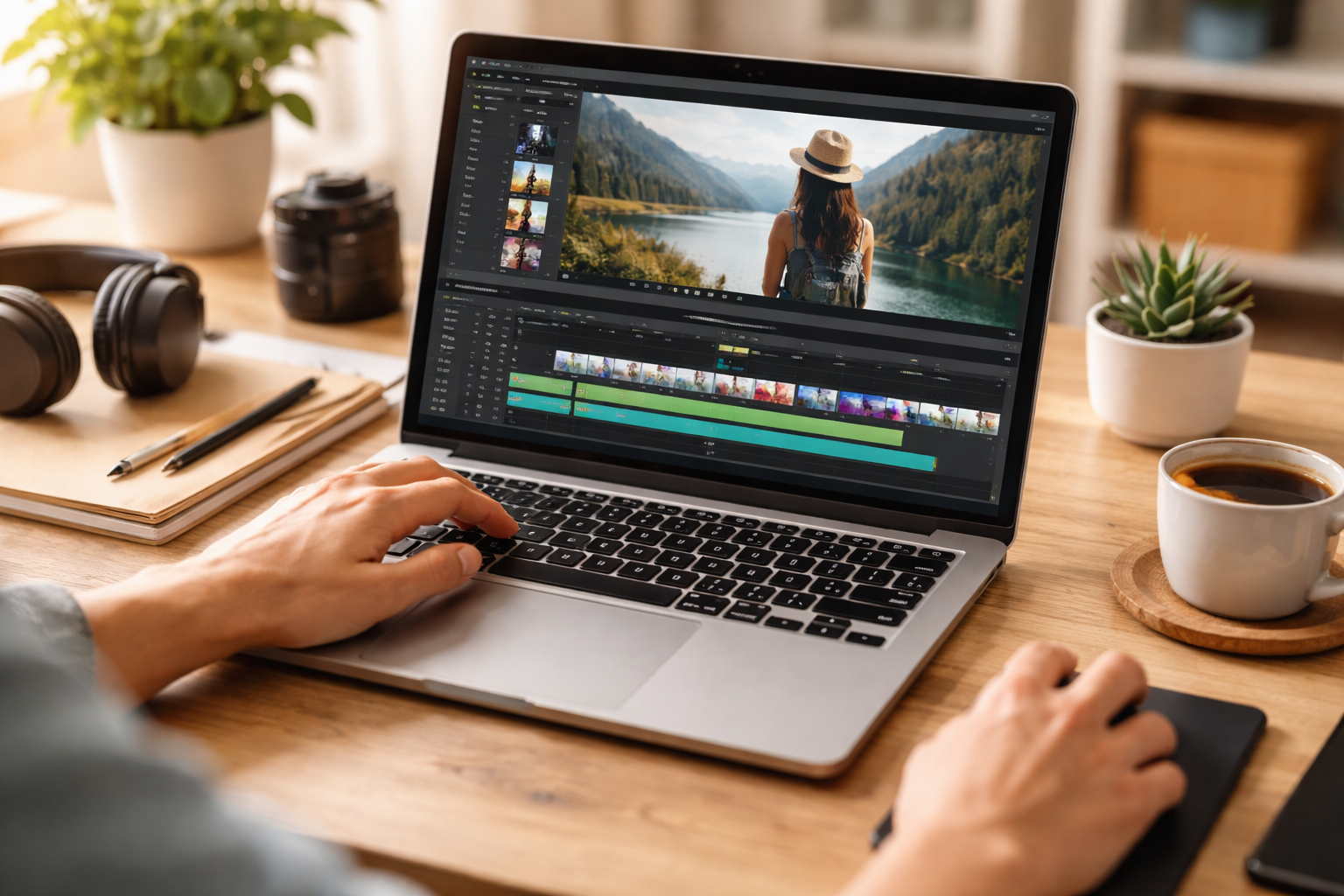
Video editing has become accessible to a wider audience than ever before. This article explores a range of tools and techniques for those new to the field, offering guidance on software selection, basic operations, and common challenges.

Contents
- 1 Understanding the Basics of Video Editing
- 2 Top Features to Look for in Beginner-Friendly Video Editing Tools
- 3 Comparison of User-Friendly Video Editing Software
- 4 Step-by-Step Guide to Editing Your First Video
- 5 Overcoming Common Challenges in Video Editing for Beginners
- 6 FAQs
- 6.1 1. What are some beginner-friendly video editing tools available in the market?
- 6.2 2. What are the top features to look for in beginner-friendly video editing tools?
- 6.3 3. How do I choose the right video editing software for my needs as a beginner?
- 6.4 4. What are some tips and tricks for editing videos like a pro as a beginner?
- 6.5 5. What are some common challenges in video editing for beginners, and how can they be overcome?
Understanding the Basics of Video Editing
Before delving into specific tools, understanding the basic concepts of video editing is helpful. Think of a video project as building with blocks. Each block is a clip, and you arrange them to tell a story or convey information.
The Editing Workflow
The typical video editing workflow involves several stages. First, you import your raw footage, which includes video clips, audio files, and images. Next, you assemble these elements on a timeline, a visual representation of your video’s sequence. Cutting and trimming remove unwanted sections. Transitions smooth the change between clips, much like turning a page in a book. Effects, such as color correction or simple visual overlays, can enhance the footage. Finally, after reviewing and refining your work, you export the finished video in a suitable format for sharing.
Key Terminology
Understanding basic terms is crucial. A “clip” is a segment of video or audio. The “timeline” is where you arrange and manipulate these clips. Transitions are visual effects used to move from one clip to another. Effects are enhancements applied to clips, like filters or speed adjustments. “Render” refers to the process of the software creating a final video file from your edited project, much like baking a cake from its ingredients. “Export” is saving this rendered video in a specific file format.
Top Features to Look for in Beginner-Friendly Video Editing Tools
When selecting your first video editor, certain features simplify the learning process and allow for quick results. Prioritizing ease of use is often more important than a tool with every advanced function.
Intuitive User Interface
A beginner-friendly tool should have a clear and uncluttered interface. You should be able to quickly locate essential functions like importing media, cutting clips, and adding transitions. Icons should be easily understandable, and menu structures logical. A complex interface can be a barrier to entry, much like a poorly labeled map.
Basic Editing Capabilities
At a minimum, the software should allow you to cut, trim, and split clips. The ability to rearrange clips on the timeline is fundamental. Audio editing features, such as adjusting volume and adding background music, are also important. Simple text overlays for titles or captions enhance communication. These core functions form the bedrock of any video project.
Pre-set Effects and Templates
Many beginner-oriented tools offer libraries of preset transitions, titles, and effects. These can add a polished look to your videos without requiring extensive technical knowledge. Think of them as pre-made building blocks that you can quickly drop into your project. Some tools also provide video templates for common video types, like vlogs or slideshows, giving you a starting structure to work from.
Comparison of User-Friendly Video Editing Software
The market offers various software options tailored for beginners. Each has its strengths and often comes with a free or trial version, allowing you to experiment.
Desktop-Based Editors
Desktop software generally provides more robust features and better performance, especially for longer or more complex projects. Examples include DaVinci Resolve (free, professional-grade but with a learning curve for advanced features), Shotcut (free, open-source), and Apple iMovie (free for Apple users). iMovie is particularly noted for its simplicity and close integration with the Apple ecosystem. These tools are like having a dedicated workshop for your video projects.
Web-Based Editors
Web-based editors operate directly in your browser, requiring no software installation. They are often convenient for quick edits or collaboration. Examples include Clipchamp (which Microsoft now owns), WeVideo, and CapCut (also available as a desktop app). While convenient, they often depend on a stable internet connection and may have limitations on file size or export quality in their free versions. They are like a portable tool kit, always ready for small tasks.
Mobile Editing Apps
Mobile apps for smartphones and tablets offer the ultimate in portability. They are excellent for editing on the go or for creating social media content. Examples include CapCut, InShot, and KineMaster. These apps are designed for touch screen interaction and often feature simplified interfaces and quick sharing options. They are like a pocketknife—versatile for many smaller jobs.
Step-by-Step Guide to Editing Your First Video
| Step | Description |
|---|---|
| 1 | Import video clips and audio files into editing software |
| 2 | Arrange clips in the desired order on the timeline |
| 3 | Trim and cut out any unnecessary parts from the video clips. |
| 4 | Add transitions between clips for smooth flow |
| 5 | Insert text, titles, and captions as needed |
| 6 | Enhance the video with color correction and filters |
| 7 | Adjust audio levels and add background music or sound effects |
| 8 | Preview the edited video and make any necessary revisions |
| 9 | Export the final video in the desired format and resolution |
Let’s walk through the process of creating a simple video. This general guide can be adapted to most beginner-friendly editing software.
Importing Your Footage
The first step is to bring your media into the editing software. Look for an “Import” button or menu option. You will typically browse your computer or device to select your video clips, photos, and audio files. Once imported, these assets will appear in a media library within the software.
Assembling on the Timeline
Drag and drop your imported clips onto the timeline in the desired order. You can rearrange them by clicking and dragging. This sequence forms the basic structure of your video. Think of the process as arranging the chapters of a book.
Basic Cuts and Trims
To remove parts of a clip, select it on the timeline. You will usually find tools to “trim” (shorten from the ends) or “split” (cut a clip into two separate pieces). Delete unwanted sections. Precision here makes a big difference in pacing.
Adding Transitions and Music
Between clips, you can add transitions to smooth the visual flow. Browse the “Transitions” library, select one, and drag it to the point where two clips meet. For audio, import your chosen music track and drag it to an audio track on the timeline. Adjust its volume and trim it to fit the length of your video.
Exporting Your Video
Once satisfied with your edit, look for an “Export” or “Share” option. You will typically be prompted to choose a file format (like MP4), resolution (e.g., 1080p), and quality settings. Choose settings appropriate for where you plan to share the video (e.g., social media or YouTube). The software will then process your project into a single video file.
Overcoming Common Challenges in Video Editing for Beginners
New editors often encounter similar hurdles. Understanding these can help you navigate them more effectively.
Managing Media Files
Keeping your raw footage organized is critical. Create a dedicated folder for each project and place all related media—video clips, audio, and images—within it. This prevents “missing file” errors when you reopen a project. Think of it as a well-indexed library for your project’s components.
Understanding Pacing and Flow
Pacing refers to the speed at which your video unfolds. A fast pace keeps viewers engaged, while a slow pace can build atmosphere or emphasize a point. Avoid long, unedited clips. Varying shot lengths and using transitions effectively contributes to excellent flow. This technique is comparable to the rhythm of a piece of music.
Audio Quality
Poor audio can detract from even well-shot video. Pay attention to background noise and ensure dialogue is clear. Most beginner tools offer basic noise reduction or audio leveling. If possible, record audio in quiet environments. Good audio is often the invisible hero of a video.
This guide provides a foundation for new video editors. With practice and experimentation, you can effectively use these tools to create compelling visual stories.
FAQs
1. What are some beginner-friendly video editing tools available in the market?
Some beginner-friendly video editing tools include iMovie, Windows Movie Maker, Adobe Premiere Elements, Filmora, and Shotcut. These tools are designed to be user-friendly and offer basic editing features for beginners.
2. What are the top features to look for in beginner-friendly video editing tools?
When choosing a beginner-friendly video editing tool, look for features such as a user-friendly interface, basic editing functions like trimming and cutting, audio editing capabilities, built-in effects and transitions, and support for various file formats.
3. How do I choose the right video editing software for my needs as a beginner?
To choose the right video editing software as a beginner, consider factors such as your budget, the type of projects you will be working on, the learning curve of the software, and the availability of tutorials and support. It’s also important to consider the compatibility of the software with your computer’s operating system.
4. What are some tips and tricks for editing videos like a pro as a beginner?
Some tips and tricks for editing videos like a pro as a beginner include planning your edits before starting, using keyboard shortcuts to speed up the editing process, paying attention to audio quality, experimenting with different effects and transitions, and seeking feedback from others to improve your editing skills.
5. What are some common challenges in video editing for beginners, and how can they be overcome?
Common challenges in video editing for beginners include understanding the software interface, learning how to use different editing tools, and maintaining a consistent editing style. You can overcome these challenges by practicing regularly, watching tutorials, and seeking guidance from experienced editors.

Hamza Khan is the author and founder of TechFixLogic.info, a platform dedicated to providing practical software guides, tech solutions, and cybersecurity awareness. With a strong interest in technology and digital security, Hamza focuses on creating easy-to-understand tutorials that help users fix software issues, improve their digital skills, and stay safe online.
Through TechFixLogic.info, he shares step-by-step guides, troubleshooting tips, and cybersecurity insights designed for beginners as well as regular computer users. His goal is to simplify technology and make reliable tech knowledge accessible to everyone.


