

Contents
- 1 Resolving Sound Problems on Your PC
- 2 Understanding Common Sound Issues on Your PC
- 3 Troubleshooting Sound Problems: A Step-by-Step Guide
- 4 FAQs
- 4.1 1. What are some common sound issues that can occur on a PC?
- 4.2 2. How can I troubleshoot and resolve sound problems on my PC?
- 4.3 3. What steps can I take to fix no sound or low volume issues on my PC?
- 4.4 4. How can I address distorted or crackling sound on my PC?
- 4.5 5. When should I seek professional help for persistent sound problems on my PC?
Resolving Sound Problems on Your PC
This guide addresses common sound problems encountered on personal computers and offers a step-by-step approach to their resolution. Sound, much like the lifeblood of a digital experience, can sometimes falter, leaving users with silence, distortion, or lag. Understanding the underlying causes and applying systematic troubleshooting methods can restore audio functionality.
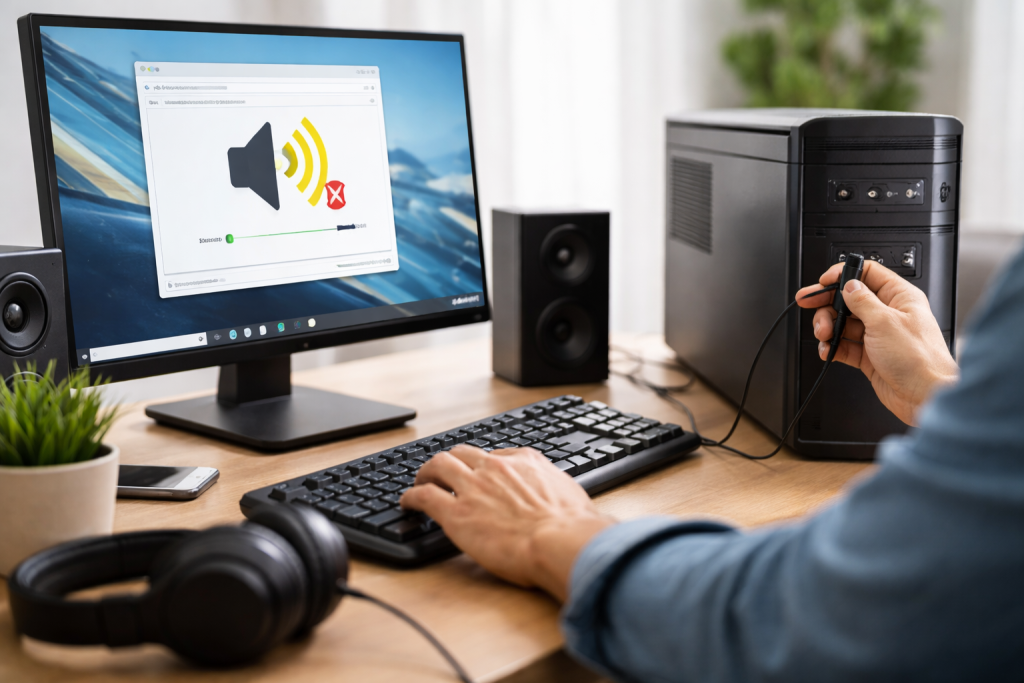
Understanding Common Sound Issues on Your PC
PC sound systems, while generally reliable, can encounter a range of problems. These issues often stem from misconfigurations, outdated software, hardware malfunctions, or conflicts between different system components. Identifying the specific symptom is the first step toward diagnosis.
No Sound at All
This is perhaps the most frustrating problem. The computer appears to be functioning correctly, but no audio output is present. This can occur due to a muted system volume, a disabled audio device, or a complete hardware failure. It’s like trying to speak but having no voice.
Low Volume or Weak Audio Output
The sound plays, but it is too quiet to be useful, even at maximum settings. This can indicate a problem with the audio drivers, a low output level set incorrectly, or a hardware limitation of the speakers or headphones. The sound is there, but it feels distant and muffled.
Distorted or Crackling Sound
Audio playback is marred by static, pops, or a general muffling of the sound quality. This can be caused by driver issues, overloaded audio processing, interference from other electronic devices, or a failing audio component. The clarity of the sound is lost, like a radio signal struggling to find a clear frequency.
Sound Lag or Delay
There is a noticeable gap between the visual action on screen and the corresponding sound, particularly common in video playback or gaming. This can be attributed to system performance issues, incorrect audio settings, or problems with buffering. The synchronization between sight and sound is broken, creating an unsettling disconnect.
Sound Issues in Specific Applications
Sometimes, sound problems are not system-wide but confined to one or a few specific programs. This suggests that the issue lies within the application’s audio settings or its compatibility with the system’s audio drivers. The problem is like a clogged pipe in one room of a house, rather than a general plumbing issue.
Troubleshooting Sound Problems: A Step-by-Step Guide
When sound issues arise, a methodical approach is crucial. This guide outlines a series
FAQs
1. What are some common sound issues that can occur on a PC?
Some common sound issues that can occur on a PC include no sound or low volume, distorted or crackling sound, sound lag or delay, and specific application- or program-related sound problems.
2. How can I troubleshoot and resolve sound problems on my PC?
You can troubleshoot and resolve sound problems on your PC by checking the volume settings, ensuring the speakers or headphones are properly connected, updating drivers and software, adjusting sound settings, and using external devices to enhance sound quality.
3. What steps can I take to fix no sound or low volume issues on my PC?
To fix no sound or low volume issues on your PC, you can check the volume settings, ensure the speakers or headphones are properly connected, update audio drivers, and adjust sound settings for optimal quality.
4. How can I address distorted or crackling sound on my PC?
To address distorted or crackling sound on your PC, you can check the audio cables and connections, update audio drivers, adjust sound settings, and use external devices to enhance sound quality.
5. When should I seek professional help for persistent sound problems on my PC?
You should seek professional help for persistent sound problems on your PC if you have tried troubleshooting steps and the issues persist, or if you suspect hardware issues that require professional diagnosis and repair.

Hamza Khan is the author and founder of TechFixLogic.info, a platform dedicated to providing practical software guides, tech solutions, and cybersecurity awareness. With a strong interest in technology and digital security, Hamza focuses on creating easy-to-understand tutorials that help users fix software issues, improve their digital skills, and stay safe online.
Through TechFixLogic.info, he shares step-by-step guides, troubleshooting tips, and cybersecurity insights designed for beginners as well as regular computer users. His goal is to simplify technology and make reliable tech knowledge accessible to everyone.


