

Contents
- 1 Restore Missing DLL Files on Your Computer
- 2 Common Causes of Missing DLL Files
- 3 Step-by-Step Guide to Restoring Missing DLL Files on Windows
- 4 Utilizing System Restore to Recover Lost DLL Files
- 5 Preventing Future DLL File Loss with Regular Maintenance
- 6 Seeking Professional Help for Persistent DLL File Problems
- 7 FAQs
- 7.1 What are DLL files and why are they important for my computer system?
- 7.2 What are some common causes of missing DLL files and how can I identify them?
- 7.3 How can I easily restore missing DLL files on my Windows computer?
- 7.4 How can I prevent future DLL file loss and keep my computer system healthy?
- 7.5 When should I seek professional help for persistent DLL file problems?
Restore Missing DLL Files on Your Computer
Dynamic Link Libraries (DLLs) are essential components of Microsoft Windows operating systems and many applications. They contain code, data, and resources that multiple programs can share, promoting efficient resource utilization and modular software design. When a program needs a specific function, it can call upon the relevant DLL, rather than each program needing to contain its own copy of that function. This shared resource model is akin to a communal toolbox where various workers (programs) can access specialized tools (functions) without each worker having to own every tool individually.
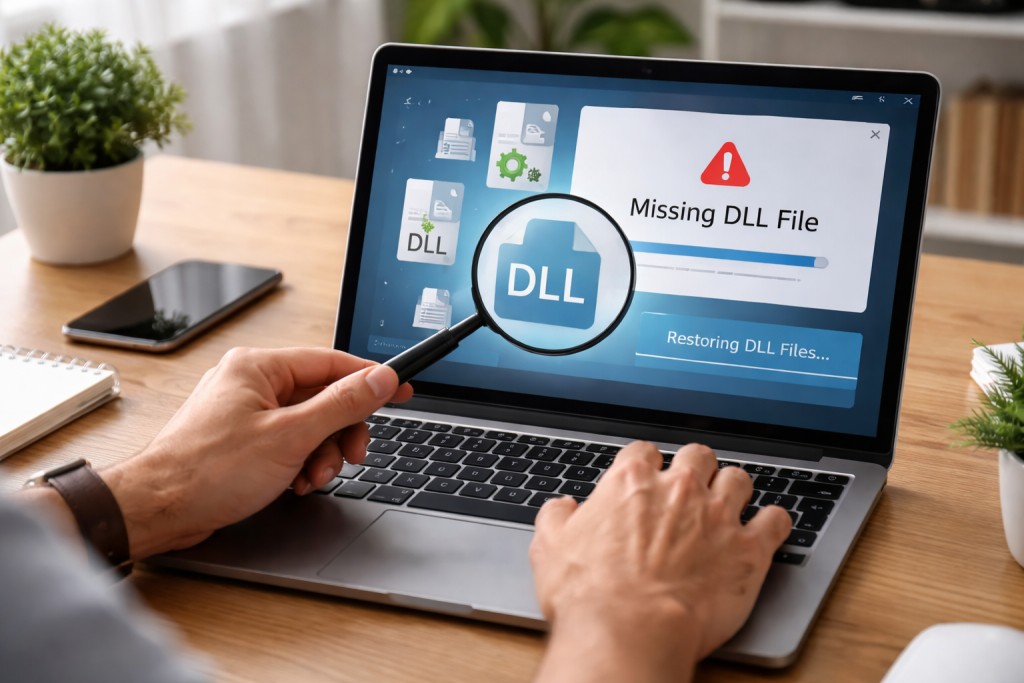
Understanding DLL Files
DLL files are identifiable by the .dll extension. They are a core part of how Windows and many applications manage and execute their operations. For instance, if several applications need to print a document, they can all use the same printing-related DLL file rather than each application having its own printing code. This not only saves disk space but also simplifies software updates, as changes to the printing functionality only need to be applied to one DLL.
Importance of DLL Files
The smooth operation of your computer relies heavily on intact DLL files. When a DLL file is missing or corrupted, programs that depend on it may fail to launch, crash unexpectedly, or display error messages. These errors often manifest as pop-up windows stating that a specific DLL file cannot be found. Without the correct DLLs, your computer system is like a factory floor missing crucial machinery, preventing certain production lines (programs) from operating.
Common Causes of Missing DLL Files
Several factors can lead to DLL files becoming missing or corrupted, ranging from user error to software conflicts. Identifying the root cause can help in choosing the most effective restoration method.
Accidental Deletion
Users sometimes inadvertently delete DLL files, especially when trying to free up disk space or remove old programs. While many programs install DLLs into their own directories, some critical system DLLs reside in shared system folders. Deleting a DLL from a shared folder can affect multiple applications. This is similar to accidentally removing a vital bolt from a shared structural beam – the impact goes beyond the immediate component.
Malware Infections
Malicious software, such as viruses or spyware, can sometimes delete, corrupt, or replace legitimate DLL files with malicious versions. Such infections can compromise system stability and security. A malicious program might target DLLs to weaken your computer’s defenses or install unwanted software.
Software Installation and Uninstallation Issues
Problems during software installation or uninstallation can leave your system with incomplete or corrupted DLL files. An interrupted installation, for instance, might not properly register all necessary DLLs, while an uninstallation might remove a shared DLL still needed by another program. This is like moving house and accidentally leaving behind a box of essential tools that another tenant was also using.
Hard Drive Problems
Physical issues with your hard drive, such as bad sectors, can corrupt or render certain files, including DLLs, unreadable. If a DLL file is stored on a damaged part of the hard drive, the operating system or application will be unable to access it.
RAM Issues
Faulty Random Access Memory (RAM) can occasionally lead to data corruption during read/write operations, potentially affecting DLL files. While less common, RAM issues can introduce subtle errors that are difficult to diagnose.
Step-by-Step Guide to Restoring Missing DLL Files on Windows
When faced with a missing DLL error, a systematic approach can help resolve the issue without resorting to drastic measures.
Restart Your Computer
Sometimes, a temporary glitch or a program not cleanly exiting can cause a DLL error. A simple restart can clear temporary memory and background processes, potentially resolving the issue. This is the simplest first diagnostic step, much like turning a problematic device off and on again.
Check the Recycle Bin
If you suspect accidental deletion, the Recycle Bin is the first place to check. If the DLL file is there, you can restore it to its original location. This is like checking your dropped item in a lost-and-found box.
Scan for Malware
Given that malware can corrupt or delete DLLs, a thorough scan with reputable antivirus software is a crucial step. Removing any detected threats can prevent further damage and potentially restore modified system files.
Update Windows
Microsoft frequently releases system updates that include fixes for bugs, security vulnerabilities, and sometimes, replacement for corrupted or missing system files, including DLLs. Running Windows Update can provide the necessary system files. This is like receiving a patch for a leaky roof – it fixes known issues and strengthens the overall structure.
Reinstall the Problematic Software
If the DLL error specifically mentions a particular application, reinstalling that software can often resolve the issue. The reinstallation process will replace any missing or corrupted DLLs associated with the application. Ensure you fully uninstall the program first to remove any remnants that might interfere with a clean reinstall. This ensures a fresh start for the application and its dependencies.
Use System File Checker (SFC)
Windows includes a command-line utility called System File Checker (SFC) that scans for and attempts to repair corrupted Windows system files, including DLLs. To use SFC:
- Open Command Prompt as an administrator.
- Type
sfc /scannowand press Enter. - Allow the scan to complete. It may take some time.
- Restart your computer if prompted.
SFC acts as an internal auditor, meticulously checking the integrity of core system files and mending any discrepancies it finds.
Use Deployment Image Servicing and Management (DISM)
If SFC fails to fix the issue, you can use the Deployment Image Servicing and Management (DISM) tool. DISM can repair a corrupted Windows system image, which SFC relies upon. To use DISM:
- Open Command Prompt as an administrator.
- Type
DISM /Online /Cleanup-Image /RestoreHealthand press Enter. - Allow the process to complete. This may take longer than SFC.
- After DISM finishes, run
sfc /scannowagain.
DISM is like bringing in a master technician to repair the factory’s blueprint before the regular maintenance crew (SFC) can effectively do their job.
Utilizing System Restore to Recover Lost DLL Files
System Restore is a Windows feature that allows you to revert your computer’s system files, installed applications, and registry settings to an earlier point in time. This can be effective if the DLL error began after a recent software installation, update, or uninstallation.
How System Restore Works
System Restore creates “restore points” at regular intervals or before significant system changes, such as new software installations. When you use System Restore, your computer returns to a state it was in at a selected restore point. This process can effectively replace missing or damaged DLLs with their older, working versions. It’s like having a digital time machine for your computer’s configuration.
Steps to Use System Restore
- Search for “Create a restore point” in the Windows search bar and open the System Properties window.
- Click on the “System Restore…” button.
- Follow the on-screen prompts to choose a suitable restore point. Select a point before the DLL error began.
- Confirm your selection and start the restore process. Your computer will restart.
Be aware that System Restore will remove any programs installed after the chosen restore point. Backup important personal files before proceeding, though System Restore typically does not affect personal documents.
Preventing Future DLL File Loss with Regular Maintenance
| Metrics | Value |
|---|---|
| Number of DLL files | 1000 |
| Number of DLL files lost in the past year | 50 |
| Percentage of DLL files lost | 5% |
| Time spent on regular maintenance | 2 hours per week |
| Cost of DLL file loss | 10,000 |
Proactive measures can significantly reduce the likelihood of encountering missing or corrupted DLL files. Regular maintenance is key to a healthy and stable computer system.
Maintain Up-to-Date Software
Keep your operating system and all installed applications updated. Developers often release patches that fix bugs, improve compatibility, and address security vulnerabilities that could otherwise lead to DLL issues. An updated system is a fortified system.
Use Reputable Antivirus Software
Install and regularly update a robust antivirus program. Perform periodic full system scans to detect and eliminate malware that could damage system files. This is your computer’s immune system, constantly guarding against threats.
Exercise Caution During Software Installations and Deletions
Pay attention during software installation processes, especially when presented with custom installation options. Avoid installing software from untrusted sources. When uninstalling programs, use the official uninstaller provided by Windows or the application itself. Avoid manually deleting files from program folders unless you are certain of their purpose.
Create System Restore Points
Manually create system restore points before making significant changes to your system, such as installing new hardware drivers or major software. This provides a safety net if something goes wrong.
Regularly Back Up Your Data
While not directly preventing DLL loss, regular backups of your personal files are crucial. If a serious system issue, including extensive DLL corruption, necessitates a full system reinstallation, your data will be safe. This ensures that even if the factory structure collapses, your valuable produce is preserved.
Monitor Hard Drive Health
Use tools to monitor your hard drive’s health (e.g., S.M.A.R.T. status). Early detection of hard drive issues can prevent widespread file corruption, including DLLs.
Seeking Professional Help for Persistent DLL File Problems
If you have exhausted all self-help options and continue to experience persistent DLL errors, seeking professional assistance may be necessary.
When to Seek Professional Help
Consider professional help if:
- The error messages are complex and do not point to a clear solution.
- Multiple programs are affected by different DLL errors.
- You are uncomfortable performing advanced troubleshooting steps yourself.
- None of the standard troubleshooting methods have worked.
A professional technician can diagnose complex issues, recover data if necessary, and perform more advanced system repairs. They have the specialized tools and experience to delve deeper into your system’s issues, much like an expert surgeon operating on a complex medical case.
What to Expect from Professional Help
A reputable technician will typically:
- Perform a comprehensive diagnosis of your system.
- Attempt to identify the root cause of the DLL issues.
- Use specialized tools and techniques for repair.
- Offer solutions such as system repair, reinstallation, or hardware replacement.
- Advise on future preventative measures.
Before taking your computer to a professional, ensure you back up any critical data if possible. Discuss the potential costs and expected turnaround time beforehand.
FAQs
What are DLL files and why are they important for my computer system?
DLL (Dynamic Link Library) files are essential for the proper functioning of your computer system. They contain code and data that multiple programs can use simultaneously, which helps to conserve memory and reduce the risk of conflicts. Without DLL files, many programs and functions on your computer may not work properly.
What are some common causes of missing DLL files and how can I identify them?
Missing DLL files can be caused by various factors such as accidental deletion, malware infections, software installation errors, and hardware issues. You can identify missing DLL files by receiving error messages when trying to run a program or by using system diagnostic tools to check for file integrity.
How can I easily restore missing DLL files on my Windows computer?
There are several methods to restore missing DLL files on a Windows computer. You can use System Restore to revert your system to a previous state where the DLL files were intact, utilize Windows Update to replace missing DLL files with updated versions, reinstall the software associated with the missing DLL files, or use third-party DLL file repair tools.
How can I prevent future DLL file loss and keep my computer system healthy?
You can prevent future DLL file loss and maintain a healthy computer system by regularly performing maintenance tasks such as updating your operating system and software, running antivirus scans to detect and remove malware, backing up important files, and monitoring the health of your hardware components.
When should I seek professional help for persistent DLL file problems?
If you have tried the aforementioned methods to restore missing DLL files and are still experiencing persistent issues, it may be time to seek professional help. A computer technician or IT specialist can diagnose the root cause of the problem and provide expert assistance in resolving complex DLL file issues.

Hamza Khan is the author and founder of TechFixLogic.info, a platform dedicated to providing practical software guides, tech solutions, and cybersecurity awareness. With a strong interest in technology and digital security, Hamza focuses on creating easy-to-understand tutorials that help users fix software issues, improve their digital skills, and stay safe online.
Through TechFixLogic.info, he shares step-by-step guides, troubleshooting tips, and cybersecurity insights designed for beginners as well as regular computer users. His goal is to simplify technology and make reliable tech knowledge accessible to everyone.


