
Foundations of Account Security
The initial layers of defense for any online account lie in the creation and management of credentials. Strong passwords act as the first barrier, while two-factor authentication provides a critical secondary verification.
Crafting Robust Passwords
A strong password is the cornerstone of account security. It serves as the primary security measure for your digital account. Weak passwords are easily guessed or cracked, leaving accounts vulnerable. When creating a password, prioritize length and complexity. A password should consist of a mix of uppercase and lowercase letters, numbers, and symbols. Avoid common words, personal information such as birthdates or pet names, and sequential numbers or letters. Automated attack methods can easily exploit these.
Think of your password as a unique key. If everyone had the same simple key, locks would be useless. Each key must be distinct. Therefore, using the same password across multiple platforms is a significant risk. If one account is compromised, all accounts sharing that password become vulnerable, like a domino effect. Instead, cultivate unique passwords for each service. Password managers are tools that can generate and securely store complex, unique passwords for all your accounts, simplifying this crucial task.
Implementing Two-Factor Authentication
Two-Factor Authentication (2FA) adds a vital second layer of security beyond your password. It requires a second piece of information to verify your identity, even if someone has obtained your password. This piece of data can be a code sent via SMS to your registered phone, a generated code from an authenticator app, or a physical security key.
Consider 2FA as a deadbolt on your digital door. Even if a thief picks the primary lock (your password), they still need to bypass the deadbolt (2FA) to gain entry. This significantly raises the bar for unauthorized access. Most major social media platforms offer 2FA, and enabling it is a straightforward process, often involving a few clicks in the account settings. It acts as an effective deterrent against phishing attempts and credential stuffing attacks, where attackers use stolen username and password combinations from breaches on other websites.
Navigating Digital Threats
Beyond basic account protection, users must remain vigilant against external threats that attempt to trick them into compromising their security. Phishing is a prevalent method, and being able to identify and avoid such attempts is crucial.
Recognizing Phishing Attempts
Phishing is a deceptive practice where attackers attempt to trick individuals into revealing sensitive information, such as usernames, passwords, or credit card details, by impersonating trustworthy entities. These attempts often come in the form of emails, messages, or websites that appear legitimate.
Imagine a wolf in sheep’s clothing. A phishing message might look like it’s from your social media provider, your bank, or a friend, urging you to click a link or download an attachment. However, the true intent is malicious. Look for inconsistencies in sender addresses, grammatical errors, suspicious links, or urgent language demanding immediate action. Always hover over links before clicking to see the actual destination URL. If it doesn’t match the expected domain, it’s likely a phishing attempt. Legitimate organizations rarely request sensitive information via unsolicited emails or messages. When in doubt, navigate directly to the official website or app to log in, rather than using a link from an email.
Maintaining Account Integrity
Regular verification and proactive management of privacy settings are essential to ensure your social media accounts remain secure and that your personal information is not exposed beyond your consent.
Updating Privacy Settings
Social media platforms offer a range of privacy settings that allow you to control who can see your posts, engage with your content, and access your personal information. These settings are not static and often evolve with platform updates.
Think of your privacy settings as a set of adjustable blinds on your windows. You decide how much of your interior (personal data) is visible to the outside world. Regularly review and update these settings to reflect your current comfort level with privacy. Understand the implications of public versus private profiles, who can tag you, who can send you messages, and whose posts appear in your feed. Default settings are often not the most private. Take the time to customize them. This helps prevent unwanted interactions, limits the scope of data collection by third parties, and generally reduces your digital footprint.
Monitoring Account Activity
Proactive monitoring of your social media accounts for unusual activity is a critical security measure. This involves checking login histories, linked applications, and notifications of changes to your account.
Consider yourself a diligent security guard for your own digital property. Regularly check the “security and login” or “account activity” sections within your social media settings. Look for unfamiliar login locations, times, or devices. If you spot anything suspicious, it could indicate unauthorized access. Many platforms will also notify you via email or notification if your password has been changed, a new device has logged in, or certain security settings have been altered. Treat these notifications seriously. If you detect unauthorized activity, change your password immediately, terminate any suspicious sessions, and report the incident to the platform.
Protecting Personal Information
| Metrics | 2019 | 2020 | 2021 |
|---|---|---|---|
| Number of data breaches | 1000 | 1200 | 1500 |
| Percentage of individuals affected | 25% | 30% | 35% |
| Amount spent on cybersecurity | 10 billion | 12 billion | 15 billion |
The information you share online, directly or indirectly, can be used against you if not managed carefully. Being selective about what you post and how you connect to the internet is paramount.
Avoiding Excessive Personal Information Sharing
Social media platforms are designed for sharing, but there is a fine line between sharing and oversharing. Posting excessive personal details can create opportunities for identity theft, targeted attacks, and other security risks.
Imagine each piece of personal information you post as a puzzle piece. Adversaries collect these pieces to build a complete picture of you, which can be used for malicious purposes. Avoid publicly sharing sensitive information like your home address, phone number, exact birthdate, financial details, or travel plans. Even seemingly innocuous details, when combined, can be used to answer security questions, gain access to other accounts, or even facilitate physical harm. Exercise caution when sharing details about your workplace, daily routines, or the names of family members, especially children. Be mindful of location-sharing features, and consider whether the benefit outweighs the risk.
Utilizing Secure Wi-Fi Networks
The network you use to access social media plays a significant role in the security of your data. Unsecured public Wi-Fi networks pose substantial risks.
Think of an unsecured public Wi-Fi network as a party line where everyone can overhear your conversation. Data transmitted over these networks, unless encrypted, can be intercepted by malicious actors. This includes your login credentials, personal messages, and other sensitive information. When using public Wi-Fi (e.g., in coffee shops, airports), avoid logging into sensitive accounts. If you must, use a Virtual Private Network (VPN), which encrypts your internet connection, creating a secure tunnel for your data. At home, ensure your Wi-Fi network is password-protected with strong encryption (WPA2 or WPA3) and consider changing the default router password.
Building a Secure Social Circle
Your online interactions and the connections you make directly impact your security posture. A careful approach to friend requests and staying current with security knowledge are crucial.
Being Selective with Friend Requests
The “friends” or “followers” on your social media accounts form your digital community. Accepting requests from unknown individuals can expose you to security and privacy risks.
Consider your social media network as a physical club. You wouldn’t let just anyone into your private club without knowing who they are. Be selective. Unknown accounts could be bots, spammers, or individuals with malicious intentions attempting to gather information or spread malware. Review profiles carefully before accepting requests. Look for mutual friends, shared interests, and a consistent online history. If a profile seems sparse, too good to be true, or aggressively seeks personal information, it’s prudent to decline the request. A smaller, trusted network is often more secure than a large, indiscriminate one.
Staying Ahead of Threats
The landscape of online security is constantly evolving. Continuous learning and prompt action when threats emerge are key to sustained protection.
Staying Informed About Security Updates
Technology and hacking techniques are in constant flux. What is secure today may be vulnerable tomorrow. Staying informed about the latest security threats and updates from your social media platforms is imperative.
Imagine security as a continuous race against those seeking to exploit vulnerabilities. To win, you must keep pace. Most social media platforms regularly release security updates, patches, and advice. Pay attention to these notifications. Follow reputable cybersecurity news sources. Understand common attack vectors like new phishing schemes, malware trends, or data breaches. This knowledge empowers you to recognize and avoid emerging threats proactively. Platforms also provide tips and best practices; incorporating these into your routine strengthens your defenses.
Reporting Suspicious Activity Immediately
Detecting suspicious activity is only half the battle; the other half is taking immediate action. Reporting incidents helps protect not only yourself but also the wider online community.
If you observe anything out of the ordinary—an unfamiliar login, a suspicious message impersonating a friend, or content that violates platform policies—report it. Social media platforms have mechanisms for reporting such incidents. Early reporting can help the platform investigate, mitigate harm, and potentially prevent wider attacks. Imagine reporting a fire alarm: immediate action can prevent a small incident from becoming a catastrophe. Your vigilance contributes to a safer online environment for everyone.
FAQs
1. Why is it important to create strong and unique passwords for social media accounts?
It is important to create strong and unique passwords for social media accounts to prevent unauthorized access and protect personal information from being compromised.
2. What is two-factor authentication, and why should it be enabled for social media accounts?
Two-factor authentication adds an extra layer of security by requiring a second form of verification, such as a code sent to a mobile device, in addition to the password. This helps to prevent unauthorized access even if the password is compromised.
3. How can individuals be mindful of phishing attempts on social media?
Individuals can be mindful of phishing attempts by being cautious of unsolicited messages or links, verifying the authenticity of requests for personal information, and avoiding clicking on suspicious links or providing sensitive information.
4. Why is it important to regularly update privacy settings on social media accounts?
Regularly updating privacy settings on social media accounts helps to control who can see and access personal information, posts, and photos, and can prevent unauthorized users from viewing or interacting with the account.
5. What should individuals do if they encounter suspicious activity on their social media accounts?
If individuals encounter suspicious activity on their social media accounts, they should report it immediately to the platform’s security team and take steps to secure their account, such as changing passwords and enabling additional security measures.

Hamza Khan is the author and founder of TechFixLogic.info, a platform dedicated to providing practical software guides, tech solutions, and cybersecurity awareness. With a strong interest in technology and digital security, Hamza focuses on creating easy-to-understand tutorials that help users fix software issues, improve their digital skills, and stay safe online.
Through TechFixLogic.info, he shares step-by-step guides, troubleshooting tips, and cybersecurity insights designed for beginners as well as regular computer users. His goal is to simplify technology and make reliable tech knowledge accessible to everyone.

Understanding the Importance of File Encryption
We cannot overstate the importance of file encryption in the contemporary digital landscape, where data breaches and cyberattacks are frequent occurrences. Consider your digital files as physical documents in a safe. Without a lock, anyone can access them. Encryption acts as a lock, guaranteeing the confidentiality of your files’ content even in the event of compromise.
Protecting Your Files from Cyber Threats
Cyber threats encompass a wide range of malicious activities, including ransomware, malware, and unauthorized access attempts. Ransomware, for example, encrypts a user’s files and demands payment for their release. While encryption may seem counterintuitive in this scenario, properly implemented file encryption prior to a ransomware attack can render the attacker’s second layer of encryption redundant, as your files are already secured by your chosen method. Malware, designed to steal or corrupt data, can be thwarted in its objective if the data it accesses is encrypted. Malware can exfiltrate encrypted files, but without the decryption key, the data remains unintelligible. Unauthorized access, whether through network intrusion or physical device theft, poses a significant risk. If a thief steals a laptop containing sensitive unencrypted documents, they can immediately access the data. With encryption, the stolen device becomes a locked box, its contents unreadable to the thief.
The Role of Encryption in Data Privacy
Data privacy is a growing concern, driven by increasing public awareness of how personal information is collected, stored, and used. Encryption is a cornerstone of data privacy, as it directly addresses the confidentiality aspect. Encrypting your personal data enhances its privacy by limiting its view to only authorized individuals. Sensitive personal information, including financial records, medical histories, and personally identifiable information (PII), requires special attention. Protecting this data through encryption helps individuals maintain control over their digital footprint and prevent its misuse. Without encryption, your private thoughts, communications, and personal details are vulnerable to exposure, eroding your sense of digital security and autonomy.
Encrypting Files for Compliance and Regulation
Many industries are subject to stringent regulations regarding data security and privacy. Compliance frameworks such as GDPR (General Data Protection Regulation), HIPAA (Health Insurance Portability and Accountability Act), and PCI DSS (Payment Card Industry Data Security Standard) mandate specific measures for protecting sensitive data. Encryption is often a non-negotiable requirement within these regulations. For instance, HIPAA requires healthcare providers to safeguard protected health information (PHI), and encryption is a primary method for achieving this. Failure to comply with these regulations can result in substantial fines and reputational damage. By encrypting relevant files, organizations demonstrate due diligence in protecting sensitive data, fulfilling their legal and ethical obligations.
Exploring Advanced Encryption Methods
Beyond basic password protection, advanced encryption methods offer robust security features. These methods utilize complex mathematical algorithms to scramble data, making it extremely difficult to crack without the correct key.
Symmetrical vs. Asymmetrical Encryption
The fundamental distinction in encryption lies between symmetrical and asymmetrical methods. Symmetrical encryption uses a single key for both encryption and decryption. Imagine if a single key could be used for both locking and unlocking a door. This method is generally faster and more efficient for large volumes of data. Examples include AES (Advanced Encryption Standard). The challenge with symmetrical encryption lies in securely sharing the key. If the key is intercepted, the encryption is compromised.
Asymmetrical encryption, also known as public-key cryptography, uses a pair of keys: a public key and a private key. Data encrypted with the public key can only be decrypted with the corresponding private key, and vice versa. Think of a mailbox with two slots: anyone can put a letter in (encrypt with the public key), but only the person with the specific mail key can open the box and read the letter (decrypt with the private key). This system solves the key distribution problem inherent in symmetrical encryption, as the public key can be freely shared without compromising security. RSA (Rivest–Shamir–Adleman) is a widely used asymmetrical algorithm. Hybrid encryption systems often combine both methods, using asymmetrical encryption to securely exchange a symmetrical key, which is then used for bulk data encryption.
Understanding Hashing and Digital Signatures
While not strictly encryption, hashing and digital signatures are closely related concepts that enhance data security. Hashing transforms data into a fixed-size string of characters, known as a hash value or digest. This process is one-way; it is computationally infeasible to reconstruct the original data from its hash. Hashing is used to verify data integrity. If a file is altered, its hash value will change, indicating tampering. Think of a fingerprint for a file.
Digital signatures use asymmetrical encryption to verify the authenticity and integrity of a digital document or message. The sender encrypts a hash of the document with their private key to make a digital signature. The recipient uses the sender’s public key to decrypt the signature and then computes their own hash of the received document. If the two hashes match and the signature decrypts successfully, it confirms that the document originated from the sender and has not been altered in transit. This procedure provides non-repudiation, meaning the sender cannot deny having sent the data.
Choosing the Right Encryption Software
The selection of encryption software depends on your specific needs, the type of data you wish to protect, and your technical proficiency. Various options exist, ranging from built-in operating system features to dedicated third-party applications.
File System Encryption vs. Full Disk Encryption
When considering how to encrypt your data, it’s important to distinguish between file system encryption and full disk encryption. File system encryption operates at the file or folder level, encrypting individual items within your storage. This allows for selective encryption, where only particular sensitive files are secured. Tools like Microsoft’s Encrypting File System (EFS) or Apple’s FileVault can facilitate this.
Full disk encryption (FDE), on the other hand, encrypts the entire storage drive, including the operating system, applications, and all user data. This offers a more comprehensive security layer, safeguarding all data on the drive while it’s at rest. FDE guarantees that a lost or stolen device cannot access any data without the decryption key or passphrase. Popular FDE solutions include Microsoft BitLocker and Apple FileVault (which also offers FDE capabilities). While FDE offers strong protection, it can sometimes introduce a slight performance overhead. However, for most modern systems, this impact is negligible.
Selecting Third-Party Encryption Solutions
For users requiring more granular control, cross-platform compatibility, or advanced features, third-party encryption software can be a suitable choice. These solutions often provide capabilities such as portable encrypted containers, secure data shredding, and support for various encryption algorithms. When evaluating third-party software, consider factors such as the vendor’s reputation, the strength of the encryption algorithms used (e.g., AES-256), ease of use, and compatibility with your operating system. Open-source solutions like VeraCrypt are often favored by privacy-conscious users due to their transparency and community auditing. Proprietary solutions often come with technical support and user-friendly interfaces, but their internal workings are not always publicly verifiable. Always ensure the software you choose is regularly updated to address potential vulnerabilities.
Best Practices for Implementing File Encryption
| Best Practices for Implementing File Encryption |
|---|
| 1. Use strong encryption algorithms such as AES |
| 2. Implement key management and rotation |
| 3. Encrypt data at rest and in transit |
| 4. Use secure and validated encryption libraries |
| 5. Regularly audit and monitor encryption processes |
Implementing file encryption effectively involves more than just enabling a setting. It requires adherence to best practices to ensure optimal security and usability.
Strong Key Management
The strength of your encryption hinges on the security of your encryption keys. A strong key is like a robust lock. If the key is weak or easily compromised, the lock offers little protection. Always use strong, unique passwords or passphrases for your encryption keys. These should be complex, combining uppercase and lowercase letters, numbers, and symbols, and should not be easily guessable or reused across different services. Consider using a reputable password manager to generate and store these keys securely. Avoid writing down keys or storing them in unencrypted plain text files. For critical data, consider multi-factor authentication (MFA) to further secure access to your encrypted files or encryption software. Regularly rotating your encryption keys, where feasible, adds another layer of security, ensuring that even if an old key is compromised, current data remains secure.
Regular Backups of Encrypted Data
Even with robust encryption, data loss can occur due to hardware failure, accidental deletion, or software corruption. Therefore, regular backups are essential. When backing up encrypted data, ensure that the backups themselves are also encrypted or stored in a secure manner. Backing up encrypted files means that even if your backup media falls into the wrong hands, the data remains protected. Consider an “off-site” backup strategy, where a copy of your encrypted data is stored in a separate physical location, mitigating risks from local disasters such as fire or theft. Testing your backup and recovery process periodically is also crucial to ensure that you can successfully restore your encrypted data when needed. A backup that cannot be restored is no backup at all.
Balancing Security and Accessibility with Encryption
While encryption offers unparalleled security, it can introduce challenges related to accessibility and usability. Striking the right balance is key to a sustainable encryption strategy.
User Experience Considerations
The primary hurdle for many users adopting encryption is the perceived complexity and inconvenience. Overly complicated encryption processes or cumbersome key management can lead to user frustration and, ultimately, abandonment of security measures. Modern encryption software strives to simplify the user experience, offering intuitive interfaces and seamless integration with operating systems. Features like single sign-on for encrypted drives or transparent encryption (where files are automatically encrypted/decrypted in the background) can significantly improve usability without compromising security. When implementing encryption within an organization, providing adequate training and support to users is essential to foster adoption and minimize errors. The goal is to make encryption a natural part of the workflow, rather than a burdensome extra step.
Implementing Encryption in Collaborative Environments
Collaborative environments, where multiple users need to access and modify the same files, present unique challenges for encryption. Symmetrical encryption, which uses a single shared key, might seem suitable, but securely distributing and managing that key among many users can be problematic. Public-key cryptography offers a more robust solution in these scenarios. For instance, a secure file-sharing system could encrypt files with the public keys of all authorized collaborators. Alternatively, a shared encrypted container or cloud storage solution with robust access controls can be employed. The key is to ensure that while collaborators can access and work with the data, the underlying encryption remains intact and only authorized individuals can decrypt the information. Careful planning and the selection of appropriate tools are crucial to ensure that collaboration does not inadvertently undermine the security benefits of encryption. Regular audits of access permissions are also vital in such environments.
FAQs
What is file encryption, and why is it important?
File encryption is the process of converting data into a code to prevent unauthorized access. It is important because it helps protect sensitive information from being accessed by unauthorized users, thereby safeguarding data privacy and security.
What are some advanced encryption methods that can be used to protect files?
Some advanced encryption methods include AES (Advanced Encryption Standard), RSA (Rivest-Shamir-Adleman), and ECC (Elliptic Curve Cryptography). These methods use complex algorithms to secure data and are widely used for file encryption.
How do I choose the right encryption software for my files?
When choosing encryption software, consider factors such as the level of security it provides, compatibility with your operating system, user-friendliness, and additional features such as file shredding and password management. It’s important to select software from reputable vendors with a track record of security.
What are the best practices for implementing file encryption?
Best practices for implementing file encryption include using strong and unique passwords, regularly updating encryption software, encrypting data at rest and in transit, and providing training to employees on encryption protocols and best practices.
What are the future trends in file encryption technology?
Future trends in file encryption technology include the integration of quantum-resistant algorithms to protect against quantum computing threats, the use of homomorphic encryption for secure data processing, and advancements in encryption key management for enhanced security.
Hamza Khan is the author and founder of TechFixLogic.info, a platform dedicated to providing practical software guides, tech solutions, and cybersecurity awareness. With a strong interest in technology and digital security, Hamza focuses on creating easy-to-understand tutorials that help users fix software issues, improve their digital skills, and stay safe online.
Through TechFixLogic.info, he shares step-by-step guides, troubleshooting tips, and cybersecurity insights designed for beginners as well as regular computer users. His goal is to simplify technology and make reliable tech knowledge accessible to everyone.

Understanding the Risks of Unsafe Software Downloads
The digital landscape is not always as benign as it appears. Inexperienced users or those who are less cautious can inadvertently open their systems to significant threats by downloading software from untrusted sources. These risks range from minor annoyances to severe data breaches and system compromise.
Malware and Viruses
Malware, a broad category encompassing malicious software, is one of the most common dangers. This includes viruses, worms, trojans, and ransomware. Viruses can replicate and spread to other files and systems, while worms can self-propagate across networks. Trojans disguise themselves as legitimate software but harbor harmful payloads, capable of stealing data, providing backdoor access, or disabling your system. Ransomware is particularly insidious; it encrypts your files, holding them hostage until a ransom is paid, with no guarantee of recovery even after payment. Imagine a Trojan horse entering your city gates disguised as a gift, only to unleash chaos from within.
Spyware and Adware
Spyware is designed to secretly monitor your activity. It can track your browsing habits, keystrokes, and even record audio or video, sending this information back to its creator. This data can then be used for identity theft, targeted advertising, or even blackmail. Adware, while often less destructive, bombards your system with unwanted advertisements. These can range from persistent pop-ups to modifications of your browser’s homepage and search engine. Adware can also sometimes harbor spyware components. It’s like having uninvited guests constantly shouting at you and rummaging through your belongings.
Identity Theft and Financial Fraud
When malicious software infiltrates your system, your personal and financial information is vulnerable. This can include bank account details, credit card numbers, social security numbers, and login credentials for various online services. Criminals can use this stolen information to open fraudulent accounts, make unauthorized purchases, or engage in other forms of financial crime, leaving you to deal with the legal and financial fallout. The consequences of identity theft can be long-lasting and require considerable effort to rectify.
System Instability and Performance Degradation
Even seemingly harmless downloads can negatively impact your system’s performance. Bloatware, often bundled with legitimate software from less reputable sources, can consume significant system resources, slowing down your computer and making it less responsive. Furthermore, poorly designed or incompatible software can lead to system crashes, errors, and data loss. This is akin to building a house with shoddy materials; it might stand for a while, but it’s prone to collapse.
Best Practices for Secure Software Downloads
Adopting a cautious and informed approach is the bedrock of secure software acquisition. By following established best practices, you can significantly reduce the likelihood of encountering malicious or problematic software.
Prioritize Official Sources
The safest place to download software is directly from the developer’s official website. Reputable software companies invest in security and provide legitimate downloads. For operating systems and major applications, using official app stores or distribution platforms is also recommended, as these platforms often have review processes that filter out many malicious applications. Think of it as buying directly from the manufacturer rather than from a street vendor of dubious origin.
Verify Software Publisher and Reputation
Before downloading any software, take a moment to research the publisher. A quick web search can reveal reviews, user feedback, and any history of distributing malware or problematic software. Look for established companies with a good reputation. Anonymous or obscure publishers should be treated with extreme suspicion.
Read User Reviews and Ratings
User reviews can provide valuable insights into a software’s functionality, reliability, and potential security concerns. Pay attention to recurring complaints about bloatware, unexpected pop-ups, or unusual system behavior. While not all negative reviews are indicative of malicious intent, a pattern of concerning feedback warrants caution.
Understand Software Licenses and Permissions
Always read the license agreement before installing software. While often overlooked, these agreements can contain clauses that grant the software extensive permissions to access your data or modify your system settings. Be wary of licenses that seem overly broad or grant permissions unrelated to the software’s purported function. It’s like signing a contract without reading the fine print, which can have unforeseen consequences.
Beware of Bundled Software
Many free or low-cost software applications bundle additional programs, often referred to as Potentially Unwanted Programs (PUPs). These can include toolbars, adware, and other potentially unwanted applications. During the installation process, pay close attention to each step and opt out of any bundled software that you do not explicitly want or recognize. Many installers present these as “recommended” or offer simplified installation options that automatically include them.
How to Identify Trusted Sources for Software Downloads
Navigating the vast digital marketplace requires a discerning eye. Identifying trustworthy sources is a proactive step towards safeguarding your digital environment.
Official Developer Websites
As mentioned, the most secure route is always direct from the source. Look for the publisher’s name prominently displayed. Ensure the website address is accurate and not a close imitation designed to deceive. For example, instead of searching for “word processor free download,” search for “Microsoft Word official download” to be directed to Microsoft’s site.
Reputable Software Directories and Review Sites
Certain websites specialize in reviewing and listing software. These sites often vet the software they list and provide detailed information about its features, security, and potential risks. Examples include technology news sites with download sections or dedicated software review platforms. However, even with these sources, cross-referencing information and exercising due diligence is still important.
App Stores and Package Managers
Operating systems and platforms often have their own app stores (e.g., Microsoft Store, Mac App Store, Google Play Store for mobile). These stores typically have a review process to ensure that applications meet certain security and quality standards. Similarly, Linux users often rely on official package managers, which source software from curated and trusted repositories.
Using Search Engines Wisely
When using search engines, be specific with your queries. Adding terms like “official,” “download,” and the software name can help narrow down results to legitimate sources. Be wary of search results that appear at the very top and are marked as advertisements, as these can sometimes be manipulated to lead to malicious sites. Critically evaluate the URL before clicking and visiting a website.
Importance of Regular Software Updates for Online Security
| Metrics | Importance |
|---|---|
| Protection from Security Vulnerabilities | High |
| Prevention of Cyber Attacks | Critical |
| Enhanced Data Privacy | Significant |
| Improved Performance | Moderate |
| Compliance with Regulations | Essential |
Software updates are not merely minor improvements; they are critical security patches that fortify your defenses against emerging threats. Like regular maintenance on a vehicle, updates ensure your software is running optimally and is protected against the latest vulnerabilities.
Patching Security Vulnerabilities
Software developers constantly discover and address security flaws in their products. These vulnerabilities are like unlocked doors or weak points in your digital fortress that attackers can exploit. Updates often contain “patches” that seal these weaknesses, preventing unauthorized access and malicious code injection. Ignoring updates is akin to leaving your windows and doors unlocked in a high-crime area.
Protecting Against Zero-Day Exploits
Zero-day exploits are vulnerabilities that are unknown to the software vendor and the public. Attackers discover and exploit these before a patch is available. However, once a zero-day is identified and a patch is released, a prompt update becomes your primary defense. Acting quickly to install these updates is essential.
Improving System Stability and Performance
Beyond security, updates often include bug fixes and performance enhancements. These can resolve issues that cause crashes, slow down your system, or lead to unexpected behavior. A well-maintained system is generally more reliable and efficient.
Ensuring Compatibility
As technology evolves, software needs to be updated to remain compatible with new operating systems, hardware, and other applications. Outdated software can lead to conflicts and compatibility issues, hindering your overall computing experience.
Avoiding Common Pitfalls When Downloading Software
Many users fall victim to preventable mistakes when downloading software. Recognizing and sidestepping these common pitfalls is crucial for a secure experience.
The Allure of “Free” and Cracked Software
The promise of free software, especially paid applications, can be a powerful temptation. However, pirated or cracked software is a major vector for malware. Developers often embed malicious code into these illicit versions to compromise users. It’s a tempting shortcut that often leads to a dead end of system compromise. Seeking out legitimate free and open-source alternatives is often a safer and more ethical choice.
Clicking on Suspicious Download Buttons and Links
Websites, especially those offering downloads, can be littered with misleading buttons and links. These can mimic legitimate download prompts but instead initiate the download of malware. Always carefully examine the destination of a link before clicking, and look for clear, unambiguous download buttons on trusted sites.
Ignoring Browser Security Warnings
Modern web browsers are equipped with built-in security features that warn you about potentially dangerous websites or downloads. Do not dismiss these warnings lightly. They are there to protect you from known threats. Heeding these alerts is a simple yet effective safeguard.
Downloading Software from Peer-to-Peer (P2P) Networks Without Caution
While some P2P networks can be legitimate, they are also notorious for distributing pirated software and malware. Files shared on these networks are often unverified and can be a breeding ground for malicious content. If you must use P2P, ensure you use reputable clients and exercise extreme caution with the files you download.
Prematurely Closing Installation Prompts
During installation, you may be presented with options regarding additional software, privacy settings, or data collection. Rushing through these prompts by clicking “next” or “agree” without reading can lead to the installation of unwanted or harmful programs. Take your time and review each step.
Tips for Ensuring the Safety of Software Downloads
Beyond the fundamental best practices, several additional tips can bolster your download security and provide an extra layer of protection.
Use a Secure and Reputable Antivirus Program
A robust antivirus and anti-malware program is an indispensable tool. Ensure it is up-to-date and actively scanning your system. Many antivirus programs can scan downloaded files before they are executed, providing an early warning of potential threats.
Consider Using a Virtual Private Network (VPN)
While not a direct download security tool, a VPN can add a layer of privacy and security to your online activities, including downloads. It encrypts your internet traffic, making it more difficult for third parties to intercept your data. This is particularly useful when downloading from less secure networks.
Be Wary of Software Promising Miraculous Results
If a piece of software claims to do something extraordinary, like magically speed up your computer by 500%, banish all viruses instantly with no effort, or provide free access to premium content, it is almost certainly a scam or a trap. Such exaggerated claims are red flags for potentially malicious software.
Keep Your Operating System and Browser Updated
Your operating system and web browser are your primary interfaces with the internet. Keeping them updated with the latest security patches is fundamental to your overall online safety. Vulnerabilities in these core components can affect all your online activities.
Perform Regular Backups
In the unfortunate event that your system is compromised, having regular backups of your important data can be a lifesaver. This ensures that even if your files are lost or corrupted due to malicious software, you can recover them from a known good backup.
The Role of Antivirus and Security Software in Protecting Against Malicious Downloads
Antivirus and comprehensive security suites are your digital guardians, standing watch against the constant barrage of online threats, including those delivered through software downloads. They provide a critical defense mechanism that complements your own vigilance.
Real-Time Scanning and Threat Detection
Modern antivirus software employs real-time scanning capabilities. This means that as files are downloaded or accessed, the software continuously monitors them for known malware signatures and suspicious behavior. This proactive approach allows for the detection and neutralization of threats before they can execute and cause harm. It’s like having a vigilant guard dogs patrolling your property every moment.
Signature-Based Detection
Antivirus programs maintain vast databases of malware signatures. These are unique digital fingerprints of known viruses, trojans, and other malicious programs. When a downloaded file matches a signature in the database, the antivirus flags it as a threat. This is a fundamental and highly effective method of detection.
Heuristic Analysis and Behavioral Monitoring
Beyond signature-based detection, advanced security software uses heuristics. This involves analyzing the code and behavior of unfamiliar programs for characteristics that are typical of malware, even if they haven’t been seen before. Behavioral monitoring observes how a program interacts with your system; if it attempts to perform suspicious actions like making unauthorized changes to system files or attempting to spread, it can be flagged as malicious.
Quarantine and Removal
When malicious software is detected, antivirus programs typically offer to quarantine it. This isolates the suspicious file in a secure, inaccessible location on your hard drive, preventing it from causing further damage. The software can then guide you through the process of removing the threat permanently.
Firewall Protection
Integrated firewalls, often part of security suites, act as barriers between your computer and the internet. They control incoming and outgoing network traffic, blocking unauthorized access attempts and preventing malicious software from communicating with external servers. This is like having a security checkpoint at your digital border.
In conclusion, while the convenience of downloading software is undeniable, the inherent risks necessitate a proactive and informed approach. By understanding the dangers, adopting safe download practices, identifying trusted sources, and leveraging the power of updated software and security tools, you can navigate the digital landscape with greater confidence and protect your devices and personal information from malicious actors. Your online security is an ongoing effort, and continuous vigilance is your most powerful ally.
FAQs
1. What are the risks of unsafe software downloads?
Unsafe software downloads can expose your computer to viruses, malware, and other malicious programs that can compromise your online security and privacy. These risks can lead to identity theft, financial loss, and damage to your device.
2. How can I identify trusted sources for software downloads?
Trusted sources for software downloads include official websites of the software developers, reputable app stores, and well-known download platforms. Look for secure websites with HTTPS and check for user reviews and ratings to gauge the trustworthiness of the source.
3. Why is it important to regularly update software for online security?
Regular software updates are crucial for online security as they often include patches for security vulnerabilities and fixes for potential exploits. Outdated software can leave your device vulnerable to cyber attacks and compromise your online safety.
4. What are some common pitfalls to avoid when downloading software?
Common pitfalls to avoid when downloading software include clicking on suspicious pop-up ads, downloading from unverified sources, and neglecting to read the terms and conditions. Additionally, be cautious of bundled software and always opt for custom installation to avoid unwanted programs.
5. What role does antivirus and security software play in protecting against malicious downloads?
Antivirus and security software play a crucial role in protecting against malicious downloads by scanning and detecting potential threats, blocking harmful websites, and providing real-time protection against malware and other online threats. It is important to keep your antivirus software updated for optimal protection.
Hamza Khan is the author and founder of TechFixLogic.info, a platform dedicated to providing practical software guides, tech solutions, and cybersecurity awareness. With a strong interest in technology and digital security, Hamza focuses on creating easy-to-understand tutorials that help users fix software issues, improve their digital skills, and stay safe online.
Through TechFixLogic.info, he shares step-by-step guides, troubleshooting tips, and cybersecurity insights designed for beginners as well as regular computer users. His goal is to simplify technology and make reliable tech knowledge accessible to everyone.
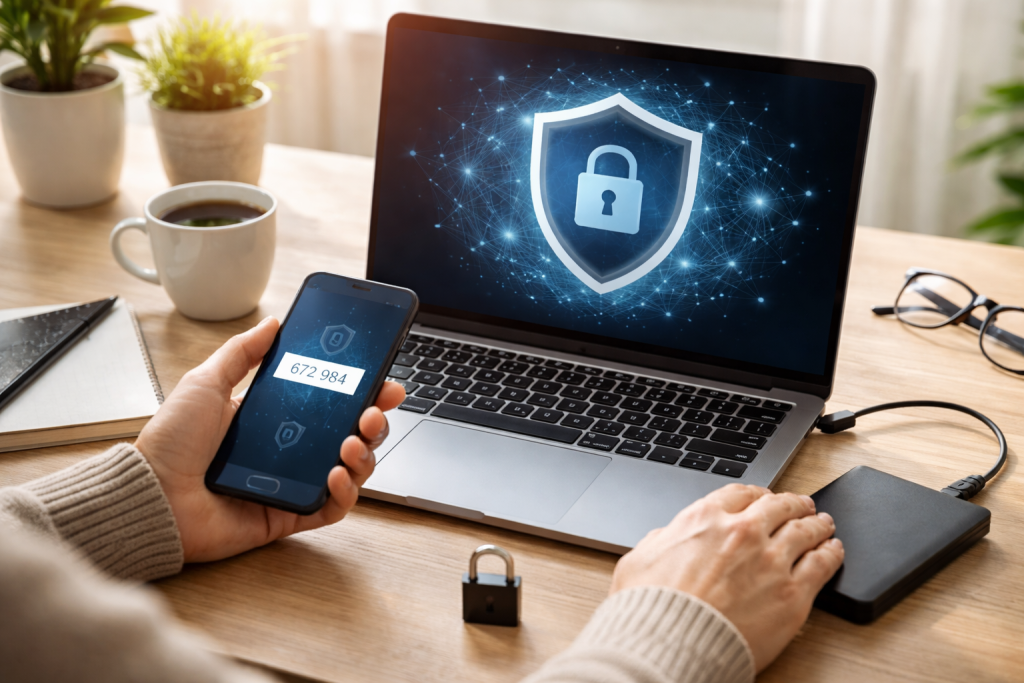
Understanding Ransomware: What It Is and How It Works
Ransomware operates by infiltrating a computer system, either through malicious email attachments, compromised websites, or unpatched software vulnerabilities. Once inside, it deploys an encryption algorithm, scrambling the data on the victim’s device. Imagine a thief locking all the doors and windows of your house and then demanding money to give you back the key. This procedure procedure is the core mechanism of ransomware. The encryption process can be swift, locking down extensive amounts of data before the victim even realizes an intrusion has occurred.
The Mechanics of Encryption
The encryption process is the heart of a ransomware attack. Modern ransomware often employs strong encryption algorithms, like AES-256, making it computationally infeasible to break the encryption without the correct decryption key. The ransomware typically identifies target files based on their extensions and location, ensuring critical documents, databases, and personal files are affected.
Delivery Methods
Ransomware can arrive through various channels. Phishing emails, masquerading as legitimate communications, are a common vector. These emails may contain infected attachments or links that, when clicked, download the ransomware. Drive-by downloads from compromised websites also pose a threat, where visiting a malicious site can silently install the ransomware onto your system. Exploiting vulnerabilities in software that has not been updated is another common entry point. Attackers are skilled at uncovering weaknesses in digital defenses.
Types of Ransomware
While the goal remains the same—extortion—ransomware can manifest in different forms. Locker ransomware locks the entire system, preventing any access to the operating system. Screen-locking ransomware simply displays a full-screen message demanding payment. Most common today is crypto-ransomware, which encrypts files. Some advanced forms also engage in data exfiltration, stealing sensitive information before encrypting it, using the threat of public release as an additional leverage point.
Recognizing the Signs of a Ransomware Attack
Early detection is crucial in mitigating the damage caused by a ransomware attack. Several indicators can signal that your system has been compromised.
Unusual File Behavior
One of the most apparent signs is your files becoming inaccessible. You might find that you cannot open documents, images, or other data. Upon inspection, you may notice that file extensions have changed or that a ransom note has appeared on your screen or within folders. Such an event is a clear alarm bell.
System Performance Degradation
Ransomware can consume significant system resources during the encryption process. You may experience a dramatic slowdown in your computer’s performance, applications may freeze or crash, and your system might become unresponsive. This sensation can be like noticing your house is suddenly much harder to move around in.
Ransom Notes and Pop-ups
The most direct indicator is the appearance of a ransom note. These notes are typically displayed as a text file in affected folders, a pop-up window, or even as the desktop wallpaper. They will outline the demands of the attackers, including the ransom amount and the method of payment, often within a strict deadline.
Unexpected File Encryption
If you are working on a document and suddenly find you cannot save it, or if files you know you saved are now unopenable with strange extensions, this is a strong warning sign. The speed at which this happens can be alarming but is a testament to the malware’s efficiency.
Best Practices for Ransomware Prevention
Preventing a ransomware attack is far more effective than dealing with one. Implementing a robust security strategy can significantly reduce your risk. Think of prevention as reinforcing the walls and securing the locks of your digital home.
Keep Software Updated
Software vulnerabilities are a primary entry point for ransomware. Regularly update your operating system, web browsers, and all installed applications. This includes patch management for servers and network devices. Developers release updates to fix known security flaws, making your systems less susceptible to exploitation.
Be Wary of Email Attachments and Links
Phishing attacks remain a potent threat. Exercise extreme caution when opening email attachments or clicking on links from unknown or suspicious senders. If an email seems urgent or unusual, verify its authenticity through a separate communication channel before interacting with it. Even a single misstep can open the door.
Employ Strong Passwords and Multi-Factor Authentication
Weak passwords are an accessible target for attackers. Use strong, unique passwords for all your accounts and enable multi-factor authentication (MFA) whenever possible. MFA adds an extra layer of security, requiring more than just a password to log in, such as a code from your phone.
Network Segmentation
Segmenting your network can limit the spread of ransomware if an infection occurs. By dividing your network into smaller, isolated zones, you can prevent malware from moving freely across all your devices. This is akin to having separate, locked rooms within your house; if one room is compromised, the others remain secure.
Limit User Privileges
Grant users only the necessary permissions to perform their job functions. Restricting administrative privileges can prevent ransomware from spreading widely or accessing critical system files. This means not everyone needs a master key to every room.
Securing Your Data: Backup and Recovery Strategies
| Backup and Recovery Strategy | Metrics |
|---|---|
| Backup Frequency | Weekly, Daily, Hourly |
| Recovery Time Objective (RTO) | 2 hours, 4 hours, 24 hours |
| Recovery Point Objective (RPO) | 1 day, 4 hours, 1 hour |
| Data Retention Period | 30 days, 90 days, 1 year |
A robust backup and recovery strategy is your most critical line of defense against the devastating effects of ransomware. It is your emergency preparedness plan, ensuring you can rebuild after a disaster.
Regular and Automated Backups
Implement a schedule for regular, automated backups of your critical data. Aim for frequent backups, ideally daily or even more often for highly sensitive information. This ensures that you have recent copies of your files readily available.
The 3-2-1 Backup Rule
Follow the 3-2-1 backup rule: keep at least three copies of your data on two different types of media, with at least one copy stored offsite. This diversification significantly increases your chances of data recovery. An offsite backup acts as an insurance policy against local disasters, be it hardware failure or a ransomware attack that encrypts everything on-premises.
Test Your Backups
Regularly test your backup integrity and your recovery process. An unrestorable backup is useless. Performing simulated recovery tests ensures that your restoration plan is viable and that you are familiar with the process under pressure.
Immutable Backups
Consider using immutable backups. These backups are designed to be unchangeable for a set period, making them resistant to ransomware encryption or deletion. Attackers cannot alter or destroy immutable backups.
Protecting Your Devices: Anti-Ransomware Tools and Software
Beyond good practices, specialized tools can provide an additional layer of protection against ransomware. These are like having dedicated security systems and guards for your digital assets.
Reputable Antivirus and Anti-Malware Software
Install and maintain reputable antivirus and anti-malware software on all your devices. Ensure that your security software is regularly updated to detect the latest threats. Many modern security suites include specific ransomware protection modules.
Endpoint Detection and Response (EDR) Solutions
For businesses, Endpoint Detection and Response (EDR) solutions offer advanced threat detection and response capabilities. These tools monitor endpoint activity for suspicious behavior, enabling faster identification and containment of ransomware threats.
Email Filtering and Web Security Gateways
Implement robust email filtering systems to block malicious emails before they reach your users. Web security gateways can prevent access to known malicious websites, reducing the risk of drive-by downloads.
Application Whitelisting
Application whitelisting restricts the execution of unauthorized software. Only approved applications are allowed to run, which can effectively block unknown ransomware from executing on your system.
Responding to a Ransomware Attack: Steps to Take
If you suspect a ransomware attack, immediate and decisive action is crucial to limit the damage. A calm, pre-planned response is key.
Isolate Infected Systems
Immediately disconnect any infected computers from the network. This includes disconnecting from Wi-Fi and unplugging Ethernet cables. This action prevents the ransomware from spreading to other devices or network storage. Imagine a fire spreading; you would immediately close the doors to contain it.
Do Not Pay the Ransom (General Recommendation)
The general recommendation from law enforcement and cybersecurity experts is not to pay the ransom. Paying does not guarantee the return of your data, and it encourages further criminal activity. It is akin to paying a kidnapper; there is no assurance they will return the hostage, and it only fuels their future endeavors.
Report the Incident
Report the ransomware attack to relevant authorities, such as your national cybersecurity agency or law enforcement. This helps them track and combat cybercrime.
Identify the Ransomware Strain
If possible, try to identify the specific strain of ransomware that has infected your system. This can help in finding publicly available decryption tools or understanding the attacker’s typical behavior.
Restore from Backups
If you have clean, recent backups, this is the time to use them. Follow your established recovery procedures to restore your data and systems.
Ransomware Negotiation: Should You Pay the Ransom?
The decision to pay a ransom is complex and carries serious repercussions. While the urge to regain access to critical data can be overwhelming, several factors weigh against payment.
Lack of Guarantee
There is no guarantee that paying the ransom will result in the decryption of your data. Attackers may provide a faulty decryption key, or they may simply disappear after receiving the payment.
Funding Criminal Activity
Paying the ransom directly funds criminal organizations, enabling them to develop more sophisticated ransomware and attack more victims.
Continued Targeting
Paying the ransom could potentially identify you as a willing target, increasing the likelihood of future extortion attempts.
Alternatives to Payment
Focusing on robust backups and a well-rehearsed recovery plan is the most effective strategy. In some rare cases, law enforcement or specialized negotiators might be involved, but the primary advice remains to avoid payment.
Legal and Regulatory Considerations for Ransomware Victims
Ransomware attacks can have significant legal and regulatory consequences for individuals and organizations. Understanding these implications is vital for responsible management of the incident.
Data Breach Notification Requirements
Depending on your jurisdiction and the type of data compromised, you may be legally obligated to notify affected individuals and regulatory bodies of a data breach. This is especially true if personal or sensitive information is involved.
Industry-Specific Regulations
Certain industries, such as healthcare (HIPAA) and finance, have specific regulations regarding data security and incident reporting that must be adhered to. Non-compliance can result in substantial fines.
Evidence Preservation
In the event of a criminal investigation, it is crucial to preserve any evidence related to the ransomware attack. This includes logs, ransom notes, and system images.
Compliance with Law Enforcement Guidance
Cooperating with law enforcement and following their guidance is often in your best interest, both legally and for potentially aiding in the apprehension of cybercriminals.
Educating Your Team: Ransomware Awareness and Training
Human error is often the weakest link in cybersecurity. Educating your team about ransomware is a cornerstone of effective prevention.
Regular Cybersecurity Training
Conduct regular cybersecurity awareness training for all employees. This training should cover identifying phishing attempts, safe browsing practices, password security, and the importance of reporting suspicious activity.
Simulated Phishing Exercises
Regularly conduct simulated phishing exercises to test employees’ susceptibility to these attacks and reinforce training. These exercises provide valuable feedback on areas needing further attention.
Clear Reporting Procedures
Establish clear and accessible procedures for employees to report suspected security incidents without fear of reprisal. The sooner an incident is reported, the faster a response can be initiated.
Role-Specific Training
Tailor training to the specific roles and responsibilities of your employees. Those with access to sensitive data or critical systems may require more specialized training.
The Future of Ransomware: Trends and Emerging Threats
The landscape of ransomware is constantly evolving. Understanding current trends and anticipating future threats is crucial for maintaining effective defenses.
Ransomware-as-a-Service (RaaS)
The rise of RaaS models has democratized ransomware attacks, allowing individuals with limited technical expertise to launch attacks by subscribing to pre-built ransomware kits and infrastructure. This lowers the barrier to entry for cybercriminals.
Double and Triple Extortion
Attackers are increasingly employing double and triple extortion tactics. This involves not only encrypting data but also exfiltrating it and threatening to leak it publicly or sell it on the dark web. Some may also launch denial-of-service attacks to increase pressure.
Attacks on Critical Infrastructure
Ransomware attacks targeting critical infrastructure, such as healthcare systems, energy grids, and transportation networks, are a growing concern. These attacks can have severe real-world consequences, impacting public safety and essential services.
Targeting Cloud Services
As organizations increasingly migrate to cloud environments, attackers are adapting their strategies to target cloud-based data and services. Securing cloud deployments is therefore paramount.
Exploiting IoT Devices
The proliferation of Internet of Things (IoT) devices, often with weak security, presents a new attack surface for ransomware. Ransomware can compromise these devices and use them as entry points into networks or as targets themselves. The digital world is a constantly shifting frontier, and vigilance is the only constant defense.
FAQs
What is ransomware, and how does it work?
Ransomware is a type of malicious software designed to block access to a computer system or files until a sum of money is paid. It typically enters a system through phishing emails, malicious websites, or software vulnerabilities, and once activated, it encrypts files and demands payment for their release.
What are the signs of a ransomware attack?
Signs of a ransomware attack include a sudden inability to access files, a ransom note appearing on the screen, unusual file extensions, and a decrease in system performance. Detecting these signs requires vigilance and prompt action.
What are the best practices for preventing ransomware attacks?
Best practices for preventing ransomware attacks include keeping software and systems updated, using strong and unique passwords, implementing email and web filtering, educating employees about phishing and other social engineering tactics, and regularly backing up data.
How can I secure my data and devices from ransomware?
Securing data and devices from ransomware involves implementing backup and recovery strategies, using anti-ransomware tools and software, and staying informed about emerging threats and trends in ransomware attacks.
Should I pay the ransom in the event of a ransomware attack?
Paying the ransom is not recommended, as the attackers may not release the encrypted files. Additionally, paying the ransom only fuels the ransomware economy and encourages further attacks. It’s important to seek professional assistance and consider legal and regulatory considerations before making any decisions.
Hamza Khan is the author and founder of TechFixLogic.info, a platform dedicated to providing practical software guides, tech solutions, and cybersecurity awareness. With a strong interest in technology and digital security, Hamza focuses on creating easy-to-understand tutorials that help users fix software issues, improve their digital skills, and stay safe online.
Through TechFixLogic.info, he shares step-by-step guides, troubleshooting tips, and cybersecurity insights designed for beginners as well as regular computer users. His goal is to simplify technology and make reliable tech knowledge accessible to everyone.

Understanding the Importance of Website Safety
Browsing the internet is akin to navigating a bustling city. While many establishments are reputable, some areas harbor criminals. Website safety involves recognizing and avoiding these dangerous digital spaces. Ignoring website safety exposes users to various cyberattacks, from data theft to malware infection, which can lead to significant financial and personal consequences.
The Consequences of Ignoring Website Safety
The ramifications of interacting with unsafe websites can be extensive. For individuals, this might include identity theft, where personal information such as names, addresses, and financial details are stolen and used fraudulently. It can also lead to financial losses through phishing scams or direct unauthorized transactions. Malicious software, or malware, can infect your devices, leading to data corruption, system instability, or even remote control by attackers.
For organizations, a breach in website security can result in reputational damage, loss of customer trust, and significant financial penalties due to regulatory non-compliance. The compromise of sensitive company data can result in competitive disadvantages or legal challenges. Beyond immediate financial losses, recovering from a cyberattack often involves forensic investigations, system repairs, and public relations efforts. Therefore, prioritizing website safety is not merely a suggestion but a necessity for both individuals and businesses.
Identifying Common Online Threats
Cybercriminals constantly adapt their methods as the digital landscape changes. Understanding these common threats is the first step in building a robust defense.
Phishing and Spear Phishing
Phishing is a deceptive practice where attackers disguise themselves as trustworthy entities to trick users into revealing sensitive information. This often involves fake emails or websites that mimic legitimate organizations, such as banks or online retailers. The goal is to obtain login credentials, credit card numbers, or other personal data. Spear phishing is a more targeted version, where attackers tailor their messages to specific individuals or organizations, making them appear more credible. For instance, a spear phishing email might appear to come from a colleague or a senior executive within your company.
Malware and Ransomware
Malware is a blanket term for malicious software designed to disrupt, damage, or gain unauthorized access to computer systems. This includes viruses, worms, Trojans, spyware, and adware. When legitimate programs execute, viruses attach themselves to them and spread. Worms are self-replicating programs that can spread across networks. Trojans disguise themselves as legitimate software but carry malicious payloads. Spyware secretly monitors user activity, while adware displays unwanted advertisements.
Ransomware is a particularly destructive type of malware that encrypts a victim’s files or restricts access to their system, demanding a ransom payment for decryption or restoration of access. Imagine your digital files being locked away and a key offered only upon payment. This threat can cripple businesses and individuals, often with no guarantee of file recovery even after payment.
Cross-Site Scripting (XSS)
Cross-Site Scripting (XSS) is a type of security vulnerability typically found in web applications. XSS attacks enable attackers to inject client-side scripts into web pages viewed by other users. This allows attackers to bypass access controls, steal cookies, or even rewrite the content of the HTML page, leading to various malicious activities, including credential theft or defacement of websites. The danger lies in the fact that the malicious script appears to originate from a trusted website, deceiving the user.
SQL Injection
SQL injection is a code injection technique used to attack data-driven applications. It involves inserting or “injecting” a malicious SQL query into an input field for execution by the underlying database. Successful SQL injection attacks can read, modify, or delete database data; execute administrative operations on the database; recover the content of a given file present on the database server; and, in some cases, issue commands to the operating system. The process is akin to providing a secret code that unlocks the entire filing cabinet, not just the single drawer you intended to access.
Tools and Resources for Checking Website Safety
Several tools and resources are available to help you assess the safety of a website before you interact with it. These resources act as digital detectives, offering details about a website’s security posture.
Browser Security Indicators
Your web browser provides initial security cues. Most modern browsers display a padlock icon in the address bar when a website uses HTTPS (Hypertext Transfer Protocol Secure). HTTPS encrypts the communication between your browser and the website, making it more difficult for third parties to intercept your data. If you see “Not Secure” or a broken padlock icon, exercise caution, especially when entering personal information. Additionally, browsers often provide warnings when they detect known malicious websites. Pay attention to these warnings; they are often accurate.
Online Website Scanners
Various online tools scan websites for known vulnerabilities, malware, and phishing attempts. Popular options include Google Safe Browsing Transparency Report, VirusTotal, and Sucuri SiteCheck.
- Google Safe Browsing Transparency Report: You can enter a website URL into this tool to see if Google has flagged it as unsafe. This service protects billions of devices daily by showing warnings to users when they attempt to navigate to dangerous sites or download harmful files.
- VirusTotal: This service analyzes suspicious files and URLs to detect types of malware, automatically sharing them with the security community. It aggregates many antivirus products and online scan engines to check for threats.
- Sucuri SiteCheck: This free online tool scans websites for malware, blacklisting status, injected spam, and other security issues. It provides a quick assessment of a website’s overall health.
These tools offer a quick and valuable second opinion on a website’s security.
Website Reputation Services
Services like Web of Trust (WOT) or URLVoid aggregate user reviews and security information to provide a reputation score for websites. While not infallible, these services can offer an additional layer of insight. They often use a combination of automated analysis and crowd-sourced feedback to assess a website’s trustworthiness. A low reputation score should serve as a warning.
Step-by-Step Guide to Verifying Website Security
| Security Measure | Description |
|---|---|
| SSL/TLS Certificate | Check for a valid SSL/TLS certificate to ensure secure data transmission. |
| HTTP Headers | Review HTTP headers for security-related directives such as Content Security Policy (CSP) and X-Frame-Options. |
| File Permissions | Ensure that file permissions are properly set to prevent unauthorized access to sensitive files. |
| Input Validation | Verify that input fields are properly validated to prevent injection attacks. |
| Security Headers | Check for the presence of security headers such as X-XSS-Protection and X-Content-Type-Options. |
Before providing any personal information or making a purchase on a website, take a few moments to verify its security. This methodical approach can prevent many problems.
Check the URL and domain name.
The first and most basic step is to scrutinize the website’s URL (Uniform Resource Locator). Look for “HTTPS” at the beginning of the address. This indicates that the connection is encrypted. Also, pay close attention to the domain name. Phishing websites often use domain names that are similar to legitimate ones but have subtle misspellings (e.g., “Amaz0n.com” instead of “Amazon.com”). If anything looks even slightly off, do not proceed. Your first line of defense is this simple check.
Look for Security Certificates
Click on the padlock icon in the address bar. This will typically display information about the website’s security certificate. The certificate verifies the identity of the website. Ensure that the certificate is valid, not expired, and issued to the correct domain. A valid certificate from a reputable Certificate Authority (CA) indicates that the website’s identity has been verified. If the certificate information is absent, expired, or shows a different domain, it is a significant red flag.
Review the Website’s Content and Design
Unsafe websites often exhibit characteristics that distinguish them from legitimate ones. Look for poor grammar, spelling errors, or awkward phrasing, which are common in phishing attempts. Inconsistent branding, low-resolution logos, or a generally unprofessional design can also indicate a fraudulent site. Legitimate businesses invest in well-designed and error-free websites. If a website looks hastily put together or contains suspicious elements, proceed with caution.
Use WHOIS Lookup for Domain Information
WHOIS lookup tools allow you to retrieve information about a domain’s owner, registration date, and contact details. While some legitimate websites use privacy protection services to hide this information, a newly registered domain or one with unusually vague registration details, particularly for a well-established brand, can be suspicious. Numerous free WHOIS lookup services are available online.
Recognizing Signs of a Potentially Unsafe Website
Beyond the technical checks, certain behaviors and characteristics of a website should raise suspicion. Think of these as the instincts you develop when walking through an unfamiliar part of town.
Unsolicited Pop-ups and Redirects
If a website barrages you with numerous unexpected pop-up windows, especially those demanding personal information or alarming you with virus warnings, it’s a strong indicator of an unsafe site. Similarly, being automatically redirected to another website without your consent is a significant red flag. These tactics are often employed by malicious sites to push unwanted software or lure you to phishing pages.
Requests for Excessive Personal Information
Be wary of websites that request an unusual amount of personal or financial information, particularly for seemingly simple transactions or services. For example, a recipe website should not need your social security number. If a website asks for information that seems irrelevant to its stated purpose, it’s likely a scam. Always question the necessity of the information requested.
Suspicious Download Prompts
Exercise extreme caution with websites that aggressively prompt you to download software, browser extensions, or “critical updates,” especially if you did not initiate the download. These downloads often contain malware or unwanted programs. Always download software from official and trusted sources.
Generic or Missing Contact Information
Legitimate businesses provide clear and accessible contact information, including physical addresses, phone numbers, and professional email addresses. If a website only provides a generic contact form, an obscure email address, or lacks any contact information altogether, it should raise suspicion. This lack of transparency often signifies an attempt to avoid accountability.
Too Good to Be True Offers
If an offer on a website seems incredibly generous or “too good to be true,” it probably is. Scammers often use enticing deals, such as free products, unrealistic discounts, or promises of instant wealth, to lure victims into providing personal information or making fraudulent purchases. Apply critical thinking; if something sounds illogical, it likely is.
Best Practices for Secure Online Transactions
Online transactions require an extra layer of vigilance due to the direct involvement of financial data. Treat your financial information like a precious gem, guarding it carefully.
Use Strong, Unique Passwords
Using strong, unique passwords for all your online accounts is fundamental. A strong password combines uppercase and lowercase letters, numbers, and symbols. Avoid using easily guessed information, like birthdays or common words. A password manager can help you create and store complex passwords securely, eliminating the need to remember dozens of different combinations. Reusing passwords is like using one key for all your locks; if one is compromised, all are at risk.
Enable Two-Factor Authentication (2FA)
Two-factor authentication adds an extra layer of security to your accounts. After entering your password, you’ll be prompted to provide a second form of verification, such as a code sent to your phone or a fingerprint scan. Even if an attacker obtains your password, they cannot access your account without this second factor. Enable 2FA wherever it is offered, especially for financial and email accounts.
Use Secure Payment Methods
When making online purchases, prioritize secure payment methods. Credit cards often offer better fraud protection than debit cards, as they are not directly linked to your bank account. Services like PayPal or Apple Pay can also add a layer of security by allowing you to make purchases without directly sharing your credit card details with every merchant. Be wary of websites that only accept unusual payment methods or wire transfers, which offer little recourse in case of fraud.
Monitor Your Financial Statements
Regularly review your bank and credit card statements for any unauthorized transactions. Catching fraudulent activity early can limit potential damage and facilitate swifter resolution with your financial institution. Set up alerts for large transactions or unusual activity on your accounts.
Avoid Public Wi-Fi for Sensitive Transactions
Public Wi-Fi networks, while convenient, are often unsecured and susceptible to eavesdropping. Avoid conducting sensitive transactions, such as online banking or shopping, while connected to public Wi-Fi. If you must use public Wi-Fi, consider using a Virtual Private Network (VPN) to encrypt your internet traffic, creating a secure tunnel between your device and the internet.
Staying Vigilant: Regularly Monitoring Website Safety
Cybersecurity is not a one-time setup; it’s an ongoing process. The digital world is dynamic, with new threats and vulnerabilities constantly emerging. Consider website safety as the upkeep of a garden, requiring constant effort to prevent weeds and promote healthy growth.
Keep Software and Browsers Updated
Software developers regularly release updates that include security patches for newly discovered vulnerabilities. Keeping your operating system, web browser, antivirus software, and all other applications updated is crucial. Outdated software is a common gateway for attackers. Enable automatic updates whenever possible to ensure you receive protections as soon as they are available.
Educate Yourself Continuously
The landscape of online threats changes constantly. Stay informed about current cyber threats, common scams, and new security best practices. Follow reputable cybersecurity news sources and government advisories. Understanding the evolving threat landscape empowers you to adapt your safety measures accordingly.
Backup Your Data Regularly
Regularly backing up your important data is a fundamental safety practice. In the event of a malware attack, a system crash, or data loss, having a recent backup ensures you can restore your files and minimize disruption. Store backups on external drives or cloud services, and test them periodically to ensure their integrity.
Promote a Culture of Security
If you are part of an organization, encourage and enforce strong security practices among your colleagues. Share information about common threats and best practices. A strong security posture relies on collective vigilance. Educating others strengthens the overall defense against cyber threats.
Trust Your Instincts
Ultimately, if something feels off about a website or an online interaction, trust your instincts. The internet often presents situations that encourage rushed decisions. Take a moment to pause, re-evaluate, and verify. If an offer seems too good to be true, if a request for information feels intrusive, or if a website just doesn’t look right, err on the side of caution and step away. Your digital safety is paramount.
FAQs
1. Why is website safety important?
Website safety is important because it helps protect users from online threats such as malware, phishing scams, and identity theft. By ensuring that a website is safe, users can minimize the risk of their personal information being compromised and their devices being infected with malicious software.
2. What are common online threats to be aware of?
Common online threats include phishing scams, malware, fake websites, and identity theft. Phishing scams involve fraudulent attempts to obtain sensitive information, while malware can infect devices and steal personal data. Fake websites may mimic legitimate ones to deceive users, and identity theft can occur when personal information is compromised.
3. How can I check the safety of a website?
There are several tools and resources available for checking the safety of a website. These include online security scanners, website reputation services, and browser extensions that can identify potentially unsafe websites. Additionally, users can look for HTTPS encryption, a privacy policy, and contact information as indicators of a website’s safety.
4. What are some signs of a potentially unsafe website?
Signs of a potentially unsafe website include suspicious pop-up windows, requests for sensitive information such as passwords or credit card details, and poor website design or functionality. Additionally, warnings from web browsers about potential security risks can indicate that a website may be unsafe.
5. How can I protect myself when sharing personal information online?
To protect yourself when sharing personal information online, it’s important to use strong, unique passwords for each account, enable two-factor authentication when available, and avoid sharing sensitive information on unsecured or suspicious websites. Additionally, being cautious about the information you share on social media and using secure payment methods for online transactions can help safeguard your personal data.
Hamza Khan is the author and founder of TechFixLogic.info, a platform dedicated to providing practical software guides, tech solutions, and cybersecurity awareness. With a strong interest in technology and digital security, Hamza focuses on creating easy-to-understand tutorials that help users fix software issues, improve their digital skills, and stay safe online.
Through TechFixLogic.info, he shares step-by-step guides, troubleshooting tips, and cybersecurity insights designed for beginners as well as regular computer users. His goal is to simplify technology and make reliable tech knowledge accessible to everyone.

Understanding Malware and Its Impact
Malware, short for “malicious software,” is a broad term encompassing any program designed to damage, disrupt, or gain unauthorized access to a computer system. The landscape of malware is vast and constantly evolving, with new threats emerging regularly. Understanding these threats is the first step toward effective defense.
Common Types of Malware
Malware manifests in various forms, each with distinct characteristics and methods of operation.
- Viruses: These programs attach themselves to legitimate software and spread when the host program executes. Viruses often aim to corrupt data or disrupt system operations. Think of a virus as a hitchhiker that infects other programs as it moves from one system to another.
- Worms: Unlike viruses, worms are standalone programs that replicate themselves and spread across networks without human intervention. They often exploit network vulnerabilities to propagate. A worm can be seen as a self-replicating organism that spreads across a connected ecosystem.
- Trojans: Named after the Trojan Horse of ancient Greek legend, these malicious programs disguise themselves as legitimate software. Once installed, they can create backdoors for remote access, steal data, or launch other attacks. A Trojan tricks you into inviting an enemy inside your defenses.
- Ransomware: This type of malware encrypts a user’s files and demands a ransom payment, usually in cryptocurrency, for their decryption. It holds your digital assets hostage.
- Spyware: Designed to clandestinely gather information about a user’s activities without their knowledge or consent. This can include browsing habits, keystrokes, and personal data. Spyware is a hidden observer, documenting your digital life.
- Adware: While less directly harmful than other types, adware bombards users with unwanted advertisements, often tracking browsing behavior to deliver targeted ads. It clogs your digital space with unwanted commercial messages.
- Rootkits: These sophisticated threats are designed to hide their presence and that of other malicious software, allowing attackers to maintain covert control over a compromised system. Rootkits are chameleons, blending into the operating system to avoid detection.
- Keyloggers: A specific type of spyware that records every keystroke made on a keyboard. This allows attackers to capture sensitive information like passwords and credit card numbers. Keyloggers are silent scribes, recording your every input.
Impact of Malware on Your PC
The consequences of a malware infection can range from minor annoyances to catastrophic data loss and financial ruin.
- Performance Degradation: Malware often consumes system resources, leading to slower boot times, sluggish application performance, and frequent crashes. Your PC becomes burdened, like a machine trying to operate with unnecessary components.
- Data Loss or Corruption: Viruses and ransomware can delete, encrypt, or corrupt your valuable files, potentially leading to irreparable data loss. This is like a vandal destroying your personal archive.
- Identity Theft and Financial Fraud: Spyware and keyloggers can steal personal information, banking credentials, and credit card numbers, leading to identity theft and unauthorized financial transactions. This compromises your digital identity and jeopardizes your financial security.
- System Instability: Malware can interfere with operating system functions, causing errors, blue screens of death, and general system instability. Your PC becomes unpredictable and unreliable.
- Network Compromise: Some malware, particularly worms, can spread across networks, compromising other connected devices and potentially leading to widespread outages. A single infection can become a contagion for an entire digital community.
- Privacy Violations: Spyware and adware can track your online activities, collect personal data, and expose you to unwanted targeting or surveillance. Your privacy is eroded, and your digital footprint is no longer your own.
Scanning Your PC for Security Threats
Regular scanning is a fundamental practice in maintaining PC security. It is your proactive defense, akin to a security patrol constantly checking for breaches.
Choosing the Right Antivirus Software
The effectiveness of your security scans largely depends on the antivirus software you employ. This software acts as your digital guardian, equipped to identify and neutralize threats.
- Reputation and Reviews: Opt for antivirus solutions from reputable vendors with a strong track record. Consult independent testing labs like AV-TEST and AV-Comparatives for objective performance evaluations.
- Detection Capabilities: The software should offer robust detection of various malware types, including known threats and emerging zero-day exploits. This is its ability to spot danger, both overt and concealed.
- Real-time Protection: Essential for continuous monitoring of your system. Real-time protection intercepts threats before they can execute and cause damage. This is the constant vigilance, preventing intruders from even entering.
- Usability and Performance Impact: Choose software that is easy to use and does not significantly degrade your system’s performance. An overly resource-intensive antivirus can make your PC unusable. The guardian should protect, not impede.
- Features: Consider additional features like firewall integration, anti-phishing protection, secure browsing, and parental controls if they align with your needs. These are extra layers of armor for specific vulnerabilities.
- Cost: While free antivirus solutions exist, paid versions often offer more comprehensive protection and advanced features. Evaluate your budget and security requirements. Investing in protection is often cheaper than recovering from an attack.
Step-by-Step Guide to Scanning Your PC for Malware
Once you have chosen and installed your antivirus software, performing a scan is a straightforward process.
- Update Your Antivirus Software: Before initiating a scan, ensure your antivirus definitions are up to date. This ensures the software has the latest information on known malware. This is like equipping your guardian with the most current intelligence.
- Disconnect from the Internet (Optional but Recommended for Deep Scans): For a thorough scan, especially if you suspect an active infection, disconnecting from the internet can prevent malware from communicating with external servers or spreading further. This isolates the system to contain the threat.
- Perform a Full System Scan: Initiate a comprehensive scan of your entire computer. This will examine all files, folders, and system areas for malicious code. This is examining every corner of your digital home. Quick scans are useful for routine checks, but a full scan is indispensable for thorough threat detection.
- Review Scan Results: After the scan completes, your antivirus software will present a report of any detected threats.
- Quarantine or Remove Detected Threats: Follow the prompts to either quarantine or remove the identified malware. Quarantining isolates the suspicious files, preventing them from causing harm, while removal permanently deletes them.
- Restart Your PC: After addressing the threats, restart your computer to ensure all changes take effect and any malicious processes are terminated. This gives your system a fresh start.
- Run a Second Scan: Consider running another full scan after the initial cleanup to confirm that all threats have been eradicated. This is a double-check to ensure nothing was missed.
Best Practices for Preventing Malware Infections
Prevention is always better than cure. Adopting robust security practices significantly reduces your risk of malware infection.
- Keep Your Software Updated: Regularly update your operating system, web browsers, and all applications. Software updates often include security patches that address known vulnerabilities. Outdated software is a weak point, an open window for intruders.
- Use a Firewall: A firewall acts as a barrier, controlling incoming and outgoing network traffic and blocking unauthorized access. It is a security gate for your digital network.
- Be Skeptical of Email Attachments and Links: Exercise caution when opening attachments or clicking links from unknown or suspicious sources. Phishing attempts are a common vector for malware. Think before you click, as a seemingly innocuous link can be a hidden trap.
- Download Software from Trusted Sources: Only download software from official websites or reputable app stores. Avoid third-party download sites that may bundle malware with legitimate programs. This is choosing reputable suppliers for your digital tools.
- Use Strong, Unique Passwords: Employ complex passwords for all your online accounts and consider using a password manager. Weak passwords are like easily picked locks.
- Enable Two-Factor Authentication (2FA): Where available, enable 2FA for an extra layer of security, requiring a second verification method in addition to your password. This is like needing two keys to open a vault.
- Back Up Your Data Regularly: Create regular backups of your important files to an external drive or cloud storage. In the event of a ransomware attack or data corruption, you can restore your data. Backups are your safety net, your alternative copies of irreplaceable work.
- Be Careful with Removable Media: Scan USB drives, external hard drives, and other removable media before opening files from them. These devices can carry hidden infections.
- Exercise Caution on Public Wi-Fi: Public Wi-Fi networks are often less secure. Avoid sensitive activities like online banking when connected to them. Your data is exposed in an open environment.
Recognizing the Signs of a Malware Infection
| Signs of Malware Infection | Description |
|---|---|
| Slow computer performance | Unexplained slowdowns in computer performance may indicate malware presence. |
| Unusual pop-ups or messages | Unexpected pop-ups or messages appearing on the screen could be a sign of malware. |
| Changes in browser settings | Malware may alter browser settings, such as the default homepage or search engine. |
| Unexplained data loss | Loss of files or data without any apparent reason may be caused by malware. |
| Increased network activity | Unusual network activity or data usage could be a sign of malware communicating with external servers. |
Even with preventative measures, infections can occur. Recognizing the signs early can limit damage.
- Slow Performance: A sudden and significant decrease in your computer’s speed or responsiveness can indicate malware consuming resources.
- Unexpected Pop-up Ads: An increase in unsolicited advertisements, especially those that appear outside your web browser, can be a sign of adware or spyware.
- Browser Redirects: Your web browser automatically redirects you to unfamiliar websites or changes your homepage without your consent. This is like your digital navigation being hijacked.
- Unusual System Behavior: Programs crashing frequently, new toolbars appearing in your browser, or files disappearing or changing unexpectedly. Your PC is exhibiting erratic actions.
- Suspicious Network Activity: Unexplained outgoing network traffic, especially when your computer is idle, can signal malware communicating with external servers. Your PC is transmitting data without your knowledge.
- Antivirus Software Disabled: Malware often attempts to disable security software to prevent detection and removal. If your antivirus is suddenly inactive, investigate immediately. The guardian is silenced.
- Error Messages: Frequent or unusual error messages, especially those related to system files, can indicate corruption by malware.
- Disk Activity: Constant hard drive activity even when you are not actively using your computer can suggest background processes initiated by malware.
What to Do If Your PC Is Infected with Malware
If you suspect or confirm a malware infection, act quickly and methodically.
- Isolate the Infected PC: Disconnect the computer from the internet and any other network connections immediately. This prevents the malware from spreading to other devices or further compromising your data. This is quarantining the infected system.
- Boot into Safe Mode (If Possible): Restart your computer and boot into Safe Mode (often by pressing F8 or Shift+F8 during startup). Safe Mode loads only essential system services, which can prevent malware from running. This is disarming the enemy by limiting its operational capabilities.
- Run a Full Antivirus Scan: While in Safe Mode, perform a comprehensive scan with your updated antivirus software. Allow it to identify and remove all detected threats.
- Use Additional Malware Removal Tools: If your primary antivirus struggles to remove the infection, consider using dedicated malware removal tools from reputable vendors. These tools are often designed to target specific, stubborn threats.
- Change All Passwords: Once the infection is cleared, change all your online passwords, especially for banking, email, and social media. Assume that your credentials may have been compromised.
- Update and Patch Software: Ensure all your operating system and application software are fully updated with the latest security patches.
- Monitor Your System: After cleanup, monitor your PC for any recurring signs of infection or unusual behavior.
- Consider a Clean Installation: For severe or persistent infections, a complete reinstallation of your operating system may be the most effective solution. This is a complete digital reset. This is a drastic measure but ensures the eradication of all traces of the malware. Remember to back up all important data before performing a clean installation.
Regular PC scans are not a one-time event; they are an ongoing commitment to cybersecurity. Your digital environment requires constant attention and periodic checks, much like a gardener tends to a garden to keep it healthy. This continuous vigilance, combined with preventative measures, forms a robust defense against the evolving landscape of malware.
FAQs
1. Why is it important to scan your PC for security threats?
It is important to scan your PC for security threats to protect your personal and sensitive information from being compromised by malware. Malware can cause significant damage to your PC, steal your data, and even lead to financial loss or identity theft.
2. What are the common types of malware, and how do they impact your PC?
Common types of malware include viruses, worms, Trojans, ransomware, spyware, and adware. These can impact your PC by slowing down its performance, corrupting files, stealing personal information, and even rendering your PC unusable.
3. How do you choose the right antivirus software for your PC?
When choosing antivirus software, consider factors such as real-time protection, malware detection rates, system performance impact, ease of use, and additional features like firewall protection and phishing detection. It’s important to choose a reputable and regularly updated antivirus program.
4. What are the best practices for preventing malware infections on your PC?
Best practices for preventing malware infections include keeping your operating system and software up to date, being cautious of email attachments and links, using strong and unique passwords, avoiding suspicious websites, and regularly scanning your PC for malware.
5. What should you do if your PC is infected with malware?
If your PC is infected with malware, you should disconnect it from the internet, run a full system scan with your antivirus software, and follow any removal instructions provided. In some cases, you may need to seek professional help to fully remove the malware and restore your PC’s security.
Hamza Khan is the author and founder of TechFixLogic.info, a platform dedicated to providing practical software guides, tech solutions, and cybersecurity awareness. With a strong interest in technology and digital security, Hamza focuses on creating easy-to-understand tutorials that help users fix software issues, improve their digital skills, and stay safe online.
Through TechFixLogic.info, he shares step-by-step guides, troubleshooting tips, and cybersecurity insights designed for beginners as well as regular computer users. His goal is to simplify technology and make reliable tech knowledge accessible to everyone.

Understanding Phishing and Its Mechanics
Phishing attacks operate on the principle of deception, exploiting human psychology to bypass technical security measures. Attackers craft messages that appear legitimate to capture the attention and trust of their targets. This often involves creating a sense of urgency or fear, prompting immediate action without careful consideration.
What Constitutes a Phishing Attempt?
A phishing attempt is characterized by fraudulent communication designed to extract sensitive information. This communication typically takes the form of an email, text message, social media direct message, or even a phone call. The sender poses as a reputable source to build credibility. For instance, an email might appear to come from your bank, an online retailer, or a service provider you regularly use. The message will then present a reason for needing your personal details, such as verifying an account, confirming a transaction, or resolving a security issue.
The Process of a Phishing Attack
The phishing process can be broken down into several stages. First, the attacker selects a target or a broad group of potential victims. Then, they create a deceptive message or lure. This lure might be an email with a compelling subject line, a text message claiming an issue with a service, or a pop-up advertisement. The message will typically contain a link to a fake website or instruct the recipient to reply with their information. When the victim clicks the link, they are directed to a website that mimics a legitimate one, often with a login page. If the victim enters their credentials, the attacker captures this data. In other cases, the victim might be asked to download an attachment, which could contain malware designed to steal information directly from their device. The ultimate objective is to gain unauthorized access to accounts or exploit the stolen data for financial gain.
Recognizing Common Phishing Scams
Phishing tactics are constantly evolving, but several common types of scams persist. Familiarity with these patterns can significantly reduce the risk of falling victim. These scams often target specific services or events to make their lures seem more plausible.
Email Phishing
This is the most prevalent form of phishing. Attackers send bulk emails that appear to originate from legitimate organizations. These emails might claim to be about order confirmations, account updates, security alerts, or even lottery winnings. The email will usually contain a link that, when clicked, directs the user to a fake website designed to steal login credentials or personal data. Sometimes, these emails instruct the recipient to reply directly with sensitive information.
Spear Phishing
A more targeted form of phishing, spear phishing involves personalized attacks. Attackers research their targets, gathering information about their jobs, interests, and social connections. This allows them to craft highly convincing messages that are difficult to distinguish from genuine communications. For example, a spear phishing email might appear to come from a colleague or a manager, requesting specific actions or information.
Whaling Attacks
Whaling is similar to spear phishing but targets high-profile individuals within an organization, such as chief executive officers (CEOs) or chief financial officers (CFOs). The goal is to trick these individuals into authorizing fraudulent financial transactions or revealing sensitive corporate information. These attacks often leverage the authority and trust associated with senior positions.
Smishing and Vishing
Smishing refers to phishing conducted via SMS text messages. Like email phishing, these messages impersonate legitimate services and prompt recipients to click links or provide information. Vishing, or voice phishing, involves phone calls where scammers pretend to be representatives of banks, government agencies, or technical support to solicit personal details. These calls often employ urgent language or threats to pressure victims into compliance.
Identifying Red Flags in Suspicious Communications
Detecting phishing attempts often relies on spotting subtle inconsistencies and suspicious elements within the communication. These red flags serve as warning signs that the message may not be genuine. Paying attention to these details can prevent the compromise of personal information.
Examining the Sender’s Email Address
A quick glance at the sender’s email address can reveal a lot. Legitimate organizations typically use domain names that match their official brand. For example, an email from a bank might come from an address ending in “@bankname.com”. Phishing emails often use slightly altered domain names, such as “@bank-name.com” or “@bankname-security.net,” or even entirely unrelated domains. Typos or unusual characters in the sender’s address are also common indicators of a scam.
Scrutinizing the Content of the Message
The language and tone of a suspicious message can also provide clues. Phishing emails often contain grammatical errors, spelling mistakes, or awkward phrasing. This is because they are often written by individuals whose first language may not be English or are produced in bulk without careful proofreading. Legitimate businesses usually maintain a professional standard in their communications. Additionally, messages that create a sense of extreme urgency, demand immediate action, or threaten severe consequences are often attempts to bypass critical thinking. Phrases like “Your account has been compromised, click here immediately to secure it” are classic phishing tactics.
Evaluating the Presence of Suspicious Links and Attachments
Links within suspicious emails are a primary vector for phishing attacks. Hovering your mouse cursor over a link without clicking can reveal the actual URL it points to. If the displayed URL does not match the expected website or looks unusual, it is a strong indication of a phishing attempt. Many phishing URLs are designed to closely resemble legitimate ones, but often with subtle differences. Similarly, unexpected attachments, especially those with file extensions like “.exe” or “.zip,” should be treated with extreme caution. These attachments can contain malware that installs itself on your device when opened.
Navigating the Web Safely: Spotting Fake Websites and Links
| Metrics | Value |
|---|---|
| Number of fake websites detected | 25 |
| Percentage of users able to spot fake links | 80% |
| Number of reported phishing attempts | 50 |
Phishing scams often lead victims to fake websites that mimic legitimate ones. These impostor sites are meticulously designed to appear authentic, making it difficult for users to differentiate them from the real thing. Recognizing the signs of these fake online presences is crucial for protecting personal data.
Verifying Website URLs
The Uniform Resource Locator (URL) is the web address of a site. When you are on a website, especially one where you are about to enter sensitive information, always check the URL in your browser’s address bar. Legitimate websites use secure connections, indicated by “https://” at the beginning of the URL and a padlock icon in the address bar. Phishing websites may use “http://” instead of “https://,” lack the padlock icon, or have URLs that are similar but not identical to the legitimate site. For example, a fake bank website might be “www.my-bank-online.com” instead of the actual “www.mybank.com”.
Assessing Website Design and Content
While phishing sites are often designed to look like their legitimate counterparts, there can be subtle differences. Look for inconsistencies in the website’s design, such as low-quality images, unusual fonts, or a lack of branding elements. Legitimate companies invest in professional website design. Furthermore, check for missing or broken links, pages that do not load correctly, or content that seems out of place or poorly written. A site that is replete with grammatical errors or has significantly less content than its legitimate counterpart is a cause for suspicion.
The Importance of HTTPS and Security Certificates
The “https://” protocol and the associated security certificate are vital indicators of a secure website. When visiting a website, especially one where you are asked to log in or provide financial information, ensure that the URL begins with “https://”. This indicates that the connection between your browser and the website is encrypted, making it harder for attackers to intercept your data. The padlock icon next to the URL is another visual cue for a secure connection. Clicking on the padlock may provide details about the website’s security certificate, which can help verify its legitimacy if you are particularly cautious.
Safeguarding Your Digital Identity: Protecting Personal Information Online
In the digital age, protecting your personal information is paramount. Phishing attacks exploit vulnerabilities in how individuals manage their data. Implementing strong security practices can create a robust defense against these threats.
Being Cautious with Information Sharing
Always think twice before sharing personal information online. Be wary of unsolicited requests for data, whether via email, text, or phone. If a company or service contacts you seeking sensitive details, try to verify their identity through an independent channel. For example, instead of clicking a link in an email from your bank, go directly to your bank’s official website by typing the URL into your browser yourself. Similarly, if you receive a suspicious phone call, hang up and call the organization back using a number from their official website or a statement.
Understanding and Managing Privacy Settings
Most online services and social media platforms offer privacy settings that allow you to control who can see your information. Regularly review and adjust these settings to limit the amount of personal data that is publicly accessible. This can make it more difficult for phishers to gather information for spear phishing attacks. Be mindful of what you post on social media, as even seemingly innocuous details can be used against you.
The Dangers of Public Wi-Fi
Public Wi-Fi networks, such as those found in coffee shops or airports, are often less secure than private networks. They can be targets for cybercriminals looking to intercept data. Avoid accessing sensitive accounts, such as online banking or email, while connected to public Wi-Fi. If you must use public Wi-Fi, consider using a Virtual Private Network (VPN), which encrypts your internet traffic and adds a layer of security.
Fortifying Your Accounts: Strong Passwords and Two-Factor Authentication
Weak passwords and the lack of multi-factor authentication are significant vulnerabilities that phishers exploit. Strengthening your account security is a fundamental step in protecting yourself from compromise.
The Pillars of Strong Passwords
A strong password is like a sturdy lock on your digital door. It should be a combination of uppercase and lowercase letters, numbers, and symbols. Avoid using easily guessable information like your name, birthdate, or common words. Aim for passwords that are at least 12 characters long and are unique for each online account. A password manager can be an invaluable tool for generating and storing complex, unique passwords for all your online services. This removes the burden of remembering numerous intricate combinations.
The Power of Two-Factor Authentication (2FA)
Two-factor authentication, or multi-factor authentication (MFA), adds an extra layer of security by requiring more than just a password to log in. It typically involves something you know (your password) and something you have (like your phone to receive a code) or something you are (like a fingerprint). Even if a phisher obtains your password, they will still need the second factor to gain access to your account. Enabling 2FA on all your important accounts, such as email, banking, and social media, significantly reduces the risk of unauthorized access.
Taking Action: Reporting Scams and Protecting Others
When you encounter a phishing attempt, reporting it is not just about protecting yourself; it’s about contributing to a safer online environment for everyone. By taking action, you help authorities and service providers identify and neutralize these threats.
How to Report Phishing Attempts
Most email providers offer a way to report phishing emails. Look for options like “Report spam,” “Report phishing,” or “Mark as junk.” Clicking these options helps train the email provider’s filters to better detect similar scams in the future. If you have clicked on a phishing link or provided information, contact the relevant organization (your bank, credit card company, etc.) immediately to inform them of the potential compromise. They can take steps to protect your accounts. You can also report phishing attempts to government agencies that handle cybercrime, such as the Federal Trade Commission (FTC) in the United States or its equivalent in your country.
The Role of Educating and Warning Others
Awareness is a powerful weapon against phishing. Share your knowledge about phishing tactics with friends, family, and colleagues. Explain the red flags to look out for and the importance of strong security practices. By educating others, you create a ripple effect of vigilance. Many organizations offer resources and training materials on cybersecurity and phishing awareness, which can be valuable for spreading this knowledge within communities or workplaces.
Staying Ahead of the Curve: Continuous Learning and Security Software
The landscape of phishing tactics is constantly shifting as attackers adapt their methods. Staying informed and utilizing appropriate security tools are essential for maintaining effective protection.
The Function of Anti-Phishing Software
Anti-phishing software, often integrated into internet browsers and security suites, is designed to detect and block phishing attempts. These tools can identify suspicious websites, check URLs against known phishing databases, and warn you before you visit a potentially malicious site. Keeping your browser and security software updated is crucial, as these updates often include the latest threat intelligence that helps combat new phishing techniques.
Cultivating a Habit of Vigilance
Ultimately, staying safe from phishing requires ongoing vigilance. Treat every unsolicited communication with a degree of skepticism. Before clicking any links or providing information, pause and think critically. Stay informed about the latest phishing scams and cybersecurity trends through reputable news sources and security blogs. A proactive and cautious approach is the most effective defense against the ever-evolving world of online threats.
FAQs
What is phishing and how does it work?
Phishing is a type of cyber attack where scammers use fraudulent emails, text messages, or websites to trick individuals into providing sensitive information such as usernames, passwords, and credit card details. These scammers often pose as legitimate organizations or individuals to gain the trust of their targets.
Common types of phishing scams to look out for
Common types of phishing scams include deceptive emails claiming to be from banks, government agencies, or popular online services, fake job offers, and requests for personal information from seemingly trustworthy sources. Phishing can also occur through text messages, social media messages, and phone calls.
Red flags to watch for in suspicious emails
Red flags in suspicious emails include spelling and grammatical errors, requests for personal information or login credentials, urgent or threatening language, and unfamiliar sender email addresses. Additionally, emails with suspicious attachments or links should be treated with caution.
How to spot fake websites and links
Fake websites and links can often be identified by checking the URL for misspellings or slight variations from the legitimate website, looking for secure HTTPS connections, and verifying the website’s legitimacy by contacting the organization directly. It’s important to be cautious of websites that request sensitive information or have a suspicious appearance.
Tips for protecting your personal information online
To protect your personal information online, it’s important to use strong, unique passwords for each account, enable two-factor authentication whenever possible, avoid clicking on suspicious links or attachments, regularly update your devices and software, and educate yourself about the latest phishing tactics and trends. Additionally, consider using anti-phishing software and tools to enhance your online security.
Hamza Khan is the author and founder of TechFixLogic.info, a platform dedicated to providing practical software guides, tech solutions, and cybersecurity awareness. With a strong interest in technology and digital security, Hamza focuses on creating easy-to-understand tutorials that help users fix software issues, improve their digital skills, and stay safe online.
Through TechFixLogic.info, he shares step-by-step guides, troubleshooting tips, and cybersecurity insights designed for beginners as well as regular computer users. His goal is to simplify technology and make reliable tech knowledge accessible to everyone.

Understanding Malware and Its Impact
Malware is a broad category encompassing viruses, worms, Trojans, ransomware, spyware, and adware, among others. Each type has distinct characteristics and methods of propagation. Viruses, for instance, attach themselves to legitimate files and spread when those files are executed. Worms, on the other hand, are self-replicating and can spread across networks independently. Trojans disguise themselves as legitimate software but carry out malicious functions in the background. Ransomware encrypts a user’s files and demands a ransom for their decryption. Spyware monitors user activity and collects sensitive information, while adware displays unwanted advertisements.
The impact of malware on a PC can range from minor annoyances to severe data loss and compromised security. A malware infection can lead to slow performance, frequent system crashes, unexpected pop-up advertisements, and the inability to access personal files. More critically, it can result in identity theft, financial loss, and the compromise of personal and professional information. Imagine your computer as a house; malware is like a burglar trying to break in and steal your valuables or vandalize your property.
Types of Malware and Their Mechanisms
- Viruses: These programs require a host file to spread. They infect other executable files, and when these infected files are run, the virus code is executed, causing damage or spreading to other files.
- Worms: Unlike viruses, worms do not need to attach to an existing program. They are standalone programs that replicate themselves and spread to other computers, often through network vulnerabilities.
- Trojans: Named after the Trojan Horse in Greek mythology, these programs appear to be legitimate and useful software, but they contain hidden malicious code. Once installed, they can perform actions like opening a backdoor for remote access, stealing data, or downloading other malware.
- Ransomware: This type of malware locks down a user’s files or entire system and demands payment for their release. The payment is typically made in cryptocurrency to maintain anonymity.
- Spyware: This software secretly gathers information about a user’s activity without their knowledge. This can include browsing habits, login credentials, and financial information.
- Adware: While not always malicious, adware can be intrusive and annoying. It displays unwanted advertisements, often in the form of pop-ups or banners, and can sometimes track browsing history.
The Crucial Role of Software Updates
Regular software updates are a fundamental defense against malware. Software developers continuously identify and patch vulnerabilities in their applications and operating systems. These vulnerabilities are like small cracks in the armor of your digital defenses, and malware exploits them to gain entry. By applying updates, you are essentially repairing these cracks and reinforcing your PC’s security. These updates often include security patches that address newly discovered threats.
Why Updates Matter for Security
Operating systems, web browsers, and applications are complex pieces of software. Over time, flaws and weaknesses are found in their code. Cybercriminals are constantly scanning for these vulnerabilities in unpatched systems. When a vulnerability is discovered, developers release an update to fix it. If you do not install these updates, your system remains exposed to exploitation. Think of it as leaving your front door unlocked; a vulnerability is an unlocked door, and an update is locking it securely.
Operating System Updates
Your operating system, whether it’s Windows, macOS, or Linux, is the foundation of your computer’s security. Updates for your operating system often include critical security patches that protect against new forms of malware and exploits. It is vital to enable automatic updates or to check for and install them regularly.
Application and Browser Updates
Beyond the operating system, all installed applications and your web browser are potential entry points for malware. Software like Adobe Reader, Java, and even popular productivity suites can have vulnerabilities. Similarly, web browsers are a primary interface for interacting with the internet, and vulnerabilities here can lead to malicious code being executed directly through your browser. Keeping these updated acts like securing every window and back entrance to your digital house.
Navigating the Web Safely
The internet is a vast resource, but it also harbors many dangers. Safe browsing practices are essential to avoid falling victim to malware. Many infections begin with a user clicking on a malicious link or downloading an infected file. Being vigilant about where you click and what you download is a key component of PC protection.
Recognizing and Avoiding Malicious Links
Malicious links, often disguised in emails, social media messages, or on websites, can lead to compromised sites that host malware or phishing attempts. Always exercise caution when encountering links, especially if they come from an unknown sender or seem suspicious. Hovering your mouse cursor over a link without clicking can often reveal the actual destination URL, allowing you to assess its legitimacy. If a URL looks unusual or is significantly different from what you expect, it is safer to avoid clicking it.
Phishing Scams and Deceptive Emails
Phishing is a common tactic used by cybercriminals to trick individuals into revealing sensitive information, such as usernames, passwords, and credit card details. These scams often impersonate legitimate organizations or individuals through emails, text messages, or websites. They might claim there is an issue with your account or offer an enticing reward, urging you to click a link or download an attachment. Recognizing the tell-tale signs of a phishing attempt is crucial. These include generic greetings, poor grammar and spelling, urgent requests for personal information, and suspicious sender email addresses.
The Dangers of Unverified Downloads
Downloading software from untrusted or unofficial sources significantly increases the risk of installing malware. Many legitimate software applications come bundled with optional third-party software, some of which may be unwanted or even malicious. Always download software directly from the official website of the developer or from reputable app stores. Be wary of “free” software that seems too good to be true, as it may come with hidden costs in the form of malware.
Bundled Software and Potentially Unwanted Programs (PUPs)
When installing software, pay close attention to the installation process. Many installers offer custom installation options that allow you to deselect any bundled programs you do not want. These bundled programs, often referred to as Potentially Unwanted Programs (PUPs), may not be strictly malware but can slow down your PC, display intrusive ads, or collect data.
The Role of Antivirus Software
| Antivirus Software | Importance | Metrics |
|---|---|---|
| Real-time Protection | Essential | Detection Rate, False Positives |
| Malware Removal | Critical | Quarantine Rate, Cleaned Files |
| System Performance | Important | Resource Usage, Scanning Speed |
| Updates and Support | Crucial | Frequency of Updates, Customer Service Response Time |
Antivirus software acts as a digital guardian, constantly monitoring your PC for malicious threats. It works by scanning files, applications, and network traffic for known malware signatures and behavioral anomalies. When a threat is detected, the antivirus software can quarantine or delete the malicious file, preventing it from causing harm.
How Antivirus Software Protects Your PC
Antivirus programs maintain a database of known malware. When they scan your system, they compare files and processes against this database. If a match is found, the software takes action. Modern antivirus solutions also employ heuristic analysis and machine learning to detect new and evolving threats that may not yet be in their signature databases. This layered approach provides a robust defense.
Keeping Your Antivirus Definitions Up-to-Date
Just as operating system updates are crucial, so too is keeping your antivirus software’s definitions current. The malware landscape is constantly changing, with new threats emerging daily. Antivirus vendors regularly update their signature databases to include these new threats. If your antivirus definitions are not up-to-date, it will be unable to detect the latest malware. Therefore, ensuring automatic updates for your antivirus software is a non-negotiable security practice.
Strengthening Your Digital Defenses
Beyond active threat detection, proactive measures can significantly fortify your PC’s security. This includes managing your passwords effectively and employing additional authentication methods.
Creating Strong Passwords
A strong password is your first line of defense against unauthorized access. Weak passwords, like “123456” or your birthdate, are easily guessed by attackers. Strong passwords should be long, complex, and unique for each online account. Aim for a combination of uppercase and lowercase letters, numbers, and symbols. Using a password manager can help you generate and store strong, unique passwords for all your online services.
The Importance of Password Uniqueness
Reusing passwords across multiple websites is a significant security risk. If one of your accounts is compromised, an attacker can use the same credentials to access all other accounts that share that password. Treat each online account as a separate room in your house; each room should have its own unique lock.
Utilizing Two-Factor Authentication (2FA)
Two-factor authentication adds an extra layer of security to your accounts. It requires you to provide two forms of verification before granting access, typically something you know (your password) and something you have (a code from your phone or a hardware token). This makes it much harder for attackers to gain access even if they manage to steal your password.
The Necessity of Regular Backups
In the event of a malware attack, particularly ransomware, having recent backups of your important data can be a lifesaver. Backups allow you to restore your files to a previous, uninfected state, minimizing data loss.
How Backups Mitigate Malware Risks
If your system is compromised by ransomware that encrypts your files, a recent backup means you do not have to pay the ransom. You can simply wipe the infected system and restore your data from the backup. This underscores the importance of regular and automated backups.
Offsite and Cloud Backups
Storing backups in multiple locations, including offsite or in the cloud, provides an additional layer of protection. If your physical location or primary storage device is affected by a disaster, your offsite backups remain safe and accessible.
Staying Informed and Seeking Help
The field of cybersecurity is constantly evolving, with new threats and attack methods emerging regularly. Educating yourself and your family about these threats is a continuous process.
Educating Yourself and Your Family
Staying informed about the latest malware threats, common scams, and best security practices empowers you to make informed decisions and protect yourself. Many reputable cybersecurity websites, government agencies, and technology news outlets provide useful information and alerts. Teaching these principles to family members, especially younger ones, is vital for a secure household.
When to Consult a Cybersecurity Expert
While many malware issues can be resolved with basic steps and antivirus software, some situations may require professional assistance. If you suspect a serious breach, are unable to remove malware, or are dealing with complex security concerns, consulting a qualified cybersecurity expert is advisable. They have the tools and expertise to diagnose and resolve deeper issues and can help you implement more advanced security measures.
FAQs
What is malware and how does it affect your PC?
Malware is a type of software designed to damage or gain unauthorized access to a computer system. It can include viruses, worms, trojans, ransomware, and spyware. Malware can slow down your computer, steal personal information, or even render your system inoperable.
Why are regular software updates important in preventing malware attacks?
Regular software updates are important because they often include patches for security vulnerabilities that could be exploited by malware. By keeping your operating system, applications, and antivirus software up to date, you can reduce the risk of malware infiltrating your system.
How can I avoid clicking on malicious links while browsing the internet?
To avoid clicking on malicious links, you should be cautious of unsolicited emails or messages, hover over links to preview the URL before clicking, and use a reputable antivirus software with web protection features. Additionally, be wary of offers that seem too good to be true and only click on links from trusted sources.
What role does antivirus software play in protecting my PC from malware?
Antivirus software helps protect your PC from malware by scanning for and removing malicious programs, monitoring your system for suspicious activity, and providing real-time protection against new threats. It is important to keep your antivirus software updated to ensure it can effectively defend against the latest malware.
How can I recognize and avoid phishing scams?
Phishing scams often involve deceptive emails, websites, or messages that attempt to trick you into revealing personal information or clicking on malicious links. To avoid falling victim to phishing scams, be cautious of unsolicited requests for personal information, verify the legitimacy of websites and emails, and avoid clicking on suspicious links or attachments.
Hamza Khan is the author and founder of TechFixLogic.info, a platform dedicated to providing practical software guides, tech solutions, and cybersecurity awareness. With a strong interest in technology and digital security, Hamza focuses on creating easy-to-understand tutorials that help users fix software issues, improve their digital skills, and stay safe online.
Through TechFixLogic.info, he shares step-by-step guides, troubleshooting tips, and cybersecurity insights designed for beginners as well as regular computer users. His goal is to simplify technology and make reliable tech knowledge accessible to everyone.

Understanding the Risks of Public Wi-Fi
Public Wi-Fi networks are often unencrypted or use weak encryption, making them a fertile ground for cyber threats. Unlike a private home network, where you control access and security settings, public networks are open to anyone, creating a digital common where anyone can potentially observe your online activity.
Man-in-the-Middle (MitM) Attacks
A common threat on public Wi-Fi is the Man-in-the-Middle (MitM) attack. In this scenario, an attacker positions themselves between your device and the internet connection. They can intercept, read, and even modify the data you send and receive. Imagine a busy marketplace where an eavesdropper can listen to every conversation and even change the messages being passed between people. This procedure is akin to what happens in a MitM attack, where your digital conversations are hijacked.
Unsecured Networks
Many public Wi-Fi networks broadcast their signal without any password protection or with a widely shared password. This lack of security is like leaving your front door wide open. Anyone can connect, and they may have malicious intentions. Attackers can exploit the open nature of these networks to launch further attacks, such as distributing malware or phishing for sensitive information.
Malware Distribution
Cybercriminals can set up fake Wi-Fi hotspots that mimic legitimate ones. Connecting to these impostor networks can unknowingly infect your device with malware, including viruses, spyware, or ransomware. Once infected, this malware can steal your data, disrupt your device’s operation, or hostage your files for a ransom.
Snooping and Data Interception
Without proper encryption, data transmitted over public Wi-Fi can be easily intercepted. This includes usernames, passwords, credit card details, and private messages. Attackers can use readily available tools to capture this unencrypted traffic and exploit it for their gain. It’s like sending a postcard through the mail—anyone who handles it can read its contents.
Tips for Securely Connecting to Public Wi-Fi Networks
Making informed choices when connecting to public Wi-Fi is crucial. By following these guidelines, you can significantly reduce your exposure to potential threats.
Verify the Network Name
Before connecting, always verify the correct network name (SSID). Attackers often create fake hotspots with similar names to legitimate ones. For instance, if the coffee shop’s network is “Cafe_Guest_WiFi,” an attacker might set up a network called “Cafe_Guest_Wi-Fi” or a slightly altered version. It’s often best to ask an employee at the establishment for the official Wi-Fi name and password.
Disable Auto-Connect Features
Modern devices often have an “auto-connect” or “join automatically” feature for known Wi-Fi networks. While convenient, this can be a security risk on public Wi-Fi. If your device automatically connects to a malicious hotspot, you might not even realize it. It is advisable to disable this feature for public networks and manually choose to connect each time, giving you an opportunity to assess the network before joining.
Turn Off File Sharing
Ensure that file sharing is disabled on your device when connected to a public network. Opening your device to file sharing on an unsecured network is like inviting strangers into your home and offering them access to your belongings. This setting can be found in your device’s network or sharing preferences.
Update Your Operating System and Applications
Keeping your operating system and applications up to date is a fundamental step in securing your digital presence. Updates often include security patches that fix vulnerabilities that attackers could exploit. Think of these updates as reinforcing the locks on your digital doors and windows, making it harder for intruders to gain access.
The Importance of Using a Virtual Private Network (VPN)
A Virtual Private Network (VPN) acts as a secure tunnel for your internet traffic. When you connect to a VPN, your data is encrypted before it leaves your device, making it unreadable to anyone who might intercept it. This encrypts your connection, effectively shielding your online activity from prying eyes.
How a VPN Works
When you use a VPN, your device first connects to a VPN server. All your internet traffic is then routed through this server and encrypted. The VPN server then communicates with the website or service you are trying to access. This process masks your IP address and encrypts your data, providing a layer of privacy and security. Using a VPN is akin to sending your mail in a locked, unmarked box. Only the intended recipient, with the key to unlock it, can decipher its contents.
Choosing a Reputable VPN Provider
Not all VPNs are created equal. It is important to choose a reputable VPN provider that has a strong commitment to user privacy and security. Look for providers that do not keep logs of your online activity and use robust encryption protocols. A good VPN provider will be transparent about their practices and have a long-standing positive reputation in the cybersecurity community.
Benefits of VPN Encryption
The encryption provided by a VPN scrambles your data into an unreadable format. Even if an attacker intercepts your traffic on a public Wi-Fi network, they will only see a jumble of characters, not your sensitive information. This encryption protects your online conversations, login credentials, and financial details from being exposed.
Best Practices for Protecting Personal Information on Public Wi-Fi
| Best Practices for Protecting Personal Information on Public Wi-Fi |
|---|
| Avoid accessing sensitive information such as online banking or shopping websites. |
| Use a virtual private network (VPN) to encrypt your internet connection. |
| Ensure that the websites you visit are using HTTPS encryption. |
| Turn off sharing and enable the firewall on your device to prevent unauthorized access. |
| Avoid connecting to public Wi-Fi networks that are not password protected. |
Beyond using a VPN, several everyday practices can significantly enhance your personal information security when using public Wi-Fi.
Log Out of Accounts When Finished
After you have completed your online activities, make it a habit to log out of all websites and applications. Leaving yourself logged in, especially on sensitive accounts like banking or email, creates an opportunity for someone to access your information if they gain access to your device or a compromised Wi-Fi network. It’s like leaving your wallet unattended after making a purchase.
Be Wary of Suspicious Links and Downloads
Phishing attacks are prevalent on public Wi-Fi. Attackers may send fake emails or messages with links that, when clicked, lead to malicious websites designed to steal your credentials. Similarly, be cautious about downloading files from unknown sources, as they could contain malware. Always scrutinize links and sources before engaging with them.
Use Two-Factor Authentication (2FA)
Whenever possible, enable two-factor authentication (2FA) on your online accounts. This adds an extra layer of security by requiring more than just a password to log in, often involving a code sent to your phone or a hardware token. Even if an attacker were to steal your password, they would still be unable to access your account without the second factor.
Avoid Sensitive Transactions
If possible, avoid conducting highly sensitive transactions on public Wi-Fi, such as online banking or shopping with your credit card details. While a VPN offers protection, the inherent risks of public networks mean it’s best to save these activities for a secure, private network. Think of it as choosing a well-lit, private room for important conversations rather than a noisy public square.
Recognizing Signs of a Potentially Unsafe Wi-Fi Network
Developing an awareness of your surroundings, both online and offline, can help you identify potentially risky situations.
Unexpected Network Names or Captive Portals
If you encounter a Wi-Fi network name that seems unusual or is not what you expect from the establishment, be suspicious. Additionally, if you are prompted to log in or accept terms and conditions on a network that you didn’t anticipate needing to, proceed with caution. This could indicate an unauthorized hotspot.
Slow or Intermittent Connectivity
While not always a definitive sign, unusually slow or consistently dropping internet connections on a public Wi-Fi network can sometimes be an indicator that the network is overloaded or potentially being used for malicious monitoring. Attackers might use such networks to intercept traffic without raising direct suspicion solely based on speed.
Requests for Excessive Personal Information
Be wary of any public Wi-Fi network that asks for an unusually large amount of personal information to connect, beyond a simple username or email address. Legitimate networks typically have straightforward connection processes. An excessive information request could be a sign of a data-harvesting scam.
How to Safely Conduct Financial Transactions on Public Wi-Fi
Financial transactions require the highest level of security. When you must conduct financial activities on public Wi-Fi, take extra precautions.
Prioritize Using a VPN
As previously emphasized, using a VPN is paramount for any financial transaction. It encrypts your connection, making it extremely difficult for anyone to intercept your banking details or credit card numbers. This is perhaps the most critical step you can take.
Look for HTTPS
Before entering any financial information on a website, ensure it uses HTTPS. This is indicated by a padlock icon in the address bar of your web browser and the URL starting with “https://.” HTTPS encrypts the communication between your browser and the website, adding an extra layer of security. It’s like ensuring the lock on your bank vault is engaged.
Use Mobile Banking Apps with Strong Security
Many banking institutions offer secure mobile applications that often have built-in security features. These apps may use device-specific authentication or other encryption methods that offer a higher level of protection than a standard web browser connection.
Avoid Public Computers for Financial Transactions
Never use public computers in internet cafes or libraries for financial transactions. These machines are often compromised or infected with keyloggers that can record your keystrokes, including your login credentials and financial details. Stick to your own trusted devices.
Securing Your Devices on Public Wi-Fi Networks
Protecting your personal devices is a proactive measure against the vulnerabilities of public Wi-Fi.
Enable Firewall Protection
Ensure your device’s firewall is enabled. A firewall acts as a barrier, monitoring incoming and outgoing network traffic and blocking unauthorized access to your device. It’s a digital gatekeeper preventing unwanted visitors from entering your system.
Keep Your Device Software Up-to-Date
Regularly updating your operating system, web browser, and all installed applications is crucial. These updates often patch security vulnerabilities that could be exploited by attackers on public networks. A well-maintained system is a more resistant system.
Use Strong, Unique Passwords
Employ strong, unique passwords for all your accounts. Consider using a password manager to generate and store complex passwords. This ensures that if one account is compromised, others remain secure. A thief who can pick one lock might not be able to open an entire set of differently keyed ones.
Consider a Hostspot 2.0 Enabled Device
Hotspot 2.0, also known as Passpoint, is a technology that enhances the security and user experience of public Wi-Fi. Devices with Hotspot 2.0 capabilities can automatically connect to trusted Wi-Fi networks and establish encrypted connections without user intervention, thus improving security and convenience.
Educating Yourself and Others on Public Wi-Fi Security
Knowledge is a powerful tool in cybersecurity. Understanding the risks and best practices related to public Wi-Fi is the first step to staying safe.
Stay Informed About Emerging Threats
The landscape of cyber threats is constantly evolving. Make an effort to stay informed about new types of attacks and vulnerabilities related to public Wi-Fi. Reputable cybersecurity news outlets and official advisories can be valuable resources.
Share Information with Friends and Family
If you find information about public Wi-Fi security that you believe is important, share it with your friends and family. Encouraging cautious online behavior among your loved ones can help them avoid falling victim to cybercrime.
Advocate for Stronger Security Practices
In environments where you have influence, such as workplaces or community groups, advocate for the implementation of stronger public Wi-Fi security measures. This could involve encouraging the use of VPNs or ensuring that provided Wi-Fi networks are adequately secured.
Public Wi-Fi Security: What Businesses and Organizations Should Know
Businesses and organizations that offer public Wi-Fi to their customers or employees have a responsibility to provide a secure environment.
Implement Strong Network Security Measures
Businesses should ensure their public Wi-Fi networks are secured with robust encryption protocols like WPA2 or WPA3. They should also implement firewalls, regularly update network equipment, and monitor for suspicious activity.
Educate Customers and Employees
Provide clear information to users about the risks associated with public Wi-Fi and encourage them to take necessary precautions, such as using VPNs. This can be done through signage, website information, or internal training.
Consider Network Segmentation
For organizations, segmenting their internal corporate network from the public Wi-Fi network is a critical security measure. This prevents any potential compromise of the public Wi-Fi from impacting sensitive internal data and systems.
Regular Security Audits
Conducting regular security audits of public Wi-Fi infrastructure can help identify and address vulnerabilities before they can be exploited by malicious actors.
The Future of Public Wi-Fi Security: Emerging Technologies and Trends
The evolution of Wi-Fi technology and cybersecurity is continuously shaping the landscape of public Wi-Fi security.
Enhanced Encryption Protocols
Future Wi-Fi standards are likely to incorporate even stronger and more efficient encryption protocols to safeguard data transmitted over public networks. This will make it even more challenging for attackers to intercept and decipher information.
Zero Trust Network Access (ZTNA)
ZTNA models are shifting the paradigm from perimeter-based security to an identity-centric approach. In a ZTNA framework, trust is never assumed, and access is continuously verified. This will likely play a significant role in securing access to organizational resources even when users are connected to public Wi-Fi.
AI and Machine Learning in Threat Detection
Artificial intelligence and machine learning are increasingly being used to detect and respond to cyber threats in real time. These technologies can analyze network traffic patterns to identify anomalies and potential malicious activities, offering proactive protection on public networks.
Secure Access Service Edge (SASE)
SASE models are converging networking and security functions into a unified cloud-native service. This approach aims to provide secure and performant access to applications and data for users, regardless of their location or the network they are using, including public Wi-Fi.
By understanding the risks and adopting these best practices, you can navigate the world of public Wi-Fi with greater confidence and security. Vigilance and informed choices are your best allies in the digital realm.
FAQs
What are the risks of using public WiFi networks?
Public WiFi networks can be vulnerable to security threats such as data interception, malware attacks, and unauthorized access to personal information. Hackers may set up fake WiFi hotspots to steal sensitive data from unsuspecting users.
How can I securely connect to public WiFi networks?
To securely connect to public WiFi networks, it is important to use a virtual private network (VPN) to encrypt your internet traffic. Additionally, users should ensure that their devices have updated security software and avoid accessing sensitive information or conducting financial transactions on public WiFi.
Why is using a Virtual Private Network (VPN) important for public WiFi security?
A VPN creates a secure, encrypted connection between your device and the internet, protecting your data from potential eavesdropping and unauthorized access on public WiFi networks. It helps to ensure privacy and security when accessing the internet from public locations.
What are the best practices for protecting personal information on public WiFi?
Best practices for protecting personal information on public WiFi include using strong, unique passwords for all accounts, enabling two-factor authentication, avoiding accessing sensitive information on public networks, and regularly updating device security software.
What should businesses and organizations know about public WiFi security?
Businesses and organizations should be aware of the potential security risks associated with public WiFi networks and take measures to protect their employees and customers. This may include implementing secure WiFi networks, educating employees on best practices, and considering the use of emerging technologies and trends in public WiFi security.
Hamza Khan is the author and founder of TechFixLogic.info, a platform dedicated to providing practical software guides, tech solutions, and cybersecurity awareness. With a strong interest in technology and digital security, Hamza focuses on creating easy-to-understand tutorials that help users fix software issues, improve their digital skills, and stay safe online.
Through TechFixLogic.info, he shares step-by-step guides, troubleshooting tips, and cybersecurity insights designed for beginners as well as regular computer users. His goal is to simplify technology and make reliable tech knowledge accessible to everyone.

Understanding the Threat: The Rise of Cyber Attacks
Cyber threats have evolved significantly, moving beyond simple computer viruses to sophisticated, targeted attacks. These attacks can compromise personal data, financial accounts, and even critical infrastructure. The motivation behind cyberattacks varies, including financial gain, espionage, political activism, and simply causing disruption. Individuals and organizations are equally vulnerable. Ransomware, phishing, and identity theft represent common attack vectors. The digital landscape is a complex environment; understanding its dangers is the first step toward defense.
Common Cyber Attack Types
Cyber attacks manifest in various forms. Phishing attempts, where attackers send deceptive communications to trick recipients into revealing sensitive information, are prevalent. Malware encompasses a range of malicious software designed to disrupt computer operations, gather sensitive information, or gain unauthorized access to computer systems. Ransomware, a specific type of malware, encrypts a victim’s files and demands payment for their release. Distributed Denial of Service (DDoS) attacks overwhelm a system with traffic, rendering it inaccessible. These diverse threats necessitate a multi-layered defense approach.
The Evolution of Cybercrime
Cybercrime has transformed from isolated incidents perpetrated by individual actors to a highly organized industry. Criminal organizations now employ advanced techniques and exploit vulnerabilities on a large scale. They leverage automation, artificial intelligence, and sophisticated social engineering tactics to increase the effectiveness of their attacks. This evolution means that basic security measures are no longer sufficient; a proactive and comprehensive strategy is required. The digital world is a battleground, and vigilance is paramount.
Fortifying Your Digital Defenses: Essential Practices
Robust security practices form the foundation of digital defense. Just as one secures a physical home with locks and alarms, digital assets require similar protections. These practices are not complex but demand consistent application.
The Importance of Strong Passwords and Two-Factor Authentication
Passwords serve as the primary gatekeepers to digital accounts. A strong password is long, uses a combination of uppercase and lowercase letters, numbers, and symbols, and avoids easily guessable information like birth dates or personal names. Reusing passwords across multiple accounts is a significant risk; if one account is compromised, all others using the same password become vulnerable. Password managers can store complex, unique passwords securely, alleviating the burden of remembering them.
Two-factor authentication (2FA) adds a second layer of security beyond a password. This often involves a code sent to a mobile device or generated by an authenticator app. Even if an attacker obtains a password, they would still need access to the second factor to gain entry. Implementing 2FA on all important accounts, such as email, banking, and social media, significantly improves security posture. Consider it a second sturdy bolt on your digital doors.
Securing Your Devices: Best Practices for Computers, Smartphones, and Tablets
Devices like computers, smartphones, and tablets are gateways to your digital life and require careful security configuration. Keeping operating systems and applications updated is crucial, as updates often include security patches that address newly discovered vulnerabilities. Antivirus software and firewalls provide a protective shield against malware and unauthorized access.
On smartphones and tablets, utilize screen locks with strong passcodes or biometric authentication. Be selective about app installations, only downloading from trusted sources, and review app permissions carefully before granting them access to device features or data. Understand what access apps are requesting and why. Remote wipe capabilities offer a last resort in case of device loss or theft, allowing you to erase sensitive data remotely. Your devices are extensions of yourself in the digital realm; treat them with care.
Protecting Your Personal Data: Safeguarding Sensitive Information
Personal data, ranging from contact information to financial details, is a valuable target for cybercriminals. Protecting this data requires conscious effort and an understanding of how it can be compromised.
Recognizing Phishing Attempts and Other Common Scams
Phishing attacks are a pervasive threat. Attackers craft emails, messages, or websites that mimic legitimate entities to trick individuals into divulging sensitive information or clicking malicious links. Indicators of a phishing attempt include suspicious sender addresses, generic greetings, urgent or threatening language, requests for personal information, and poor grammar or spelling. Always scrutinize unsolicited communications, especially those containing links or attachments. When in doubt, navigate directly to the official website of the organization in question rather than clicking a link in an email. Treat such messages as bait in a digital trap; avoid taking it.
Smishing (SMS phishing) and vishing (voice phishing) are variations that use text messages and phone calls, respectively, to conduct similar scams. Always verify the authenticity of calls or messages claiming to be from banks, government agencies, or other organizations before providing any personal information.
The Role of Antivirus Software and Firewalls in Digital Defense
Antivirus software acts as a sentry, monitoring for and removing malicious programs. It scans files, emails, and internet downloads for known threats and uses heuristics to detect new, unknown malware. Keeping antivirus definitions updated is essential for its effectiveness.
A firewall acts as a barrier between your device or network and the internet, controlling incoming and outgoing network traffic. It permits legitimate data while blocking unauthorized access attempts. Both software firewalls (built into operating systems) and hardware firewalls (often integrated into routers) contribute to network security. These tools are your digital bodyguards, working continuously to protect you.
Maintaining Digital Hygiene: Continuous Practices for Security
| Practice | Description | Metrics |
|---|---|---|
| Regular Software Updates | Ensuring all software and applications are regularly updated with the latest security patches | Percentage of systems with up-to-date software |
| Strong Password Policies | Implementing password complexity requirements and regular password changes | Number of password policy violations |
| Employee Training | Providing ongoing security awareness training to employees | Training completion rates |
| Regular Data Backups | Backing up critical data on a regular basis to prevent data loss | Backup success rates |
| Network Monitoring | Continuous monitoring of network traffic for suspicious activity | Number of security incidents detected |
Digital security is not a one-time setup; it requires ongoing attention and adaptation. The threat landscape changes constantly, and your defenses must evolve with it.
Keeping Your Software and Operating Systems Up-to-Date
Software and operating system developers regularly release updates to fix bugs, improve performance, and, critically, patch security vulnerabilities. Neglecting updates leaves systems exposed to known exploits that attackers can readily leverage. Enable automatic updates where possible, or make a habit of checking for and installing updates promptly. This continuous patching is like regularly mending holes in a fence to keep intruders out.
This applies to all software, from web browsers to productivity suites and device firmware. Proactive updating minimizes the window of opportunity for attackers to exploit known weaknesses.
The Dangers of Public Wi-Fi and How to Stay Safe
Public Wi-Fi networks in cafes, airports, and hotels often lack strong security. These networks can be easily monitored by malicious actors who can intercept data transmitted over them. Avoid conducting sensitive transactions, such as online banking or shopping, while connected to public Wi-Fi.
Using a Virtual Private Network (VPN) encrypts your internet traffic, creating a secure tunnel even on unsecured networks. This makes it significantly harder for others to intercept your data. If a VPN is not available, consider using your mobile data network for sensitive operations, as it generally offers greater security than public Wi-Fi. Treat public Wi-Fi like an open public space; don’t broadcast your secrets there.
Creating a Backup Plan: How to Prepare for Data Loss
Despite all precautions, data loss can occur due to hardware failure, cyberattack (like ransomware), or accidental deletion. A robust backup plan is critical for data recovery. Regularly back up important files to an external drive, cloud storage service, or both. Use the 3-2-1 backup rule: three copies of your data, on two different types of media, with one copy off-site.
Test your backups periodically to ensure they are complete and restorable. A backup is like an insurance policy for your digital life; it’s there to protect you when unforeseen circumstances strike.
Promoting Digital Literacy: Educating Yourself and Your Family
The human element is often the weakest link in the security chain. Educating oneself and family members about cyber threats and safe online behavior is fundamental to a strong defense. Digital literacy is not optional; it is a necessity.
The Importance of Continuous Learning
Cybersecurity is a dynamic field. New threats emerge, and existing ones evolve. Staying informed about current cyberattack trends, security best practices, and new technologies is an ongoing process. Follow reputable cybersecurity news sources, read advisories from government agencies, and learn from trusted experts. Knowledge is a powerful defense mechanism.
Teach children and other family members about the risks of sharing personal information online, the importance of strong passwords, and how to identify suspicious communications. Establish clear rules for internet usage and monitor online activities, especially for younger users. A family that understands cybersecurity risks is a family better equipped to navigate the digital world safely. This shared understanding builds a collective shield against digital threats.
By adopting these practices, you can create a resilient defense against the complexities of the digital world. Consistent vigilance and ongoing education are the cornerstones of effective cybersecurity.
FAQs
1. What are the best strategies for defending against hackers in the digital world?
2. Why is it important to have strong passwords and use two-factor authentication?
3. What are the best practices for securing computers, smartphones, and tablets from cyber attacks?
4. How can individuals safeguard their personal data and sensitive information from hackers and scams?
5. What role do antivirus software, firewalls, and regular software updates play in digital defense?
Hamza Khan is the author and founder of TechFixLogic.info, a platform dedicated to providing practical software guides, tech solutions, and cybersecurity awareness. With a strong interest in technology and digital security, Hamza focuses on creating easy-to-understand tutorials that help users fix software issues, improve their digital skills, and stay safe online.
Through TechFixLogic.info, he shares step-by-step guides, troubleshooting tips, and cybersecurity insights designed for beginners as well as regular computer users. His goal is to simplify technology and make reliable tech knowledge accessible to everyone.