
The Role of Note-Taking in Creative Development
The human mind generates a constant stream of thoughts, observations, and solutions. Creative people often experience a greater density of these, but memory is finite and fallible. Note-taking provides an external repository for these cognitive events. It offloads the burden of remembering minor details, freeing mental resources for higher-level processes like pattern recognition, synthesis, and abstraction. Think of it as an expansion of your working memory, an infinite canvas for brainstorming.
Effective note-taking allows for a more fluid ideation process. When you jot down a concept, however incomplete, it becomes a tangible object you can manipulate. You can combine it with other notes, extend it, challenge it, or even discard it. This iterative process of capturing, refining, and connecting is central to creative evolution. It moves ideas from an ephemeral state to a more concrete form, ripe for development.
Strategies for Sparking Ideas with Notes
Note-taking is not merely about recording information; it is also about generating it. Certain approaches to note-taking can actively stimulate new ideas.
Freewriting and Brainstorming
Freewriting involves writing continuously for a set period without editing or self-censorship. The goal is to get all thoughts, no matter how disjointed, onto the page. This method often unearths unexpected connections and hidden insights. Similarly, brainstorming involves quickly jotting down as many ideas as possible related to a specific topic. The quantity over quality approach encourages a wide range of possibilities, some of which may prove valuable. In both cases, externalizing thoughts helps overcome mental blocks and promote divergent thinking.
Mind Mapping and Concept Mapping
Mind maps are visual representations of ideas, radiating from a central concept. They use branches, keywords, and sometimes images to connect related thoughts. This non-linear structure mirrors the brain’s own associative processes, making it easier to see relationships and discover new avenues of thought. Concept maps are similar but typically more structured, often showing specific relationships between concepts using linking phrases. Both techniques promote a comprehensive overview of a topic, highlighting interconnections that linear notes may overlook.
Zettelkasten Method
The Zettelkasten, or slip-box method, is a robust note-taking system designed for knowledge management and idea generation. It involves creating atomic, interconnected notes. Each note contains a single idea and is linked to other relevant notes. This network of interconnected notes allows for spontaneous discovery of new insights as you browse through your collection. It fosters iterative thinking, helping you build a complex web of knowledge over time.
Digital Tools for Creative Note-Taking
The advent of digital tools has transformed note-taking, offering features that enhance organization, collaboration, and accessibility. These tools overcome some of the limitations of physical notebooks, such as limited storage and difficulty in searching.
General-Purpose Note-Taking Applications
Applications like Evernote and OneNote provide versatile platforms for capturing various types of information. Evernote excels at web clipping, document scanning, and robust search capabilities, making it a good choice for researchers and information gatherers. OneNote, integrated into the Microsoft ecosystem, offers a free-form canvas, allowing for a blend of text, drawings, and multimedia. These tools function as digital archives, containing a vast array of information that can be easily retrieved and repurposed.
Markdown-Based Editors
Markdown is a lightweight markup language that allows for formatting text using plain characters. Tools like Obsidian and Notion utilize Markdown for note creation. Obsidian, noteworthy for its local-first storage and robust linking capabilities, is particularly popular among those who employ the Zettelkasten method. It allows users to visualize connections between notes as a graph, revealing emergent patterns. Notion goes further, acting as an all-in-one workspace that combines notes, databases, project management, and wikis. Its flexible nature makes it suitable for complex creative projects.
Visual Note-Taking Tools
Visual thinking is a powerful creative stimulant. Tools like Miro and Excalidraw facilitate visual note-taking through digital whiteboards. Miro offers a collaborative online whiteboard with a wide range of templates for brainstorming, mind mapping, and project planning. Excalidraw, a simpler, open-source alternative, provides a hand-drawn aesthetic and focuses on quick sketching and diagramming. These tools excel at allowing users to translate abstract ideas into visual forms, which can often spark new directions.
Collaboration and Accessibility in Creative Projects
Modern note-taking tools emphasize collaboration and ubiquitous access. This is particularly beneficial for creative teams or individuals who work across multiple devices.
Shared Workspace Applications
Many digital note-taking applications offer real-time collaboration features. Although Google Docs is primarily a word processor, its ease of sharing and simultaneous editing make it a popular tool for collaborative note-taking and brainstorming. Tools like Notion extend this feature further, allowing teams to co-create documents, databases, and project plans within a shared environment. This fosters collective idea generation and ensures everyone is working from the same baseline of information.
Mobile Note-Taking for On-the-Go Inspiration
Inspiration can strike anywhere. Apps for mobile note-taking guarantee the preservation of these moments of inspiration. Apple Notes and Google Keep are built-in options that offer simple, efficient ways to capture text, photos, and voice memos. Specialized apps like Simplenote prioritize speed and ease of use, perfect for quick jottings. The ability to record thoughts instantly, whether during a commute or in a coffee shop, means that no creative seed goes unplanted.
Enhancing Creative Output through Note Management
The effectiveness of note-taking is not solely in the act of capturing but also in the management and review of those notes.
Tagging and Categorization
Organizing notes through tags, folders, and notebooks makes retrieval efficient. A consistent tagging system acts as a multi-dimensional index, allowing you to find notes based on topic, project, or even emotional resonance. Effective categorization prevents your note collection from becoming a chaotic digital landfill.
Regular Review and Synthesis
Simply accumulating notes is insufficient. Periodically reviewing your notes, making connections, and synthesizing information is crucial for creative growth. This review process can involve reorganizing ideas, writing summaries, or identifying recurring themes. It transforms a collection of isolated facts into a coherent body of knowledge, ripe for creative recombination.
The Future of Note-Taking for Creatives
The landscape of note-taking is continually evolving, with innovations aimed at further enhancing creative workflows.
AI-Powered Insights
Artificial intelligence is beginning to play a role in note-taking, with tools exploring features like automatic summarization, keyword extraction, and even suggesting connections between unrelated notes. AI could act as a knowledge assistant, helping you identify patterns or areas for deeper exploration within your existing note collection. This could automate some of the more tedious aspects of note review, freeing you to focus on the creative act itself.
Integration with Creative Software
Future note-taking tools are likely to integrate more seamlessly with specific creative software. Imagine notes directly feeding into your design software, writing environment, or music composition tools. This level of integration would reduce friction in the creative process, allowing ideas to flow more directly from conception to execution. The goal is to build digital environments that support the entire creative lifecycle, from initial inspiration to final output.
Note-taking is more than just transcription; it is an active engagement with your thoughts and ideas. By embracing effective methods and leveraging powerful tools, you can transform your note-taking practice into a catalyst for creativity, turning fleeting insights into tangible contributions.
FAQs
What is the importance of note-taking in unleashing creativity?
Note-taking is important in unleashing creativity because it helps to capture and organize ideas, thoughts, and inspirations. It allows individuals to make connections between different concepts and brainstorm new ideas. Note taking also serves as a tool for reflection and can help creative professionals track their progress and development.
What are some top free note-taking tools for creatives?
Some top free note-taking tools for creatives include Evernote, OneNote, Google Keep, Notion, and Simplenote. These tools offer features such as organization, collaboration, and the ability to capture various types of content, including text, images, and audio.
How can note-taking be used to spark creative ideas?
Note-taking can be used to spark creative ideas by allowing individuals to jot down spontaneous thoughts, observations, and inspirations. It also provides a platform for brainstorming, mind mapping, and visualizing concepts. Additionally, note-taking tools often offer features for organizing and categorizing ideas, which can help in the creative process.
What are some collaborative note-taking tools for creative teams?
Some collaborative note-taking tools for creative teams include Microsoft OneNote, Evernote Business, Google Workspace (formerly G Suite) with Google Keep, and Notion. These tools allow team members to share and collaborate on notes, documents, and ideas in real time, fostering a more cohesive and productive creative process.
How can note-taking tools be used to boost creative productivity?
Note-taking tools can be used to boost creative productivity by providing a centralized platform for organizing and accessing ideas, streamlining the creative process, and facilitating collaboration. They also offer features such as search functionality, reminders, and integrations with other productivity tools, which can help creative professionals stay focused and efficient.

Hamza Khan is the author and founder of TechFixLogic.info, a platform dedicated to providing practical software guides, tech solutions, and cybersecurity awareness. With a strong interest in technology and digital security, Hamza focuses on creating easy-to-understand tutorials that help users fix software issues, improve their digital skills, and stay safe online.
Through TechFixLogic.info, he shares step-by-step guides, troubleshooting tips, and cybersecurity insights designed for beginners as well as regular computer users. His goal is to simplify technology and make reliable tech knowledge accessible to everyone.

The Mechanism of OCR
OCR software works by analyzing the patterns of dark and light pixels in an image. When it encounters a block of text, it attempts to match these patterns to known character shapes. Early OCR systems relied on templates and matched pixels directly. More advanced systems use feature extraction, identifying lines, curves, and angles that compose each character. Modern OCR often incorporates machine learning, allowing the software to learn and adapt to new fonts and handwriting styles, improving accuracy over time. This approach, similar to how the human brain learns to recognize letters, makes the software more robust to variations in input.
Free OCR software provides accessible tools for converting static text into editable formats. This capability offers several advantages for individuals and businesses managing documentation.
Cost Savings
The primary benefit of free OCR software is the absence of a financial outlay. For small businesses, students, or individuals with occasional OCR needs, this eliminates a budget consideration. Instead of investing in expensive commercial solutions, users can access core OCR functionalities without cost. This accessibility levels the playing field, making advanced document handling available to a broader audience.
Increased Productivity
Manual data entry from scanned documents is time-consuming and error-prone. Free OCR software automates this process. Imagine a river of paper documents flowing into your office; without OCR, each document is a rock blocking the flow. OCR acts as a dam that smooths the passage, converting these static images into searchable, malleable data. This speed and accuracy free up human resources for more complex tasks. For example, rather than typing out information from invoices, employees can use OCR to extract key data directly, reducing processing time.
Enhanced Accessibility
Converting scanned documents into editable text makes them accessible to screen readers and other assistive technologies. This is crucial for individuals with visual impairments or other disabilities. Beyond specialized tools, searchable text enhances general document accessibility. Users can quickly locate specific information within large documents, bypassing the need for a manual scan of each page. This transforms a static artifact into a dynamic resource.
When selecting free OCR software, certain features distinguish effective tools from less useful ones. These features enhance usability and the quality of the output.
Accuracy of Text Recognition
The core function of OCR is accurate text conversion. A high-quality free OCR tool should minimize errors in character recognition. Look for software that consistently recognizes various fonts, sizes, and print qualities. Some software excels with clear, machine-printed text, while others might struggle with slightly distorted or handwritten input. It is important to test the software with documents similar to those you typically handle. Poor accuracy is like a broken compass; it directs you, but often to the wrong destination.
Support for Multiple Languages
In a globalized world, documents often contain text in several languages. Good free OCR software supports a wide range of languages, not just English. This feature is crucial for international businesses, researchers, or anyone dealing with multilingual content. The presence of language packs or automatic language detection improves versatility.
Output Formats
After recognizing text, the software needs to export it into usable formats. Common output formats include plain text (.txt), Microsoft Word (.docx), PDF, and sometimes searchable PDF. The ability to export to various formats gives you flexibility in how you use the converted document. For example, a searchable PDF allows you to keep the original document’s layout while also making its text searchable.
User Interface and Ease of Use
An intuitive user interface simplifies the OCR process. The software should be easy to navigate, with clear instructions for uploading documents, selecting options, and initiating conversion. A complex interface, like a maze, can deter users and reduce efficiency. Drag-and-drop functionality, clear buttons, and logical workflows contribute to a positive user experience.
Batch Processing Capability
For users dealing with numerous documents, batch processing is a valuable feature. This allows the software to process multiple image files or PDFs simultaneously, rather than one by one. It saves significant time and effort, especially when converting large archives of documents.
The market offers several free OCR solutions, each with its strengths and weaknesses. This section categorizes some prominent options.
Desktop-Based Solutions
- Tesseract OCR: Developed by Google, Tesseract is an open-source OCR engine. It is highly accurate and supports over 100 languages. However, it is primarily a command-line tool, which means it lacks a graphical user interface (GUI) on its own. Users often integrate it with front-end applications like FreeOCR or gImageReader to provide a more user-friendly experience. Tesseract is a powerful engine, a robust gearbox, but it requires a chassis to be truly driven. Its strength lies in its raw capability and flexibility for developers.
- NAPS2 (Not Another PDF Scanner 2): This tool is designed primarily for scanning documents, but it includes robust OCR capabilities powered by Tesseract. NAPS2 offers a simple GUI, allowing users to scan documents directly, perform OCR, and save them as searchable PDFs or image files. It’s user-friendly and an excellent choice for those who need a unified scanning and OCR solution.
- FreeOCR: As its name suggests, FreeOCR is a free desktop application that utilizes the Tesseract OCR engine. It provides a straightforward interface for opening image files or PDFs, performing OCR, and exporting text. While it’s relatively basic in features, its simplicity makes it easy to use for quick conversions.
Online OCR Services
- OnlineOCR.net: This web-based service allows users to upload images or PDFs and convert them into editable formats. It supports various languages and output formats like DOCX, XLSX, and TXT. OnlineOCR.net typically offers a quota for free conversions per hour or day. It’s a convenient option for occasional use without software installation.
- Google Docs (built-in OCR for images): Google Docs has an integrated OCR feature. When you upload an image or PDF to Google Drive, you can open it with Google Docs, which then attempts to convert the image text into editable text within the document. Its accuracy is often good for clearly printed documents, and it benefits from Google’s deep learning expertise.
- Smallpdf OCR: This is part of a larger suite of PDF tools. Smallpdf offers an OCR feature that converts scanned PDFs into editable text. It is generally accurate and user-friendly, providing a clean interface. Like other online services, it often has limitations on the number of free conversions.
Selecting the correct free OCR tool requires understanding your specific requirements and the software’s capabilities.
Assess Your Document Types
Consider the kind of documents you typically process. Are they mostly clear, machine-printed invoices, or are they historical records with faded text and varying fonts? If your documents are consistent and high-quality, most free OCR tools will suffice. If you deal with less ideal inputs, such as images with complex layouts, handwriting, or low resolution, you’ll need an OCR engine known for its robustness, perhaps one powered by Tesseract or advanced AI. This is like choosing a fishing net; a wide-mesh net works for large fish, but you need a fine-mesh one for small fry.
Determine Your Volume of Work
How many documents do you need to convert? For a few documents now and then, an online OCR service or Google Docs’ built-in feature might be perfect. For daily, high-volume processing, a desktop application with batch processing capabilities like NAPS2 is more suitable. Online services often have daily limits that can hinder large-scale tasks.
Consider Your Technical Skill Level
Some free OCR options, like raw Tesseract, require comfort with command-line interfaces. If you prefer a point-and-click experience, look for software with a clear graphical user interface. Online tools are generally the easiest to use, requiring no installation or technical setup.
Evaluate Privacy and Security Concerns
For sensitive documents, consider the privacy implications of using online OCR services. When you upload a document to a web server, you are entrusting your data to that service provider. Desktop-based solutions process documents locally on your computer, eliminating third-party data access risks.
The basic process for using most free OCR software is similar, though details may vary.
1. Acquire Your Document Image
Begin by having your document in an image format (JPEG, PNG, TIFF) or a scanned PDF. You can use a scanner, a smartphone camera, or take a screenshot of a digital document. Ensure the image is clear, well-lit, and aligned as much as possible to maximize OCR accuracy.
2. Open the Software and Upload the Document
Launch your chosen free OCR software. Locate the “Open,” “Upload,” or “Add File” option. Select the image or PDF file you wish to process. If you’re using an online service, you’ll drag and drop the file into a designated area.
3. Configure OCR Settings (if available)
Some software allows you to specify settings like the document language, output format, or areas of the document to OCR. For example, if your document is in German, select German as the language to improve accuracy. If you only need text from a specific section, some tools offer a selection box.
4. Initiate the OCR Process
Click the “Recognize,” “Convert,” or “Start OCR” button. The software will then process the image. This can take anywhere from a few seconds to several minutes, depending on the document length, image quality, and processing power.
5. Review and Edit the Output
Once the OCR process is complete, the software will display the converted text. It is crucial to review this text for errors. No OCR software is 100% accurate, especially with less-than-perfect inputs. Correct any misplaced characters, formatting issues, or missed words. This review step is your quality control, like checking a freshly cut piece of wood for splinters.
6. Save or Export the Converted Text
Finally, save the corrected text in your desired output format (e.g., plain text, Word document, or searchable PDF). Most software will provide options for where to save the file on your computer or in cloud storage.
Optimizing your use of free OCR software can significantly enhance its utility.
Optimize Your Input Images
The quality of your input image is the primary determinant of OCR accuracy. Ensure documents are scanned or photographed straight, well-lit, and in high resolution. Remove unnecessary backgrounds. If an image is skewed, use image editing software to straighten it before OCR. Think of input images as seeds; well-prepared soil yields a better harvest.
Use Language Settings Correctly
Always select the correct language for your document within the OCR software. This guides the OCR engine to use the right character sets and dictionaries, dramatically improving accuracy. If your document contains multiple languages, some advanced OCR tools allow for multi-language recognition.
Proofread and Correct Thoroughly
Consider the OCR output as a draft. It needs review and editing. Automated OCR saves the heavy lifting, but human oversight ensures precision. For lengthy documents, divide the proofreading into smaller, manageable sections.
Leverage Batch Processing
If your chosen software supports batch processing, use it. This feature converts multiple documents in one go, saving you the time of repeatedly initiating individual conversions.
Explore Advanced Features
Even free software can have advanced features like zone OCR (specifying only certain areas for conversion) or the ability to train the OCR engine for specific fonts. Explore the software’s documentation or help section to uncover these capabilities.
Avoiding common pitfalls will streamline your OCR experience.
Expecting 100% Accuracy Always
No OCR software is perfect. It’s a tool, not a human reader. Expecting flawless conversion every time, especially from poor-quality documents, leads to frustration. Always plan for a proofreading step.
Ignoring Image Quality
Using blurry, low-resolution, or shadowy images is a recipe for poor OCR results. The software can only work with the information it’s given. A poor image is like a faint whisper; even the best listener will struggle to understand.
Not Setting the Correct Language
This is a frequent oversight that significantly impacts accuracy. An English OCR engine trying to interpret Polish text will produce garbled output because it lacks the correct character set and dictionary.
Overlooking Security and Privacy for Sensitive Data
For documents containing personal or confidential information, be cautious about using online OCR services. Understand their data handling policies or opt for desktop-based solutions where your data remains on your device.
Skipping the Proofreading Step
Relying solely on the OCR output without review can lead to errors propagating into your data. A small mistake in OCR can have significant consequences in things like financial records or legal documents.
Free OCR software serves diverse needs across various sectors.
Digitizing Historical Documents
Archivists and historians often labor over fragile paper documents. Free OCR can transform these into searchable text, allowing researchers to quickly find names, dates, or keywords across vast collections. A library of static paper gains a digital index.
Managing Receipts and Invoices
Small business owners can use free OCR to extract data from receipts and invoices. Instead of manually entering expenses into accounting software, they can OCR the documents, pull out the necessary figures, and integrate them, speeding up bookkeeping.
Converting Research Papers
Students and academics frequently encounter PDF research papers or scanned book chapters. Free OCR allows them to convert these into editable text, making it easier to copy quotes, annotate, or search for specific information for their studies.
Accessibility for Visually Impaired Individuals
By converting scanned documents or images of text into machine-readable format, free OCR software enables screen readers to vocalize the content. This opens up a world of information for those with visual impairments.
Automating Data Entry
In offices, forms often come in paper format. Free OCR can automate parts of the data entry process by extracting key information from these forms, reducing the manual effort involved and minimizing human error.
The evolution of OCR technology, even in its free iterations, points towards more powerful and integrated tools.
Enhanced AI and Machine Learning Integration
Future free OCR software will increasingly leverage advanced AI and machine learning models. This means improved accuracy, especially for challenging inputs like poor-quality scans, diverse fonts, and even complex handwriting styles. It will be like teaching a child to read, but at an accelerated pace with vast learning resources. For your work, this translates to less time spent on proofreading and higher confidence in converted data.
Automation and Workflow Integration
Expect free OCR tools to integrate more seamlessly into existing workflows. This could mean direct links to cloud storage services (like Dropbox or Google Drive) or even basic automation features that clean up output, categorize documents, or trigger follow-up actions once text is extracted. This makes OCR less of a standalone task and more of an invisibly integrated component of your digital operations.
Cloud-Native Solutions
As internet speeds increase and cloud computing becomes more prevalent, free OCR solutions will likely become predominantly cloud-native. This eliminates the need for software installation, allows for ubiquitous access from any device, and leverages scalable cloud processing power for faster conversions. Your computer becomes a window, not the engine, for OCR.
Focus on Specific Niches
While general-purpose OCR will improve, niche-specific free OCR tools may emerge, optimized for particular document types (e.g., medical records, legal documents, financial statements). These tools would have specialized dictionaries and recognition patterns, leading to even higher accuracy for those specific applications.
Multimodal OCR
Future OCR may not just extract text but also understand the context of images and layouts. This means not just converting text but knowing that the text “Invoice Number: 12345” refers to an actual invoice number within a larger document structure. This cognitive leap will give free OCR software a deeper understanding of your documents, turning raw text into structured, actionable data. This moves beyond simple transcription to true understanding.
FAQs
What is OCR software, and how does it work?
OCR stands for Optical Character Recognition, which is a technology that enables the conversion of different types of documents, such as scanned paper documents, PDF files, or images captured by a digital camera, into editable and searchable data. OCR software works by analyzing the patterns of light and dark in the document and converting it into machine-encoded text.
The Benefits of Using Free OCR Software for Your Workload
Using free OCR software can significantly reduce the time and effort required for manual data entry and document conversion. It can also improve accuracy and consistency in document processing, as well as enable keyword search and retrieval of information from scanned documents.
Top Features to Look for in Free OCR Software
When choosing free OCR software, it’s important to look for features such as multi-language support, image pre-processing capabilities, output formats (e.g., Word, Excel, searchable PDF), batch processing, and integration with cloud storage services.
How to Choose the Right Free OCR Software for Your Needs
To choose the right free OCR software for your needs, consider factors such as the types of documents you need to process, the volume of documents, the languages used in the documents, and the level of accuracy and formatting preservation required.
Step-by-Step Guide to Using Free OCR Software for Document Conversion
Using free OCR software for document conversion typically involves importing the document into the program, selecting the language and output format, adjusting any preprocessing settings, and initiating the OCR process. After the conversion, the text can be edited and saved in the desired format.
Hamza Khan is the author and founder of TechFixLogic.info, a platform dedicated to providing practical software guides, tech solutions, and cybersecurity awareness. With a strong interest in technology and digital security, Hamza focuses on creating easy-to-understand tutorials that help users fix software issues, improve their digital skills, and stay safe online.
Through TechFixLogic.info, he shares step-by-step guides, troubleshooting tips, and cybersecurity insights designed for beginners as well as regular computer users. His goal is to simplify technology and make reliable tech knowledge accessible to everyone.
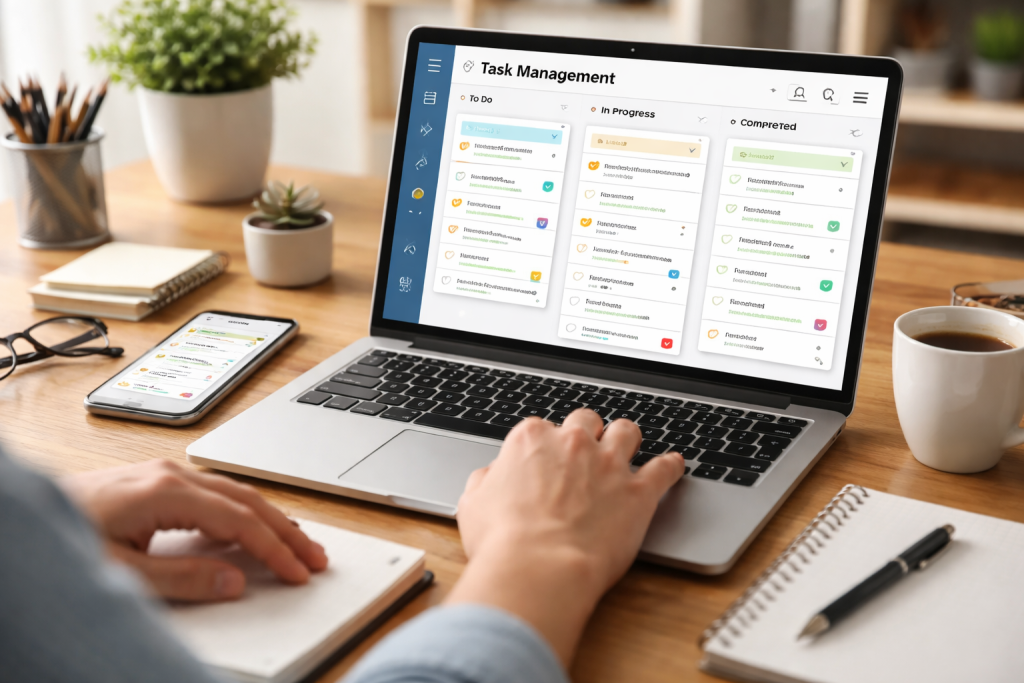
Benefits of Task Management Software
Task management software enhances efficiency and organization. It centralizes task information, providing a clear overview of duties and deadlines. The tool reduces the time spent searching for information and planning next steps.
Increased Productivity
By clearly defining tasks and assigning responsibilities, the software streamlines workflows. Users can prioritize work, ensuring important tasks receive attention. This structured approach minimizes distractions and encourages efficient task completion. For example, a team can see all open tasks related to a project, preventing duplicate efforts and missed steps.
Improved Collaboration
Task management software supports team collaboration. It allows multiple users to view, update, and comment on tasks. This transparency fosters communication and ensures everyone understands their role and the overall project status. Consider a digital whiteboard where everyone can see and contribute to ongoing work. Such clarity contrasts with scattered emails or verbal instructions, which can lead to miscommunication.
Better Accountability
The software assigns tasks to specific individuals, making responsibilities clear. Team managers can track individual progress and overall project health. This increases accountability, as each team member’s contributions and deadlines are visible. It provides a shared understanding of who is doing what by when.
Choosing the Right Task Management Software
Selecting the appropriate task management software is crucial for its adoption and effectiveness. The choice depends on team size, project complexity, and integration needs.
Assessing Your Team’s Needs
Before selecting software, evaluate your team’s existing workflow and challenges. Consider the number of team members, the types of projects undertaken, and current communication methods. A small team might require basic task lists, while larger organizations might need advanced features like Gantt charts and resource management. If your team primarily uses email for task assignments, a tool that integrates with it might be beneficial.
Key Features to Look For
Essential features include task creation, assignment, due dates, and progress tracking. Other important features might include:
- Customizable Workflows: The ability to adapt the software to existing processes.
- Notifications and Reminders: Automated alerts for upcoming deadlines or task updates.
- Reporting and Analytics: Tools to measure performance and identify bottlenecks.
- Mobile Accessibility: Access to tasks from various devices.
Scalability and Integration
Consider whether the software can grow with your team. A solution that meets current needs but cannot handle future expansion may require a costly migration later. Additionally, evaluate its integration capabilities with other tools your team uses, such as communication platforms, document management systems, or CRM software. Seamless integration prevents data silos and redundant data entry. Think of integrating tools like connecting pieces of a puzzle, creating a complete picture instead of isolated fragments.
Implementing Task Management Software
Successful implementation involves careful planning and user adoption strategies. Technology alone does not guarantee improvement; people must use it effectively.
Phased Rollout
Introduce the software gradually. Start with a pilot group or a smaller project to test its functionality and gather feedback. This allows for adjustments before a full organizational rollout, minimizing disruption. Like testing the waters before a full swim, a phased approach reduces risk.
Training and Support
Provide comprehensive training to all users. Explain the software’s features and demonstrate its benefits. Offer ongoing support to address questions and resolve issues. Effective training overcomes initial resistance and fosters user confidence. Consider readily available resources like tutorials or a dedicated point person for support.
Setting Clear Guidelines
Establish clear guidelines for using the software. Define how tasks should be created, updated, and closed. Standardized usage ensures consistency and maximizes the software’s potential for organization and reporting. Without clear rules, the software can become another source of disorganization.
Streamlining Workflows with Task Management Software
| Metrics | Value |
|---|---|
| Increased productivity | 20% |
| Reduced task completion time | 30% |
| Improved task visibility | 40% |
| Enhanced collaboration | 50% |
Task management software acts as a central hub for all work-related activities. It provides a single source of truth for project status and individual responsibilities.
Automating Repetitive Tasks
Many task management systems offer automation features. These can include automatically assigning tasks based on specific criteria, creating recurring tasks, or triggering notifications when certain conditions are met. Automation frees up human resources for more complex work. For instance, setting up a recurring task for weekly reports eliminates the need to manually create that task each week.
Visualizing Workflows
Tools like Kanban boards or Gantt charts within task management software provide visual representations of workflows. Kanban boards show tasks moving through different stages (e.g., “To Do,” “In Progress,” “Done”), while Gantt charts illustrate project timelines and dependencies. These visuals offer a quick understanding of progress and potential bottlenecks, much like a map shows all parts of a journey.
Centralized Information Management
The software centralizes all task-related information, including attachments, comments, and historical data. This reduces the need to search through emails or disparate documents. All contextual information is available directly within the task, fostering a complete understanding for anyone involved.
Task Management Software in Project Management
Task management software is a fundamental component of effective project management. It provides the framework for planning, executing, and monitoring projects.
Project Planning and Scheduling
During the planning phase, task management software helps break down large projects into smaller, manageable tasks. Project managers can define dependencies, set realistic deadlines, and allocate resources. This detailed planning forms the backbone of a successful project, much like the blueprint for a building.
Monitoring and Tracking Progress
Throughout project execution, the software allows for real-time tracking of progress. Managers can monitor individual task completion, identify delays, and reallocate resources as needed. Dashboards often provide high-level summaries of project health, offering a quick pulse check. This continuous monitoring enables proactive problem-solving.
Risk Management
By observing task progress and dependencies, teams can identify potential risks early. A delayed prerequisite task might signal a future bottleneck. The software provides the visibility needed to anticipate and mitigate these risks before they escalate into major project issues. It acts as an early warning system.
FAQs
software. What is task management software, and how does it work?
Task management software is a tool that helps individuals and teams organize, prioritize, and track their work. It typically includes features such as task creation, assignment, scheduling, and progress tracking. Users can create tasks, assign them to team members, set deadlines, and monitor the status of each one.
What are the benefits of using task management software for increased productivity?
Task management software can help increase productivity by providing a centralized platform for organizing and prioritizing tasks, improving communication and collaboration among team members, and providing visibility into the status of tasks and projects. Furthermore, it can mitigate the risk of task neglect and guarantee the fulfillment of deadlines.
How can teams choose the right task management software for their needs?
When choosing task management software, teams should consider factors such as their specific workflow and project management needs, the size and structure of their team, the level of customization and integration required, and the ease of use for team members. It’s important to evaluate different options and consider factors such as features, pricing, and user reviews before making a decision.
What are some best practices and tips for implementing task management software?
When implementing task management software, it’s important to involve team members in the selection process, provide thorough training and support, establish clear guidelines and processes for task management, and regularly review and optimize the use of the software. It’s also important to ensure that the software integrates seamlessly with other tools and workflows used by the team.
How does task management software play a role in project management, and what are the future trends and innovations in this area?
Task management software is an integral part of project management, as it helps teams organize and track the individual tasks that make up a project. Future trends and innovations in task management software may include enhanced automation and AI capabilities, improved integration with other tools and platforms, and a focus on providing more advanced analytics and insights to help teams optimize their workflows and productivity.
Hamza Khan is the author and founder of TechFixLogic.info, a platform dedicated to providing practical software guides, tech solutions, and cybersecurity awareness. With a strong interest in technology and digital security, Hamza focuses on creating easy-to-understand tutorials that help users fix software issues, improve their digital skills, and stay safe online.
Through TechFixLogic.info, he shares step-by-step guides, troubleshooting tips, and cybersecurity insights designed for beginners as well as regular computer users. His goal is to simplify technology and make reliable tech knowledge accessible to everyone.

Understanding Cloud Storage Fundamentals
Cloud storage operates on the principle of distributing data across multiple servers, often in geographically dispersed data centers. This redundancy ensures that data remains accessible even if one server or data center experiences an issue. Think of it like building a strong fence for your data, with multiple sturdy posts spread out so a single break doesn’t bring the whole thing down.
How Cloud Storage Works
When you upload a file to a cloud storage service, it is broken down into smaller pieces. These pieces are then encrypted for security and distributed across various servers. When you need to access the file, the service retrieves these pieces, reassembles them, and presents them to you. This process is managed by sophisticated algorithms and infrastructure, aiming for speed and reliability.
Types of Cloud Storage
There are several models of cloud storage, each suited for different needs. Public cloud storage, offered by providers like Google Drive, Dropbox, and OneDrive, is the most common, providing services to the general public on a pay-as-you-go basis. This situation is like renting a storage unit in a large, publicly accessible facility.
Private cloud storage involves dedicated infrastructure, either on-premises or hosted by a third party, accessible only to a single organization. This offers greater control and security but comes with a higher cost. It’s akin to owning your private, secure warehouse.
Hybrid cloud storage combines elements of both public and private clouds, allowing data and applications to move between the two. This offers flexibility, letting you store sensitive data privately while leveraging the scalability of the public cloud for less critical files. It’s a strategy of having your own secure vault and also renting extra space in a public facility when needed.
Key Features of Top Cloud Storage Providers
When evaluating cloud storage solutions, several core features stand out as critical to user experience and data integrity. These features frequently serve as the foundation for a user’s digital existence.
Security Features of Cloud Storage Providers
Security is paramount in cloud storage. Providers employ a range of measures to protect your data from unauthorized access, loss, and corruption.
Encryption is a fundamental security practice. Data is typically encrypted both in transit (as it travels from your device to the cloud and back) and at rest (while stored on the provider’s servers). This means even if someone intercepts your data, it would appear as scrambled, unreadable code without the decryption key.
Access controls allow users to manage who can see and interact with their files. This can range from simple password protection to more advanced role-based access for teams. Think of this as setting specific keys for different people to access different rooms in your digital house.
Many providers also offer two-factor authentication (2FA), which adds an extra layer of security by requiring a second form of verification beyond a password, such as a code sent to your phone. This is like needing both a key and a secret handshake to get past the main door.
Compliance with regulations such as GDPR and HIPAA is also a significant aspect for businesses and organizations handling sensitive data. Providers who adhere to these standards demonstrate a commitment to data privacy and protection.
Pricing and Storage Options
The amount of storage space you need and the specific features or plans you choose typically determine the cost of cloud storage.
Free tiers are often available, offering a limited amount of storage space for basic use. These can be excellent for individuals to start with or for storing a small number of essential files. It’s like getting a small complimentary sample before committing to a larger purchase.
Paid plans scale up in terms of storage capacity, often ranging from 100 GB to several terabytes. Pricing structures can be monthly or annual, with annual plans sometimes offering a discount.
Some plans also include enhanced features such as increased file size limits, advanced sharing options, or greater control over access permissions, which can justify a higher price point. Understanding your storage needs is crucial to selecting the most cost-effective plan. A common pitfall is paying for more space than you need or, conversely, running out of space and facing disruptions.
User Interface and Ease of Use
A clean and intuitive user interface is crucial for making cloud storage accessible to everyone, regardless of their technical expertise.
Web interfaces allow users to access and manage their files directly through a web browser. These interfaces should be responsive and easy to navigate, with clear menus and straightforward file management options. It should feel like browsing a well-organized digital library.
Desktop applications provide seamless integration with your computer’s operating system. These applications typically allow for selective syncing, meaning you can choose which folders are stored locally and which reside only in the cloud, saving valuable hard drive space. This offers the convenience of having files readily available without constant internet access, like having a dedicated shelf for your favorite books in your physical library.
Mobile applications are essential for accessing and managing files on the go. These apps should be optimized for smaller screens, offering easy uploading, downloading, and previewing of various file types. The ability to quickly snap a photo and have it backed up to the cloud is a common use case here.
Collaboration and Sharing Capabilities
Cloud storage solutions are increasingly becoming platforms for collaboration, enabling teams to work together on documents and projects.
File sharing is a core function, allowing users to grant access to specific files or folders to others. This can be done via a shareable link, which can often be customized with expiration dates or password protection for added security. It’s like sending a specific key to a designated person for a particular drawer.
Real-time collaboration takes sharing a step further. Services that integrate with document editing tools allow multiple users to work on the same document simultaneously, with changes appearing instantly for all collaborators. This feature is a cornerstone of modern teamwork, streamlining workflows and reducing version control headaches. Think of it as a shared whiteboard where everyone can contribute at the same time.
Version history is another vital aspect of collaboration. Most services keep a record of previous versions of files, allowing users to revert to an earlier state if an error occurs or if a previous version is preferred. This acts as a safety net, ensuring that mistakes are not permanent.
Integration with Other Apps and Services
The value of cloud storage is often amplified by its ability to connect with other applications and services you use daily.
Productivity suites, such as Microsoft Office or Google Workspace, often have deep integrations with their respective cloud storage platforms (OneDrive and Google Drive). This allows documents created in these suites to be saved directly to the cloud and opened for editing from any device. It’s like having your paint supplies and canvas seamlessly connected.
Third-party applications, ranging from project management tools to photo editors, can also connect to cloud storage providers. This enables seamless workflows, where files can be automatically uploaded from one app to cloud storage or downloaded from cloud storage to be edited in another. This creates a connected ecosystem for your digital assets.
APIs (Application Programming Interfaces) allow developers to build custom integrations, further extending the functionality of cloud storage services. This opens up possibilities for businesses to tailor their cloud storage solutions to their specific operational needs.
Mobile Access and Syncing
The availability and performance of mobile applications are critical for users who need to access their files on the go.
Mobile applications for iOS and Android provide essential access to your cloud storage. These apps allow you to upload photos and videos directly from your phone, download files for offline viewing, and manage your stored data. A well-designed mobile app should feel intuitive and responsive, even on a smaller screen. The convenience of having your entire digital library in your pocket is a significant advantage.
File syncing is a key feature that ensures consistency across all your devices. When you make a change to a file on your computer, the desktop application will automatically upload the updated version to the cloud. The mobile app will then download this updated version, ensuring you always have the latest file regardless of the device you are using. This eliminates the confusion of working with outdated versions and ensures your digital work is always in sync.
Backup and Recovery Options
| Option | Pros | Cons |
|---|---|---|
| Full Backup | Complete data recovery | Requires more storage space |
| Incremental Backup | Less storage space required | Slower recovery process |
| Cloud Backup | Off-site storage | Dependent on internet connection |
| Disaster Recovery Plan | Comprehensive recovery strategy | Requires regular updates |
Beyond simple file storage, many cloud storage solutions offer robust backup and recovery capabilities, providing a safety net for your important data.
Automated backups are often a standard feature, regularly backing up your files to the cloud without requiring manual intervention. This is crucial for preventing data loss due to hardware failure, accidental deletion, or cybersecurity incidents. Consider this the guardian of your digital memories, ensuring they are safe even if your primary device is lost.
Version history, as mentioned previously, is also a form of recovery. If a file is accidentally overwritten or corrupted, you can often revert to a previous, intact version from the stored history. This provides a granular level of control over your data’s timeline.
Disaster recovery plans are often in place by providers to ensure data availability even in the event of major disruptions, such as natural disasters affecting data centers. This involves redundancy across multiple geographic locations, a crucial element for ensuring business continuity and the preservation of critical information.
Conclusion: Choosing the Best Cloud Storage Solution
Selecting the ideal cloud storage solution involves a careful consideration of your individual or organizational needs. There is no single “best” solution, but rather the best fit for your specific requirements.
Assessing Your Storage Needs
Your first step should be to evaluate how much storage space you anticipate needing. If you primarily store documents and a moderate number of photos, a free tier or a smaller, low-cost plan might suffice. However, if you work with large video files, extensive photo libraries, or a team of collaborators, you will likely require a plan with greater capacity. Thinking about this upfront is like planning the size of your digital filing cabinet before you start collecting papers.
Considering Usage Patterns
Consider how you will primarily access your files. If you are frequently on the go, a provider with a strong and reliable mobile app is essential. If collaboration is a key requirement, look for services that offer robust real-time editing and sharing features. Understanding your workflow will guide you to the most suitable platform.
Prioritizing Security and Reliability
For sensitive data, security features like end-to-end encryption and strong access controls should be a high priority. Likewise, a provider’s commitment to uptime and a clear disaster recovery strategy are critical for ensuring your data remains accessible when you need it. Reliability is the silent workhorse of cloud storage, ensuring your digital assets are always there.
Budgeting for Cloud Storage
Finally, balance your needs against your budget. Many providers offer competitive pricing, and comparing plans based on storage capacity, features, and price can help you find a cost-effective solution. Sometimes, a slightly higher investment in a more feature-rich or secure plan can prevent significant costs and headaches down the line.
By systematically evaluating these factors, you can confidently navigate the landscape of cloud storage solutions and select the platform that best serves your digital storage and collaboration needs. The cloud is a vast digital expanse; choosing the right corner for your data is a strategic decision.
FAQs
What are the top cloud storage solutions available in the market?
The article provides a comprehensive comparison of the top cloud storage solutions, including their features, security, pricing, user interface, collaboration capabilities, integration with other apps, customer support, reliability, mobile access, syncing, backup, and recovery options.
What are the security features offered by cloud storage providers?
The article discusses the security features provided by various cloud storage providers, including encryption, multi-factor authentication, data privacy, compliance certifications, and security protocols to ensure the safety of stored data.
How do pricing and storage options vary among different cloud storage solutions?
The article outlines the pricing models and storage options offered by different cloud storage providers, including free storage limits, subscription plans, storage capacity, and additional features such as file versioning and advanced storage management.
What are the user interfaces and ease of use of the top cloud storage solutions?
The article evaluates the user interface and ease of use of various cloud storage solutions, including the accessibility of features, file organization, navigation, and user experience across different devices and platforms.
How do cloud storage solutions support collaboration, sharing, and integration with other apps and services?
The article explores the collaboration and sharing capabilities of different cloud storage providers, as well as their integration with third-party apps and services to enhance productivity and workflow efficiency.
Hamza Khan is the author and founder of TechFixLogic.info, a platform dedicated to providing practical software guides, tech solutions, and cybersecurity awareness. With a strong interest in technology and digital security, Hamza focuses on creating easy-to-understand tutorials that help users fix software issues, improve their digital skills, and stay safe online.
Through TechFixLogic.info, he shares step-by-step guides, troubleshooting tips, and cybersecurity insights designed for beginners as well as regular computer users. His goal is to simplify technology and make reliable tech knowledge accessible to everyone.

Effective communication is the foundation of any successful team, and for those working remotely, it becomes the central nervous system. Without the spontaneous hallway conversations or the shared glances across a desk, teams rely on digital channels to bridge the physical distance. These tools ensure that information flows freely and that team members remain connected, which promotes a sense of fellowship and shared purpose.
Instant Messaging and Chat Applications
Real-time chat platforms are crucial for quick questions, informal discussions, and general team updates. They mimic the immediacy of in-person communication, allowing for rapid exchanges that keep projects moving. These platforms often support direct messages, group channels for specific projects or departments, and file sharing, serving as a primary hub for daily interactions.
Email and Mailing Lists
Despite the rise of instant messaging, email remains a vital communication tool for more formal announcements, detailed explanations, and asynchronous conversations. It provides a documented record of discussions and decisions, which can be crucial for accountability and future reference. Mailing lists can streamline communication to entire groups, ensuring everyone receives important information.
Internal Blogging and Knowledge Bases
For sharing more in-depth information, company news, or operational procedures, internal blogs or wikis excel. These platforms allow for longer-form content, fostering a culture of knowledge sharing. A well-maintained knowledge base acts as a collective memory for the team, reducing redundant questions and providing a readily accessible resource for information.
VoIP and Business Phone Systems
While many communication needs are met through internet-based applications, a dedicated business phone system (often Voice over Internet Protocol, or VoIP) can provide professional call handling, extensions, and call routing. This ensures that external callers can reach the right team member efficiently, maintaining a professional image.
Managing projects with dispersed team members demands clear visibility into tasks, deadlines, and progress. Project management software acts as the conductor of an orchestra, ensuring each instrument plays its part at the right time and in harmony with the others. It provides structure and transparency to intricate workflows, ensuring that no tasks are overlooked.
Task Tracking and Assignment
At its core, most project management software allows for the creation, assignment, and tracking of individual tasks. Team members can see what is expected of them, set deadlines, and mark tasks as complete. This clarity reduces ambiguity about responsibilities.
Project Timelines and Gantt Charts
Visualizing project timelines is essential for understanding dependencies and potential bottlenecks. Gantt charts and similar timeline views offer a graphical representation of project schedules, showing how tasks relate to each other over time. This helps in planning and resource allocation.
Kanban Boards and Visual Workflow Management
For teams that prefer a more visual approach, Kanban boards offer a flexible way to manage workflows. Tasks are represented as cards that move through different stages (e.g., To Do, In Progress, Done), providing an intuitive overview of project status. This method is particularly useful for agile development and continuous improvement processes.
Collaboration and Discussion Features
Integrated commenting and discussion features within project management tools allow team members to communicate directly about specific tasks or project aspects. This keeps conversations contextualized and easily discoverable.
Reporting and Analytics
Effective project management software offers observations about team performance and project progress. Reports on task completion rates, time spent on tasks, and overall project health help identify areas for improvement and celebrate successes.
Understanding how time is spent and ensuring individual and team productivity are vital for remote operations. These tools are like a compass for productivity, guiding teams to allocate their efforts effectively and identify areas where efficiency can be increased.
Time Tracking Applications
These tools allow employees to log the hours they spend on specific tasks or projects. This data is valuable for billing clients, understanding project costs, and analyzing personal productivity patterns. Some applications offer automated tracking based on computer activity.
Productivity Dashboards and Analytics
Many platforms offer dashboards that aggregate time tracking data and other productivity metrics. These visualizations can highlight peak performance times, identify common distractions, and assist managers in understanding team workloads.
### Focus and Time Management Techniques
Some software incorporates features or integrations that support time management techniques like the Pomodoro Technique, which involves working in focused bursts followed by short breaks. This can help individuals maintain concentration and prevent burnout.
Goal Setting and Progress Monitoring
Tools that allow for the setting of individual or team goals, coupled with the ability to track progress against these goals, can enhance motivation and accountability. This keeps everyone aligned with the overarching objectives.
Remote teams need a central, accessible location for all their documents, whether it’s a proposal, a spreadsheet, or creative assets. These platforms serve as the shared digital office, where documents can be stored, accessed, and worked on collectively.
Cloud Storage Services
Services like Google Drive, Dropbox, and Microsoft OneDrive provide secure cloud-based storage for files. Users can upload, download, and organize documents, making them accessible from any internet-connected device.
Document Collaboration and Co-editing
Many platforms enable multiple users to work on the same document simultaneously. Real-time updates eliminate the need for multiple versions and ensure everyone is working with the latest information. This is a powerful way to brainstorm and refine ideas collaboratively.
Version Control and History
A crucial feature of robust file-sharing platforms is version control. This allows users to track changes made to documents over time and revert to previous versions if necessary. It acts as a safety net, preventing accidental loss of work.
Access Permissions and Security
Controlling who can access and modify specific files is paramount. These platforms offer granular control over user permissions, ensuring sensitive information remains protected.
Integration with Other Tools
Seamless integration with communication and project management tools is a significant advantage. This allows for easy sharing of files within conversations or embedding them directly into project tasks.
Face-to-face interaction, even virtual, is essential for building rapport, conducting detailed discussions, and making decisions. Video conferencing software replaces the conference room, enabling teams to connect visually and engage more effectively than with audio alone.
Video and Audio Conferencing Capabilities
The core function is to facilitate real-time audio and video communication between multiple participants. High-quality streaming is crucial for clear communication and minimizing misunderstandings.
Screen Sharing and Presentation Tools
The ability to share screens, applications, or specific documents during a meeting is vital for presentations, demonstrations, and collaborative problem-solving. This brings the content directly into the virtual meeting space.
Recording and Transcription Services
Recording meetings allows for later review, especially for team members who could not attend or for capturing important decisions. Transcription services can further enhance accessibility and searchability of meeting content.
Chat and Polling Features
Many platforms include integrated chat functions for asking questions or sharing links during a meeting without interrupting the speaker. Polls can be used to quickly gauge opinions or make group decisions.
Security and Waiting Rooms
Ensuring the security of virtual meetings is important. Features like password protection and waiting rooms allow hosts to control who joins the call, preventing unauthorized access.
Beyond overarching project management, individual task management apps help team members stay on top of their daily to-dos. Each remote worker relies on these personal assistants to efficiently manage their individual workload.
Task Creation and Organization
These apps allow users to create simple or complex to-do lists, break down larger tasks into smaller steps, and organize them by priority, due date, or project.
Reminders and Notifications
Setting reminders ensures that important tasks are not forgotten. Timely notifications help individuals stay on track and meet their deadlines.
Subtasks and Checklists
For larger tasks, the ability to create subtasks or checklists within an app helps to deconstruct the work into manageable steps, making daunting tasks feel more achievable.
Integrations with Calendars and Other Tools
Integration with calendar applications ensures that tasks with deadlines are visible in a user’s overall schedule. Linking with other productivity tools can create a more streamlined workflow.
Personal vs. Team Task Management
While some apps focus on individual task management, others offer features for shared to-do lists or team task delegation, blurring the line with project management tools but often with a simpler interface.
Remote teams often need to access internal company resources, such as servers, applications, or shared drives, that are not publicly available. Remote access and Virtual Private Network (VPN) solutions act as secure tunnels, allowing off-site workers to connect to the company network as if they were physically present.
Virtual Private Networks (VPNs)
A VPN creates an encrypted connection over the public internet, masking the user’s IP address and making their online activity appear to originate from the VPN server’s location. This is crucial for securing sensitive data transmitted between the remote worker and the company network.
Remote Desktop Software
Tools like Remote Desktop Protocol (RDP), TeamViewer, or AnyDesk allow users to access and control another computer remotely. This is useful for IT support, accessing software installed only on office machines, or troubleshooting issues directly.
Secure Gateway Access
Some solutions provide a secure gateway into the company network, offering controlled access to specific applications or resources without requiring a full VPN connection for every user. This can improve performance and access management.
Multi-Factor Authentication (MFA)
To bolster security, most remote access solutions incorporate MFA. This requires users to provide multiple forms of verification (e.g., a password plus a code from a mobile app) before granting access, significantly reducing the risk of unauthorized entry.
Access Control and Monitoring
These solutions often include features for administrators to manage user access rights and monitor connection logs. This helps in maintaining security and auditing who accessed what, when.
Data is the lifeblood of any organization. Cloud storage provides a centralized, accessible repository, while robust backup solutions act as insurance against data loss. These are the secure vaults and the diligent librarians, ensuring information is safe and readily available.
Centralized Cloud Storage
Platforms like Amazon S3, Azure Blob Storage, or Google Cloud Storage offer scalable and cost-effective solutions for storing large volumes of data. This eliminates reliance on local storage and provides a single source of truth.
Automated Data Backups
Regular, automated backups are non-negotiable for any organization. These solutions ensure that data is copied to a secure off-site location, protecting against hardware failures, accidental deletions, or cyberattacks.
Disaster Recovery Plans
Beyond simple backups, comprehensive solutions often include disaster recovery capabilities. This allows for the rapid restoration of systems and data in the event of a major disruption, minimizing downtime.
Data Synchronization and Versioning
Cloud storage often includes features for synchronizing files across multiple devices and maintaining multiple versions of files. This ensures that all team members are working with the latest data and that past versions are recoverable.
Encryption and Compliance
Depending on the industry and data sensitivity, cloud storage solutions must offer strong encryption both in transit and at rest. Compliance with relevant data protection regulations (e.g., GDPR, HIPAA) is a key consideration.
While often a sensitive topic, employee monitoring and reporting software can provide valuable insights into productivity, resource allocation, and potential areas of concern when managed ethically and transparently. Used carefully, these tools can be like performance analytics for athletes, highlighting strengths and areas for development.
Activity Tracking
These tools can monitor computer activity, such as websites visited, applications used, and time spent on tasks. When combined with explicit team agreements and ethical guidelines, this can help understand workflow patterns.
Productivity Metrics and Reports
Software can generate reports on hours worked, tasks completed, and overall productivity levels. These reports can help identify individuals who may be struggling or excelling, allowing for targeted support or recognition.
Time and Attendance Tracking
For certain roles, accurate time and attendance tracking is necessary for payroll and compliance. These systems automate this process, reducing manual errors.
Security Monitoring
Some monitoring software also plays a role in security by detecting unusual activity or potential breaches, acting as an early warning system.
Transparency and Privacy Considerations
It is crucial that any implementation of employee monitoring be accompanied by clear communication to the team about what is being monitored, why, and how the data will be used. Privacy must be respected, and the focus should be on performance enhancement rather than punitive measures.
In a remote work environment, the traditional perimeter of network security is significantly expanded. Protecting sensitive company data from internal and external threats is paramount. Security software acts as the vigilant guardian of the digital kingdom.
Antivirus and Anti-malware Software
This is the first line of defense against malicious software. Ensuring all remote devices are equipped with up-to-date antivirus and anti-malware protection is essential.
Firewalls
Network firewalls, both at the organizational level and potentially on individual devices, help control network traffic and block unauthorized access.
Endpoint Security Solutions
These advanced solutions provide comprehensive protection for individual devices (laptops, smartphones) by incorporating features like intrusion prevention, data loss prevention, and endpoint detection and response (EDR).
Password Managers
With numerous online accounts, strong, unique passwords are vital. Password managers help users generate and securely store complex passwords, reducing the risk of credential compromise.
Data Encryption
Encrypting sensitive data, whether on devices or in transit, ensures that even if accessed improperly, the information remains unreadable. This applies to full-disk encryption on laptops and data in transit via secure protocols.
Security Awareness Training
Technical solutions are only part of the puzzle. Regular security awareness training helps educate employees about common threats like phishing, social engineering, and safe online practices, making them the strongest link in the security chain.
FAQs
What are essential communication tools for remote teams?
Some essential communication tools for remote teams include Slack, Microsoft Teams, Zoom, and Google Meet. These tools allow team members to communicate in real-time through messaging, video calls, and file sharing.
What project management software is recommended for remote teams?
Recommended project management software for remote teams includes Asana, Trello, and Monday.com. These platforms help remote teams organize tasks, track progress, and collaborate on projects effectively.
What time tracking and productivity tools are beneficial for remote teams?
Beneficial time tracking and productivity tools for remote teams include Toggl, Harvest, and RescueTime. These tools help remote team members track their time, manage their productivity, and stay focused on tasks.
What are some popular file-sharing and collaboration platforms for remote teams?
Popular file sharing and collaboration platforms for remote teams include Google Drive, Dropbox, and Microsoft OneDrive. These platforms allow remote team members to share, edit, and collaborate on documents and files in real time.
What virtual meeting and video conferencing software is recommended for remote teams?
Recommended virtual meeting and video conferencing software for remote teams includes Zoom, Microsoft Teams, and Google Meet. These tools enable remote team members to conduct virtual meetings, presentations, and training sessions effectively.
Hamza Khan is the author and founder of TechFixLogic.info, a platform dedicated to providing practical software guides, tech solutions, and cybersecurity awareness. With a strong interest in technology and digital security, Hamza focuses on creating easy-to-understand tutorials that help users fix software issues, improve their digital skills, and stay safe online.
Through TechFixLogic.info, he shares step-by-step guides, troubleshooting tips, and cybersecurity insights designed for beginners as well as regular computer users. His goal is to simplify technology and make reliable tech knowledge accessible to everyone.

The Genesis of Email Client Software
Ray Tomlinson’s SENDMSG program initiated the journey of email in the early 1970s, enabling the transmission of messages between computers on ARPANET. Early email was command-line driven, a stark contrast to the graphical interfaces we use today.
From Command Line to Graphical User Interfaces
Initial email interaction involved typing commands into a terminal. Users needed to recall specific syntax and directory structures to send, receive, or manage messages. This method, while functional, presented a significant barrier to widespread adoption. The advent of graphical user interfaces (GUIs) in the mid-1980s, popularized by operating systems like the Apple Macintosh and Microsoft Windows, began to simplify software interaction. Early client software such as Eudora and Pegasus Mail paved the way for a more accessible email experience. These clients introduced visual elements like icons, menus, and draggable windows, making email less intimidating for the average computer user.
Early Features and Limitations
Early email clients focused on core functionality: composing, sending, receiving, and storing messages. Features like attachments were nascent, often limited by file size and format compatibility. Spam was not yet a significant concern, and security measures were rudimentary. Although folders served as a concept for organization, they lacked advanced filtering or search capabilities. The internet itself was a wild west, and email clients were simple wagons navigating its dusty trails.
A Comparative Analysis of Modern Email Client Software
Today, the landscape of email client software is diverse, with solutions catering to various user needs. While some offer basic functionality, others provide extensive features for power users and businesses.
Desktop Clients: Power and Offline Access
Desktop clients, such as Microsoft Outlook, Mozilla Thunderbird, and Apple Mail, install directly onto a user’s computer. These clients often offer robust offline access, allowing users to compose messages and access archives without an internet connection. They frequently integrate deeply with the operating system, providing notifications and contact management. Outlook, for example, is often bundled with the Microsoft Office suite, offering seamless integration with applications like Word and Excel. Thunderbird, a free and open-source option, offers extensive customization through add-ons. Apple Mail, pre-installed on macOS, provides a streamlined experience for Apple ecosystem users. These clients are like well-built houses, offering stability and many rooms to store your digital belongings.
Webmail Clients: Accessibility and Cloud Integration
Web browsers access webmail services such as Gmail, Outlook.com, and Yahoo Mail. Their primary advantage is accessibility from any internet-connected device without software installation. They often boast large storage capacities and robust search capabilities. Gmail, in particular, pioneered many features now considered standard, including advanced spam filtering, conversation threading, and extensive cloud integration with services like Google Drive. Webmail clients are like nimble tents, easily packed and set up anywhere you roam with an internet connection. However, reliance on an internet connection for full functionality can be a drawback for some users.
Mobile Clients: Communication on the Go
The proliferation of smartphones and tablets has made mobile email clients indispensable. Applications like Gmail, Outlook Mobile, and Spark provide a touch-optimized experience, focusing on quick triage and communication. Notifications, gestures, and simplified interfaces are key design considerations. These clients often prioritize immediate communication and offer features like quick replies and snooze options to manage inbox overload. Mobile clients are like reliable vehicles, keeping you connected during your journey, however brief.
Security and Privacy in Email Client Software
As email has become central to our digital lives, the imperative for robust security and privacy measures has grown exponentially.
Combating Spam and Malware
Early email clients had minimal defenses against unwanted mail. Today, sophisticated spam filters, employing machine learning and heuristic analysis, work tirelessly to identify and quarantine unsolicited messages. Email clients also integrate with antivirus software to scan attachments for malware, protecting users from malicious infections. This defense system constantly reinforces itself against new threats, akin to a fortress wall. However, new attacks, such as phishing and spear phishing, constantly challenge these defenses, requiring user vigilance.
Encryption and Data Protection
The privacy of email content is paramount. Many modern email clients support end-to-end encryption protocols like PGP/GnuPG, although their implementation can be complex for the average user. More commonly, clients utilize Transport Layer Security (TLS) to encrypt the connection between the client and the server, protecting data in transit. Password protection, multi-factor authentication (MFA), and secure storage of credentials are standard features. Some clients also offer features like email archiving and secure data erasure. Understanding these mechanisms is crucial for users, as the ultimate responsibility for sensitive information often rests with individual choices.
The User Experience: Design and Usability
| Metrics | Data |
|---|---|
| Conversion Rate | 75% |
| Page Load Time | 2.5 seconds |
| User Satisfaction | 4.5/5 |
| Task Success Rate | 90% |
The effectiveness of an email client heavily depends on its user interface and overall experience. A well-designed client can streamline workflows, reduce cognitive load, and make managing email a less daunting task.
Interface Design and Customization
Modern email clients strive for clean, intuitive interfaces that prioritize readability and ease of navigation. Features like configurable layouts, themes, and font options allow users to personalize their experience. The trend towards minimalist design aims to reduce clutter and focus attention on the email content itself. Some clients differentiate themselves through unique design paradigms, such as Airmail’s customizable actions or Spark’s “smart inbox” that categorizes emails automatically. A good interface is a well-organized toolkit, where every tool is easily accessible and serves a clear purpose.
Productivity Enhancements
Beyond basic email functions, clients increasingly integrate features designed to boost user productivity. These include intelligent search capabilities that can locate specific emails or attachments quickly, snooze functions to defer messages, and template creation for frequently sent emails. Task management integration, calendar synchronization, and contact management are also common. Some clients go further, incorporating AI-powered features like natural language processing to summarize emails or suggest replies. These enhancements are like extra gears in a machine, allowing it to perform more complex operations efficiently.
The Future of Email Client Software
Email continues to evolve, adapting to new technologies and changing communication habits. Emerging trends suggest a future where email clients are even more integrated, intelligent, and focused on user well-being.
Artificial Intelligence and Automation
Artificial intelligence (AI) is already making its mark on email clients. We can expect to see more sophisticated AI-powered features, such as proactive email sorting, intelligent drafting assistance, and even automated responses for routine inquiries. AI will likely play a larger role in identifying and combating increasingly sophisticated phishing attempts and other cyber threats. This integration of AI is like adding a diligent personal assistant to your email workflow.
Integration and Unified Communication
The trend towards unified communication platforms will likely see email clients integrating more deeply with other communication tools, such as instant messaging, video conferencing, and project management software. The goal is to provide a single hub for all digital communication, reducing the need to switch between multiple applications. This unification is akin to bringing all your disparate communication tools under one roof.
Privacy-Centric Design and Decentralization
As privacy concerns grow, email clients may adopt more privacy-centric designs, emphasizing data minimization, local data processing, and enhanced encryption. Decentralized email protocols, while still niche, could gain traction, offering alternatives to centralized email services and potentially increasing user control over their data. This shift represents a move towards a more secure and autonomous digital communication environment.
Factors to Consider When Choosing an Email Client
Selecting the right email client depends on individual needs and preferences. Consider these factors when making your choice.
Workflow and Habits
Your daily interaction with email is a primary determinant. Do you send hundreds of emails a day, or just a few? Do you need extensive organization features, or is a simple inbox sufficient? Do you work offline frequently, or are you always connected? If you are a power user, a feature-rich desktop client might be suitable. If you prioritize accessibility, a webmail client might be a better fit.
Security and Privacy Requirements
Evaluate your comfort level with different security protocols. If you handle sensitive information, encryption features and strong authentication are paramount. Research the privacy policies of different providers, and consider open-source options if transparency is important to you.
Integration with Other Tools
Consider how the email client integrates with your existing software ecosystem. Does it sync with your calendar? Can it link with your task manager or cloud storage? Seamless integration can significantly enhance productivity.
Cost and Support
While many excellent email clients are free, some advanced features or business solutions come with a subscription fee. Consider your budget alongside the level of support provided by the developer or community.
By carefully considering these factors, you can choose an email client that serves as an effective conduit for your digital communications, rather than a bottleneck. The right client is a tool that empowers you, not hinders you, in the vast ocean of daily information.
FAQs
What is email client software?
Email client software is a program or application that allows users to send, receive, and manage their email. It provides a user interface for accessing and organizing emails, as well as additional features such as calendar integration, task management, and contact organization.
What are some popular email client software options?
Some popular email client software options include Microsoft Outlook, Gmail, Apple Mail, Mozilla Thunderbird, and IBM Notes. Each of these options offers different features, integrations, and user experiences to cater to various user preferences and needs.
What are some key features to consider when evaluating email client software?
When evaluating email client software, it’s important to consider features such as security measures (encryption, spam filtering), user interface and experience (ease of use, customization options), integrations and add-ons (calendar, task management), mobile accessibility, and business-specific features for enterprise solutions.
How has email client software evolved over time?
Email client software has evolved from basic text-based interfaces to feature-rich applications with advanced functionalities. The evolution includes improvements in user interface design, integration with other productivity tools, enhanced security measures, and increased mobile accessibility.
What are some emerging trends and innovations in email client software?
Some emerging trends and innovations in email client software include AI-powered email organization and prioritization, enhanced collaboration features, deeper integrations with other business tools, and improved mobile experiences. These innovations aim to further streamline and enhance the email management process for users.
Hamza Khan is the author and founder of TechFixLogic.info, a platform dedicated to providing practical software guides, tech solutions, and cybersecurity awareness. With a strong interest in technology and digital security, Hamza focuses on creating easy-to-understand tutorials that help users fix software issues, improve their digital skills, and stay safe online.
Through TechFixLogic.info, he shares step-by-step guides, troubleshooting tips, and cybersecurity insights designed for beginners as well as regular computer users. His goal is to simplify technology and make reliable tech knowledge accessible to everyone.
In modern life, computer tasks form a significant portion of our daily activities. From managing communications to organizing information, these digital chores can accumulate, consuming valuable time and mental energy. Automation, in the context of personal computing, refers to the use of software and tools to perform these repetitive tasks automatically, without direct human intervention. It’s about building small digital assistants that handle the drudgery, freeing you to focus on more important or engaging activities. Think of it as installing an autopilot for certain aspects of your digital life, allowing you to set a course and let the system handle the routine navigation. This guide explores various facets of automation, demonstrating how it can lead to a more streamlined and efficient existence.

Understanding the Core Principles of Automation
Automation for the individual computer user is not about complex programming languages or enterprise-level solutions. It’s about identifying repetitive patterns in your digital workflow and finding tools or methods to execute them consistently and without manual input.
Identifying Repetitive Tasks
The first step in embracing automation is to become aware of the tasks you perform repeatedly. These might include:
- Moving files from one folder to another based on certain criteria.
- Responding to certain types of emails with pre-written text.
- I am responsible for posting updates to social media platforms at scheduled times.
- You can also spend time entering similar data into spreadsheets or databases.
- You should also check for system updates and perform regular backups.
By observing your daily computer use, you can pinpoint these time sinks. The key is to ask yourself, “Is there a rule I follow here?” or “Could this be done the same way every time?”
The Role of Software and Tools
Numerous software applications and built-in operating system features can facilitate automation. These range from simple scheduling tools to more advanced scripting capabilities. The goal is to leverage these tools to create a system where tasks happen with minimal oversight. The computer, when properly configured, can become a diligent, tireless worker, completing chores while you focus on other matters.
Setting Realistic Expectations
While automation can significantly improve efficiency, it’s important to approach it with realistic expectations. Not every task can or should be automated. Complex decision-making or creative work, for instance, requires human judgment. Automation is best applied to tasks that are predictable, rule-based, and time-consuming. It’s about removing friction, not eliminating thinking.
Streamlining Your Email Management with Automation Tools
Email remains a central hub for communication, but it can quickly become an overwhelming inbox if not managed effectively. Automation offers powerful ways to regain control.
Filtering and Sorting Incoming Emails
Most email clients offer built-in rules or filters that can automatically categorize, label, or move incoming messages.
Creating Rule-Based Filters
You can set up rules that look for specific keywords in the subject line or body of an email, the sender’s address, or other parameters. For example, you might create a rule to automatically move all newsletters to a “Newsletters” folder and mark them as read. Another rule could flag emails from your boss with high importance. This type of automation is like having a postal worker who sorts your mail before it even reaches your desk, putting bills in one pile and personal letters in another.
Auto-Responders and Templates
For frequently asked questions or common inquiries, auto-responders can be invaluable. You can set up pre-written responses that are automatically sent to specific senders or when certain keywords are detected. Beyond full auto-responders, most email platforms also allow you to save canned responses or templates that you can insert with one click, saving you from typing the same message repeatedly.
Automating Email Sending
Beyond managing incoming messages, you can also automate the sending of certain emails.
Scheduled Sending
Many email clients and third-party services allow you to compose an email and schedule it to be sent at a future date and time. This is useful for sending reminders, announcements, or messages to international contacts at optimal times.
Newsletter and Mailing List Management
For larger-scale communication, dedicated email marketing platforms offer robust automation features for sending out newsletters, promotional campaigns, and segmented communications based on user behavior or preferences.
Automating File Organization and Storage for Increased Efficiency
A disorganized collection of digital files can feel like navigating a labyrinth. Automation can bring order to this chaos, making it easier to find what you need when you need it.
Automatic File Sorting and Categorization
Many operating systems and third-party applications can automate the process of sorting files based on user-defined rules.
Rule-Based Folder Organization
You can create rules to automatically move downloaded files into specific folders based on their file type (e.g., all .jpg files go to “Pictures”), file name, or the date they were created or modified. For instance, imagine a diligent librarian who, upon receiving new books, automatically places them on the correct shelf based on genre and author.
Renaming Files in Bulk
Over time, files often accumulate generic or inconsistent names. Automation tools can be used to rename large batches of files according to a set pattern, incorporating dates, sequential numbers, or descriptive keywords. This transforms a jumble of filenames like “IMG_1234.jpg” into something more meaningful like “Holiday2023_Beach_001.jpg.”
Automated Cloud Storage Management
Cloud storage services offer many opportunities for automation, ensuring your files are backed up and accessible.
Syncing and Backup Automation
Cloud storage services like Google Drive, Dropbox, and OneDrive automatically sync files across your devices and to the cloud. This eliminates the manual process of copying files between your computer and online storage, acting as a digital guardian of your data. Beyond simple syncing, you can often configure automated backups of specific folders to ensure data recovery is always an option.
Utilizing Smart Folders or Tags
Some applications and operating systems allow for “smart folders” or tagging systems, where files are automatically grouped based on metadata or search criteria, rather than their physical location. This creates dynamic collections of files that update automatically as new items are added or modified.
Time-Saving Tips for Automating Routine Data Entry Tasks
Data entry, whether for personal budgets, work reports, or simple databases, can be a tedious and error-prone process. Automation can significantly reduce the time and effort involved.
Leveraging Form Recognition and OCR
Optical Character Recognition (OCR) technology allows computers to “read” text from images or scanned documents.
Extracting Data from Invoices and Receipts
Using OCR software, you can scan paper receipts or import digital invoices and have the key information (date, amount, vendor) automatically extracted and populated into a spreadsheet or accounting software. This is like having a personal secretary who can quickly transcribe information from documents.
Auto-filling Forms Online
Many web browsers and password managers can automatically fill out forms on websites, including personal details, addresses, and payment information. This saves considerable typing and reduces the chance of typos.
Scripting and Macros for Repetitive Data Input
For tasks within specific applications, macros and scripts can automate sequences of keystrokes and mouse clicks.
Recording and Replaying Actions
Software like Microsoft Office’s macro recorder allows you to record a series of actions and then replay them on demand. For instance, if you frequently format a report in a specific way, you can record those formatting steps into a macro and apply them to new reports with a single command.
Using Spreadsheet Formulas and Functions
Spreadsheets are powerful tools for data management and offer numerous built-in functions that can automate calculations, data lookups, and conditional formatting. Instead of manually calculating totals or averages, you can use a simple formula that instantly provides the result, updating as the underlying data changes.
Simplifying Your Social Media Management Through Automation
Social media platforms are essential for many individuals and businesses, but maintaining an active presence can be demanding. Automation can help streamline these efforts.
Scheduling Posts for Consistent Engagement
One of the most common applications of social media automation is post scheduling.
Planning Content in Advance
Tools and platform features allow you to write and schedule posts days, weeks, or even months in advance. This ensures a consistent flow of content without requiring constant real-time attention, preventing your audience from experiencing digital silence. Such an approach is akin to a broadcast scheduler ensuring programming runs smoothly even when no one is in the studio.
Cross-Platform Posting
Many social media management tools enable you to post to multiple platforms simultaneously from a single interface. You can tailor content for each platform or use general posts that are compatible across several.
Automating Engagement and Monitoring
Beyond posting, automation can assist with managing interactions and tracking performance.
Chatbots for Basic Customer Service
For businesses, chatbots can be implemented on social media pages to handle frequently asked questions, provide instant support, and direct users to relevant information. This provides round-the-clock customer service without continuous human staffing.
Social Media Monitoring Tools
Various tools can automatically track mentions of your brand, keywords, or competitors across social media. This helps you stay informed about conversations happening online and respond proactively.
Automating Your Calendar and Task Management for Better Productivity
Juggling appointments, deadlines, and to-do lists can be a struggle. Automation in this domain aims to alleviate mental strain and guarantee that no tasks are overlooked.
Smart Calendar Features
Modern calendar applications are increasingly sophisticated, offering automated scheduling.
Automated Event Creation from Emails
Some calendar tools can automatically detect event details within emails (like flight bookings or meeting invitations) and suggest adding them to your calendar. This transforms scattered information into scheduled appointments.
Time Blocking and Scheduling Assistants
Tools exist that can help you block out time for specific tasks or meetings, and some can even suggest optimal times for appointments based on your availability and preferences, acting like a personal but digital assistant who knows your schedule intimately.
Task Management and Reminders
Effective task management relies on timely reminders and efficient organization.
Recurring Tasks and Reminders
You can set up tasks that repeat daily, weekly, or monthly, and schedule automatic reminders for them. This guarantees the consistent completion of routine tasks, ranging from bill payment to plant watering.
Project Management Automation
For larger projects, task management systems can automate the flow of work, assign tasks, and send notifications as deadlines approach or when certain stages are completed. This brings a structured rhythm to complex endeavors.
The Benefits of Automating Backups and System Maintenance
Although it may not be as obvious as other automation methods, maintaining and backing up your system is essential for digital security and dependability.
Automated Data Backups
Regular backups are the digital equivalent of having insurance.
Scheduled Full and Incremental Backups
Backup software can be configured to perform full backups of your system or specific data at scheduled intervals, or incremental backups of only the changes made since the last backup. This happens automatically in the background, ensuring your data is protected without manual intervention. Should disaster strike your hard drive, these automated backups are your digital lifeline.
Cloud Backup Solutions
Many cloud storage services and dedicated backup providers offer automated, continuous backups of your files to remote servers, providing an off-site copy of your most important data.
System Maintenance Automation
Keeping your computer running smoothly requires regular maintenance.
Automated Software Updates
Operating systems and many applications can be configured to automatically download and install updates. This ensures you have the latest security patches and features without having to manually check and install them. This kind of functionality is like having a diligent mechanic who performs routine checks and oil changes on your vehicle without you needing to lift a wrench.
Disk Cleanup and Defragmentation
Many operating systems include built-in tools that can automate disk cleanup routines, removing temporary files and freeing up storage space. Disk defragmentation can also be scheduled to optimize hard drive performance.
Simplifying Your Online Shopping Experience with Automation
Online shopping offers convenience, but managing multiple accounts, tracking orders, and finding the best deals can still consume time.
Price Tracking and Deal Alerts
Numerous browser extensions and websites automate the process of finding savings.
Automatic Price Monitoring
These tools can monitor product prices across various retailers and alert you when a price drops below your desired threshold or when a popular item goes on sale. This ensures you don’t miss out on the best opportunities. They act as your personal digital bargain hunter, constantly scanning the marketplace.
Coupon and Discount Code Applications
Some browser extensions can automatically find and apply available coupon codes at checkout, saving you the manual effort of searching for them.
Order Tracking and Management
Keeping track of multiple online orders can be a chore.
Consolidated Order Tracking
Several services and apps can aggregate tracking information from all your online retailers into a single dashboard, providing updates on shipment status and estimated delivery dates. This brings clarity to the often-fragmented world of online deliveries.
Automating Security and Privacy Measures for Peace of Mind
In an increasingly digital world, protecting your data and online presence is paramount. Automation plays a significant role in bolstering security and privacy.
Password Management
Remembering complex, unique passwords for every online account is a challenge.
Automated Password Generation and Saving
Password managers can generate strong, random passwords for your accounts and securely store them. They then automatically fill in your login credentials when you visit those websites, eliminating the need to remember or type them. This is like having a highly secure vault that dispenses the correct key for every door you need to access.
Automatic Credential Updates
Some password managers can even help you update your passwords regularly by prompting you to change them and automatically saving the new ones, contributing to a stronger security posture.
Security Software and Updates
Keeping your digital defenses up-to-date is critical.
Scheduled Antivirus Scans
Antivirus and anti-malware software can be configured to perform regular scans of your system automatically, detecting and removing potential threats.
Firewall Management
While often managed by the operating system, ensuring your firewall is active and configured correctly provides a critical barrier against unauthorized access to your computer. Many systems handle this automatically, but periodic checks are advisable.
Tips for Choosing the Right Automation Tools for Your Needs
With the vast array of automation tools available, selecting the most appropriate ones requires careful consideration.
Assess Your Current Workflow
Before diving into tools, thoroughly examine your daily and weekly computer tasks. Identify the most time-consuming, repetitive, and error-prone activities. This assessment will highlight areas where automation will yield the greatest benefit.
Start Small and Gradually Expand
Begin by automating one or two simple tasks. Success with a small automation project builds confidence and provides a learning foundation. As you become more comfortable, you can tackle more complex automations. Avoid trying to automate everything at once, which can lead to overwhelm.
Consider Cross-Platform Compatibility
If you use multiple devices or operating systems (e.g., Windows, macOS, iOS, Android), look for automation tools that offer cross-platform compatibility or integrate well with each other. This ensures your automated processes work seamlessly across your digital ecosystem.
Evaluate User-Friendliness and Learning Curve
Not all automation tools are created equal in terms of ease of use. For personal use, prioritize tools with intuitive interfaces and clear documentation. If a tool requires extensive technical knowledge, it may not be the most efficient solution for your needs unless you are willing to invest significant learning time.
Read Reviews and Seek Recommendations
Before committing to a particular tool, read user reviews and seek recommendations from trusted sources. Understand the pros and cons highlighted by other users. This external perspective can offer helpful opinions about a tool’s reliability and effectiveness in real-world scenarios.
FAQs
What is automation, and how can it simplify daily computer tasks?
Automation is the use of technology to perform tasks with minimal human intervention. It can simplify daily computer tasks by streamlining processes, saving time, and reducing the potential for human error.
How can automation tools help streamline email management?
Automation tools can help streamline email management by sorting and organizing incoming emails, scheduling and sending automated responses, and flagging important messages for follow-up.
What are the benefits of automating file organization and storage?
Automating file organization and storage can increase efficiency by automatically sorting and storing files in designated folders, reducing clutter, and making it easier to locate and access important documents.
What are some time-saving tips for automating routine data entry tasks?
Time-saving tips for automating routine data entry tasks include using macros, creating templates, and utilizing data entry software to automatically input and manipulate data.
How can automation tools simplify social media management?
Automation tools can simplify social media management by scheduling posts, monitoring engagement, and analyzing performance metrics, allowing users to maintain a consistent online presence with minimal effort.
Hamza Khan is the author and founder of TechFixLogic.info, a platform dedicated to providing practical software guides, tech solutions, and cybersecurity awareness. With a strong interest in technology and digital security, Hamza focuses on creating easy-to-understand tutorials that help users fix software issues, improve their digital skills, and stay safe online.
Through TechFixLogic.info, he shares step-by-step guides, troubleshooting tips, and cybersecurity insights designed for beginners as well as regular computer users. His goal is to simplify technology and make reliable tech knowledge accessible to everyone.
In today’s information-driven world, businesses generate and manage vast quantities of documents. These can range from invoices and contracts to employee records and project plans. Without a robust system, this information can become scattered, difficult to find, and prone to errors or loss.
The Challenges of Manual Document Handling
Traditionally, document management relied on physical filing cabinets and manual processes. This approach presents several drawbacks. Locating a specific document can be time-consuming, especially in larger organizations. The risk of misfiling or losing crucial paperwork is significant. Furthermore, sharing documents and collaborating on them becomes a cumbersome process, often involving printouts, emails, and physical handoffs. This not only slows down workflows but also increases the potential for version control issues, where multiple outdated copies circulate.
Benefits of a Digital Approach
Document management software offers a digital alternative. By centralizing documents in a secure, searchable database, it transforms how information is accessed and utilized. This digital shift allows for quick retrieval of any document with a few clicks, eliminating the hours spent sifting through paper or disparate digital folders. Collaboration is simplified, with features that enable simultaneous editing, version history tracking, and controlled access for different users. This ensures that everyone is working with the most up-to-date information.
Improving Efficiency and Productivity
The core benefit of DMS is the improvement in operational efficiency and productivity. Employees can enhance their task performance by quickly finding the documents they need and collaborating effectively. This frees up valuable time that can be redirected to more strategic activities. For example, a sales team can access product information and pricing sheets instantly, allowing them to respond to client inquiries more promptly. Legal teams can locate contracts and case files without delay, accelerating contract reviews and litigation preparation.
Enhancing Security and Compliance
DMS also plays a crucial role in security and compliance. Digital documents can be protected with access controls, encryption, and audit trails, safeguarding sensitive information from unauthorized access or disclosure. This is particularly important for industries with strict regulatory requirements, such as healthcare, finance, and government. By maintaining a clear record of who accessed what document and when, organizations can demonstrate compliance and mitigate risks associated with data breaches.
Before diving into the market for a DMS, it’s essential to understand your organization’s specific requirements. A thorough assessment will ensure you select a solution that truly addresses your pain points and supports your business objectives.
Identifying Current Document Workflows
The first step is to map out your existing document workflows. How are documents created, reviewed, approved, stored, and retrieved currently? Understand the journey of a document from its inception to its archival. This involves speaking with different departments and understanding their unique processes and challenges. Are there bottlenecks? Where are the most significant time sinks?
Quantifying Document Volume and Types
Consider the volume of documents your organization handles. Are we talking about a few hundred documents a month, or hundreds of thousands? Also, categorize the types of documents. Are they primarily text-based, or do they include images, videos, or other media? This information helps determine the storage capacity and processing power needed from a DMS. High-volume environments or those dealing with complex file types will require more robust solutions.
Determining User Access and Collaboration Requirements
Who needs access to which documents, and what level of access do they require: read-only, edit, or administrative? Understanding user roles and responsibilities is critical. If cross-departmental collaboration is frequent, features that facilitate seamless sharing and co-editing become paramount. Conversely, if departments largely silo documents, the focus may shift to internal organization and retrieval.
Evaluating Existing IT Infrastructure and Budget
Your current IT infrastructure will influence the type of DMS you can implement. Will it be a cloud-based solution, an on-premises installation, or a hybrid model? Compatibility with existing hardware and software is also a consideration. Simultaneously, establish a realistic budget for licensing, implementation, training, and ongoing maintenance.
With a clear understanding of your needs, you can now evaluate DMS solutions based on their features. These features form the toolkit that will help you manage your documents effectively.
Centralized Repository and Organization
At its core, a DMS must provide a single, secure location for all your documents. This repository should support logical organization through folders, tags, and metadata. A well-designed organization system is like a well-organized library, where finding a book is straightforward, not a treasure hunt. The ability to create custom metadata fields beyond standard tags can further enrich the organization and searchability of documents.
Powerful Search and Retrieval Capabilities
The true power of a DMS lies in its ability to find documents quickly. Look for advanced search functionalities, including full-text search, faceted search (filtering by multiple criteria like date, author, and document type), and even optical character recognition (OCR) for extracting text from scanned images. A fast and accurate search engine saves countless hours and prevents frustration. Imagine needing to find a specific clause in a hundreds-page contract; without a thorough search, the process could take an eternity.
Version Control and Audit Trails
Maintaining accurate version control is crucial for avoiding the use of outdated information. A DMS should automatically track document revisions, allowing users to revert to previous versions if necessary. Equally important is a comprehensive audit trail, which records every action taken on a document, including who accessed it, when, and what changes were made. This provides accountability and is vital for compliance.
Security Features
Security is non-negotiable. Robust DMS solutions offer features like user authentication, role-based access controls, data encryption (both in transit and at rest), and secure deletion. The sensitivity of the documents under management will determine the required level of security. Security is like a filing cabinet lock; it should be strong and fit the contents.
Workflow Automation and Collaboration Tools
Modern DMS often extend beyond simple storage and retrieval. Features such as workflow automation allow you to define and automate document-centric processes, such as approvals, reviews, and notifications. Collaboration tools, like co-authoring, document commenting, and task assignment, further enhance teamwork and streamline project completion. These features turn the DMS from a static archive into a dynamic workspace.
Integration Capabilities
A DMS should ideally integrate with your existing business applications, such as CRM systems, ERP software, and email clients. Seamless integration reduces data silos, eliminates redundant data entry, and ensures a more unified business process. This allows your document management system to speak the same language as your other critical software.
The DMS market is diverse, with solutions ranging from simple cloud-based storage to comprehensive enterprise-level platforms. Careful comparison is necessary to make an informed choice.
Cloud-Based vs. On-Premises Solutions
Cloud-based DMS offers flexibility, scalability, and often lower upfront costs. The vendor manages the infrastructure, so you don’t have to. This process is like renting a fully furnished apartment—convenient, and you don’t worry about repairs. On-premises solutions, conversely, give you more control over your data and infrastructure but require significant IT investment and ongoing maintenance. This sort of solution is akin to owning your house; you dictate everything, but you are responsible for all upkeep.
Enterprise vs. Small Business Solutions
Enterprise-level DMS are feature-rich and designed for large organizations with complex needs. They often offer extensive customization and integration options but can be expensive and complex to implement. Small business solutions are typically more affordable, user-friendly, and offer essential document management features. Choosing the right scale is like picking the right size of a tool; a sledgehammer is not for a delicate watch repair.
Feature Comparison Matrix
Creating a feature comparison matrix is a practical approach. List the essential features you identified during your needs assessment and then evaluate how each potential DMS performs against them. A simple scoring system or a “yes/no” for critical features can be helpful. This structured approach prevents getting swayed by flashy but ultimately irrelevant features.
Vendor Reputation and Support
Consider the vendor’s reputation, track record, and the quality of their customer support. Read reviews, ask for case studies, and inquire about their support channels and response times. Reliable support is crucial, especially during implementation and if issues arise later. A partner who can guide you through the process is invaluable.
A DMS rarely operates in isolation. Its true value is often unlocked when it seamlessly integrates with your other business applications.
Identifying Key Integration Points
Determine which existing systems would benefit most from integration. This could include your Customer Relationship Management (CRM) system, Enterprise Resource Planning (ERP) software, accounting applications, or email platforms. For instance, integrating DMS with a CRM could automatically link client documents to their respective customer profiles.
API and Connector Availability
Most modern DMS solutions offer Application Programming Interfaces (APIs) or pre-built connectors that facilitate integration. An API acts as a set of rules and protocols that allows different software applications to communicate with each other. Research the availability and robustness of these integration tools for the DMS you are considering.
Data Migration and Synchronization
When integrating, consider how data will be migrated from existing systems and how it will be synchronized going forward. Will documents be moved entirely, or will there be a linking mechanism? Ensuring data consistency and accuracy across connected systems is paramount. This is like setting up two interconnected pipelines; you want the flow to be smooth and the water to be clean in both.
Impact on Existing Workflows
Understand how integrating the DMS will impact your current workflows. While the goal is improvement, unforeseen disruptions can occur. Plan for testing and phased rollouts of integrated features to minimize any negative impact on daily operations. A well-planned integration is like a carefully orchestrated dance; all participants move in harmony.
Document security and regulatory compliance are critical concerns for any organization. A robust DMS is a cornerstone of a strong security posture.
Access Control and Permissions
Implement granular access control policies within your DMS. Define user roles and assign specific permissions (view, edit, delete, share) for different document types and folders. This ensures that only authorized personnel can access sensitive information. Imagine a castle with different levels of access for guards, servants, and royalty.
Data Encryption
Data encryption is essential to protect documents, both when they are stored (at rest) and when they are being transmitted over networks (in transit). Most reputable DMS solutions offer strong encryption capabilities, safeguarding your data from unauthorized interception. This is like putting your sensitive documents in a locked, reinforced vault when they are not actively being used.
Audit Trails and Logging
Maintain comprehensive audit trails that record all activities performed on documents. This includes who accessed, modified, or deleted a document, and when. These logs are invaluable for security monitoring, forensic analysis in case of a breach, and demonstrating compliance with regulations. It’s like having a detailed diary of every book that has been touched in the library.
Compliance Standards and Certifications
Familiarize yourself with relevant industry compliance standards (e.g., GDPR, HIPAA, SOX) and ensure that the DMS you choose supports these requirements. Look for vendors who maintain certifications that demonstrate their commitment to security and compliance best practices. This assures you that the system is built with regulations in mind.
Regular Security Audits and Updates
Regularly conduct security audits of your DMS configuration and user permissions. Stay informed about software updates and security patches released by the vendor, and implement them promptly to address any newly discovered vulnerabilities. Security is not a set-it-and-forget-it task; it requires ongoing vigilance.
Your business is unique, and your document management solution should be able to adapt to its evolving needs. Customization and scalability are key considerations.
Tailoring Workflows and Processes
The ability to customize workflows and document types is crucial. Does the DMS allow you to define your own metadata fields, design specific approval processes, or create custom document templates? This ensures that the software aligns with your specific operational procedures, rather than forcing you to change your business to fit the software. It’s like getting a suit tailored; it fits you perfectly because it was made for your measurements.
Adapting to Business Growth
As your business grows, so does your document volume and complexity. A scalable DMS can accommodate this expansion without requiring a complete system overhaul. Look for solutions that can easily scale storage, user licenses, and processing power to meet increasing demands. This ensures the software remains a valuable asset, not a bottleneck, as your company expands.
User Interface and Experience Customization
Beyond core functionality, consider if the user interface can be customized to enhance user adoption. Can dashboards be personalized? Can navigation be simplified for specific user groups? A user-friendly interface reduces the learning curve and encourages consistent use of the system.
Integration with Future Systems
Think about how the DMS will integrate with systems you might adopt in the future. Does the vendor have a good track record of supporting emerging technologies? Choosing a flexible and adaptable DMS future-proofs your investment.
Successful implementation hinges on proper training and reliable ongoing support.
Comprehensive User Training Programs
Invest in comprehensive training for all users of the DMS. Training should cover basic navigation, document handling, search functionalities, and any specific workflows relevant to their roles. Offer various training formats, such as in-person sessions, online tutorials, and documentation, to cater to different learning styles. This is like teaching a new recruit how to operate a critical piece of machinery; they need to know its ins and outs.
Administrator and Technical Training
Don’t forget about training for system administrators and IT staff. They will be responsible for managing user accounts, configuring settings, performing backups, and troubleshooting technical issues. Specialized training ensures they can effectively maintain and optimize the DMS.
Ongoing Support Channels
Evaluate the vendor’s ongoing support channels. Do they offer phone support, email support, a knowledge base, or a community forum? Prompt and effective support is vital for resolving issues quickly and ensuring minimal disruption to your operations. It’s like having a helpline for when you get stuck on your journey.
Documentation and Resources
Access to clear and comprehensive documentation, including user manuals, FAQs, and troubleshooting guides, is essential for self-service support and ongoing learning.
To justify the investment in a DMS, it’s important to measure its return on investment (ROI).
Quantifying Cost Savings
Identify areas where the DMS leads to cost savings. This can include reduced printing and paper costs, lower storage expenses (physical and digital), and decreased labor costs associated with manual document handling and retrieval. Calculate the savings in tangible terms.
Measuring Efficiency Gains
Quantify the efficiency gains achieved. How much time is saved per employee per week on document-related tasks? This can be translated into increased productivity and output. For example, if employees save an average of two hours per week, that translates to significant cumulative productivity gains over time.
Impact on Decision-Making
Consider the less tangible but significant impact on decision-making. When information is easily accessible and accurate, decision-making processes become faster and more informed. While hard to quantify precisely, this leads to better business outcomes. The ability to access vital data quickly is like having a clear map in a complex maze.
Risk Reduction and Compliance
While difficult to assign a monetary value, the reduction in risks associated with data loss, security breaches, and non-compliance can be substantial. The cost of a data breach or a compliance fine can far outweigh the investment in a good DMS.
A technically sound DMS is only effective if users embrace and utilize it.
Phased Implementation Approach
Consider a phased implementation approach. Start with a pilot group or a specific department to iron out any issues before a full organizational rollout. This allows you to learn and adapt as you go.
Executive Sponsorship and Communication
Secure strong executive sponsorship for the DMS project. Communicate the benefits of the software to all employees, emphasizing how it will improve their work, not just create more work. Clear and consistent communication about the project’s goals and progress is key to building buy-in.
User Involvement and Feedback
Involve end-users in the selection and implementation process. Solicit their feedback and address their concerns. When users feel heard and valued, they are more likely to adopt the new system.
Ongoing Review and Optimization
Regularly review the effectiveness of your DMS. Are there areas where workflows can be further optimized? Are users still encountering challenges? Continuous improvement ensures the DMS remains a valuable tool.
Celebrate Successes
Acknowledge and celebrate the milestones and successes achieved with the DMS. This reinforces the positive impact of the system and encourages continued adoption and engagement.
FAQs
What is document management software, and why is it important?
Document management software is a system that helps organizations store, manage, and track electronic documents. It is important because it allows for efficient organization, retrieval, and sharing of documents, leading to improved productivity and compliance with regulations.
How can I assess my document management needs?
To assess your document management needs, consider factors such as the volume of documents, the number of users, the need for collaboration, regulatory requirements, and integration with existing systems. Conducting a thorough analysis of your current document management processes can also help identify pain points and areas for improvement.
What are the key features to look for in document management software?
Key features to look for in document management software include document storage and retrieval, version control, access control, search and indexing capabilities, workflow automation, integration with other systems, and security features such as encryption and audit trails.
How can I compare different document management software options?
When comparing document management software options, consider factors such as cost, scalability, ease of use, customization options, vendor reputation, customer support, and the ability to meet your specific business needs. It can also be helpful to request demos or trials of the software to see how it performs in real-world scenarios.
What are some tips for successful implementation and adoption of document management software?
Some tips for successful implementation and adoption of document management software include getting buy-in from key stakeholders, providing thorough training for users, gradually phasing in the software to allow for adjustment, and regularly soliciting feedback to address any issues that arise. It’s also important to have a clear communication plan and to celebrate milestones and successes along the way.
Hamza Khan is the author and founder of TechFixLogic.info, a platform dedicated to providing practical software guides, tech solutions, and cybersecurity awareness. With a strong interest in technology and digital security, Hamza focuses on creating easy-to-understand tutorials that help users fix software issues, improve their digital skills, and stay safe online.
Through TechFixLogic.info, he shares step-by-step guides, troubleshooting tips, and cybersecurity insights designed for beginners as well as regular computer users. His goal is to simplify technology and make reliable tech knowledge accessible to everyone.
Mind mapping software digitizes this process. It provides tools to create, edit, and share mind maps electronically. This digital format offers advantages over traditional pen-and-paper mapping, such as easy revisions, integration with other tools, and collaboration features.

Mind mapping originated from research into how the brain processes information. Tony Buzan is widely credited with popularizing the modern mind mapping technique. The core principle is to branch out from a central idea, adding related concepts as sub-branches. Each branch can then have its own sub-branches, forming a hierarchical structure. This nonlinear approach mirrors natural thought processes, allowing for free association of ideas.
Imagine your brain as a library. Traditional note-taking often stacks books in a single, linear pile. Finding a specific piece of information requires going through the pile one by one. A mind map, however, organizes this library conceptually. The central idea is like the main subject section, and branches are categories and subcategories, making it easier to locate related information quickly and see connections across different subjects.
Software enhances this process by offering features that are not practical with manual drawing. You can easily move branches, change colors, add images, and even link to external documents or websites. This dynamic environment supports iterative thinking, allowing you to refine your map as your ideas develop.
The Benefits of Using Mind Mapping Software
Digital mind maps offer several practical advantages. They increase efficiency. Editing and reorganizing a digital map is faster than redrawing a physical one. This saves time during brainstorming sessions or when revising project plans.
Mind mapping software improves clarity. The ability to use different colors, icons, and fonts helps to differentiate between ideas and highlight important information. This visual differentiation makes maps easier to read and comprehend, especially for complex projects.
Retention of information also sees an uplift. Studies suggest that visual learners benefit significantly from mind maps. The combination of keywords, colors, and spatial relationships engages multiple parts of the brain, leading to better recall.
Collaboration is another key benefit. Multiple users can work on the same mind map simultaneously, regardless of their physical location. This is invaluable for team projects, remote work, and agile development methodologies.
Finally, digital preservation is a major advantage. Unlike paper maps that can be lost or damaged, software-created maps are easily saved, backed up, and shared electronically, ensuring their longevity and accessibility.
When selecting mind mapping software, certain features distinguish effective tools. These features contribute to usability, functionality, and overall utility.
Intuitive User Interface
A good mind mapping tool should be easy to learn and use. The interface should be clean, logical, and not cluttered with unnecessary options. Drag-and-drop functionality for creating and rearranging branches is essential. The process of adding new ideas should be seamless, allowing you to focus on content rather than fighting with the software.
Branching and Structure Options
The ability to create diverse branch structures is important. This includes single branches, multiple branches, and the capacity to collapse and expand sections of the map. Some software offers different layouts, such as organizational charts or flowcharts, in addition to standard radial mind maps. The flexibility to adjust branch thickness, color, and style allows for greater personalization and emphasis.
Integration Capabilities
Effective mind mapping software should not operate in isolation. Integration with other common productivity tools is valuable. This might include exporting to PDF, Word, or presentation formats. Compatibility with cloud storage services like Google Drive or Dropbox can facilitate file management and sharing. Some advanced tools even integrate with project management platforms or task managers.
Multimedia and Attachments
The human brain processes images faster than text. Software that allows you to add images, icons, and even videos directly to your map branches can significantly enhance understanding and recall. The ability to attach files, documents, or web links directly to topics enriches the map with supporting information without cluttering the visual space.
Collaboration and Sharing
For teams, collaboration features are critical. This includes real-time co-editing, version control, and commenting functionalities. The ability to share maps easily with others, even those without the software, through web links or various export options, is also important. Some tools offer robust permission management, allowing you to control who can view, edit, or comment on a map.
The market offers a range of mind mapping software, each with its strengths. This section provides an overview of prominent options, without endorsing any specific product.
XMind
XMind is a popular choice known for its balance of features and ease of use. It offers a variety of map structures beyond traditional mind maps, including logic charts, organizational charts, and spreadsheets. XMind supports multiple export formats, integration with cloud services, and a solid array of styling options. It has both free and paid versions, with the paid version unlocking advanced features like Gantt charts and presentation mode.
MindManager
MindManager is a robust, feature-rich tool often favored by businesses and professionals. It excels in project management capabilities, offering features like Gantt charts, resource tracking, and integration with Microsoft Office applications. MindManager maps can become complex analytical tools. However, its comprehensive feature set comes with a steeper learning curve and a higher price point.
Miro
While not exclusively a mind mapping tool, Miro is an online collaborative whiteboard that excels at visual organization, including mind maps. Its strength lies in its real-time collaboration features, allowing multiple users to interact with a map simultaneously. Miro offers a vast array of templates, integrations, and tools for brainstorming, making it versatile for various team activities. It operates primarily as a cloud-based service.
Coggle
Coggle focuses on simplicity and ease of use, particularly for online collaboration. It offers a clean interface and smooth branching, making it suitable for quick brainstorming sessions. Coggle maps have a distinct, organic look. It is primarily a web-based tool with real-time collaboration and version history. A free tier with basic features is available, alongside paid options for more advanced functionality.
FreeMind / Freeplane
FreeMind and its successor, Freeplane, are open-source mind mapping tools. They are free to use and offer core mind mapping functionalities. While their interfaces might appear less polished than commercial alternatives, they provide robust features for creating complex maps, including rich text formatting, hyperlinks, and various export options. These tools are suitable for users who prioritize open-source solutions and are comfortable with a more utilitarian interface.
Selecting the appropriate mind mapping tool requires considering your specific requirements and constraints. There is no universally “best” software; the ideal choice depends on your use case.
Consider your budget. Free tools like FreeMind or the basic versions of XMind and Coggle are suitable for individual use and simpler projects. For advanced features, dedicated support, or enterprise-level functionalities, investing in a paid solution like MindManager or XMind Pro might be necessary.
Evaluate your need for collaboration. If you frequently work in teams or need to share maps with others for feedback, choose software strong in real-time collaboration like Miro or Coggle. If your work is mostly individual, collaboration features might be less critical.
Think about your technical proficiency. Software with an intuitive interface like Coggle is ideal for beginners. Tools like MindManager, with their extensive feature sets, might require more time to master but offer greater power once understood.
Assess your integration requirements. If you heavily rely on other productivity tools, ensure the mind mapping software you choose offers robust integration with those applications. For instance, if you live in the Microsoft Office ecosystem, MindManager might be a strong contender.
Finally, consider the type of maps you need to create. If you primarily need basic brainstorming, many tools will suffice. If you need to create complex project schedules, Gantt charts, or detailed knowledge bases, look for tools with specialized features for those tasks.
Merely having mind mapping software does not guarantee effective use. Applying certain practices can significantly enhance the value you derive from these tools.
Start with a clear central topic. Your central idea should be concise and accurately represent the main subject of your map. This acts as the anchor for all subsequent information.
Use keywords, not sentences. Mind maps are designed for brevity. Each branch should typically contain a single keyword or a short phrase. This forces simplification and makes the map easier to scan and recall.
Vary branch colors and thickness. Use color coding to categorize information or to highlight important branches. Thicker branches can signify major topics, while thinner ones represent sub-points, creating a visual hierarchy.
Incorporate images and icons. Images are powerful memory aids. Add relevant icons or pictures to your branches to make the map more engaging and memorable. This also helps in breaking up large blocks of text.
Organize logically. While mind maps promote free association, a good map eventually reflects a logical structure. Ensure related ideas branch off from appropriate parent topics. The “radiant thinking” approach means ideas spiral outwards from the center, but the connections should still make sense.
Don’t be afraid to revise. One of the main advantages of software is the ease of editing. Treat your first map as a draft. Move branches, add new ideas, or delete irrelevant ones as your understanding evolves.
Practice regularly. Like any skill, effective mind mapping improves with practice. The more you use the software for various tasks, the more proficient you will become at structuring your thoughts visually.
Integrating Mind Mapping Software into Your Workflow
Mind mapping software is not just for isolated brainstorming sessions. It can be integrated into various aspects of your professional and personal life.
For project planning, use mind maps to outline project phases, tasks, and team responsibilities. Break down complex projects into manageable components, visually representing timelines and dependencies.
For note-taking, replace linear notes with mind maps during meetings or lectures. This helps in capturing key points and their relationships, leading to better comprehension and retention.
For creative writing, plot story arcs, develop characters, and brainstorm plot twists using mind maps. This visual approach can reveal connections and gaps in your narrative.
For personal organization, map out your goals, plans, or even grocery lists. The visual structure can help you prioritize and track progress.
By consistently applying mind mapping software to these areas, you transform it from a simple tool into an integral part of your workflow, enhancing productivity and clarity.
Teamwork often involves sharing ideas and coordinating efforts. Mind mapping software with robust collaboration features acts as a virtual whiteboard for distributed teams.
Real-time co-editing allows multiple team members to work on the same map simultaneously. Changes made by one user appear instantly to others, creating a dynamic environment for collective brainstorming. This reduces the need for back-and-forth emails or sequential contributions, streamlining the creative process.
Comment and feedback tools enable team members to provide input directly on specific branches or topics. This targeted feedback mechanism helps in refining ideas and ensures all perspectives are considered without altering the original content.
Version history is crucial in collaborative environments. It allows teams to track changes, revisit previous iterations of the map, and restore earlier versions if needed. This provides a safety net and helps in understanding the evolution of ideas.
Access permissions allow the map owner to control who can view, edit, or comment on a map. This ensures data security and proper management of contributions, particularly in sensitive projects.
Integration with communication platforms, such as Slack or Microsoft Teams, further enhances collaborative mind mapping. Notifications about map updates or comments can be delivered directly to team chat channels, keeping everyone informed and engaged.
The demand for flexibility extends to mind mapping. Mobile applications and cloud-based platforms ensure you can access and create maps from anywhere, at any time.
Mobile apps for smartphones and tablets offer a convenient way to capture ideas on the fly. Whether you’re commuting, waiting for an appointment, or simply away from your desk, these apps allow you to jot down ideas and organize them into a map. Many popular mind mapping software titles have companion mobile applications that sync with their desktop or web versions.
Cloud-based mind mapping tools, accessible directly through a web browser, eliminate the need for software installation. This means you can work on your maps from any device with an internet connection. Cloud solutions also typically include automatic saving and robust sharing options, simplifying collaboration. Examples include Miro, Coggle, and the web versions of XMind.
The synchronization features between different platforms (desktop, web, mobile) are key to a seamless experience. Changes made on one device should reflect on all others, ensuring your maps are always up to date and accessible regardless of the device you are using. This mobility enhances productivity, allowing inspiration to be captured and processed as it arises.
The Future of Mind Mapping Software: Trends and Innovations
The landscape of mind mapping software continues to evolve, driven by technological advancements and changing user needs.
Artificial intelligence (AI) integration is a significant trend. AI could assist in generating ideas based on a central topic, suggesting related concepts, or even structuring unorganized input into a mind map. This could accelerate the initial brainstorming phase.
Enhanced visualization is another area of development. This includes more dynamic animations, 3D mapping capabilities, and integration with virtual reality (VR) or augmented reality (AR) for immersive mind mapping experiences. Imagine walking through your ideas in a virtual space.
Better integration with other intelligent systems is also emerging. This might include links to personal assistants, natural language processing for voice commands, or integration with advanced analytics tools to derive insights from structured information within maps.
Accessibility improvements will continue to be a focus, ensuring that mind mapping software is usable by individuals with diverse needs, including those with visual or motor impairments.
The “low-code/no-code” movement may also influence mind mapping software, making it easier for users to customize functionalities or integrate with specific workflows without extensive programming knowledge.
Ultimately, the future of mind mapping software aims to make it an even more intuitive, intelligent, and integrated tool for knowledge organization and idea generation.
FAQs
What is mind mapping, and how can software help?
Mind mapping is a visual technique that helps organize information, ideas, and concepts in a hierarchical and interconnected manner. Mind mapping software helps users create, edit, and share mind maps digitally, making it easier to brainstorm, plan, and visualize complex relationships.
What are the benefits of using mind mapping software?
Using mind mapping software can improve productivity, creativity, and organization. It can help users generate and organize ideas, enhance memory and learning, facilitate collaboration, and streamline project management.
What are the top features to look for in mind mapping software?
Top features to look for in mind mapping software include an intuitive interface, customization options, collaboration tools, integration with other software, export options, and mobile and cloud-based access.
How to choose the right mind mapping software for your needs?
When choosing mind mapping software, consider your specific needs, such as the type of projects you work on, the size of your team, your preferred platform (desktop, mobile, or web-based), and your budget. It’s also important to try out different options to see which one best fits your workflow.
How to integrate mind mapping software into your workflow?
To integrate mind mapping software into your workflow, start by identifying areas where it can be most beneficial, such as brainstorming sessions, project planning, or knowledge management. Then, establish best practices and guidelines for using the software, and encourage collaboration and sharing among team members.
Hamza Khan is the author and founder of TechFixLogic.info, a platform dedicated to providing practical software guides, tech solutions, and cybersecurity awareness. With a strong interest in technology and digital security, Hamza focuses on creating easy-to-understand tutorials that help users fix software issues, improve their digital skills, and stay safe online.
Through TechFixLogic.info, he shares step-by-step guides, troubleshooting tips, and cybersecurity insights designed for beginners as well as regular computer users. His goal is to simplify technology and make reliable tech knowledge accessible to everyone.

Understanding the Role of Media Player Software
Media player software is a fundamental component of any digital ecosystem. It serves as a mediator between digital files and human perception. Think of it as the conductor of an orchestra, taking the separate notes of a musical score and weaving them into a cohesive and harmonious performance. The complexity of this process lies in the vast array of audio and video codecs—the algorithms used to compress and decompress digital media. Different codecs are used for different file types, and effective media player software possesses the ability to recognize and handle a wide spectrum of these codecs.
The Necessity of Codec Support
The primary function of media player software is to support a broad range of codecs. When you download or acquire a media file, it is encoded using a specific codec. If your media player lacks the necessary decoder for that codec, the file will either not play, or it will play with significant errors, such as choppy video or garbled audio. For instance, a video file encoded with the H.265 (HEVC) codec will require a player who supports HEVC decoding. Similarly, audio files might use codecs like MP3, AAC, FLAC, or OGG Vorbis, each demanding specific support from the player. Having a player with comprehensive codec support ensures that your media library is accessible without the constant need for additional plugins or conversions, saving time and preventing frustration.
User Interface and Experience
Beyond technical capabilities, the user interface (UI) and user experience (UX) are crucial aspects of media player software. A well-designed interface makes it easy to navigate your media library, control playback functions, and access advanced settings. This includes features like clear playback controls (play, pause, stop, seek), volume adjustments, playlist management, and subtitle configuration. A cluttered or unintuitive interface can turn the simple act of watching a movie into a chore, whereas a streamlined and user-friendly design enhances the overall enjoyment and efficiency of your media consumption.
Comparing Leading Media Player Software Options
The market offers a diverse range of media player software, each with its strengths and weaknesses. Selecting the right one often depends on individual needs and preferences, but understanding the prominent players provides a solid foundation for making an informed choice. These software options vary in terms of their feature sets, performance, platform compatibility, and licensing models.
Versatile All-Rounders
Some media players are designed to handle nearly any audio or video format out of the box and are often referred to as “all-in-one” solutions. These applications minimize the need for manual codec installations and offer a broad spectrum of playback capabilities. They aim to be the go-to solution for users who want a hassle-free experience and a player that “just works” with most files. This versatility makes them particularly attractive to users with diverse media collections.
Lightweight and Efficient Choices
Conversely, other media players prioritize minimal resource usage and straightforward functionality. These are often favored by users with older hardware or those who prefer a simple, unobtrusive playback experience. While they might not boast the extensive feature sets of their more complex counterparts, they excel at core playback tasks and can be very responsive. Their efficiency ensures that playback is smooth, even on less powerful systems.
Open-Source Powerhouses
A significant category of media player software falls under the open-source umbrella. Communities of volunteers develop and maintain these applications, often resulting in robust functionality and a commitment to user freedom. Open-source players frequently offer advanced customization options and are known for their broad codec support. Their transparent development process allows for rapid identification and resolution of bugs, and users can often contribute to their improvement.
Enhancing Your Viewing and Listening Experience
Media player software is not merely a tool for playback; it is also a platform for enhancing the multimedia experience. Beyond simply decoding files, these programs offer a variety of features that can refine audio and video quality, improve accessibility, and provide greater control over how you consume your media.
Audio and Video Quality Adjustments
Many advanced media players allow users to fine-tune audio and video parameters. This can include adjusting brightness, contrast, and saturation for video and equalizer settings for audio. For audio, these steps might involve applying EQs to tailor the sound profile to your headphones or speakers, or even performing basic audio mixing. For video, adjustments can help compensate for less-than-ideal source material or optimize the picture for your display. These adjustments, though sometimes subtle, can significantly elevate the richness and clarity of your media.
Subtitle Support and Synchronization
For film and television enthusiasts, effective subtitle handling is paramount. The best media players offer robust subtitle support, allowing for simple loading of external subtitle files in various formats (e.g., SRT, ASS, SSA). Furthermore, many players provide the ability to synchronize subtitles with the video playback, enabling users to adjust the timing if the audio and subtitles are slightly out of sync. Options to change subtitle font, size, color, and position further contribute to a personalized and comfortable viewing experience.
Playlist Management and Organization
A well-organized media library is essential for efficient playback. Media player software often includes sophisticated playlist management tools. This allows users to create, edit, reorder, and save playlists for music, movies, or other media types. Features like drag-and-drop functionality, smart playlists that automatically populate based on criteria, and the ability to group content by artist, genre, or custom tags transform a chaotic collection into a curated experience.
Exploring Advanced Features and Customization
| Feature/Metric | Description | Value |
|---|---|---|
| Customization Options | Number of available customization options | 20 |
| Advanced Features | Number of advanced features | 15 |
| User Engagement | Percentage of users engaging with advanced features | 75% |
| Customization Usage | Percentage of users utilizing customization options | 80% |
The most capable media player software goes beyond basic functionality, offering a deep well of advanced features and customization options. These can transform a standard player into a highly personalized multimedia hub, tailored to individual workflows and preferences.
Customization of Appearance and Behavior
The visual aspect of a media player can be tailored to match user aesthetics or improve usability. Many programs allow for the customization of skins or themes, changing the overall look and feel. Beyond aesthetics, users can often configure keyboard shortcuts, mouse actions, and gesture controls for quicker navigation and command execution. This level of customization reduces reliance on the mouse and allows for more fluid interaction with the software, especially for power users.
Network Streaming Capabilities
Modern media players often extend their reach beyond local files, offering capabilities for network streaming. This allows users to play media files directly from network-attached storage (NAS) devices, shared folders on other computers, or even stream content from the internet. Protocols like DLNA and UPnP are commonly supported, enabling seamless integration with home networks and other compatible devices. This feature unlocks access to a larger pool of media without requiring manual file transfers.
Advanced Audio and Video Filters
For audiophiles and videophiles, the ability to apply advanced filters and post-processing effects can be a significant draw. Media players may offer filters for deinterlacing, noise reduction, sharpening, color correction, and more. Similarly, audio filters can include surround sound decoding, downmixing, and dedicated audio processing pipelines. These tools provide a level of control that can polish and refine media playback to a professional standard.
Integration with External Devices
Many media players are designed to work harmoniously with external hardware. This can include support for remote controls, game controllers, or even integration with home theater systems. For users who employ dedicated display devices or audio equipment, the ability of the media player to output audio and video in optimal formats and resolutions and to communicate with these devices is crucial for achieving the best possible performance.
How to Choose the Right Media Player Software
Selecting the ideal media player software is akin to choosing the right tool for a specific job; the wrong choice can lead to inefficiency and compromise. A clear understanding of your needs and the capabilities offered by different applications should guide your decision.
Assess Your Media Library
Begin by considering the types of media files you most commonly use. Do you primarily watch high-definition movies with various video codecs? Do you listen to a large collection of lossless audio files? If your library is diverse, a player with extensive codec support will be essential. If you mostly consume common formats like MP4 and MP3, a simpler player might suffice.
Evaluate Your Hardware Capabilities
Your computer’s hardware can influence the performance of media player software. If you have a powerful, modern machine, you can likely run resource-intensive players with advanced features without issue. However, if you are working with an older or less powerful system, a lightweight player that consumes fewer system resources will be a more sensible choice. This prevents stuttering playback and keeps your computer responsive for other tasks.
Consider Platform Compatibility
It is crucial to select software that is compatible with your operating system. Most popular media players are available for Windows, macOS, and Linux, but their feature sets or performance might vary across platforms. Ensure that the player you choose runs smoothly on your specific operating system.
Prioritize User Experience and Features
Think about what features are most important to you. Do you need advanced subtitle control? Is playlist management a high priority? Do you intend to stream media from your network? While a player might excel in one area, it is important that it meets your core requirements for ease of use and essential functionality. A feature-rich player that is difficult to navigate can be less useful than a simpler, intuitive program.
Research Reviews and Community Feedback
Before committing to a particular media player, it is beneficial to consult independent reviews and user feedback. Online forums and technology websites often provide in-depth comparisons and user experiences that can highlight both the strengths and potential drawbacks of various software options. This collective knowledge can offer valuable insights that might not be apparent from the software’s feature list alone. Look for feedback regarding stability, performance with different file types, and the responsiveness of customer support if applicable.
Licensing and Cost
Media player software comes in various licensing models, from free and open-source to commercial. While many excellent free options are available, paid software may offer more polished interfaces, dedicated support, or exclusive features. Assess your budget and determine whether a free solution adequately meets your needs or if investing in a commercial product would be a better long-term choice. For most users, free and open-source options offer more than enough functionality.
FAQs
What is media player software, and why is it important?
Media player software is a program that allows users to play various types of media files, such as audio and video. It is important because it provides a platform for users to organize, manage, and enjoy their media content in a seamless and user-friendly manner.
What are the top media player software options available in the market?
Some of the best media player software available in the market includes VLC Media Player, Windows Media Player, Kodi, Plex, and MediaMonkey. Each of these options offers unique features and functionalities to enhance the viewing and listening experience.
How can media player software enhance my viewing and listening experience?
Media player software can enhance your viewing and listening experience by providing features such as high-quality audio and video playback, support for various file formats, customizable settings for audio and video playback, and the ability to organize and manage your media library effectively.
What are the key features and functions of the best media player software?
The best media player software typically offers features such as support for a wide range of audio and video formats, customizable playback options, media library management, streaming capabilities, and compatibility with various devices and operating systems.
How can I choose the right media player software for my needs?
When choosing the right media player software, consider factors such as the types of media files you frequently use, your preferred customization options, compatibility with your devices, and any specific features or functionalities that are important to you. It’s also helpful to read reviews and compare different options before making a decision.
Hamza Khan is the author and founder of TechFixLogic.info, a platform dedicated to providing practical software guides, tech solutions, and cybersecurity awareness. With a strong interest in technology and digital security, Hamza focuses on creating easy-to-understand tutorials that help users fix software issues, improve their digital skills, and stay safe online.
Through TechFixLogic.info, he shares step-by-step guides, troubleshooting tips, and cybersecurity insights designed for beginners as well as regular computer users. His goal is to simplify technology and make reliable tech knowledge accessible to everyone.