Contents
- 1 Repair Corrupted Software Files
- 2 Understanding Software File Corruption
- 3 Safeguarding Your Data: The Importance of Backups
- 4 Employing Built-in Tools for Repair
- 5 Advanced Repair with Third-Party Software
- 6 Reinstallation and Updates as a Repair Method
- 7 Seeking Professional Assistance
- 8 Preventing Future Corruptions
- 9 The Enduring Value of Regular Backups
- 10 FAQs
- 10.1 What are the common causes of corrupted software files?
- 10.2 What are the symptoms of corrupted software files?
- 10.3 How can I prevent loss of data during the repair of corrupted software files?
- 10.4 What are some built-in tools I can use to repair corrupted software files?
- 10.5 When should I seek professional help for complex software file issues?
Repair Corrupted Software Files
Software file corruption can be a frustrating experience, leading to program crashes, data loss, and general system instability. This guide provides a structured approach to understanding, diagnosing, and resolving issues related to corrupted software files.
Understanding Software File Corruption
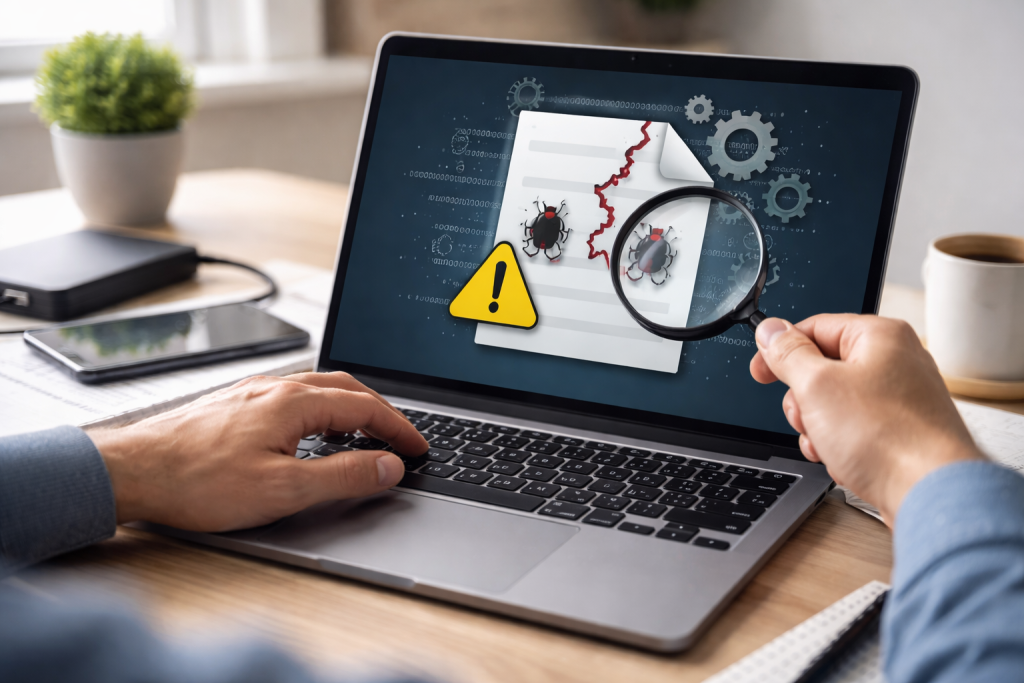
Software programs are built from a collection of files that work together to perform specific functions. When any of these files become damaged or incomplete, the program may malfunction or fail to launch altogether. This damage is known as file corruption.
Common Causes of File Corruption
Several factors can lead to software file corruption. Understanding these causes can help in prevention.
Hardware Issues
Faulty storage devices, such as hard drives or solid-state drives, can introduce errors during data read or write operations. Bad sectors on a drive, for instance, can render parts of a file inaccessible or unreadable, leading to corruption. Similarly, issues with RAM (Random Access Memory) can cause data to be written incorrectly to disk.
Power Surges and Unexpected Shutdowns
An abrupt loss of power during a file operation can result in an incomplete write process. This leaves the file in an inconsistent state, effectively corrupting it. This is akin to interrupting a builder midway through laying bricks; the wall would be unstable and unusable.
Malware and Viruses
Malicious software can intentionally damage or delete program files. Viruses, for example, might overwrite critical parts of an executable file, rendering it inoperable. Ransomware can encrypt files, making them inaccessible and functionally corrupted.
Software Bugs and Errors
Flaws within the software itself, known as bugs, can sometimes lead to improper handling of files. This can happen during installation, updates, or even during normal program operation if a specific sequence of events triggers an error.
Incomplete or Failed Installations/Updates
When software is installed or updated, numerous files are written to the system. If this process is interrupted, for instance, due to a network interruption during a download or a disk space shortage, the installed files may be incomplete or incorrect, leading to corruption.
Disk Errors and File System Problems
The file system on a storage device organizes and manages files. Errors within the file system, often caused by hardware issues or improper shutdowns, can lead to files being incorrectly linked or their data becoming inaccessible, manifesting as corruption.
Recognising the Signs of Corrupted Software Files
Identifying corrupted files early is crucial for minimizing disruption. Several symptoms can indicate that software files are not intact.
Program Crashes and Freezes
One of the most common signs is a program unexpectedly closing (crashing) or becoming unresponsive (freezing). This often happens when the program attempts to access a corrupted file and cannot retrieve the necessary information.
Error Messages
Specific error messages, such as “File not found,” “Access denied,” or messages indicating corrupted data, are direct indicators of file integrity issues. The exact wording can vary depending on the operating system and the software in question.
Inability to Launch Software
If a program consistently fails to start, displaying an error message or simply doing nothing, corrupted core files are a likely culprit. This is like a car engine failing to turn over because a vital component is damaged.
Slow Performance and Glitches
While not always indicative of corruption, significant performance degradation or unusual glitches within a program can sometimes point to underlying file issues. The program might be struggling to read or process damaged data.
Missing or Unreadable Data
Within a program, if specific features are not working, or if data that should be visible is missing or appears garbled, it suggests that the files responsible for those elements are corrupted.
Safeguarding Your Data: The Importance of Backups
Before attempting any repair, it is essential to ensure your important data is safe. Backups act as a safety net, allowing you to recreate your environment if the repair process inadvertently leads to further data loss.
Why Regular Backups are Essential
Backups are not just for catastrophic failures; they are a fundamental part of responsible digital asset management. Think of them as an insurance policy for your digital life.
Preventing Data Loss from Corruption
When a file becomes corrupted, the data it contains may be lost. If you have a recent backup, you can restore the uncorrupted version of the file, preserving your work and information.
Recovery from Hardware Failures
Storage devices can fail without warning. A robust backup strategy ensures that even if your primary drive becomes unreadable, you can recover your software and data onto a new device.
Protection Against Malware Attacks
Malware can encrypt or delete files. A clean backup allows you to restore your system and data without paying ransoms or losing valuable information.
Simplifying Reinstallation Processes
If you need to reinstall an operating system or software due to corruption, having your data backed up means you can proceed with confidence, knowing your personal files and settings are secure.
Methods for Creating Backups
Various methods and tools are available for backing up your data.
External Hard Drives
External hard drives offer a straightforward way to store large amounts of data. They are relatively inexpensive and easy to use, allowing for manual or scheduled backups.
Network Attached Storage (NAS) Devices
NAS devices are dedicated storage systems that connect to your network. They can provide centralized storage for multiple devices and often come with built-in backup software and features like RAID for data redundancy.
Cloud Storage Services
Cloud services, such as Google Drive, Dropbox, or OneDrive, allow you to store files remotely. This offers the advantage of off-site storage, protecting your data from local disasters like fire or theft. Many services offer automatic syncing and version history.
Backup Software
Dedicated backup software can automate the backup process, allowing you to schedule regular full or incremental backups. These applications often provide features for compression, encryption, and verification of backup integrity.
Employing Built-in Tools for Repair
Most operating systems come equipped with utilities designed to identify and repair common file system and disk errors, which can sometimes resolve software file corruption.
Utilizing System File Checker (SFC)
The System File Checker is a Windows utility that scans for and replaces corrupted Windows system files with correct versions.
How SFC Works
SFC creates a checksum for essential system files. When run, it compares the checksums of these files on your disk with the checksums stored in a compressed folder. If a discrepancy is found, indicating a corrupted or missing file, SFC attempts to replace it from a cached copy.
Running SFC
To use SFC, open Command Prompt as an administrator. Type sfc /scannow and press Enter. The scan can take some time, and you may be prompted to restart your computer afterward.
CHKDSK for Disk Errors
CHKDSK (Check Disk) is a Windows utility that scans a disk for file system errors and bad sectors, attempting to fix them.
How CHKDSK Operates
CHKDSK examines the file system integrity and the physical surface of the disk. It can fix errors in the file allocation table, file system logs, and corrupted directory entries. It can also mark bad sectors so they are not used for data storage in the future.
Executing CHKDSK
To run CHKDSK, open Command Prompt as an administrator. Type chkdsk C: /f /r (replace C: with the drive letter you want to check). The /f parameter tells CHKDSK to fix errors, and /r tells it to locate bad sectors and recover readable information. You may need to restart your computer to complete the scan on the system drive.
Disk Utility in macOS
For users of macOS, Disk Utility serves a similar purpose to SFC and CHKDSK, providing tools for disk repair and maintenance.
First Aid Feature
Within Disk Utility, the “First Aid” feature scans the selected drive for errors and attempts to repair them. This can address issues with the disk’s partition map, boot sectors, and file system structure.
Running First Aid
Open Disk Utility from Applications > Utilities. Select the disk or volume you wish to check, then click “First Aid” and follow the on-screen prompts.
Advanced Repair with Third-Party Software
| Third-Party Software | Performance | Customer Satisfaction |
|---|---|---|
| Software A | 90% | 4.5/5 |
| Software B | 85% | 4/5 |
| Software C | 92% | 4.7/5 |
When built-in tools are insufficient, specialized third-party software offers more sophisticated options for file recovery and repair.
File Repair Utilities
A range of software applications is designed to specifically tackle corrupted files of various types, including documents, archives, and media files.
Specialized Repair Tools
These tools often employ advanced algorithms to reconstruct damaged file headers, recover fragmented data, or reassemble corrupted data streams. For example, there are specific tools designed to repair damaged ZIP archives, corrupted Word documents, or unreadable video files.
Limitations of Third-Party Tools
It is important to understand that the success of these tools depends heavily on the extent of the corruption. If a file is severely damaged, recovery may not be possible. Always download software from reputable sources to avoid introducing malware.
Data Recovery Software
While not directly repairing software files, data recovery software can be critical in retrieving data from corrupted drives or partitions where files are inaccessible.
Recovering Deleted or Lost Files
These programs scan storage media for remnants of deleted files or data that has been lost due to file system corruption. They can often recover files that are no longer visible through the operating system’s file explorer.
Using Data Recovery Software
Typically, you install the software on a different drive than the one you are trying to recover data from. The software then scans the target drive, presents a list of recoverable files, and allows you to save them to a safe location.
Reinstallation and Updates as a Repair Method
In many cases, especially with software corruption, the most effective and straightforward solution is to reinstall or update the affected program.
Reinstalling Corrupted Software
Uninstalling and then reinstalling a program effectively replaces all its associated files with fresh copies.
The Process of Reinstallation
First, uninstall the software using the operating system’s add/remove programs feature or the uninstaller provided by the software. Then, download the latest version of the software or use your original installation media to install it again. Ensure you have your license keys or account information ready, as they may be required for reinstallation.
Benefits of Reinstallation
This process removes any potentially corrupted files and replaces them with clean, known-good versions. If the corruption was due to a faulty installation file, a clean reinstall often resolves the issue.
Updating Software
Software updates often contain patches that fix bugs and address known issues, including those that may cause file corruption.
Importance of Updates
Developers frequently release updates to improve stability, security, and performance. Applying these updates can resolve underlying problems that might be leading to file corruption.
Applying Updates
Check the software’s preferences or settings for an “update” option, or visit the developer’s website for the latest version. It is good practice to keep your software regularly updated.
Seeking Professional Assistance
For particularly complex or persistent software file corruption issues, seeking help from IT professionals may be necessary.
When to Consider Professional Help
If you have exhausted all the above troubleshooting steps and the problem persists, or if the data is critically important and your attempts at recovery have failed, professional assistance is recommended.
Expertise in File Recovery
Professional data recovery services have specialized tools and techniques to handle severe data loss scenarios, including physically damaged drives and deeply corrupted file systems that are beyond the scope of consumer-level software.
IT Support and System Administration
For businesses or individuals with complex network environments or critical systems, IT support specialists can diagnose and resolve software conflicts and file corruption issues that may be affecting multiple users or services.
Preventing Future Corruptions
Proactive maintenance and good digital hygiene can significantly reduce the likelihood of encountering corrupted software files in the future.
Regular System Maintenance
Keeping your operating system and software up-to-date is a vital preventative measure.
Operating System Updates
Operating systems themselves can encounter file corruption. Regularly installing OS updates and service packs ensures that system files are maintained and any existing issues are patched.
Antivirus and Antimalware Software
Maintaining up-to-date antivirus and antimalware software is crucial. These tools can detect and remove malicious programs before they have a chance to corrupt your files.
Safe Computing Practices
Adopting safe computing habits further protects your system.
Downloading from Trusted Sources
Always download software and files from official websites or reputable app stores. Avoid downloading from untrusted third-party websites, as these are common sources of malware that can lead to file corruption.
Graceful Shutdowns
Ensure your computer is shut down properly. Avoid simply pulling the power cord or holding down the power button unless absolutely necessary. This allows the operating system to close all applications and files cleanly, preventing data corruption.
Avoiding Unnecessary Software
Install only the software you need. The more software you have, the more potential there is for conflicts and file issues.
The Enduring Value of Regular Backups
This guide has detailed the process of understanding, troubleshooting, and resolving software file corruption. However, the most powerful tool in your digital arsenal remains consistent and reliable backups. They are not merely a reactive measure but an integral part of a robust strategy for managing software and data integrity. By implementing regular backup routines and combining them with the preventive measures and troubleshooting steps outlined here, you can significantly minimize the impact of software file corruption and safeguard your digital work.
FAQs
What are the common causes of corrupted software files?
What are the symptoms of corrupted software files?
How can I prevent loss of data during the repair of corrupted software files?
What are some built-in tools I can use to repair corrupted software files?
When should I seek professional help for complex software file issues?

Hamza Khan is the author and founder of TechFixLogic.info, a platform dedicated to providing practical software guides, tech solutions, and cybersecurity awareness. With a strong interest in technology and digital security, Hamza focuses on creating easy-to-understand tutorials that help users fix software issues, improve their digital skills, and stay safe online.
Through TechFixLogic.info, he shares step-by-step guides, troubleshooting tips, and cybersecurity insights designed for beginners as well as regular computer users. His goal is to simplify technology and make reliable tech knowledge accessible to everyone.