

Contents
- 1 Driver Installation Nightmares
- 2 Understanding Common Driver Installation Issues
- 3 Tips for Troubleshooting Driver Installation Problems
- 4 Overcoming Compatibility Issues with Driver Installation
- 5 Dealing with Driver Installation Errors and Failures
- 6 The Importance of Keeping Drivers Up to Date
- 7 Avoiding Driver Installation Nightmares: Best Practices
- 8 Resolving Driver Installation Issues on Different Operating Systems
- 9 Utilizing Driver Installation Tools and Resources
- 10 Seeking Professional Help for Persistent Driver Installation Problems
- 11 FAQs
- 11.1 1. What are some common driver installation issues that users may encounter?
- 11.2 2. Why is it important to keep drivers up to date?
- 11.3 3. How can users troubleshoot driver installation problems?
- 11.4 4. What are some best practices to avoid driver installation nightmares?
- 11.5 5. How can users resolve driver installation issues on different operating systems?
Driver Installation Nightmares
Driver installation issues can be frustrating. This article explains common problems and how to fix them.
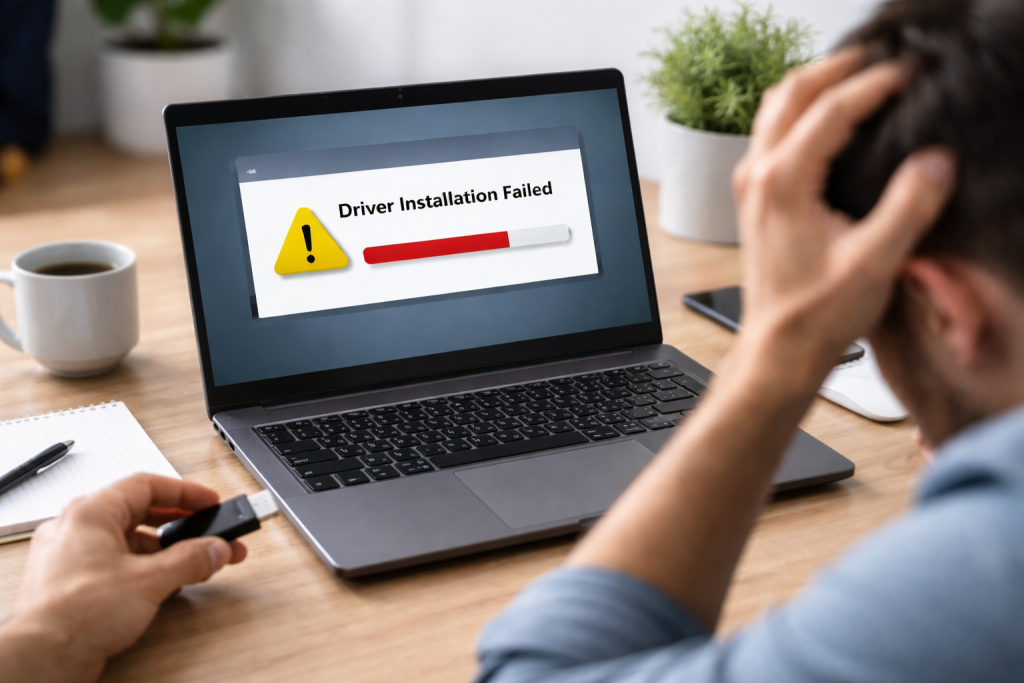
When you install new hardware, such as a graphics card or a printer, your computer needs special software called a driver to communicate with it. This driver essentially acts as a translator, telling the operating system how to use the hardware’s specific features. Without the correct driver, your new device might not work at all, or it might function poorly, exhibiting glitches or errors. This process, while essential, can sometimes turn into a difficult ordeal, a “driver installation nightmare.”
Understanding Common Driver Installation Issues
Driver installation problems are a frequent source of frustration for computer users. These issues can range from simple incompatibilities to more complex system-wide conflicts. Recognizing the patterns behind these problems is the first step toward resolving them.
Hardware Not Recognized
One of the most common issues is when the operating system simply fails to detect the newly installed hardware. This can happen if the hardware is not seated correctly, if there is a faulty connection, or if the basic drivers are missing or corrupted. Your computer might present a generic device or an “Unknown Device” in Device Manager, indicating an incomplete or failed installation. This is like trying to speak a language without a dictionary; the components are present, but the understanding between them is missing.
Incorrect Driver Installed
It’s also possible to install the wrong driver, even with the best intentions. Drivers are highly specific to both the hardware model and the operating system version. Installing a driver meant for a different version of Windows, or for a slightly different model of the same hardware, can lead to erratic behavior, system instability, or the device not functioning as expected. This is akin to giving someone instructions in a language they don’t understand; the intention is there, but the execution will be flawed.
Driver Conflicts
Sometimes, newly installed drivers can clash with existing drivers already on your system. This is particularly common with hardware that uses similar resources or functions, like multiple audio devices or graphics cards. If two drivers try to control the same system resource at the same time, chaos can ensue. This can manifest as system crashes (Blue Screens of Death), freezes, or specific applications failing to launch or operate correctly. It’s like two orchestras trying to play separate symphonies simultaneously on the same stage; the result is cacophony.
Installation Errors and Corrupted Files
The installation process itself can encounter errors. This might be due to corrupted driver files downloaded from an unreliable source, issues with the installation wizard, or problems with system permissions preventing the installation from completing. When this happens, you might see error messages during the installation, or the device might appear in Device Manager with an error icon. This is like a construction crew arriving with incomplete blueprints or damaged building materials; the project cannot be finished correctly.
Tips for Troubleshooting Driver Installation Problems
When faced with a driver installation problem, don’t panic. A systematic approach to troubleshooting can often resolve the issue. These tips provide a framework for tackling common hurdles.
Revert to a Previous Driver Version
If a new driver installation causes problems, the first and simplest solution is often to revert to the previous working driver version. Many operating systems allow you to uninstall the current driver and then select a previous version from a dropdown menu in Device Manager, or to roll back the driver through its properties. This is like stepping back from a faulty path to find a well-trodden one.
Verify Hardware Compatibility
Before even attempting to install a driver, ensure that the hardware is compatible with your operating system. Manufacturers usually provide detailed compatibility information on their websites. Installing a driver for an unsupported operating system is a recipe for disaster. This is fundamental: you wouldn’t try to plant a tropical fruit in an Arctic climate and expect it to thrive.
Use the Manufacturer’s Official Website
Always download drivers directly from the official website of the hardware manufacturer. Third-party driver download sites can be unreliable and may distribute outdated or even malicious software. Using the manufacturer’s site ensures you are getting the correct, validated driver for your specific hardware and operating system. This is like getting your news from a reputable source; you trust its accuracy and integrity.
System Restore
System Restore is a powerful tool that can revert your computer’s system files, installed applications, and registry to a previous point in time. If a driver installation has destabilized your system, performing a System Restore to a point before the problematic installation occurred can often fix the issue. This is a valuable safety net, allowing you to rewind the clock on your system’s software state.
Check for Windows Updates
Sometimes, Windows Update can provide driver updates or fix underlying system issues that might be preventing driver installations. Keeping your operating system up to date can resolve many compatibility problems automatically. This is like ensuring all the staff in a company are working with the latest internal memos and procedures; everyone is on the same page.
Overcoming Compatibility Issues with Driver Installation
Compatibility is a cornerstone of successful driver installation. When hardware and software speak different “languages,” problems arise. Understanding these mismatches and how to bridge them is crucial.
Understanding Driver Signatures and Integrity
Drivers in Windows are digitally signed to verify their authenticity and integrity. An unsigned driver, or one whose signature has been corrupted, can cause significant instability. Windows often flags these as potentially unsafe. While it is possible to bypass driver signature enforcement, this should be done with extreme caution, as it can expose your system to security risks. This is like a security guard checking IDs at the door; it ensures only authorized individuals enter.
Checking for Hardware and Software Conflicts
Before installation, consider what else is running on your system. If you have multiple devices performing similar functions, or if specific security software is running, these can sometimes interfere with driver installation. Temporarily disabling antivirus software or uninstalling redundant hardware can help isolate the cause of the conflict. This is like clearing the table before starting a new task; it removes potential distractions and overlaps.
Selecting the Correct Operating System Version
Drivers are not universal for all versions of an operating system. A driver for Windows 10 64-bit will not work on Windows 11 32-bit, for example. Always pay close attention to the specific version and architecture (32-bit or 64-bit) of your operating system when downloading drivers. This precision is vital. It’s like trying to fit a square peg into a round hole; the shapes must match for a proper fit.
Clean Installation vs. Standard Installation
Some drivers offer a “clean installation” option. This typically removes all previous driver files and settings before installing the new ones. For resolving persistent issues where old driver remnants might be causing problems, a clean installation is often more effective than a standard upgrade. This is like starting with a blank canvas rather than trying to paint over an existing, flawed image.
Dealing with Driver Installation Errors and Failures
| Error Type | Frequency | Common Causes | Solution |
|---|---|---|---|
| Code 28: Driver not installed | High | Outdated driver, incompatible driver | Update driver, check compatibility |
| Code 10: Device cannot start | Medium | Corrupted driver, hardware issues | Reinstall driver, check hardware |
| Code 43: Device not recognized | Low | Driver conflicts, faulty hardware | Uninstall conflicting drivers, replace hardware |
When an installation fails, error messages can be cryptic. Deciphering these messages and understanding the underlying cause is key to recovery.
Understanding Error Codes
Windows often presents error codes during driver installation failures. These codes, though sometimes obscure, can provide valuable clues about the nature of the problem. Searching for the specific error code online, often along with the hardware model and operating system, can yield explanations and solutions. These codes are like diagnostic probes, pointing to the source of the malfunction.
Checking Device Manager for Errors
Device Manager is a central hub for hardware and driver management. If a driver installation fails, the device will often appear in Device Manager with a yellow exclamation mark, indicating an error. Right-clicking the device and selecting “Properties” can often provide more detailed error information. This is the computer’s way of flagging a problem that needs attention.
Administrator Privileges
Many driver installations require administrator privileges to modify system files. Ensure you are logged in as an administrator or have prompted for administrator credentials when running the driver installer. Without the necessary permissions, the installation will simply fail. This is like needing a key to enter a restricted area; the authorization is essential for access.
Reinstalling the Operating System (Last Resort)
In rare and persistent cases, a deep-seated system issue might be preventing driver installations. As a last resort, if all other troubleshooting steps have failed, a complete reinstallation of the operating system can resolve such problems. This is a drastic measure, equivalent to starting a building from bedrock if it’s fundamentally unsound.
The Importance of Keeping Drivers Up to Date
Drivers are not static; they evolve. Keeping them updated is essential for performance, stability, and security.
Performance Enhancements
Manufacturers frequently release driver updates that optimize hardware performance. This is particularly true for graphics cards, where new drivers can significantly improve frame rates and overall gaming or visual processing capabilities. Updated drivers are like tuning an engine; they unlock its full potential.
Bug Fixes and Stability Improvements
Drivers, like any software, can have bugs. Updates often contain fixes for these bugs, leading to a more stable and reliable computing experience. If you’re experiencing crashes or unexpected behavior, an updated driver might be the solution. This is like patching holes in a ship’s hull; it prevents leaks and seaworthiness issues.
Security Patches
Driver updates can also include security patches that address vulnerabilities. Outdated drivers can be exploited by malware, compromising your system’s security. Regularly updating drivers helps protect against these threats. This is like reinforcing the defenses of a castle; it keeps external threats at bay.
Support for New Hardware and Features
As new hardware is released, driver updates are released to ensure compatibility and full functionality with your operating system. Furthermore, driver updates can sometimes introduce new features or improve existing ones for your hardware. This ensures your system can embrace new technologies as they emerge.
How to Identify and Fix Driver Installation Conflicts
Conflicts between drivers are a common source of instability. Identifying and resolving these clashes requires careful observation and a methodical approach.
Using Safe Mode
Safe Mode starts Windows with a minimal set of drivers and services. If your computer is unstable due to driver conflicts, booting into Safe Mode can often allow you to uninstall problematic drivers. Once the conflict is resolved, you can restart your computer in normal mode. This is like isolating individuals in a group to find the one causing a disturbance.
Checking Event Viewer
The Windows Event Viewer logs system events, including driver-related errors. By examining the System and Application logs in Event Viewer, you can often find specific error messages related to driver conflicts, which can point you towards the offending driver. This is like consulting a doctor’s logbook to understand a patient’s history and symptoms.
Uninstalling Recently Installed Drivers
If you recently installed new hardware and started experiencing problems, the driver for that hardware is a likely culprit. Try uninstalling the driver through Device Manager. If the problem disappears, you have found the source of the conflict. This is a process of elimination, like systematically removing suspect items to find the one causing a spill.
Updating All Drivers Systematically
Sometimes, updating all drivers on your system, one by one, can resolve hidden conflicts. By ensuring you have the latest compatible drivers for all your hardware, you reduce the chances of a clash. This is like ensuring all parts of a complex machine are manufactured by the same reputable company; they are more likely to fit and work together harmoniously.
Avoiding Driver Installation Nightmares: Best Practices
Prevention is often better than cure. Adopting these best practices can significantly reduce the likelihood of encountering driver installation problems.
Create a System Restore Point
Before installing any new hardware or drivers, always create a System Restore point. This allows you to easily revert your system to a working state if the installation causes problems. This is a critical safety net, ensuring you have a fallback position.
Keep Your Operating System Updated
As mentioned previously, keeping your operating system updated provides a stable foundation for driver installations. Many driver issues are resolved by underlying OS updates.
Use Driver Update Software Cautiously
While driver update utilities can be convenient, they should be used with caution. Ensure you download them from reputable sources, and always verify the drivers they suggest before installing them. Sometimes, these tools can suggest incompatible or outdated drivers.
Read Installation Instructions Carefully
Always read the instructions provided by the hardware manufacturer or the driver installer. They often contain important information about prerequisites, potential conflicts, or specific installation steps. This is like reading a recipe before cooking; it ensures you have all the ingredients and follow the correct procedure.
Backup Important Data
While not directly related to driver installation, it’s always good practice to back up your important data before making significant changes to your system. This is a general precaution that ensures your valuable files are safe.
Resolving Driver Installation Issues on Different Operating Systems
While the principles of driver installation are similar across operating systems, there can be specific nuances.
Windows
In Windows, Device Manager is the primary tool for managing drivers. Driver installation typically involves running an executable installer file or using the “Update driver” option within Device Manager. Windows is generally good at automatically detecting and installing drivers for common hardware.
macOS
macOS often handles driver installations differently, with many drivers being integrated directly into the operating system. For specific hardware that requires manual driver installation, you will typically download a package from the manufacturer and follow their specific installation instructions. The App Store also plays a role in distributing some software and drivers.
Linux
Linux distributions utilize a package management system for software and often include open-source drivers directly within the kernel. For proprietary hardware, you might need to install specific driver packages from the distribution’s repositories or compile drivers from source code. This requires a more technical understanding of the system’s architecture.
Utilizing Driver Installation Tools and Resources
Several tools and resources can aid in driver installation and troubleshooting.
Manufacturer Support Websites
As previously emphasized, the official manufacturer websites are the most reliable source for drivers and technical support. They often have FAQs, troubleshooting guides, and forums dedicated to their products.
Tech Support Forums and Communities
Online forums and tech communities can be invaluable for finding solutions to specific driver problems. Other users who have encountered similar issues may have already found and shared effective fixes.
Device Manager (Windows)
Device Manager in Windows is an indispensable tool for viewing hardware, updating drivers, rolling back drivers, uninstalling devices, and diagnosing driver-related issues.
Command Prompt and PowerShell
For more advanced users, the command line can be used to manage devices and drivers. Commands like pnputil in Windows can be used for managing driver packages.
Seeking Professional Help for Persistent Driver Installation Problems
If you have exhausted all troubleshooting steps and are still struggling with driver installation, it might be time to seek professional assistance.
Qualified Computer Technicians
A qualified computer technician has the experience and tools to diagnose complex driver issues. They can often identify conflicts or hardware problems that a user might overlook.
Manufacturer Technical Support
For specific hardware issues, contacting the manufacturer’s technical support directly can sometimes provide specialized assistance, especially for higher-end or specialized equipment.
This article provides a comprehensive overview of common driver installation problems and their solutions. By understanding these issues and applying the troubleshooting tips, you can overcome many driver installation nightmares and ensure your hardware functions correctly.
FAQs
1. What are some common driver installation issues that users may encounter?
Some common driver installation issues include compatibility problems, errors and failures during installation, conflicts with existing drivers, and difficulties in identifying and fixing these issues.
2. Why is it important to keep drivers up to date?
Keeping drivers up to date is important because it ensures that hardware components function properly and efficiently. Updated drivers also often include bug fixes, performance improvements, and compatibility updates.
3. How can users troubleshoot driver installation problems?
Users can troubleshoot driver installation problems by checking for compatibility issues, ensuring that the installation process is done correctly, using driver installation tools and resources, and seeking professional help if the issues persist.
4. What are some best practices to avoid driver installation nightmares?
Some best practices to avoid driver installation nightmares include regularly updating drivers, backing up important drivers, researching compatibility before installing new hardware, and using reputable driver installation tools.
5. How can users resolve driver installation issues on different operating systems?
Users can resolve driver installation issues on different operating systems by following specific troubleshooting steps for each OS, utilizing OS-specific driver installation tools, and seeking help from professionals with expertise in the particular operating system.

Hamza Khan is the author and founder of TechFixLogic.info, a platform dedicated to providing practical software guides, tech solutions, and cybersecurity awareness. With a strong interest in technology and digital security, Hamza focuses on creating easy-to-understand tutorials that help users fix software issues, improve their digital skills, and stay safe online.
Through TechFixLogic.info, he shares step-by-step guides, troubleshooting tips, and cybersecurity insights designed for beginners as well as regular computer users. His goal is to simplify technology and make reliable tech knowledge accessible to everyone.


