
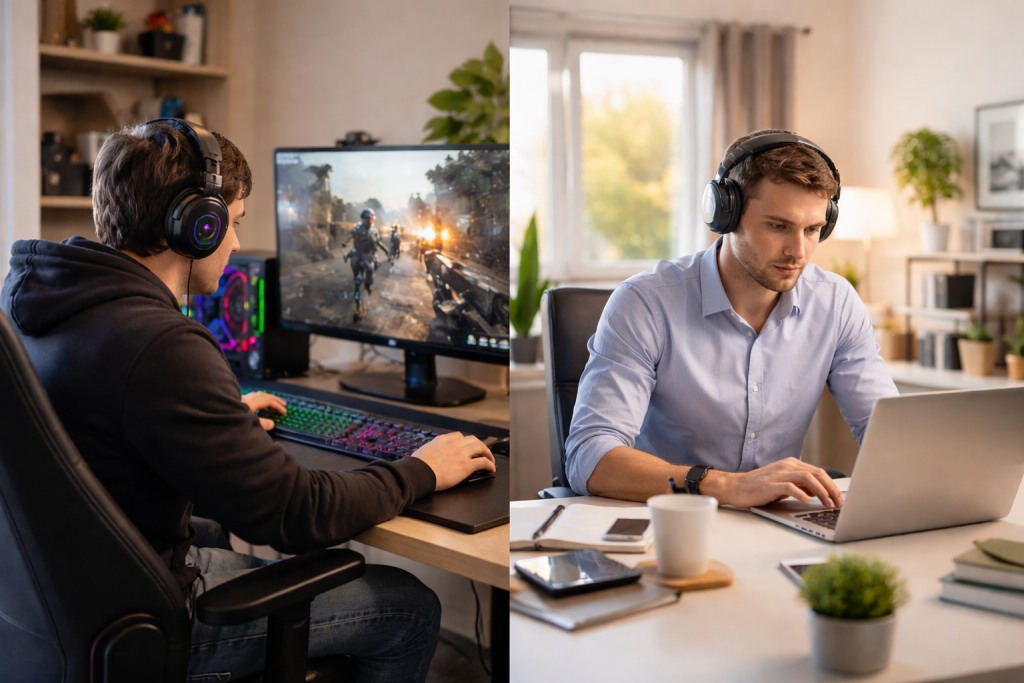
Screen recording software captures a computer’s display, allowing users to record their desktop activity. This technology serves various purposes, from documenting gameplay to creating tutorials and presentations. Both gamers and professionals utilize these tools for different needs.
Contents
- 1 Understanding the Importance of Screen Recording Software for Gamers and Professionals
- 2 Key Features to Look For in Screen Recording Software
- 3 Comparing the Top Screen Recording Software Options for Gamers
- 4 Exploring the Best Screen Recording Software for Professional Use
- 5 Tips for Choosing the Right Screen Recording Software for Your Needs
- 6 How to Find Affordable and High-Quality Screen Recording Software
- 7 Integrating Screen Recording Software with Video Editing Tools
- 8 Maximizing the Benefits of Screen Recording Software for Content Creation
- 9 Troubleshooting Common Issues with Screen Recording Software
- 10 Future Trends in Screen Recording Software for Gamers and Professionals
- 11 FAQs
- 11.1 1. What is the importance of screen recording software for gamers and professionals?
- 11.2 2. What are the key features to look for in screen recording software?
- 11.3 3. How can one compare the best screen recording software for gamers and professionals?
- 11.4 4. What are some tips for choosing the right screen recording software for specific needs?
- 11.5 5. How can screen recording software be integrated with video editing tools, and what are the benefits of this integration?
Understanding the Importance of Screen Recording Software for Gamers and Professionals
Screen recording is a versatile tool. For gamers, it’s a way to capture and share experiences. Professionals use it for documentation, training, and communication.
For Gamers: Documenting and Sharing Experiences
Gamers use screen recording to record playthroughs, speedruns, and notable in-game moments. This content can be shared on platforms like YouTube and Twitch, often serving as a foundation for content creation. Recording gameplay also allows gamers to review their strategies, identify errors, and improve their skills. It’s like a game film review session for athletes. The software often allows for overlaying commentary and webcam footage, adding a personal touch to the recordings.
For Professionals: Training, Documentation, and Communication
In professional settings, screen recording facilitates the creation of training materials, software demonstrations, and technical support videos. Companies use it to onboard new employees, illustrating software procedures step-by-step. Developers record bug reports to provide visual evidence to their team. Marketing departments create product demonstrations that highlight features and benefits. It acts as a visual shortcut, often conveying information more effectively than written instructions. Remote teams also use it to communicate updates or demonstrate software functionality without needing a real-time meeting.
Key Features to Look For in Screen Recording Software
Choosing suitable screen recording software depends on individual needs. Several features are common across various applications, but their implementation and depth vary.
Recording Capabilities
The core function is the ability to record. This includes options for recording the entire screen, a specific window, or a custom region. Frames per second (FPS) is a crucial metric, especially for gamers, as higher FPS results in smoother video. The software should support various resolutions and allow adjustments for video quality. Some programs offer background recording, enabling users to capture activity without constant monitoring, like a watchful sentinel always on duty.
Audio Recording Options
Capturing audio is as important as video. Software should offer options to record system audio, microphone audio, or both simultaneously. Noise suppression and volume control features improve audio clarity. Some advanced tools allow for separate audio tracks, giving more control during post-production.
Output Formats and Editing Tools
Compatibility with standard video formats like MP4, MOV, and AVI is essential for sharing and further editing. Built-in, basic editing tools like trimming, cutting, and annotation features can save time for simple tasks. These tools act as a quick workbench for immediate adjustments before moving to a dedicated video editor. More advanced software might offer features like custom watermarks or intro/outro capabilities.
Performance and System Impact
Screen recording can be resource-intensive. The software should operate without significantly impacting system performance, especially during gaming or while running other demanding applications. This is critical for maintaining game performance or the smooth operation of professional software. Efficient compression algorithms help manage file size without significant quality loss.
User Interface and Ease of Use
An intuitive user interface reduces the learning curve. Clear controls for starting, stopping, and pausing recordings are fundamental. Accessibility features and straightforward configuration options contribute to a positive user experience.
Comparing the Top Screen Recording Software Options for Gamers
Gamers prioritize high performance, minimal latency, and robust recording options. Several programs cater specifically to this audience.
OBS Studio
OBS Studio (Open Broadcaster Software) is a free and open-source solution favored by many streamers and content creators. It offers extensive customization options for encoding, scenes, and sources. Users can record gameplay and webcam feeds and capture audio from multiple sources. Its strength lies in its flexibility and community support. However, its interface can be daunting for newcomers due to the sheer number of options. Users often compare it to a high-performance sports car: powerful but requiring skill to master.
NVIDIA ShadowPlay (GeForce Experience)
For users with NVIDIA graphics cards, ShadowPlay is integrated into GeForce Experience. It provides high-performance recording with minimal impact on game performance, often using the GPU’s dedicated encoder. It features a “Shadow Mode” that continuously records in the background, saving the last few minutes of gameplay with a hotkey—excellent for capturing unexpected moments. Its ease of use is a significant advantage, but it is limited to NVIDIA hardware users.
AMD ReLive (AMD Software: Adrenalin Edition)
Similar to ShadowPlay, AMD ReLive is available for users with AMD graphics cards. It offers features like instant replay, streaming capabilities, and performance metrics. It’s designed to be efficient and integrate smoothly with AMD hardware. Its functionality mirrors ShadowPlay in many ways, providing a comparable experience for AMD users.
Bandicam
Bandicam is a commercial screen recorder that focuses on high-quality game recording. It supports DirectX/OpenGL/Vulkan recording, which is beneficial for capturing games. It offers robust compression options and can record at high frame rates. While not free, its specialized focus makes it a popular choice for some gamers.
Exploring the Best Screen Recording Software for Professional Use
| Screen Recording Software | Features | Price | Compatibility | Editing Tools |
|---|---|---|---|---|
| Camtasia | Advanced editing, annotations, effects | 249 one-time purchase | Windows, Mac | Yes |
| Snagit | Screen capture, image editing | $49.95 one-time purchase | Windows, Mac | Basic |
| OBS Studio | Open-source, live streaming | Free | Windows, Mac, Linux | Basic |
| Screencast-O-Matic | Webcam recording, cloud hosting | $1.65/month (billed annually) | Windows, Mac, Chromebook | Basic |
Professionals require reliability, specific annotation tools, and often, the ability to record for extended periods without interruption.
Camtasia
Camtasia is a comprehensive screen recording and video editing suite designed for professionals. It offers powerful recording capabilities, an extensive library of annotation tools (callouts, shapes, and arrows), and a robust video editor. It is widely used for creating tutorials, software demonstrations, and online courses. Its strength lies in its all-in-one approach, like a complete toolkit for a craftsman. While it comes with a cost, its features justify the investment for many professionals.
Loom
Loom is a popular tool for quick video messages, screencasts, and presentations. It’s particularly useful for remote teams. It offers desktop recording, webcam recording, and options to record both simultaneously. Its key advantage is speed and ease of sharing, with recordings automatically uploaded to a cloud platform and a shareable link generated immediately. It’s like sending an email, but with a video attachment.
OBS Studio (for Professionals)
While popular with gamers, OBS Studio is also valuable for professionals, particularly for live streaming webinars, online presentations, or virtual events. Its scene management and source capabilities allow for professional-looking productions with multiple inputs like cameras, presentations, and screen shares. Its open-source nature means it is free, and its flexibility is a strong draw, provided users invest time in learning its functionality.
Movavi Screen Recorder
Movavi Screen Recorder offers a balance of features suitable for professionals without the complexity of a full-fledged video editor like Camtasia. It provides reliable screen capture, webcam recording, and drawing tools during recording. It also includes basic editing features, making it suitable for creating quick tutorials and informational videos.
Tips for Choosing the Right Screen Recording Software for Your Needs
Selecting the correct software is a matter of alignment between personal requirements and available tools. Consider the following:
Define Your Primary Use Case
Before evaluating software, understand your main purpose. Is it for high-FPS gaming capture, quick professional demonstrations, or in-depth tutorials? Your primary goal acts as a compass, guiding you toward appropriate options.
Consider Your Hardware
Your computer’s specifications, particularly the CPU, GPU, and RAM, influence performance. High-end recording and streaming demand more robust hardware. If you have an NVIDIA or AMD graphics card, leverage their proprietary recording solutions.
Budget Constraints
Free and open-source options like OBS Studio offer extensive functionality. Commercial software like Camtasia or Bandicam usually provides more polished interfaces, dedicated support, and advanced features, but at a cost. Determine what you are willing to spend.
Required Features
Make a list of “must-have” features and “nice-to-have” features. Do you need advanced editing capabilities, specific annotation tools, or specialized audio controls? Prioritize these based on your use case.
Trial Periods and Demos
Many commercial screen recording software programs offer free trials. Utilize these to test the software’s performance on your system and assess its ease of use before making a purchase. This process allows for hands-on evaluation, much like test-driving a car before buying it.
How to Find Affordable and High-Quality Screen Recording Software
Quality does not always equate to high cost. Several strategies can help locate suitable software within a budget.
Open-Source Solutions
OBS Studio is a prime example of high-quality, free, and open-source software. While it has a learning curve, its capabilities rival commercial offerings. It is maintained by a community of developers and constantly updated.
Freemium Models
Some software offers a free basic version with limited features, with an option to upgrade to a premium version for advanced functionality. Loom, for instance, has a generous free tier suitable for many users. This option allows you to scale your usage as your needs grow.
Educational Discounts
Students and educators often receive discounts on commercial software. If you fall into these categories, inquire about academic pricing.
Bundles and Promotions
Look out for software bundles or seasonal promotions that offer screen recording software either as part of a larger package or at a discounted price.
Integrating Screen Recording Software with Video Editing Tools
Raw screen recordings are often just the starting point. Many users integrate their recording software with dedicated video editing applications for polishing and refining their content.
Using Dedicated Video Editors
Programs like Adobe Premiere Pro, DaVinci Resolve, or Final Cut Pro (for macOS) offer advanced editing capabilities far beyond what’s typically found in screen recording software. These tools allow for multi-track editing, advanced color grading, special effects, and sophisticated audio mixing. Footage recorded with OBS Studio or ShadowPlay is generally exported in standard formats, making it easy to import into any professional editor.
Workflow Considerations
A common workflow involves recording the screen and audio separately or on different tracks if the software permits. This provides greater control during editing. After recording, the footage is imported into the video editor, where it can be trimmed, enhanced, have additional graphics added, and be mixed with music or voiceovers. Good integration ensures a smooth transition between the capture and post-production phases, a critical link in the creative chain.
Maximizing the Benefits of Screen Recording Software for Content Creation
Screen recording software is a powerful asset for content creators across various niches.
Tutorials and How-To Guides
Creating visual tutorials for software, web navigation, or technical processes is a common application. Clearly demonstrating steps with on-screen annotations and voiceovers enhances clarity and user engagement.
Gameplay Content and Streaming
For gamers, screen recording forms the backbone of gameplay footage for YouTube channels, Twitch streams, and other platforms. Editing highlights, creating compilations, or performing live commentary during a stream are common uses.
Product Demonstrations and Reviews
Businesses use screen recordings to showcase software features, demonstrate product usage, or create compelling video reviews that visually walk potential customers through advantages.
Online Course Material
Educators and trainers leverage screen recording to create lectures, presentations, and interactive learning modules. Recording explanations alongside visual aids can make complex topics more digestible.
Troubleshooting Common Issues with Screen Recording Software
Users may encounter problems. Knowing common issues helps resolve them efficiently.
Low Frame Rate or Lag
This can be due to insufficient hardware resources, incorrect software settings (e.g., too high a resolution or bit rate), or conflicts with other running applications. Reducing resolution, frame rate, or prioritizing the recording software can help. Updating graphics drivers is also a common solution.
Audio Problems
No audio, distorted sound, or mismatched audio are frequent issues. Check microphone and system audio settings within the software and the operating system. Ensure the correct input devices are selected and volumes are appropriately balanced.
File Corruption or Failed Recordings
This can happen due to system crashes, insufficient disk space, or software bugs. Regularly saving projects (if applicable), ensuring adequate storage, and keeping software updated can mitigate these problems.
Software Crashes
Conflicts with other software, outdated drivers, or system instability can cause crashes. Isolate the problem by closing other applications, updating drivers, and checking for software updates.
Future Trends in Screen Recording Software for Gamers and Professionals
The evolution of technology continues to shape screen recording.
AI Integration
Artificial intelligence may play a role in automating aspects of recording and editing, such as automatically detecting and highlighting key moments in gameplay, generating captions, or optimizing recording settings. Expect AI to act as an intelligent co-pilot, enhancing efficiency.
Cloud-Based Solutions
Increased reliance on cloud computing may lead to more online screen recording solutions that store and process footage remotely, reducing local system strain and facilitating collaboration.
Enhanced VR/AR Recording
As virtual and augmented reality platforms expand, screen recording will adapt to capture these immersive experiences more effectively, potentially offering new perspectives and interactive elements in recordings.
Real-Time Analytics and Feedback
For professionals, future software may offer real-time analytics on viewer engagement for recorded content, providing immediate feedback on presentation effectiveness. Gamers might see real-time performance analytics integrated into their recordings.
FAQs
1. What is the importance of screen recording software for gamers and professionals?
Screen recording software is essential for gamers and professionals, as it allows them to capture and share their gameplay, create tutorials, record presentations, and produce high-quality content for various purposes.
2. What are the key features to look for in screen recording software?
Key features to look for in screen recording software include high-quality video and audio capture, customizable recording settings, webcam and microphone integration, editing tools, live streaming capabilities, and compatibility with different platforms.
3. How can one compare the best screen recording software for gamers and professionals?
One can compare the best screen recording software by considering factors such as pricing, features, user interface, customer support, compatibility with gaming platforms or professional software, and reviews from other users.
4. What are some tips for choosing the right screen recording software for specific needs?
Some tips for choosing the right screen recording software include identifying the intended use (gaming, professional, or educational), considering the required features, testing out free trials, reading user reviews, and seeking recommendations from peers or online communities.
5. How can screen recording software be integrated with video editing tools, and what are the benefits of this integration?
Screen recording software can be integrated with video editing tools to easily import recorded footage, add effects, edit content, and produce polished videos. This integration streamlines the content creation process and enhances the overall quality of the final product.

Hamza Khan is the author and founder of TechFixLogic.info, a platform dedicated to providing practical software guides, tech solutions, and cybersecurity awareness. With a strong interest in technology and digital security, Hamza focuses on creating easy-to-understand tutorials that help users fix software issues, improve their digital skills, and stay safe online.
Through TechFixLogic.info, he shares step-by-step guides, troubleshooting tips, and cybersecurity insights designed for beginners as well as regular computer users. His goal is to simplify technology and make reliable tech knowledge accessible to everyone.


