

Windows Reset is a built-in feature designed to restore your operating system to a clean state. This process can resolve various performance issues, eradicate persistent malware, or prepare a computer for sale or donation. Understanding the process and its implications is crucial for a successful outcome. Think of it as spring cleaning for your computer.
Contents
- 1 Understanding the Importance of Windows Reset
- 2 Preparing Your Computer for a Windows Reset
- 3 Choosing the Right Windows Reset Option for Your Needs
- 4 FAQs
- 4.1 What is a Windows Reset and why is it important?
- 4.2 How do I prepare my computer for a Windows Reset?
- 4.3 What are the different Windows Reset options and how do I choose the right one for my needs?
- 4.4 What are some common issues that can occur during a Windows Reset, and how can I troubleshoot them?
- 4.5 How can I ensure a safe and secure Windows Reset process?
Understanding the Importance of Windows Reset
Over time, computers accumulate digital clutter. This can include leftover files from uninstalled programs, corrupted system files, or even unwanted software that slows down performance. A Windows Reset acts as a crucial maintenance tool, clearing this accumulation and restoring the system to a more efficient state.
Why Reset Your Computer?
There are several compelling reasons to consider a Windows Reset. Performance degradation is a common motivator. If your computer is noticeably slower than it once was, experiencing frequent crashes, or taking an unusually long time to boot, a reset can often revitalize it. Security concerns also play a role. If you suspect your computer has been infected with malware that security software cannot remove, a fresh start can be the most effective solution. Furthermore, when preparing to sell or give away a computer, a reset ensures that all your personal data is completely erased, protecting your privacy.
When to Consider Alternatives
While powerful, a Windows Reset is not always the first solution to every problem. For minor issues like a single malfunctioning program or a network connectivity problem, simpler troubleshooting steps are often more appropriate. Updating drivers, running system scans, or uninstalling problematic software can resolve many issues without the need for a full reset. Consider a reset as a significant undertaking, a last resort when other methods prove ineffective.
Preparing Your Computer for a Windows Reset
Before initiating a Windows Reset, certain preparatory steps are essential. These steps minimize potential data loss and ensure a smoother process. Think of it as laying the groundwork before building a house; without a solid foundation, the structure might falter.
Backing Up Your Data Before a Windows Reset
This is arguably the most critical step. A Windows Reset can, depending on the chosen option, delete all personal files. You must back up any documents, photos, videos, music, or other important data that you wish to keep.
Choosing a Backup Method
Several methods exist for backing up your data. External hard drives offer a convenient and often fast way to store large amounts of data. Cloud storage services like Google Drive, OneDrive, or Dropbox provide off-site backup, accessible from anywhere with an internet connection. For smaller files, a USB flash drive can suffice. Consider the volume of your data and your internet speed when deciding.
Verifying Your Backup
Once you have backed up your data, take the time to verify that the backup was successful and that you can access your files. Connect your external drive or log into your cloud storage and open a few files. This simple check can prevent significant disappointment later.
Gathering Necessary Software and Drivers
After a reset, your computer will have a clean installation of Windows, but it will lack additional software and potentially some drivers. Make sure you have installers or product keys for essential applications like Microsoft Office, creative suites, or specialized software. Download any critical device drivers for your specific hardware, especially for components like graphics cards or network adapters, if you anticipate internet access issues after the reset. Having these ready prevents a post-reset scramble.
Choosing the Right Windows Reset Option for Your Needs
Windows offers different reset options, each with distinct consequences for your data and installed applications. Understanding these options is vital to select the one that aligns with your objectives.
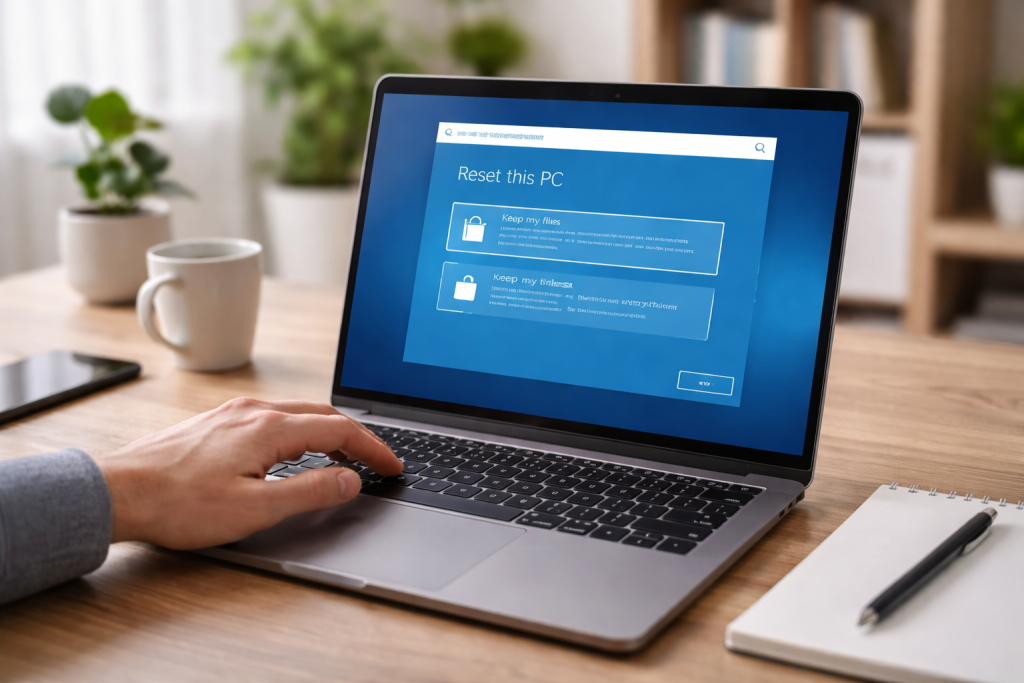
“Keep My Files” Option
This option reinstalls Windows but attempts to retain your personal files. It removes installed applications and settings. This is a suitable choice if you want to refresh your system and eliminate performance issues while preserving your documents, photos, and other personal data. However, be aware that some files might still be accidentally deleted or moved, making a prior backup still essential.
“Remove Everything” Option
As the name suggests, this option completely erases all personal files, apps, and settings. It effectively restores your computer to its factory default state. This is the ideal option when preparing to sell or donate your computer, or when dealing
FAQs
What is a Windows Reset and why is it important?
A Windows Reset is a process that reinstalls the operating system on your computer, effectively restoring it to its original state. This can be important for resolving system issues, improving performance, or preparing the computer for resale or donation.
How do I prepare my computer for a Windows Reset?
Before performing a Windows Reset, it’s important to back up all of your important data, such as documents, photos, and other files, to an external storage device. Additionally, make sure to gather any necessary installation discs or product keys for software you’ll need to reinstall after the reset.
What are the different Windows Reset options and how do I choose the right one for my needs?
Windows offers several reset options, including a full reset that removes all personal files and settings, and a reset that keeps your personal files but removes apps and settings. The right option for you will depend on whether you want to completely start fresh or retain some of your personal data.
What are some common issues that can occur during a Windows Reset, and how can I troubleshoot them?
Common issues during a Windows Reset can include freezing, error messages, or the reset process getting stuck. Troubleshooting steps can include restarting the computer, checking for updates, or using the Windows Recovery Environment to repair the installation.
How can I ensure a safe and secure Windows Reset process?
To ensure a safe and secure Windows Reset process, it’s important to have a reliable backup of your data, use official installation media or tools provided by Microsoft, and follow best practices for computer security, such as keeping your system updated and using reputable software sources.

Hamza Khan is the author and founder of TechFixLogic.info, a platform dedicated to providing practical software guides, tech solutions, and cybersecurity awareness. With a strong interest in technology and digital security, Hamza focuses on creating easy-to-understand tutorials that help users fix software issues, improve their digital skills, and stay safe online.
Through TechFixLogic.info, he shares step-by-step guides, troubleshooting tips, and cybersecurity insights designed for beginners as well as regular computer users. His goal is to simplify technology and make reliable tech knowledge accessible to everyone.


