

This article details the causes, prevention, and maintenance strategies for preventing personal computer overheating.
Contents
- 1 Understanding PC Overheating
- 2 The Crucial Role of Ventilation
- 3 Selecting the Appropriate Cooling System
- 4 Maintaining a Clean and Dust-Free Environment
- 5 Monitoring and Managing PC Temperatures
- 6 Cable Management and Optimal PC Positioning
- 7 The Importance of Regular Maintenance
- 8 Recognizing and Reacting to Overheating Signs
- 9 FAQs
- 9.1 1. What are the common causes of PC overheating?
- 9.2 2. How important is proper ventilation for preventing PC overheating?
- 9.3 3. What are the different cooling systems available for PCs, and how do you choose the right one?
- 9.4 4. What are some tips for maintaining a clean and dust-free PC to prevent overheating?
- 9.5 5. Why is proper cable management important for PC cooling, and how can it help prevent overheating?
Understanding PC Overheating
Personal computers generate heat as a byproduct of their operation. This heat is a consequence of electrical resistance within components like the CPU and GPU. When these components work harder, they generate more heat. If this heat is not dissipated effectively, it can accumulate, leading to elevated internal temperatures. This condition, known as PC overheating, can negatively impact performance, shorten component lifespan, and, in severe cases, cause permanent damage.
The Basics of Heat Generation
At the core of your computer’s operation is the flow of electricity. As electrons move through the circuits and components, they encounter resistance. This resistance converts electrical energy into thermal energy—heat. The more demanding the task your computer is performing, such as running complex games or video editing software, the more power its components consume, and consequently, the more heat they produce. Think of it like a car engine: the harder you push the accelerator, the hotter the engine gets.
Identifying the Culprits: Common Overheating Sources
Several components can contribute to overheating. The Central Processing Unit (CPU) and the Graphics Processing Unit (GPU) are typically the primary heat generators due to their high processing demands. However, other components like the motherboard’s chipset, RAM modules, and even Solid State Drives (SSDs) can also contribute to the overall thermal load. Power supply units (PSUs) also generate heat as they convert wall power into usable electricity for the system. Storage devices, especially traditional Hard Disk Drives (HDDs), can also contribute a small amount of heat.
The Vicious Cycle of Extended Operation
One of the most common reasons for PC overheating is prolonged, intensive use. When a computer is tasked with heavy workloads for extended periods, components are constantly operating at high capacities, generating continuous heat. Without adequate cooling to dissipate this buildup, the internal temperature steadily climbs, creating a cycle where hotter components become less efficient, leading to them working even harder, thus generating more heat. This becomes a self-perpetuating problem if not addressed.
The Crucial Role of Ventilation
Proper ventilation is the foundation of effective PC cooling. It ensures that the heat generated by internal components is efficiently expelled and replaced with cooler ambient air. Without sufficient airflow, internal temperatures will rise unchecked, creating a hostile environment for your hardware.
How Airflow Works in a PC
Computers are designed with specific airflow paths. Intake fans draw cooler air from the outside into the case, and exhaust fans push warmer air out. This creates a constant circulation, preventing heat from stagnating within the system. The strategic placement of fans and the design of the computer case are critical in directing this airflow effectively. It’s like a lung system for your computer, constantly bringing in fresh air and expelling stale, hot air.
The Impact of Dust: The Silent Saboteur
Dust is a significant impediment to good ventilation. Over time, dust particles accumulate on fan blades, heatsinks, and other internal components. This layer of dust acts as an insulator, trapping heat and reducing the effectiveness of cooling systems. It coats surfaces that are meant to dissipate heat, making them far less efficient. A thick layer of dust can be like wearing a thick wool sweater on a hot summer day—it prevents heat from escaping.
Case Design and Fan Placement
The design of a computer case plays a vital role in its cooling capabilities. Cases with good air channels and strategic mounting points for fans are essential. The general principle is to create a clear path for air to flow from the front of the case, over the hot components, and out the back or top. The number, size, and placement of fans are all crucial factors influencing how well your PC can breathe.
Selecting the Appropriate Cooling System
Choosing the right cooling system is paramount to maintaining optimal operating temperatures for your PC. This involves understanding the different types of cooling solutions available and selecting one that matches your hardware’s heat output and your system’s needs.
Air Cooling Solutions
Air cooling is the most common and generally most affordable type of PC cooling. It relies on heatsinks and fans to dissipate heat. A heatsink, typically made of aluminum or copper, has a large surface area with fins to absorb heat from a component. A fan then blows air across these fins, carrying the heat away. The effectiveness of air cooling depends on the size and design of the heatsink, the airflow provided by the fan, and the overall case ventilation.
Liquid Cooling Systems
Liquid cooling, also known as water cooling, offers a more advanced and often more effective cooling solution. It utilizes a closed-loop system involving a water block that attaches to components like the CPU or GPU, a pump to circulate the coolant, radiators with fans to dissipate heat from the coolant, and tubing to connect the components. Liquid cooling can achieve lower temperatures than air cooling, especially for high-performance components, and can also contribute to a quieter system as large, slow-spinning fans can be used on the radiators.
All-in-One (AIO) Coolers
All-in-One (AIO) liquid coolers offer a compromise between the performance of custom liquid cooling loops and the ease of installation of air coolers. These are pre-assembled units that include a water block, pump, tubing, and radiator with integrated fans in a single package. AIOs provide a significant cooling advantage over many stock air coolers and are a popular choice for users seeking better thermal performance without the complexity of building a custom loop.
Thermal Paste: The Often-Overlooked Component
Thermal paste is a compound applied between a component (like the CPU) and its heatsink. Its primary purpose is to fill microscopic gaps and imperfections on the surfaces, ensuring efficient heat transfer from the component to the heatsink. Over time, thermal paste can dry out and degrade, reducing its effectiveness. Old, dried thermal paste can be a significant contributor to overheating, even with otherwise good cooling hardware.
Maintaining a Clean and Dust-Free Environment
| Metrics | Targets | Actual |
|---|---|---|
| Dust level | Below 50 particles per cubic meter | 42 particles per cubic meter |
| Frequency of cleaning | Twice a week | Three times a week |
| Surface cleanliness rating | 90% or above | 92% |
Regular cleaning is one of the most straightforward yet effective ways to prevent PC overheating. A clean PC allows for unimpeded airflow, enabling cooling systems to perform at their best. Dust acts as an insulator, trapping heat and forcing fans to work harder, which can lead to noise and reduced lifespan of components.
The Benefits of Regular Cleaning
A clean computer operates cooler. This translates to components functioning within their optimal temperature ranges, leading to increased stability, better performance, and extended hardware longevity. It also reduces the strain on your cooling fans, making your computer quieter and potentially prolonging their lifespan. Think of cleaning your PC as giving it a chance to breathe freely.
Essential Cleaning Tools
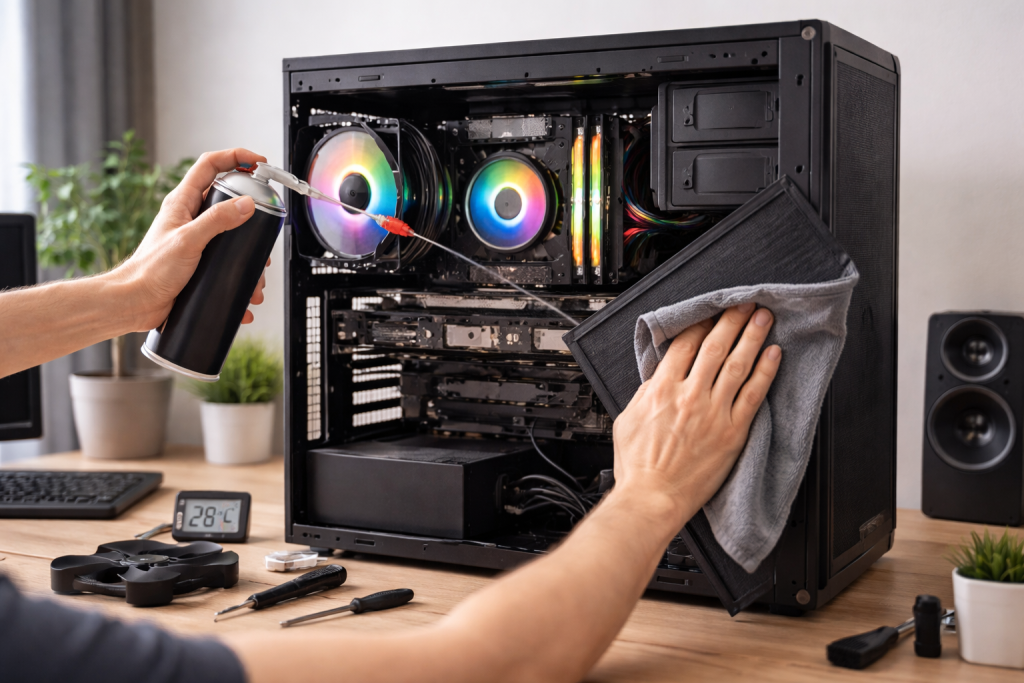
Gathering the right tools makes the cleaning process much easier and safer. Compressed air is invaluable for blowing dust out of tight spaces and off fan blades. Soft-bristle brushes can help dislodge stubborn dust. Anti-static wipes are useful for cleaning exterior surfaces, and a small vacuum cleaner with a brush attachment can be used to collect dust, but it should be used with caution to avoid static discharge.
The Cleaning Process: Step-by-Step
Before you begin, ensure your PC is completely powered off and unplugged from the wall. Ground yourself to discharge any static electricity. Open the PC case and use compressed air to blow dust out of fans, heatsinks, ventilation grilles, and expansion slots. Pay close attention to areas where dust tends to accumulate, such as near the CPU cooler and graphics card. Gently use a soft brush to dislodge any stuck-on dust if needed. For dusty fan blades, you can hold them in place with your finger while blowing air to prevent them from spinning too fast. Wipe down the exterior of the case and any visible ports.
Frequency of Cleaning
The frequency of cleaning depends on your environment. If you live in a dusty area or have pets, you may need to clean your PC more often, perhaps every three to six months. In cleaner environments, a yearly cleaning might suffice. However, it’s always a good idea to check your PC periodically for dust buildup and clean it as needed.
Monitoring and Managing PC Temperatures
Actively monitoring your PC’s temperature is a proactive approach to preventing overheating. Knowing your system’s thermal behavior allows you to identify potential issues before they cause critical problems.
Why Temperature Monitoring Matters
Understanding your PC’s operating temperatures provides valuable insights into its thermal health. If temperatures are consistently high, it signals that your cooling system is not keeping up, which can lead to performance throttling or component damage. Monitoring allows you to catch these issues early and take corrective action. It’s like having a dashboard in your car showing engine temperature—you want to keep it in the green zone.
Software Tools for Temperature Monitoring
Numerous software applications are available that can display real-time temperature readings for your CPU, GPU, and other components. Popular options include HWMonitor, Open Hardware Monitor, and MSI Afterburner (which also offers GPU overclocking features). These tools often provide graphs and historical data, allowing you to track temperature trends over time.
Interpreting Temperature Readings
Generally, CPU temperatures below 70°C (158°F) under load are considered good. GPU temperatures can often run slightly higher, with many cards operating comfortably below 80°C (176°F) under load. Temperatures consistently exceeding 85°C (185°F) for either component warrant investigation. If your system reaches 90°C (194°F) or higher, it’s a critical warning sign. The exact safe operating temperatures can vary slightly between different CPU and GPU models, so consulting your component’s specifications is recommended.
Setting Up Alerts
Some temperature monitoring software allows you to set up alerts that will notify you if a component’s temperature exceeds a predefined threshold. This is an excellent way to be immediately informed if your PC is entering a risky thermal zone, allowing you to pause demanding tasks or investigate the cause.
Cable Management and Optimal PC Positioning
Effective cable management and strategic PC placement are often overlooked but play a significant role in improving airflow and preventing overheating. Tangled cables can obstruct airflow, creating hot spots within your case.
The Impact of Cable Clutter
Within a PC case, cables are like rogue waves in a water channel. They can disrupt the intended flow of air, creating turbulence and dead zones where heat can accumulate. Disorganized cables can also block intake and exhaust fans, reducing their efficiency. Neat cable management ensures a clear path for air to move freely throughout the case.
Techniques for Neat Cable Management
Modern PC cases often feature cutouts, tie-down points, and space behind the motherboard tray to facilitate cable routing. By carefully planning your cable runs and utilizing these features, you can tuck away excess cable length and route cables neatly behind the motherboard. Using zip ties or Velcro straps can help keep bundles of cables tidy and out of harm’s way.
PC Placement for Airflow
The location where you place your computer is also important for its cooling. Avoid placing your PC in enclosed spaces like cabinets or directly against walls, as this restricts airflow. Ensure that the intake and exhaust vents have ample space to breathe. If you have a desktop PC, placing it on the floor can sometimes lead to increased dust intake. Elevating it slightly or placing it on a desk in a well-ventilated area is generally preferable.
Considering Environmental Factors
The ambient temperature of the room your PC is in also affects its cooling efficiency. A PC in a hot, unventilated room will naturally run warmer than one in a cool, well-ventilated space. Managing the room temperature, especially during intense computing sessions, can also contribute to keeping your PC cool.
The Importance of Regular Maintenance
Just like a car needs regular servicing, your PC’s cooling system requires periodic maintenance to function optimally. Neglecting this can lead to a gradual decline in cooling performance and eventually, overheating issues.
Scheduled Maintenance Tasks
Regular maintenance should include cleaning internal components, checking fan operation, and, when necessary, replacing thermal paste. Fan bearings can wear out over time, leading to reduced speed or noise; these fans may need replacement. Dust accumulation, as discussed, is a primary concern that needs regular attention.
Identifying Worn-Out Components
Fans are mechanical components that have a finite lifespan. If you notice a fan becoming unusually noisy, spinning slower than usual, or making clicking sounds, it may be nearing the end of its life. A failing fan can significantly impair your PC’s ability to cool itself. Similarly, the thermal paste on your CPU and GPU needs to be reapplied periodically.
Replacing Thermal Paste
Over time, the thermal paste applied between components and their heatsinks can dry out and lose its effectiveness. This typically happens every few years, depending on the quality of the paste and operating conditions. When you notice consistently higher temperatures than usual, and thorough cleaning doesn’t resolve the issue, reapplying thermal paste is a strong recommendation. This involves carefully removing the heatsink, cleaning off the old paste from both surfaces, applying a small, pea-sized amount of new thermal paste to the center of the component, and then reattaching the heatsink.
Reapplying Thermal Paste: A Detailed Look
The process of reapplying thermal paste requires a steady hand and attention to detail. After removing the heatsink, ensure all residue from the old paste is meticulously cleaned from both the component and the heatsink base using isopropyl alcohol (90% or higher is recommended) and a lint-free cloth. Apply a small amount of fresh, high-quality thermal paste (often a pea-sized dot in the center is sufficient for most CPUs) to the uncovered surface of the CPU or GPU. Then, carefully reseat the heatsink, ensuring even pressure is applied as you tighten the screws or secure the mounting mechanism. This ensures the paste spreads evenly and makes good contact.
Recognizing and Reacting to Overheating Signs
Being aware of the common signs of PC overheating allows you to intervene before minor issues escalate into severe damage. Early detection is key to preventing long-term problems.
Audible Clues: The Noisy Fan
One of the most common and immediate indications of an overheating PC is suddenly loud or constantly running fans. When your system’s cooling fans are working overtime, they spin at their maximum speed, which generates a significant amount of noise. If your PC suddenly sounds like a jet engine during tasks it previously handled quietly, it’s a strong sign that something is wrong with its cooling.
Performance Degradation: Throttling Down
When a CPU or GPU gets too hot, it will automatically reduce its clock speed to generate less heat and prevent damage. This process is called thermal throttling. You might notice your PC suddenly becomes sluggish and unresponsive, even though you’re not performing particularly demanding tasks. Games might stutter, applications might freeze, and your mouse cursor might move in jerky motions. This performance drop is a direct consequence of the components trying to cool themselves down by slowing down.
Unexpected Shutdowns and Restarts
The most severe indication of overheating is when your PC spontaneously shuts down or restarts without any warning. This is a safety mechanism built into most motherboards and components to prevent permanent damage. If your computer repeatedly shuts down during intensive tasks, it’s a critical signal that its cooling system is failing to cope.
Visual Glitches and Artifacts
For graphics-intensive tasks or gaming, the GPU is a primary concern for overheating. Excessive GPU heat can lead to visual anomalies on your screen, such as strange patterns, flickering, distorted images, or “artifacting.” These visual glitches are often an early warning sign that your graphics card is running too hot.
Addressing Overheating: Immediate Actions
If you suspect your PC is overheating, the first step is to immediately stop any demanding tasks you are performing. If the problem persists and is severe, consider shutting down the computer completely to allow it to cool down. Then, investigate the potential causes: is your PC covered in dust? Are all fans spinning? Is there adequate airflow around the case? Addressing these basic issues, such as cleaning or ensuring proper ventilation, can often resolve minor overheating problems. For more persistent issues, consulting a professional or researching component-specific troubleshooting steps may be necessary.
FAQs
1. What are the common causes of PC overheating?
2. How important is proper ventilation for preventing PC overheating?
3. What are the different cooling systems available for PCs, and how do you choose the right one?
4. What are some tips for maintaining a clean and dust-free PC to prevent overheating?
5. Why is proper cable management important for PC cooling, and how can it help prevent overheating?

Hamza Khan is the author and founder of TechFixLogic.info, a platform dedicated to providing practical software guides, tech solutions, and cybersecurity awareness. With a strong interest in technology and digital security, Hamza focuses on creating easy-to-understand tutorials that help users fix software issues, improve their digital skills, and stay safe online.
Through TechFixLogic.info, he shares step-by-step guides, troubleshooting tips, and cybersecurity insights designed for beginners as well as regular computer users. His goal is to simplify technology and make reliable tech knowledge accessible to everyone.