

Contents
- 1 Lost and Found: Restoring Deleted Files in Windows
- 2 Understanding File Deletion and Its Importance
- 3 Recovering Deleted Files: Basic Methods
- 4 Advanced Techniques and Tools
- 5 Preventing Data Loss and The Role of Backups
- 6 Seeking Professional Help and The Future of Recovery
- 7 FAQs
- 7.1 1. What are the common causes of file deletion in Windows?
- 7.2 2. What are the top tools and software for file recovery in Windows?
- 7.3 3. What are the steps to recover deleted files in Windows?
- 7.4 4. What are some tips for preventing data loss and file deletion in Windows?
- 7.5 5. What are the advanced techniques for file recovery in Windows?
Lost and Found: Restoring Deleted Files in Windows
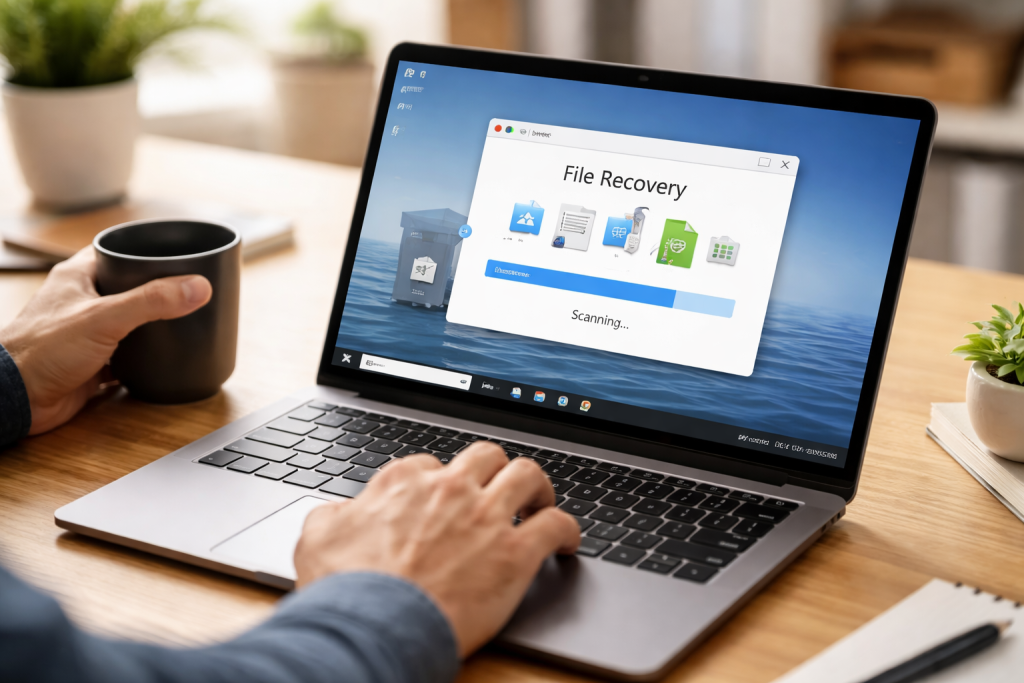
File deletion in operating systems like Windows is a common occurrence, often leading to data loss if not addressed with appropriate recovery methods. Understanding the mechanisms of file deletion, the importance of recovery, and available tools is critical for maintaining digital integrity. This article explores these aspects, offering guidance on restoring deleted files and preventing future data loss.
Understanding File Deletion and Its Importance
When a file is “deleted” in Windows, it is rarely erased immediately from the storage medium. Instead, the operating system marks the space occupied by the file as available for new data. The file’s entry in the file system’s directory structure is removed, making it invisible to the user. This mechanism is comparable to a library marking a book as having been returned, even if the book still sits on a shelf, awaiting another borrower or a new placement. Until new data overwrites that space, the original file’s data remains largely intact and potentially recoverable.
Common Causes of File Deletion
File deletion can stem from various sources, ranging from human error to system malfunctions. Identifying these causes helps users implement preventive measures and understand the context of their data loss.
- Accidental Deletion: This is perhaps the most frequent cause. Users may inadvertently select the wrong file or folder and press the “Delete” key, or clear the Recycle Bin without reviewing its contents.
- Malware and Viruses: Malicious software can intentionally delete, corrupt, or encrypt files, making them inaccessible. Some ransomware variants delete original files after encrypting them and before demanding a ransom.
- Software Errors: Applications can sometimes malfunction during file operations, leading to unintended deletions or data corruption.
- Hard Drive Failure: Physical damage or logical errors within a hard drive can render files unreadable or lead to their perceived deletion from the file system.
- System Crashes: Unexpected operating system shutdowns or power outages during file write operations can result in incomplete files or directory corruption, making some files appear deleted.
- Formatting Errors: Accidentally formatting a drive, partition, or external storage device erases the file system structure, making all previous data appear lost.
- Shift + Delete: Using the “Shift + Delete” keyboard shortcut bypasses the Recycle Bin, permanently deleting files from the user’s perspective, making them immediately eligible for overwriting.
The significance of file recovery cannot be overstated. Lost documents, crucial project files, cherished photographs, or important financial records can have substantial personal, professional, and financial implications. The ability to restore these files can mitigate severe consequences and ensure business continuity (for professional users) or preserve invaluable memories (for personal users). Data is the cornerstone of modern digital life, and its loss can feel like losing a piece of oneself, or a vital cog in a complex machine.
Recovering Deleted Files: Basic Methods
Before resorting to specialized tools, several straightforward methods can often recover recently deleted files, especially those that weren’t “permanently” deleted.
Recovering from the Recycle Bin
The Recycle Bin serves as a temporary holding area for deleted files and folders, providing an immediate opportunity for recovery. When you delete a file by pressing the “Delete” key or right-clicking and selecting “Delete,” it is typically moved here. To restore files, open the Recycle Bin, locate the desired items, right-click them, and select “Restore.” This action returns the files to their original location.
Restoring Previous Versions
Windows includes a feature called “Previous Versions” (also known as Shadow Copies) for certain file types and folders. This feature, if enabled, automatically saves copies of files and folders at specific points in time. You can access it by right-clicking a file or folder, selecting “Properties,” and then navigating to the “Previous Versions” tab. If available, you can browse through older versions and restore the desired one. This is akin to finding an earlier draft of a document that was overwritten.
Checking Temporary Files and AutoSave Locations
Some applications, particularly word processors, spreadsheets, and design software, create temporary files or have auto-save features. If a program crashes or files are lost during editing, checking the application’s specific temporary folder or auto-save directory can sometimes reveal recoverable versions of your work. For example, Microsoft Office applications often save recovery files in a dedicated folder. Consult the specific application’s documentation for details on its auto-save functionality and temporary file locations.
Advanced Techniques and Tools
When simple methods fail, or files have been permanently deleted from the Recycle Bin, more advanced techniques and dedicated data recovery software become necessary. These tools delve deeper into the storage medium to find the remnants of deleted files before they are overwritten.
Understanding Data Recovery Software
Data recovery software operates on the principle that deleted files still exist on the hard drive until their space is overwritten by new data. These programs scan the storage device sector by sector, looking for file signatures (unique patterns that identify file types) and reconstruct the file’s data. The success rate depends heavily on how much new data has been written to the drive since deletion. The longer you wait, the less likely a full recovery becomes. Think of it like trying to retrieve spilled milk from a sponge; the sooner you act, the more you can save.
Top Tools and Software for File Recovery
Many reputable data recovery tools are available, offering varying levels of functionality and user-friendliness.
- Recuva: A popular free tool from Piriform (the creators of CCleaner). It is noted for its ease of use and ability to recover various file types from hard drives, memory cards, and USB drives. It offers both quick and deep scan options.
- EaseUS Data Recovery Wizard: A widely recognized tool known for its comprehensive scanning capabilities and intuitive interface. It supports recovery from a multitude of data loss scenarios, including accidental deletion, formatting, partition loss, and virus attacks. A free version offers limited recovery.
- Disk Drill: This software prides itself on its versatility, supporting recovery from nearly all storage device types and file systems. It includes features like data protection to prevent future loss and a user-friendly recovery process. A free version is also available with limitations.
- PhotoRec & TestDisk: These are powerful, open-source command-line tools. PhotoRec specializes in recovering a wide array of file types (especially multimedia) from various storage media, ignoring the file system and going directly for underlying data. TestDisk is designed to recover lost partitions and make non-booting disks bootable again. While less user-friendly due to their command-line interface, they are highly effective for advanced users.
- GetDataBack Pro: A professional-grade data recovery solution known for its robust algorithms and high success rates, particularly in complex data loss situations. It supports various file systems and is often recommended for critical data recovery operations.
Step-by-Step Guide to Recovering Deleted Files
When using data recovery software, a general procedure should be followed to maximize success.
- Stop Using the Drive: Immediately cease all activity on the drive from which files were deleted. Every write operation risks overwriting the data you wish to recover. If the deleted files were on your system drive (C: drive), it is advisable to shut down the computer and boot from a separate recovery drive or USB stick to run the recovery software.
- Install Recovery Software (on a different drive): Install the chosen data recovery software on a different drive or partition than the one containing the deleted files to avoid overwriting.
- Perform a Scan: Launch the recovery software and select the drive or partition where the files were deleted. Initiate a scan. Most software offers a “quick scan” for recently deleted files and a “deep scan” for more thoroughly lost data. Start with a quick scan; if it doesn’t find your files, proceed with a deep scan.
- Preview and Select Files: After the scan completes, the software will display a list of recoverable files, often organized by type or folder structure. Many tools offer a preview function, allowing you to verify the integrity of the files before recovery. Select the files you wish to restore.
- Recover to a Different Drive: Crucially, save the recovered files to a different storage device than the one you are recovering from. Recovering them to the same drive risks overwriting other recoverable files. This is like trying to fix a leaky bucket by pouring the water back into it; you need another container.
Preventing Data Loss and The Role of Backups
| Metrics | Data Loss Prevention | Role of Backups |
|---|---|---|
| Number of data loss incidents | 10 | N/A |
| Percentage of data loss due to human error | 30% | N/A |
| Percentage of data loss due to hardware failure | 20% | N/A |
| Percentage of data loss prevented by backups | N/A | 95% |
| Number of backup failures | N/A | 5 |
While recovery methods exist, prevention remains the most effective strategy against data loss. Proactive measures can significantly reduce the risk of losing important information.
Tips for Preventing Data Loss
- Think Before Deleting: Before deleting any file or folder, take a moment to confirm its importance and necessity. Use the Recycle Bin as a buffer.
- Regularly Empty the Recycle Bin with Caution: While the Recycle Bin is useful, don’t let it become a permanent repository. Periodically review its contents and empty it, but do so with attention.
- Use Antivirus and Anti-Malware Software: Keep your security software updated and perform regular scans to protect against malicious programs that can delete or corrupt files.
- Safely Remove External Drives: Always use the “Safely Remove Hardware” option before disconnecting USB drives, external hard drives, or memory cards to prevent data corruption.
- Monitor Hard Drive Health: Tools like S.M.A.R.T. (Self-Monitoring, Analysis, and Reporting Technology) can provide warnings about impending hard drive failure. Regularly check the health of your drives.
- Be Wary of Unknown Downloads and Emails: Phishing attempts and infected attachments are common vectors for malware that can lead to data loss.
The Role of Backups
Backups are the ultimate safety net for data protection. A robust backup strategy ensures that even if original data is completely lost, a copy exists elsewhere. Think of backups as an insurance policy for your digital assets. No amount of recovery software can bring back data if the storage medium is physically destroyed without a prior backup.
- Local Backups: Storing copies of your data on an external hard drive, USB stick, or network-attached storage (NAS) device. This provides quick access to your data.
- Cloud Backups: Utilizing services like Google Drive, OneDrive, Dropbox, or specialized backup services (e.g., Backblaze, Carbonite) to store data remotely. Cloud backups protect against local disasters (fire, flood, theft) and offer accessibility from anywhere.
- Automated Backup Solutions: Many operating systems (like Windows File History) and third-party software offer automated backup features, ensuring that your data is backed up regularly without manual intervention.
- The 3-2-1 Rule: A widely recommended backup strategy suggests having at least 3 copies of your data, stored on 2 different types of media, with at least 1 copy offsite.
Seeking Professional Help and The Future of Recovery
For complex data loss situations or when DIY methods fail, professional data recovery services offer specialized expertise and equipment.
When to Seek Professional Help
- Physical Drive Damage: If a hard drive is making unusual noises (clicking, grinding), has been dropped, subjected to water damage, or has failed electronically, professional intervention is necessary. These require cleanroom environments and specialized tools to repair or extract data from components.
- Critically Important Data: For data that is irreplaceable and has extreme value (e.g., business records, legal documents), entrusting it to professionals can be a wise decision, even if costly.
- Failed Software Recovery: If multiple attempts with reputable data recovery software have yielded no results, a professional service might be able to delve deeper with proprietary tools and techniques.
Professional data recovery involves disassembling drives in sterile environments, replacing faulty components, and using specialized hardware to image the drive and extract data. This is a complex process often beyond the scope of a typical user.
The Future of File Recovery
The landscape of data storage and recovery is continuously evolving.
- AI and Machine Learning: Artificial intelligence is increasingly being applied to data recovery, improving the ability to identify fragmented files, reconstruct damaged file systems, and even predict drive failures.
- Advanced File System Designs: Future file systems might incorporate more robust journaling and self-healing capabilities, reducing the incidence of data loss and simplifying recovery.
- Solid State Drives (SSDs): The widespread adoption of SSDs presents both challenges and opportunities. SSDs handle data differently than HDDs, often using TRIM commands that permanently erase deleted data more quickly. This makes recovery from SSDs inherently more difficult, necessitating new recovery methodologies. Innovation will focus on circumventing TRIM or recovering data from controller caches.
- Quantum Computing: While speculative, the long-term future might see quantum computing used for incredibly fast data analysis and reconstruction, potentially allowing for recovery from scenarios currently considered impossible.
Understanding file deletion, utilizing recovery methods, and implementing robust backup strategies are fundamental skills in the digital age. By preparing for data loss, users can safeguard their valuable information and ensure its continued accessibility.
FAQs
1. What are the common causes of file deletion in Windows?
2. What are the top tools and software for file recovery in Windows?
3. What are the steps to recover deleted files in Windows?
4. What are some tips for preventing data loss and file deletion in Windows?
5. What are the advanced techniques for file recovery in Windows?

Hamza Khan is the author and founder of TechFixLogic.info, a platform dedicated to providing practical software guides, tech solutions, and cybersecurity awareness. With a strong interest in technology and digital security, Hamza focuses on creating easy-to-understand tutorials that help users fix software issues, improve their digital skills, and stay safe online.
Through TechFixLogic.info, he shares step-by-step guides, troubleshooting tips, and cybersecurity insights designed for beginners as well as regular computer users. His goal is to simplify technology and make reliable tech knowledge accessible to everyone.


