

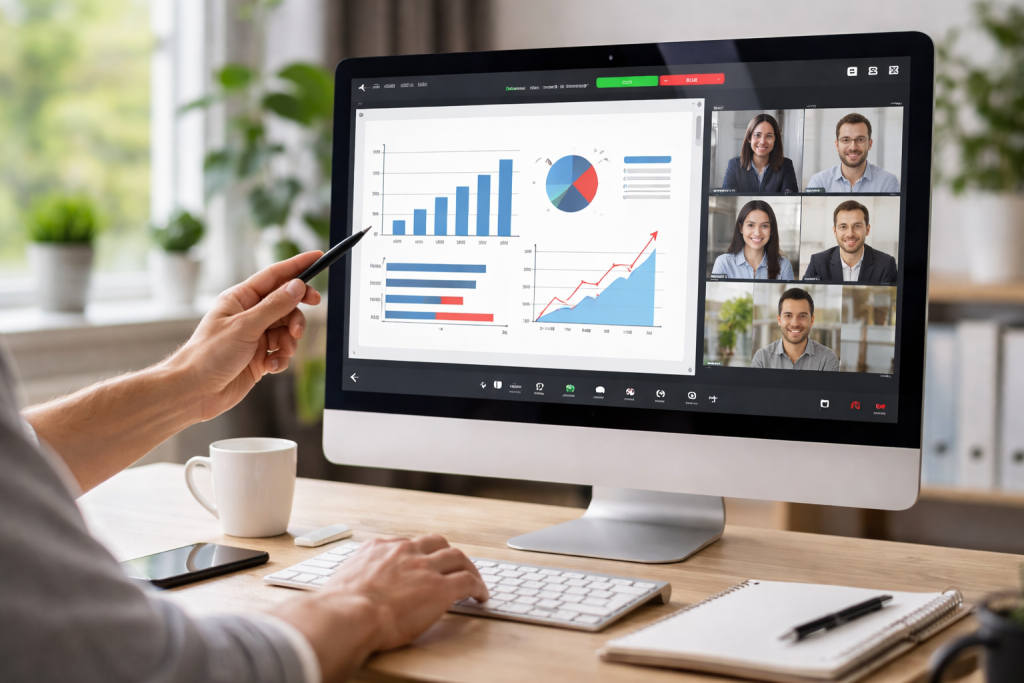
Screen sharing, a technology allowing one user to display their computer screen to one or more others, has become a core component of modern digital collaboration and remote work. It facilitates immediate visual communication, enabling users to present documents, software, or demonstrations in real time.
Contents
- 1 Introduction to Screen Sharing Tools
- 2 Benefits of Using Screen Sharing Tools for Productivity
- 3 Comparison of Top Screen Sharing Tools
- 4 How to Choose the Right Screen Sharing Tool for Your Needs
- 5 Tips for Effective Collaboration Using Screen Sharing Tools
- 6 Enhancing Remote Work with Screen Sharing Tools
- 7 Security and Privacy Considerations when Using Screen Sharing Tools
- 8 Maximizing Productivity with Advanced Features of Screen Sharing Tools
- 9 Future Trends in Screen Sharing Technology for Productivity
- 10 FAQs
- 10.1 1. What are the benefits of using screen-sharing tools for productivity?
- 10.2 2. How do I choose the right screen sharing tool for my needs?
- 10.3 3. What are some tips for effective collaboration using screen sharing tools?
- 10.4 4. What security and privacy considerations should I keep in mind when using screen sharing tools?
- 10.5 5. What are some advanced features of screen sharing tools that can help maximize productivity?
Introduction to Screen Sharing Tools
Screen sharing tools are software applications or built-in features that broadcast a user’s desktop or a specific application window to other participants in a session. This essentially creates a shared visual space, similar to pointing at the same physical whiteboard, but across geographical distances. Early forms of screen sharing were often integrated into remote desktop applications, primarily for IT support. However, their evolution has broadened their utility, making them indispensable for various professional and educational scenarios. These tools typically offer features like real-time viewing, annotation, and sometimes remote control capabilities.
Benefits of Using Screen Sharing Tools for Productivity
The integration of screen sharing tools into daily workflows offers several advantages that directly impact productivity.
Streamlined Communication
Screen sharing removes ambiguity. Instead of describing a complex issue or a user interface, you can show it directly. This visual aid clarifies explanations, reduces misunderstandings, and accelerates problem-solving. Imagine trying to explain a complex spreadsheet formula over the phone versus simply sharing your screen and highlighting the relevant cells. The latter is far more efficient. This direct visual transmission of information minimizes the risk of misinterpretation, often found in purely verbal or text-based communication.
Enhanced Collaboration
Screen sharing acts as a digital meeting table where everyone can see the same document or application simultaneously. This enables real-time collaborative editing, design reviews, and brainstorming sessions. Team members can actively participate, pointing out specific elements or suggesting changes on the shared screen, fostering a dynamic and interactive work environment. It’s like everyone having a pen on the same digital paper. This synchronous interaction allows for immediate feedback and iterative development, crucial for project progression.
Improved Training and Support
For training, screen sharing allows instructors to demonstrate software, processes, or presentations directly, making complex procedures easier to grasp. Similarly, for IT support, technicians can remotely view a user’s screen to diagnose and resolve issues efficiently without needing to be physically present. This reduces downtime and accelerates the learning curve for new employees or software users. It transforms abstract instructions into concrete visual guidance.
Reduced Travel and Time Costs
By enabling effective remote collaboration, screen-sharing tools decrease the need for physical meetings, thereby saving travel time and associated expenses. This allows teams to connect and work together regardless of their physical locations, making global collaboration a practical reality. By reallocating commuter time to work or personal activities, reduced travel also boosts personal productivity.
Comparison of Top Screen Sharing Tools
The market offers a range of screen sharing tools, each with its strengths and feature sets.
General-Purpose Conferencing Tools
Many popular video conferencing platforms integrate robust screen sharing features. Zoom, for example, is widely used for its reliable performance and features like screen annotation, whiteboard functionality, and the ability to share specific applications or your entire desktop. Microsoft Teams offers similar capabilities, tightly integrated within the Microsoft 365 ecosystem, allowing for seamless sharing of documents and presentations. Google Meet provides straightforward screen sharing, often favored for its accessibility and integration with Google Workspace. People often choose these tools due to their comprehensive meeting solutions.
Dedicated Screen Sharing and Remote Access Tools
Some tools specialize in screen sharing and remote access. TeamViewer is known for its strong remote control capabilities, often used for technical support and remote administration, offering high performance even over fluctuating internet connections. AnyDesk provides a lightweight and fast remote desktop experience, focusing on speed and minimal latency. These specialized tools often excel in scenarios where remote control and high-performance sharing are primary requirements.
Browser-Based Solutions
Several browser-based solutions provide screen sharing without requiring software installation. Whereby (formerly known as appear.in) offers simple, link-based meeting rooms with screen-sharing functionality. These tools are convenient for quick, ad hoc meetings and external collaborations where installation barriers might exist. They prioritize ease of access and quick setup, making them ideal for infrequent or spontaneous sharing needs.
How to Choose the Right Screen Sharing Tool for Your Needs
| Screen Sharing Tool | Features | Compatibility | Price |
|---|---|---|---|
| Zoom | HD video, audio, screen sharing, recording | Windows, Mac, iOS, Android | Free for basic features, paid plans available |
| Google Meet | Screen sharing, video conferencing, recording | Web-based, works on all major browsers | Included with G Suite subscription |
| Microsoft Teams | Screen sharing, video conferencing, chat, file sharing | Windows, Mac, iOS, Android | Included with Office 365 subscription |
| Skype | Screen sharing, video calling, chat, file sharing | Windows, Mac, iOS, Android | Basic features are free, and paid plans are also available. |
Selecting the appropriate screen sharing tool depends on various factors specific to your individual or organizational requirements.
Consider Your Primary Use Case
Are you primarily conducting large presentations, providing technical support, collaborating on design, or delivering training sessions? Different tools excel in different areas. A tool robust for remote control might be overkill for a simple presentation. Understand your core needs first.
Evaluate Features
Look for features essential to your workflow. Do you need annotation tools, remote control, recording capabilities, or multi-user sharing? Some advanced features, like dedicated presenter modes or audience interaction tools (polls, Q&A), might be critical for specific applications.
Assess Security and Privacy
For sensitive information, strong encryption, access controls, and compliance certifications (e.g., GDPR, HIPAA) are crucial. Ensure the tool aligns with your data security policies. You should treat your shared screen like a window into your digital workspace; ensure the locks are strong.
Check Compatibility and Integration
Will the tool integrate with your existing workflow applications, operating systems, and hardware? Seamless integration minimizes friction and enhances adoption. Compatibility with various devices (desktop, mobile) can also be a significant factor for diverse teams.
Review Cost and Scalability
Consider pricing models, whether subscription-based or free, and ensure they fit your budget. Evaluate if the tool can scale with your team’s growth and changing needs. A free tool might suffice for individual use, but enterprise-level requirements often necessitate paid plans with advanced features and support.
Tips for Effective Collaboration Using Screen Sharing Tools
Merely having a screen-sharing tool is not enough; effective utilization enhances productivity.
Establish Clear Objectives
Before initiating a screen sharing session, define the purpose and expected outcomes. A clear agenda guides the discussion and keeps participants focused, preventing drift. Think of it as setting a compass for your shared journey.
Manage Access and Control
Determine who has screen sharing privileges and remote control capabilities. Granting control only when necessary prevents accidental actions and maintains order, especially in larger groups. This prevents too many cooks from spoiling the digital broth.
Utilize Annotation Features
Many tools offer annotation functions. Use them to highlight specific areas, draw attention, or make notes directly on the shared screen, improving clarity during discussions. This allows for direct, visual feedback in real time.
Practice Active Listening and Engagement
Encourage participants to speak up, ask questions, and provide feedback. While screen sharing enables interaction, active participation guarantees everyone’s alignment and effective contribution. A shared screen is a conversation starter, not a monologue podium.
Record Sessions
For training or future reference, record screen-sharing sessions. This allows attendees to review content and absent team members to catch up. Ensure you inform participants when recordings are in progress, respecting privacy.
Enhancing Remote Work with Screen Sharing Tools
Screen sharing is a pillar of remote work, bridging geographical divides and encouraging a sense of team cohesion.
Simulating In-Person Collaboration
In remote settings, screen sharing recreates the experience of working side-by-side. Teams can co-edit documents, review designs, or troubleshoot problems together, mimicking the benefits of a shared physical workspace. It acts as a digital bridge connecting disparate islands of workers.
Facilitating Virtual Team Meetings
Screen sharing enhances virtual meetings by allowing presenters to visually convey information, making them more engaging and informative than audio-only calls. This leads to better decision-making and improved meeting productivity.
Onboarding Remote Employees
For new remote hires, screen sharing facilitates virtual onboarding. Managers can demonstrate tools, processes, and company culture directly, ensuring a smooth integration into the team without physical presence. This visual guidance makes complex initial tasks more manageable.
Security and Privacy Considerations when Using Screen Sharing Tools
While screen sharing offers benefits, it presents security and privacy risks if not managed carefully.
Data Exposure
Sharing your entire screen can inadvertently expose sensitive information, such as notifications, browser tabs, or confidential documents. Always ensure only necessary applications or windows are shared. Think of your screen as a window into your home; only show what you want people to see.
Weak passwords or unmanaged access settings can lead to unauthorized individuals joining sessions or gaining remote control. Use strong, unique passwords and enable features like waiting rooms or password protection for meetings.
Malware and Viruses
If a screen sharing tool involves downloading software, ensure it comes from a reputable source to avoid malware. Be cautious of unsolicited screen sharing requests, which could be phishing attempts.
Recording and Storage
Understand how session recordings are stored, accessed, and retained. Ensure compliance with data protection regulations and obtain consent before recording, especially for sensitive discussions.
Maximizing Productivity with Advanced Features of Screen Sharing Tools
Beyond basic sharing, many tools offer advanced features that further boost productivity.
Remote Control
The ability to grant remote control to another participant allows them to directly interact with your computer. This is invaluable for collaborative editing, technical support, and training, enabling direct intervention rather than verbal instruction.
Annotation and Whiteboarding
Built-in annotation tools (pens, highlighters, shapes) and digital whiteboards provide a shared canvas for brainstorming, diagramming, and visual communication, making complex ideas easier to illustrate and discuss.
Multi-Monitor Sharing
For users with multiple displays, some tools allow sharing specific monitors or selecting which screen to share, offering flexibility and control over what information is presented.
Breakout Rooms
In larger virtual meetings, breakout rooms allow participants to divide into smaller groups for focused discussions, often with their own screen-sharing capabilities, before reconvening to the main session.
Integration with Other Tools
Screen sharing tools often integrate with calendars, project management software, and communication platforms, streamlining workflows and reducing context switching. This interconnectedness allows for a more unified digital work environment.
Future Trends in Screen Sharing Technology for Productivity
The evolution of screen sharing is ongoing, with several trends shaping its future.
Enhanced immersive experiences
The integration of virtual reality (VR) and augmented reality (AR) promises more immersive screen-sharing experiences, potentially transforming collaborative design and training. Imagine interacting with shared models as if they were physically present.
AI-powered features
Artificial intelligence could introduce features like automated meeting summaries, sentiment analysis during discussions, or intelligent content recognition to enhance productivity and insights from shared sessions. AI might act as a vigilant scribe and analyst for your meetings.
Greater Security and Privacy Controls
As security concerns grow, expect more robust encryption, granular access controls, and privacy-enhancing technologies to become standard, building user trust and protecting sensitive data.
Seamless cross-platform compatibility
The demand for frictionless experiences across various devices and operating systems will drive further development in universal compatibility, making screen sharing truly ubiquitous.
Screen sharing tools have transitioned from niche technical utilities to core components of modern work. By understanding their capabilities, choosing the right tools, and applying best practices, individuals and organizations can significantly enhance collaboration, communication, and overall productivity, adapting to an increasingly remote and distributed work landscape.
FAQs
1. What are the benefits of using screen-sharing tools for productivity?
2. How do I choose the right screen sharing tool for my needs?
3. What are some tips for effective collaboration using screen sharing tools?
4. What security and privacy considerations should I keep in mind when using screen sharing tools?
5. What are some advanced features of screen sharing tools that can help maximize productivity?

Hamza Khan is the author and founder of TechFixLogic.info, a platform dedicated to providing practical software guides, tech solutions, and cybersecurity awareness. With a strong interest in technology and digital security, Hamza focuses on creating easy-to-understand tutorials that help users fix software issues, improve their digital skills, and stay safe online.
Through TechFixLogic.info, he shares step-by-step guides, troubleshooting tips, and cybersecurity insights designed for beginners as well as regular computer users. His goal is to simplify technology and make reliable tech knowledge accessible to everyone.


