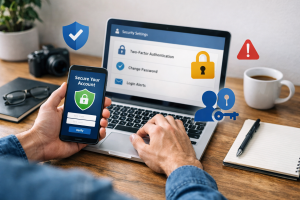
A computer is a complex machine, a digital extension of your work and personal life. Maintaining its health is crucial, and a key element of that health is security. Malware, a pervasive threat, can compromise this digital environment, akin to a foreign body invading a living organism. Understanding malware and how to defend against it is essential for any computer user.

Contents
- 1 Understanding Malware and Its Impact
- 2 Scanning Your PC for Security Threats
- 3 Best Practices for Preventing Malware Infections
- 4 Recognizing the Signs of a Malware Infection
- 5 What to Do If Your PC Is Infected with Malware
- 6 FAQs
- 6.1 1. Why is it important to scan your PC for security threats?
- 6.2 2. What are the common types of malware, and how do they impact your PC?
- 6.3 3. How do you choose the right antivirus software for your PC?
- 6.4 4. What are the best practices for preventing malware infections on your PC?
- 6.5 5. What should you do if your PC is infected with malware?
Understanding Malware and Its Impact
Malware, short for “malicious software,” is a broad term encompassing any program designed to damage, disrupt, or gain unauthorized access to a computer system. The landscape of malware is vast and constantly evolving, with new threats emerging regularly. Understanding these threats is the first step toward effective defense.
Common Types of Malware
Malware manifests in various forms, each with distinct characteristics and methods of operation.
- Viruses: These programs attach themselves to legitimate software and spread when the host program executes. Viruses often aim to corrupt data or disrupt system operations. Think of a virus as a hitchhiker that infects other programs as it moves from one system to another.
- Worms: Unlike viruses, worms are standalone programs that replicate themselves and spread across networks without human intervention. They often exploit network vulnerabilities to propagate. A worm can be seen as a self-replicating organism that spreads across a connected ecosystem.
- Trojans: Named after the Trojan Horse of ancient Greek legend, these malicious programs disguise themselves as legitimate software. Once installed, they can create backdoors for remote access, steal data, or launch other attacks. A Trojan tricks you into inviting an enemy inside your defenses.
- Ransomware: This type of malware encrypts a user’s files and demands a ransom payment, usually in cryptocurrency, for their decryption. It holds your digital assets hostage.
- Spyware: Designed to clandestinely gather information about a user’s activities without their knowledge or consent. This can include browsing habits, keystrokes, and personal data. Spyware is a hidden observer, documenting your digital life.
- Adware: While less directly harmful than other types, adware bombards users with unwanted advertisements, often tracking browsing behavior to deliver targeted ads. It clogs your digital space with unwanted commercial messages.
- Rootkits: These sophisticated threats are designed to hide their presence and that of other malicious software, allowing attackers to maintain covert control over a compromised system. Rootkits are chameleons, blending into the operating system to avoid detection.
- Keyloggers: A specific type of spyware that records every keystroke made on a keyboard. This allows attackers to capture sensitive information like passwords and credit card numbers. Keyloggers are silent scribes, recording your every input.
Impact of Malware on Your PC
The consequences of a malware infection can range from minor annoyances to catastrophic data loss and financial ruin.
- Performance Degradation: Malware often consumes system resources, leading to slower boot times, sluggish application performance, and frequent crashes. Your PC becomes burdened, like a machine trying to operate with unnecessary components.
- Data Loss or Corruption: Viruses and ransomware can delete, encrypt, or corrupt your valuable files, potentially leading to irreparable data loss. This is like a vandal destroying your personal archive.
- Identity Theft and Financial Fraud: Spyware and keyloggers can steal personal information, banking credentials, and credit card numbers, leading to identity theft and unauthorized financial transactions. This compromises your digital identity and jeopardizes your financial security.
- System Instability: Malware can interfere with operating system functions, causing errors, blue screens of death, and general system instability. Your PC becomes unpredictable and unreliable.
- Network Compromise: Some malware, particularly worms, can spread across networks, compromising other connected devices and potentially leading to widespread outages. A single infection can become a contagion for an entire digital community.
- Privacy Violations: Spyware and adware can track your online activities, collect personal data, and expose you to unwanted targeting or surveillance. Your privacy is eroded, and your digital footprint is no longer your own.
Scanning Your PC for Security Threats
Regular scanning is a fundamental practice in maintaining PC security. It is your proactive defense, akin to a security patrol constantly checking for breaches.
Choosing the Right Antivirus Software
The effectiveness of your security scans largely depends on the antivirus software you employ. This software acts as your digital guardian, equipped to identify and neutralize threats.
- Reputation and Reviews: Opt for antivirus solutions from reputable vendors with a strong track record. Consult independent testing labs like AV-TEST and AV-Comparatives for objective performance evaluations.
- Detection Capabilities: The software should offer robust detection of various malware types, including known threats and emerging zero-day exploits. This is its ability to spot danger, both overt and concealed.
- Real-time Protection: Essential for continuous monitoring of your system. Real-time protection intercepts threats before they can execute and cause damage. This is the constant vigilance, preventing intruders from even entering.
- Usability and Performance Impact: Choose software that is easy to use and does not significantly degrade your system’s performance. An overly resource-intensive antivirus can make your PC unusable. The guardian should protect, not impede.
- Features: Consider additional features like firewall integration, anti-phishing protection, secure browsing, and parental controls if they align with your needs. These are extra layers of armor for specific vulnerabilities.
- Cost: While free antivirus solutions exist, paid versions often offer more comprehensive protection and advanced features. Evaluate your budget and security requirements. Investing in protection is often cheaper than recovering from an attack.
Step-by-Step Guide to Scanning Your PC for Malware
Once you have chosen and installed your antivirus software, performing a scan is a straightforward process.
- Update Your Antivirus Software: Before initiating a scan, ensure your antivirus definitions are up to date. This ensures the software has the latest information on known malware. This is like equipping your guardian with the most current intelligence.
- Disconnect from the Internet (Optional but Recommended for Deep Scans): For a thorough scan, especially if you suspect an active infection, disconnecting from the internet can prevent malware from communicating with external servers or spreading further. This isolates the system to contain the threat.
- Perform a Full System Scan: Initiate a comprehensive scan of your entire computer. This will examine all files, folders, and system areas for malicious code. This is examining every corner of your digital home. Quick scans are useful for routine checks, but a full scan is indispensable for thorough threat detection.
- Review Scan Results: After the scan completes, your antivirus software will present a report of any detected threats.
- Quarantine or Remove Detected Threats: Follow the prompts to either quarantine or remove the identified malware. Quarantining isolates the suspicious files, preventing them from causing harm, while removal permanently deletes them.
- Restart Your PC: After addressing the threats, restart your computer to ensure all changes take effect and any malicious processes are terminated. This gives your system a fresh start.
- Run a Second Scan: Consider running another full scan after the initial cleanup to confirm that all threats have been eradicated. This is a double-check to ensure nothing was missed.
Best Practices for Preventing Malware Infections
Prevention is always better than cure. Adopting robust security practices significantly reduces your risk of malware infection.
- Keep Your Software Updated: Regularly update your operating system, web browsers, and all applications. Software updates often include security patches that address known vulnerabilities. Outdated software is a weak point, an open window for intruders.
- Use a Firewall: A firewall acts as a barrier, controlling incoming and outgoing network traffic and blocking unauthorized access. It is a security gate for your digital network.
- Be Skeptical of Email Attachments and Links: Exercise caution when opening attachments or clicking links from unknown or suspicious sources. Phishing attempts are a common vector for malware. Think before you click, as a seemingly innocuous link can be a hidden trap.
- Download Software from Trusted Sources: Only download software from official websites or reputable app stores. Avoid third-party download sites that may bundle malware with legitimate programs. This is choosing reputable suppliers for your digital tools.
- Use Strong, Unique Passwords: Employ complex passwords for all your online accounts and consider using a password manager. Weak passwords are like easily picked locks.
- Enable Two-Factor Authentication (2FA): Where available, enable 2FA for an extra layer of security, requiring a second verification method in addition to your password. This is like needing two keys to open a vault.
- Back Up Your Data Regularly: Create regular backups of your important files to an external drive or cloud storage. In the event of a ransomware attack or data corruption, you can restore your data. Backups are your safety net, your alternative copies of irreplaceable work.
- Be Careful with Removable Media: Scan USB drives, external hard drives, and other removable media before opening files from them. These devices can carry hidden infections.
- Exercise Caution on Public Wi-Fi: Public Wi-Fi networks are often less secure. Avoid sensitive activities like online banking when connected to them. Your data is exposed in an open environment.
Recognizing the Signs of a Malware Infection
| Signs of Malware Infection | Description |
|---|---|
| Slow computer performance | Unexplained slowdowns in computer performance may indicate malware presence. |
| Unusual pop-ups or messages | Unexpected pop-ups or messages appearing on the screen could be a sign of malware. |
| Changes in browser settings | Malware may alter browser settings, such as the default homepage or search engine. |
| Unexplained data loss | Loss of files or data without any apparent reason may be caused by malware. |
| Increased network activity | Unusual network activity or data usage could be a sign of malware communicating with external servers. |
Even with preventative measures, infections can occur. Recognizing the signs early can limit damage.
- Slow Performance: A sudden and significant decrease in your computer’s speed or responsiveness can indicate malware consuming resources.
- Unexpected Pop-up Ads: An increase in unsolicited advertisements, especially those that appear outside your web browser, can be a sign of adware or spyware.
- Browser Redirects: Your web browser automatically redirects you to unfamiliar websites or changes your homepage without your consent. This is like your digital navigation being hijacked.
- Unusual System Behavior: Programs crashing frequently, new toolbars appearing in your browser, or files disappearing or changing unexpectedly. Your PC is exhibiting erratic actions.
- Suspicious Network Activity: Unexplained outgoing network traffic, especially when your computer is idle, can signal malware communicating with external servers. Your PC is transmitting data without your knowledge.
- Antivirus Software Disabled: Malware often attempts to disable security software to prevent detection and removal. If your antivirus is suddenly inactive, investigate immediately. The guardian is silenced.
- Error Messages: Frequent or unusual error messages, especially those related to system files, can indicate corruption by malware.
- Disk Activity: Constant hard drive activity even when you are not actively using your computer can suggest background processes initiated by malware.
What to Do If Your PC Is Infected with Malware
If you suspect or confirm a malware infection, act quickly and methodically.
- Isolate the Infected PC: Disconnect the computer from the internet and any other network connections immediately. This prevents the malware from spreading to other devices or further compromising your data. This is quarantining the infected system.
- Boot into Safe Mode (If Possible): Restart your computer and boot into Safe Mode (often by pressing F8 or Shift+F8 during startup). Safe Mode loads only essential system services, which can prevent malware from running. This is disarming the enemy by limiting its operational capabilities.
- Run a Full Antivirus Scan: While in Safe Mode, perform a comprehensive scan with your updated antivirus software. Allow it to identify and remove all detected threats.
- Use Additional Malware Removal Tools: If your primary antivirus struggles to remove the infection, consider using dedicated malware removal tools from reputable vendors. These tools are often designed to target specific, stubborn threats.
- Change All Passwords: Once the infection is cleared, change all your online passwords, especially for banking, email, and social media. Assume that your credentials may have been compromised.
- Update and Patch Software: Ensure all your operating system and application software are fully updated with the latest security patches.
- Monitor Your System: After cleanup, monitor your PC for any recurring signs of infection or unusual behavior.
- Consider a Clean Installation: For severe or persistent infections, a complete reinstallation of your operating system may be the most effective solution. This is a complete digital reset. This is a drastic measure but ensures the eradication of all traces of the malware. Remember to back up all important data before performing a clean installation.
Regular PC scans are not a one-time event; they are an ongoing commitment to cybersecurity. Your digital environment requires constant attention and periodic checks, much like a gardener tends to a garden to keep it healthy. This continuous vigilance, combined with preventative measures, forms a robust defense against the evolving landscape of malware.
FAQs
1. Why is it important to scan your PC for security threats?
It is important to scan your PC for security threats to protect your personal and sensitive information from being compromised by malware. Malware can cause significant damage to your PC, steal your data, and even lead to financial loss or identity theft.
2. What are the common types of malware, and how do they impact your PC?
Common types of malware include viruses, worms, Trojans, ransomware, spyware, and adware. These can impact your PC by slowing down its performance, corrupting files, stealing personal information, and even rendering your PC unusable.
3. How do you choose the right antivirus software for your PC?
When choosing antivirus software, consider factors such as real-time protection, malware detection rates, system performance impact, ease of use, and additional features like firewall protection and phishing detection. It’s important to choose a reputable and regularly updated antivirus program.
4. What are the best practices for preventing malware infections on your PC?
Best practices for preventing malware infections include keeping your operating system and software up to date, being cautious of email attachments and links, using strong and unique passwords, avoiding suspicious websites, and regularly scanning your PC for malware.
5. What should you do if your PC is infected with malware?
If your PC is infected with malware, you should disconnect it from the internet, run a full system scan with your antivirus software, and follow any removal instructions provided. In some cases, you may need to seek professional help to fully remove the malware and restore your PC’s security.

Hamza Khan is the author and founder of TechFixLogic.info, a platform dedicated to providing practical software guides, tech solutions, and cybersecurity awareness. With a strong interest in technology and digital security, Hamza focuses on creating easy-to-understand tutorials that help users fix software issues, improve their digital skills, and stay safe online.
Through TechFixLogic.info, he shares step-by-step guides, troubleshooting tips, and cybersecurity insights designed for beginners as well as regular computer users. His goal is to simplify technology and make reliable tech knowledge accessible to everyone.