
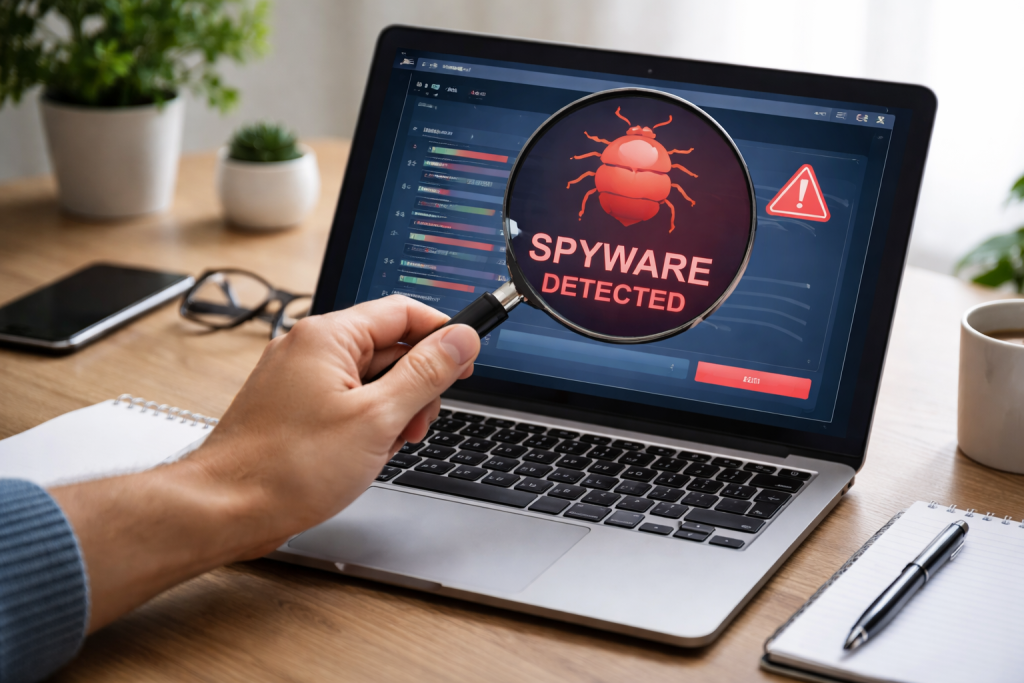
Spyware is a type of malicious software that can compromise your computer and personal information. It operates silently, gathering data about your online activities, keystrokes, and even your location without your knowledge or consent. Understanding spyware, recognizing its signs, and knowing how to remove it are critical to preserving your digital privacy. This guide provides an overview of spyware, methods for detection and removal, and strategies for prevention.
Contents
- 1 Understanding Spyware
- 2 Signs of Spyware Infection
- 3 Step-by-Step Guide to Removing Spyware
- 4 Choosing the Right Spyware Removal Tool
- 5 Best Practices for Preventing Spyware Infections
- 6 Seeking Professional Help
- 7 Maintaining a Secure and Private Computer
- 8 FAQs
- 8.1 What is spyware, and how does it affect my privacy?
- 8.2 How can I tell if my computer is infected with spyware?
- 8.3 What are the best practices for preventing spyware infections in the future?
- 8.4 How do I safely remove spyware from my computer without damaging it?
- 8.5 When should I seek professional help for spyware removal?
Understanding Spyware
Spyware is a broad category of malware designed to gather information from a computer or device without the owner’s knowledge. Its primary purpose is to monitor user activity and transmit collected data to a third party. This data can include browsing history, search queries, login credentials, email addresses, and even financial information.
How Spyware Operates
Spyware often gains access to your computer through various vectors. It may be bundled with legitimate software, downloaded inadvertently when you click on malicious links, or installed through security vulnerabilities in your operating system or applications. Once installed, spyware establishes a foothold on your system, often modifying system settings or installing hidden components to evade detection. It then begins its mission of collecting data. This data is typically encrypted and transmitted over the internet to a remote server controlled by the spyware’s creators.
Impact on Privacy and Security
The presence of spyware on your computer is a direct threat to your privacy. It is like having a hidden camera and microphone in your home, constantly recording your activities and conversations. The information collected by spyware can be used for various malicious purposes, including identity theft, financial fraud, and targeted advertising. Some spyware can compromise system security beyond personal data, potentially opening backdoors for other malware or granting attackers remote control over your computer. It can also degrade system performance, making your computer slow and unresponsive.
Signs of Spyware Infection
Recognizing the signs of a spyware infection is the first step toward remediation. While some spyware operates completely silently, many types leave discernible tracks.
Performance Degradation
One common indicator of spyware is a noticeable slowdown in your computer’s performance. Applications may take longer to load, your internet connection might become sluggish, and your system may freeze or crash more often. Spyware consumes system resources, much like an uninvited guest who eats all your food and uses all your hot water.
Unexpected Changes
Spyware often modifies system settings without your consent. This can manifest as changes to your browser’s homepage, default search engine, or new, unfamiliar toolbars appearing in your browser. You might also notice new icons on your desktop or in your system tray that you did not install. These changes are akin to someone rearranging your furniture without your permission.
Increased Pop-up Ads
A significant increase in pop-up advertisements, especially when browsing websites that typically do not display them, can be a strong indicator of adware, a type of spyware focused on ad delivery. Your browser may still display these pop-ups. They are like a salesperson constantly knocking on your door, trying to sell you things you do not want.
Suspicious Network Activity
If your internet connection shows unusual activity, such as unexplained data usage or attempts to connect to unfamiliar websites, spyware could be at play. Task Manager or Activity Monitor can reveal processes consuming excessive network bandwidth, even when you are not actively using the internet. This procedure is akin to finding evidence of someone using your phone for long, unexplained calls.
Step-by-Step Guide to Removing Spyware
Removing spyware requires a methodical approach. Do not panic; follow these steps to increase your chances of successful removal.
Disconnect from the Internet
Before taking any action, disconnect your computer from the internet. This prevents the spyware from transmitting data or receiving further instructions from its control server. It is like cutting off the oxygen supply to an unwelcome fire.
Boot into Safe Mode
Restart your computer and boot into Safe Mode. This loads only essential system programs and drivers, preventing many spyware programs from launching. In Windows, the procedure typically involves pressing the F8 key repeatedly during startup. For macOS, hold down the Shift key during startup. Safe Mode offers a more streamlined environment for performing system cleanup.
Run a Full System Scan
Use a reputable anti-spyware or antivirus program to perform a full system scan. Ensure your chosen software is updated to its latest definitions. This scan will identify and quarantine or delete detected spyware. Think of the scan as a thorough search of your house for intruders.
Remove Quarantined Files
After the scan, review the list of detected threats. Remove or quarantine all identified spyware components. Some reputable security software will provide options to automatically clean or delete these threats.
Check Startup Programs
Open your system’s Task Manager (Windows) or Activity Monitor (macOS) and navigate to the “Startup” tab. Disable or remove any suspicious programs that are configured to launch automatically when your computer starts. This prevents the spyware from reactivating after a reboot.
Review Browser Extensions and Programs
Examine your web browser’s extensions or add-ons. Remove any unfamiliar or suspicious extensions. Similarly, go through your installed programs list and uninstall any software you recognize as unwanted.
Update Operating System and Software
After cleaning your system, ensure your operating system, web browser, and all other software are updated to their latest versions. These updates often include security patches that address vulnerabilities spyware might exploit.
Choosing the Right Spyware Removal Tool
| Criteria | Option 1 | Option 2 | Option 3 |
|---|---|---|---|
| Effectiveness | High | Medium | Low |
| Ease of Use | Easy | Moderate | Complex |
| Cost | Free | $29.99/year | 49.99/year |
| Customer Support | 24/7 Live Chat | Email Support | Phone Support |
Selecting the right tool for spyware removal is critical. Not all security software is equally effective.
Reputation and Reviews
Prioritize tools from established security companies with positive user reviews. Check independent security labs for their evaluations of anti-spyware efficacy. A good reputation often indicates reliability.
Comprehensive Detection
Look for software that offers comprehensive detection capabilities, not just against spyware but also other forms of malware like viruses, adware, and trojans. A multifaceted security suite provides better protection.
Real-Time Protection
While proactive scanning is important, real-time protection is essential for preventing future infections. This feature actively monitors your system for suspicious activity and blocks threats before they can establish a foothold. It is like having a security camera watching your home constantly.
User Interface and Support
Consider the tool’s ease of use and the availability of customer support. A confusing interface can hinder effective use, and good support can be invaluable if you encounter difficulties.
Best Practices for Preventing Spyware Infections
Prevention is always better than cure. By adopting excellent digital hygiene, you can significantly reduce your risk of spyware infection.
Use Reputable Antivirus/Anti-Spyware Software
Install and maintain a comprehensive antivirus and anti-spyware program. Keep it updated and configure it to perform regular scans. This software acts as your computer’s immune system.
Be Cautious with Downloads
Only download software from trusted sources. Be wary of free software, especially if it comes from unknown websites or unsolicited emails. Always read the terms and conditions and deselect any bundled software you do not want before installation.
Exercise Email Vigilance
Do not open suspicious email attachments or click on links from unknown senders. Phishing emails are a common vector for malware, including spyware. Treat unsolicited emails with skepticism.
Use a Firewall
Enable your operating system’s firewall or use a third-party firewall. A firewall acts as a barrier between your computer and the internet, blocking unauthorized access. It is like a bouncer at the door of your digital club, deciding who gets in.
Keep Software Updated
Regularly update your operating system, web browser, and all installed applications. Software updates often include critical security patches that close vulnerabilities spyware can exploit.
Practice Strong Password Hygiene
Use strong, unique passwords for all your online accounts. Consider using a password manager. This reduces the risk of one compromised password leading to a breach of multiple accounts.
Use ad blockers.
While not a direct anti-spyware measure, ad blockers can help by preventing malicious ads from executing scripts that could lead to drive-by downloads of spyware.
Back Up Your Data
Regularly back up your important files. In the event of a severe infection that cannot be fully cleaned, a recent backup can save you from data loss. This is like having an insurance policy for your digital life.
Seeking Professional Help
While these steps can be effective, some spyware infections are persistent or complex.
When to Consult an Expert
If you have followed these steps and the spyware persists, or if you feel uncomfortable performing the removal yourself, do not hesitate to seek professional help. A qualified tech expert has specialized tools and knowledge to handle difficult infections. It is like calling an exterminator for a stubborn pest problem.
Data Recovery Considerations
In cases where spyware has severely corrupted your system or encrypted your files, a professional might be able to recover your data. They can also advise on preventing similar incidents in the future.
Maintaining a Secure and Private Computer
Ongoing vigilance is key to keeping your computer free from spyware and protecting your privacy.
Regular Monitoring
Periodically review your computer’s performance, programs, and network activity for any unusual behavior. Regular checks can catch new infections early.
Scheduled Scans
Configure your anti-spyware software to perform regular, scheduled full system scans. This helps ensure that any new threats are detected and removed promptly.
Stay Informed
Keep yourself informed about new threats and security best practices. The landscape of cyber threats evolves, and staying knowledgeable is your best defense.
By understanding what spyware is, recognizing its presence, and taking proactive steps to remove and prevent it, you can maintain a secure and private computing environment. Your digital privacy is a valuable asset, and protecting it requires constant attention and informed action.
FAQs
What is spyware, and how does it affect my privacy?
Spyware is a type of malicious software that is designed to secretly gather information about a person or organization and send it to another entity without the user’s consent. It can track your online activities, capture keystrokes, and collect personal information, putting your privacy at risk.
How can I tell if my computer is infected with spyware?
Signs of a spyware infection include slow computer performance, unexpected pop-up ads, changes to your homepage, new toolbars or icons, and unexplained data usage. If you notice any of these symptoms, it’s important to take action to remove the spyware from your computer.
What are the best practices for preventing spyware infections in the future?
To prevent spyware infections, it’s important to practice safe browsing habits, avoid clicking on suspicious links or downloading unknown software, keep your operating system and security software up to date, and use a reputable anti-spyware program.
How do I safely remove spyware from my computer without damaging it?
To safely remove spyware from your computer, it’s important to use reputable anti-spyware software, follow the step-by-step guide provided in the article, and avoid making common mistakes such as deleting important system files or using untrustworthy removal tools.
When should I seek professional help for spyware removal?
If you are unsure about how to remove spyware from your computer, or if the infection is particularly severe, it’s best to consult a tech expert for assistance. They can provide specialized tools and expertise to safely and effectively remove the spyware without causing further damage to your computer.

Hamza Khan is the author and founder of TechFixLogic.info, a platform dedicated to providing practical software guides, tech solutions, and cybersecurity awareness. With a strong interest in technology and digital security, Hamza focuses on creating easy-to-understand tutorials that help users fix software issues, improve their digital skills, and stay safe online.
Through TechFixLogic.info, he shares step-by-step guides, troubleshooting tips, and cybersecurity insights designed for beginners as well as regular computer users. His goal is to simplify technology and make reliable tech knowledge accessible to everyone.